Sign up and sign in to your account
Your Abadikan account holds your invitations and your Dashboard. You can sign up with email or Google, and an account is also created automatically if you buy an invitation without signing in.
Create a new account
- Open the sign-up page.
- Fill in Email, then click Next.
- Fill in the fields in the second step (see the table below).
- Click Sign up now. You're signed in right away and taken to the theme catalog.
| Field | What to enter | Required | Limit/format |
|---|---|---|---|
| Password | The password you'll use to sign in. | Yes | At least 8 characters. |
| Full Name | Your name. | Yes | At least 2 characters. |
| Phone Number | An active phone number. | Yes | Digits only, starting with 08, 62, or 021. |
| Referral Code (Optional) | A code from a friend or reseller. | No | Filled in automatically if you open a referral link. |
Want a faster way? Click Sign up with Google, choose your Google account, then complete Full Name, Phone Number, and the referral code. Signing up with Google doesn't require a password.
Sign in to your account
- Click Login at the top of the site, or open the sign-in page.
- Fill in Email and Password, then click Sign in. If you signed up with Google, click Sign in with Google.
- You're taken to the Dashboard, or back to the page that asked you to sign in.
If your Google account isn't registered yet, you're taken to the sign-up page with your Google details already filled in. Complete the details, then click Sign up now.
Forgot your password
- On the sign-in page, click Forgot password?.
- Enter your account email, then click Send Reset Link.
- Open the email from Abadikan (check your spam folder too), then click the reset link inside.
- Fill in New Password and Confirm Password (at least 8 characters), then click Save Password.
- Click Sign in now and sign in with your new password.
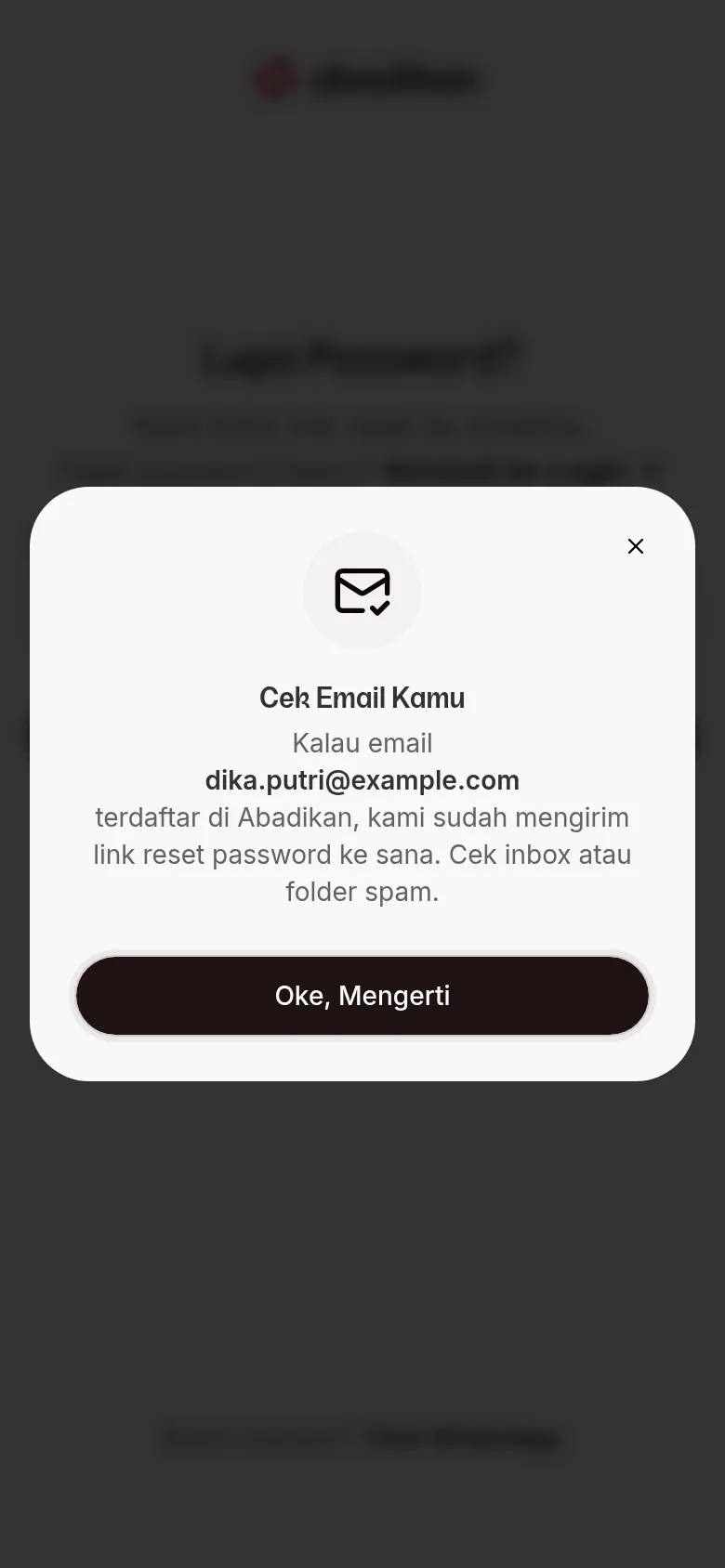
The Check Your Email screen always appears after step 2, whether or not the email is registered. If no email arrives, check the spelling of your email and try again. If the reset link has expired, request a new one from step 1.
Accounts from checkout and temporary passwords
If you buy an invitation without signing in (see Buy an invitation from the catalog), an account is created automatically from the email in Contact Information. Your temporary password is sent by email/WhatsApp. Sign in with that email and the temporary password.
Every time you open the Dashboard, the Set Your Own Password dialog appears until you change the password:
- Fill in New Password (at least 8 characters).
- Click Save Password. The temporary password stops working right away.
Click Maybe later to skip it. The dialog appears again the next time you open the Dashboard. You can also change it any time on the Password card of the Settings page, without the old password. See Accounts with a temporary password.
Email verification
Click the verification link in the email from Abadikan. The Verify Email screen processes it, then takes you to the sign-in page (or to the Dashboard if you're already signed in). If you see Verification failed, see Contact Abadikan support.
Until your email is verified, the Settings page shows a Your email isn't verified yet warning with a Resend verification email button. See Email verification.
Next steps
- Change your profile and password — change your profile, language, and password.
- Buy an invitation from the catalog — choose a theme and plan, then pay.
- Share your referral code and withdraw balance — invite friends and earn commission.