Change your profile and password
The Settings page holds your details as the account owner, your password, and your account language. Invitation details (the couple's names, events) aren't edited here; you change those in the Invitation content menu. See Dashboard menus and navigation.
Open Settings
- In the app bar at the top, click your avatar (the round button with your initials) in the top-right corner.
- Choose Settings.
You can also open Settings directly. From anywhere in the dashboard, press Ctrl K and type "account settings" to jump here. See Search the dashboard.
The page has the Profile, Password, and Language cards. If your email isn't verified yet, a warning appears at the very top.
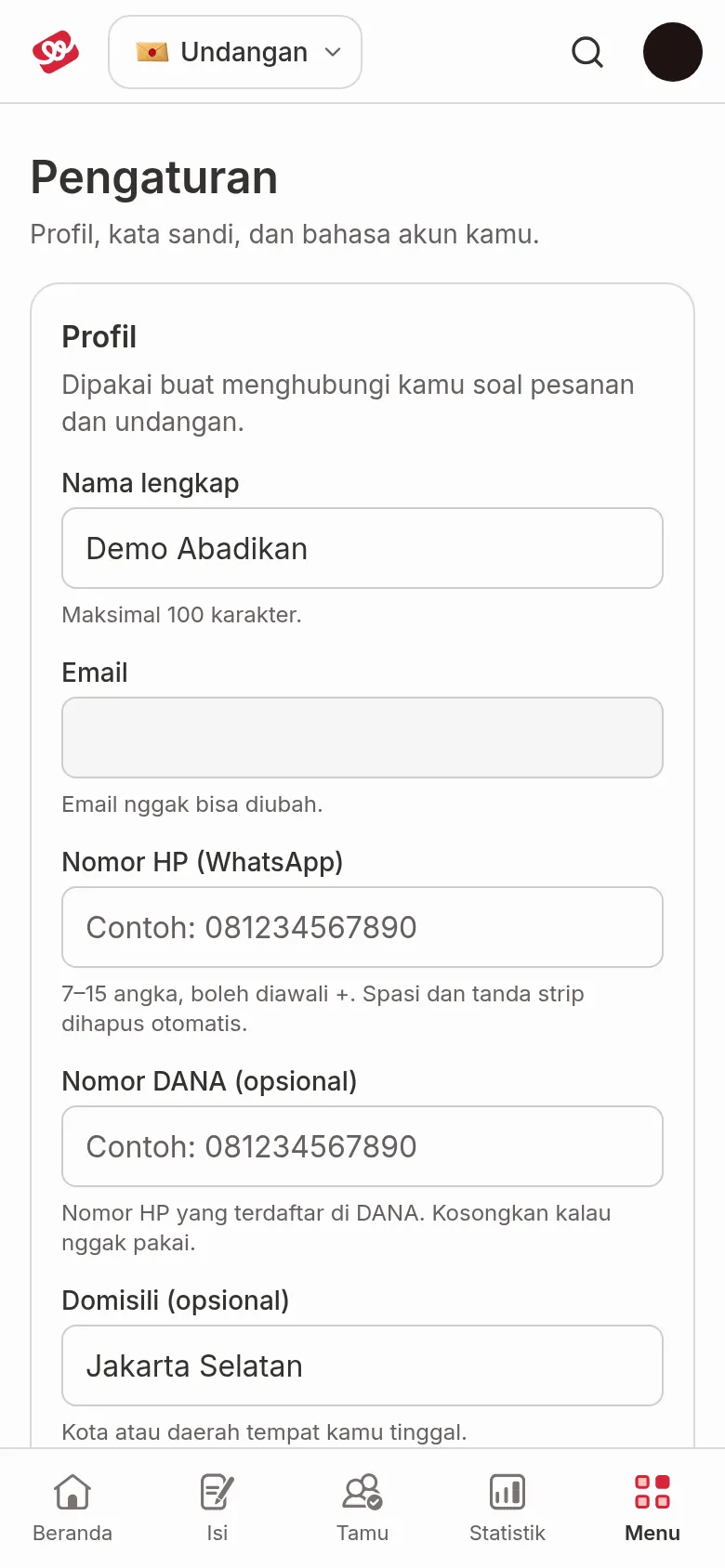
Change your profile
- On the Profile card, change the fields you need (see the table below).
- Click Save. The button only becomes active once you've changed something. The message "Profile saved" appears.
- Click Discard changes to throw away edits you haven't saved.
| Field | What to enter | Required | Limit/format |
|---|---|---|---|
| Full name | Your name as the account owner. | Yes | Up to 100 characters. |
| Your account email. | — | Display only, can't be changed. A Verified mark appears once it's verified. | |
| Phone number (WhatsApp) | A number you can be reached on. | Yes | 7–15 digits, may start with +. Spaces and dashes are removed for you. |
| DANA number (optional) | The phone number registered with DANA. | No | Same format as the phone number. Leave empty if you don't use it. |
| City (optional) | The city or area where you live. | No | Up to 255 characters. |
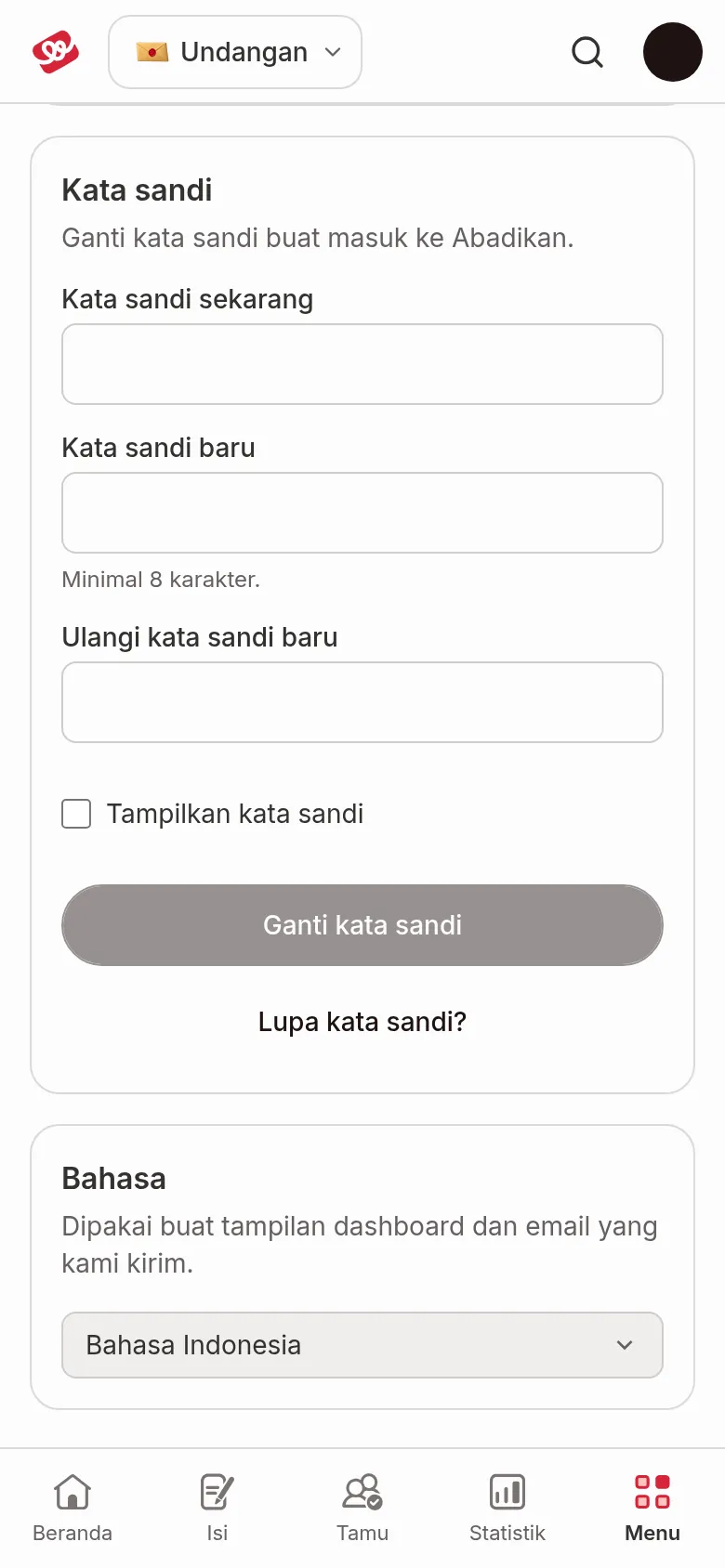
Change your password
- On the Password card, fill in Current password.
- Fill in New password (at least 8 characters).
- Fill in Repeat new password with the same password. Tick Show passwords if you want to check what you typed.
- Click Change password. The message "Password changed" appears.
If you see "The new passwords don't match.", check the two new-password fields again. Forgot your current password? Click Forgot your password? below the button, then follow Forgot your password.
Accounts with a temporary password
Accounts created at checkout still use a temporary password from Abadikan. Until you change it, the Password card only asks for New password, with no current password:
- Fill in New password (at least 8 characters). Click the eye icon to see what you typed.
- Click Save password. The temporary password stops working right away, and the card switches to the Change password form above.
The other way is the Set Your Own Password dialog that appears when you open the Dashboard. See Accounts from checkout and temporary passwords.
Choose your account language
On the Language card, choose Bahasa Indonesia, English, or Bahasa Melayu. This language is used for the dashboard and for the emails Abadikan sends you. The app switches as soon as you choose.
Email verification
Until your email is verified, the Your email isn't verified yet warning appears at the top of this page. Open the email from Abadikan (check your spam folder too) and click the verification link.
Can't find the email? Click Resend verification email. A new link is sent to your account email and is valid for 3 days. The button is disabled for 60 seconds after you click it. If you see "You've resent it too many times. Wait about an hour, then try again.", wait a while. If the email still doesn't arrive, see Contact Abadikan support.
An account that signs in with Google and has no email address to verify only sees the explanation, without the resend button.
Next steps
- Sign up and sign in to your account — forgotten and temporary passwords.
- Share your referral code and withdraw balance — invite friends and withdraw commission.
- Dashboard — get back to managing your invitation.