Share your referral code and withdraw balance
The Referral page earns you commission on purchases by friends who sign up through your link or code. Here you share your link, track your commission, and withdraw your balance.
Open Referral
- Click your avatar (the round button with your initials) in the top-right corner of the app bar.
- Choose Referral. This item is marked Earn.
You can also open Referral directly, or press Ctrl K and type "referral". See Search the dashboard. Referral isn't in the sidebar, only in the avatar menu.
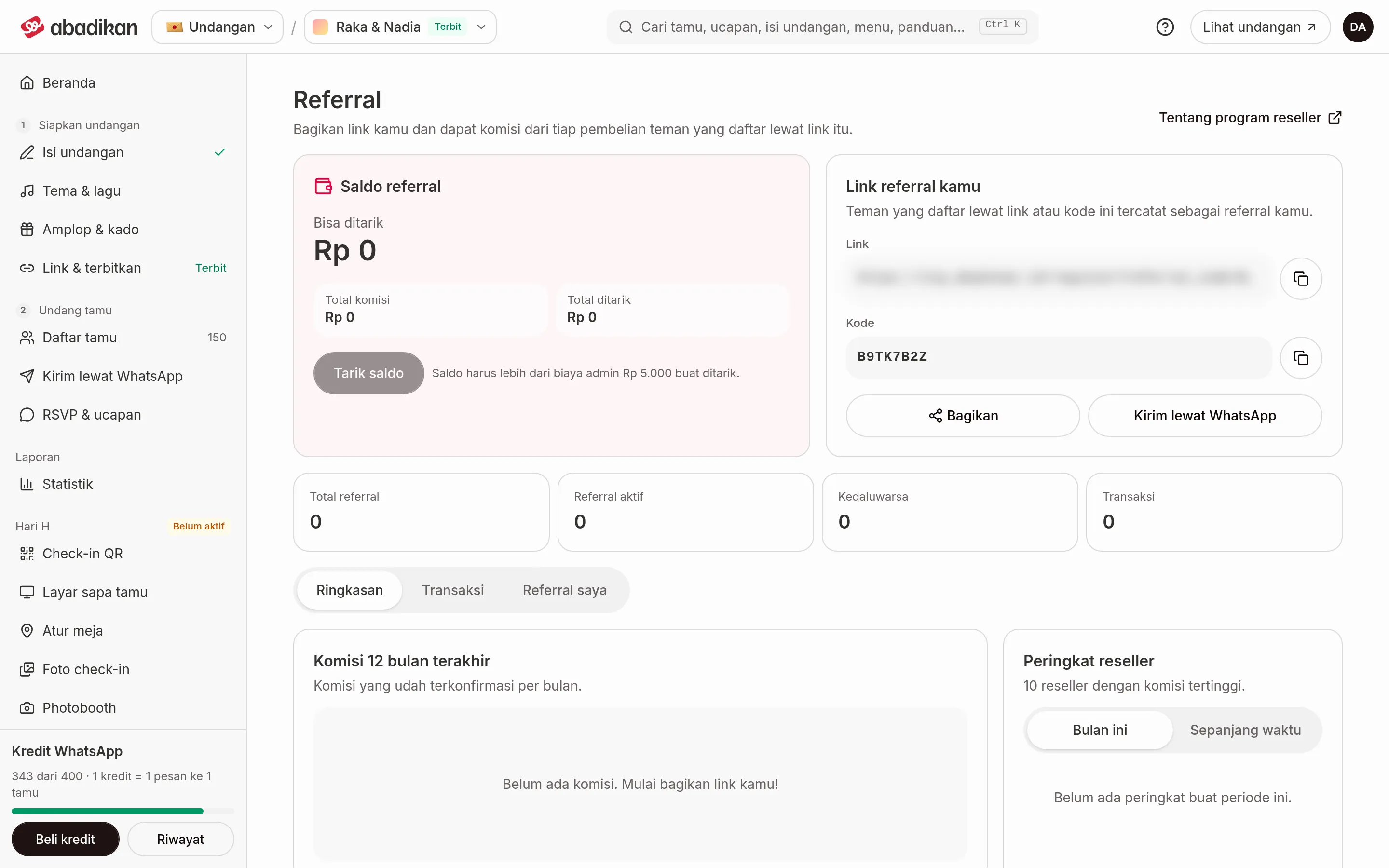
At the top of the page are your balance and the link you can share, four quick numbers, and then three tabs: Overview, Transactions, and My referrals.
Share your link or code
- Find the Your referral link card. It shows a Link and a Code.
- Click the copy button next to the link (Copy referral link) or next to the code (Copy referral code). The message "Referral link copied" or "Referral code copied" appears.
- Or click Share to send it through an app on your phone, or Send on WhatsApp to open WhatsApp with an invitation message already filled in with your code and link. You choose the recipient yourself.
- Send it to your friends. The code stays on the card in case your friend would rather type it.
Friends who open your referral link find the Referral Code (Optional) field on the sign-up page already filled in. If they sign up the usual way, ask them to type your code in that field. See Create a new account.
Read your balance and commission
| Term | Meaning | Notes |
|---|---|---|
| Available to withdraw | The balance you can withdraw now. | On the Referral balance card. |
| Total commission | All the commission you've ever earned. | On the Referral balance card. |
| Total withdrawn | All the balance you've already withdrawn. | On the Referral balance card. |
| Total referrals, Active referrals, Expired, Transactions | How many people signed up through your link, and how many transactions they made. | Four numbers below the balance and link cards. |
The three tabs below:
- Overview has the Commission over the last 12 months chart (confirmed commission per month), Commission rates, and Reseller ranking. The ranking shows the 10 resellers with the highest commission. Choose This month or All time.
- Transactions has the Transaction history: commission in and withdrawals out, newest first. Filter with All, Commission, or Withdrawals. Each row has a status, for example Pending, Confirmed, or Succeeded.
- My referrals lists people who signed up with your link or code. Search with the Search name or email box. Each person shows the date they joined, Last purchase or No purchase yet, and an Active or Expired status.
Commission rates are counted per purchase, based on the purchase amount. The tiers and their percentages are shown on that card.
Withdraw your balance
- Click Withdraw on the Referral balance card. The button is active when your balance is more than the admin fee. If it's disabled, the note next to it says your balance has to be more than the admin fee.
- In the Withdraw balance dialog, fill in Amount you receive, or click All to fill in the most one withdrawal can take. The maximum is shown under the field.
- Check the summary: You receive, Admin fee, Taken from your balance, and Balance left.
- Click Continue to Xendit.
- On the Xendit page, enter the destination bank account or e-wallet.
You can track the withdrawal status in the Transactions tab, using the Withdrawals filter.
Common problems
- Commission from a friend doesn't show up. Check whether their name is in the My referrals tab. If it isn't, they probably signed up without your referral code or link.
- The withdrawal failed, or your balance went down with nothing received. Don't keep retrying the withdrawal. See Contact Abadikan support and include the date and status from the Transactions tab.
For full program details for resellers, use the About the reseller program link at the top of the page, or go to the Reseller Program page.
Next steps
- Sign up and sign in to your account — entering a referral code when you sign up.
- Change your profile and password — update your account details.