Guestbook and coupon issues on the wedding day
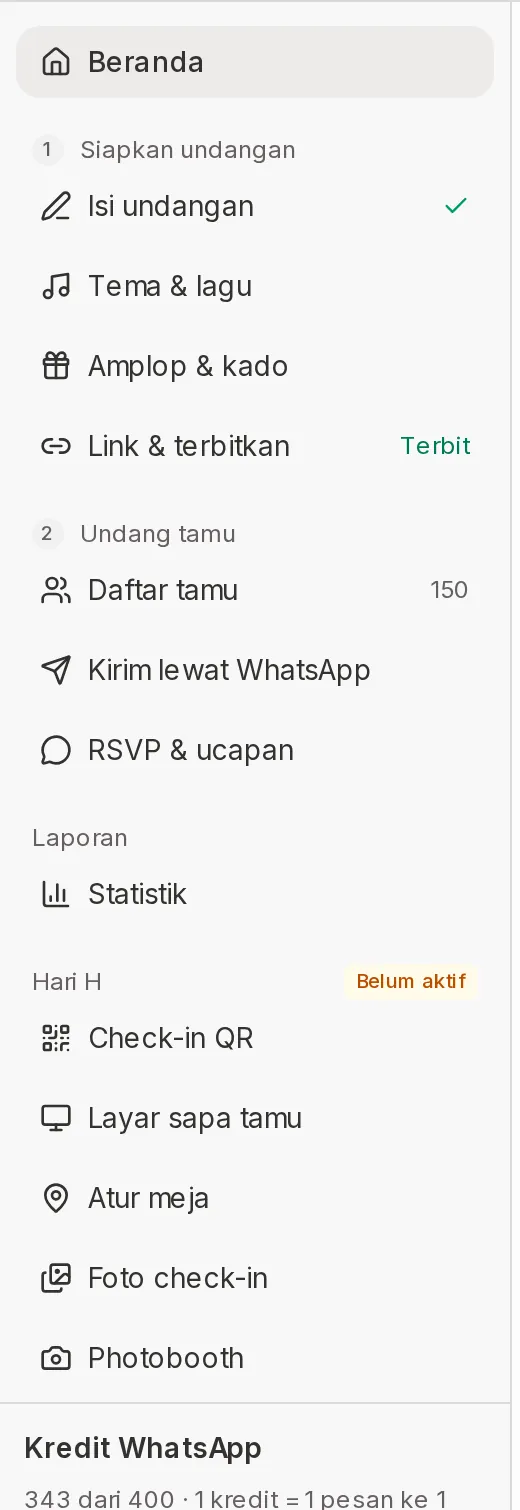
While the event is running, keep the guest line moving first: use the workaround in each section below, and fix the device afterward. The check-in menus are in the Event day group of the dashboard sidebar (on a phone: the Menu tab). The door prize draw is in the Door prizes & coupons product.
Guest QR won't scan
Cause
The scanner camera can't read the QR on the guest's phone, or the QR doesn't match any guest record. The Scan guest QR window then shows "This isn't an invitation guest QR." or "Code … isn't on this invitation's guest list."
Solution
- Click Close in the Scan guest QR window.
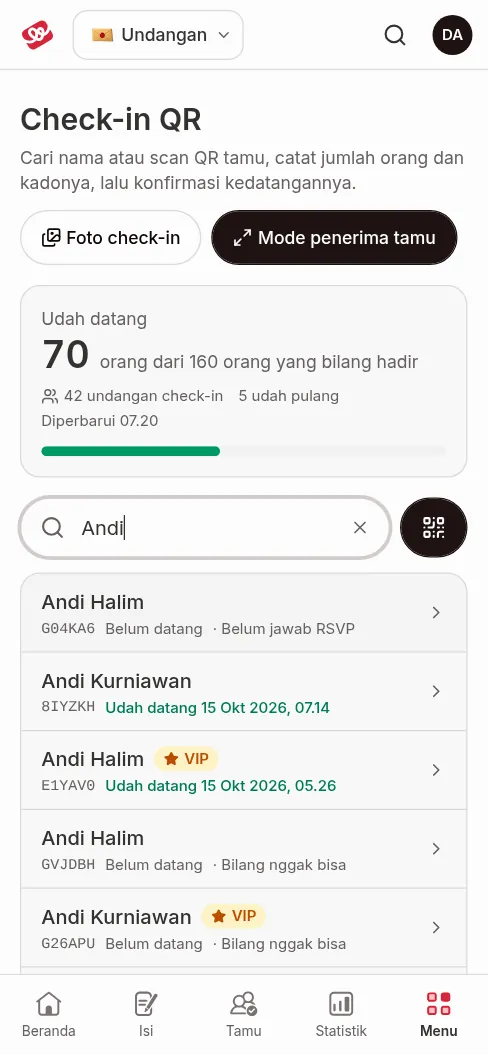
- In QR check-in, type the guest's name, code, or WA number in the Search guests field.
- Pick the guest from the Search results. If the guest brought a gift or an envelope, tap Gift and/or Envelope under Handed over. Then click Confirm arrival.
- If the name isn't there, click Add "name" as a new guest (or Guest not on the list? Add & check in), fill in their details, then click Add & check in.
The full check-in steps are in Record guest attendance at the venue.
Camera won't turn on
Cause
The camera in QR check-in only turns on after you click Turn on camera, and the browser must be allowed to use the camera. If permission is denied, the camera area stays blank with no message.
Solution
- Click Turn on camera on the Arrival photo card. This card only appears when check-in photos are enabled for your invitation.
- Allow camera access when the browser asks.
- If you already denied it, open the site settings in your browser, allow the camera for abadikan.id, then reload the page.
- If the picture is still dark, tap Switch camera to change between the front and back cameras.
- Close any other app that's using the camera, then reload the page.
If "The photo failed to upload. Try again, or turn off the camera to check in without a photo." appears, that guest's attendance hasn't been recorded yet. Try again, or click Turn off camera to discard the photo, then click Confirm arrival again. For a new guest added with Add & check in, the guest is still recorded without the photo.
Guest welcome screen doesn't update
Cause
The Guest welcome screen receives check-in updates through browser notifications. If notification permission for abadikan.id is denied, the screen only checks for new guests every 10 seconds and only greets guests who checked in with a photo; if check-in photos are off too, nobody is greeted. The status text appears in the screen controls. Other causes: the connection dropped, or the screen is open for a different invitation.
Solution
- On the welcome screen device, open the site settings in your browser and allow notifications for abadikan.id.
- Make sure the device has a stable internet connection.
- Check which invitation is selected in Your invitations in the app bar (on a phone: the Menu tab), then open Event day › Guest welcome screen again.
- Reload the welcome screen page.
- Do one test check-in in QR check-in and see whether the guest's name appears.
Check-ins confirmed in QR check-in are still saved even if the welcome screen doesn't update. Screen settings are in Show guest greetings on the venue screen.
Switching devices mid-event
Cause
The staff device or venue screen dies, or a guest arrives with a different phone than the one they used to open the invitation.
Solution for the staff device or venue screen
- Sign in to the same account on the new device.
- Pick your event's invitation in Your invitations in the app bar (on a phone: the Menu tab).
- Open the Event day group in the sidebar › QR check-in or Guest welcome screen.
- Allow camera access for QR check-in, or notifications for the welcome screen.
Check-in data is saved to your invitation, not the device, so you can pick up where you left off on the new device.
Solution for the guest's phone
To check them in, search for the guest's name as in Guest QR won't scan. If your invitation's access is Single device and the guest wants to open the invitation on their new phone, use Reset device.
Door prize winner isn't there
Cause
In Live draw, a spin result is only recorded as a winner after you click Save winner. Until it's saved, you can redraw.
Solution if the winner hasn't been saved
- On the Live draw screen, don't click Save winner.
- Click Redraw. The result on screen disappears without being saved.
- Pick a prize again if the selection is empty, then click Draw now.
Solution if the winner has already been saved
- Choose the Door prizes & coupons product in the app bar, then open the Door prizes group › Draw history.
- Search for the winner's name, phone number, or coupon code.
- Click the delete icon on that draw, then click Delete history. That coupon can enter the draw again.
- Go back to Live draw and spin again.
The full draw flow is in Draw winners in Live Draw.
Still having trouble
If the problem continues after the workarounds above, note the time it happened and the device you used, then see Contact Abadikan support. To prepare for your next event, use the Wedding day checklist.