Guests can't open the invitation
Ask the guest for the title of the screen they see, then go to the section below with the same title. Each section has solutions for the guest and for you, so you can forward the guest's part to them directly.
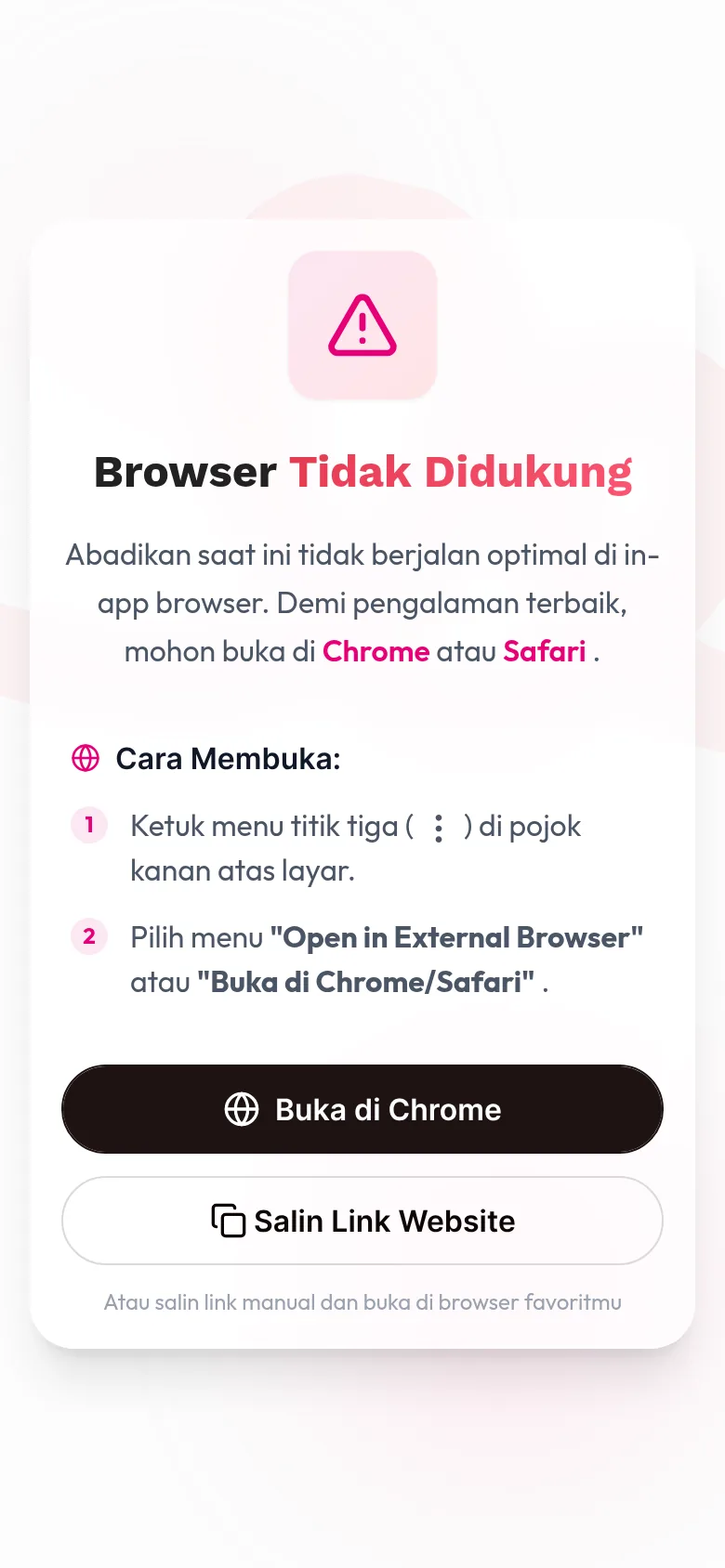
Browser Tidak Didukung
The guest sees a screen titled Browser Tidak Didukung (browser not supported) with a Buka di Chrome (open in Chrome) or Buka di Safari (open in Safari) button, and Salin Link Website (copy website link).
Cause
The invitation was opened directly inside another app, such as WhatsApp, Instagram, Facebook, TikTok, or Telegram. This screen asks the guest to move the invitation to the Chrome or Safari browser.
Solution for guests
- Tap Buka di Chrome (on Android phones) or Buka di Safari (on iPhone).
- If the browser doesn't open, tap Salin Link Website. The button text changes to Link Disalin! (link copied).
- Open the Chrome or Safari app, paste the link into the address bar, then open it.
That screen also shows another way, under Cara Membuka (how to open): tap the three-dot menu in the top-right corner, then select Open in External Browser or Buka di Chrome/Safari.
This invitation is for guests only
The guest sees a screen labeled Privat · Khusus tamu (private · guests only) with the title "Undangan ini khusus untuk tamu." (this invitation is for guests only).
Cause
Your invitation's access is Guests only or Single device, so the invitation only opens through a personal link that contains a guest code. The link the guest opened doesn't carry a recognized code, for example because the link was cut off or retyped, or the guest isn't on the guest list yet.
Solution for guests
- Open the link again from the invitation message you received; don't retype it.
- Make sure the link opens in full, including the guest code at the end.
- If this screen still appears, ask the host for a new link.
Solution for you
- Open the Guest list, then find that guest with Search guests.
- If the guest isn't there yet, add them first. See Add guests one by one.
- Check that guest's code, shown under their name. Their personal link looks like
abadikan.id/link-undanganmu?code=KODE. - Click Send WA on that guest's row to resend via WhatsApp, then click Yes, sent if you really sent the message. For guests without a phone number, the button is Copy message.
If anyone with the link should be able to open the invitation, change your invitation's access to Public. See Access Mode.
Invitation already opened on another device
The guest sees a screen labeled Terkunci · Satu perangkat (locked · one device) with the title "Undangan ini sudah dibuka di perangkat lain." (this invitation has already been opened on another device).
Cause
Your invitation's access is Single device. In this mode, a guest's personal link can only be opened on the first device that opened it. The guest is now opening that link from a different device.
Solution for guests
- Open the invitation from the device you used first.
- If that device can't be used anymore, ask the host to reset access.
Solution for you
- Open the Guest list, then find that guest with Search guests.
- Open the ⋯ menu on that guest's row, then select Reset device.
- In the Are you sure? dialog, click Continue. The message "Guest device reset." appears.
- Ask the guest to open their personal link again on the new device.
The full steps are in Reset Device.
We couldn't find this page
The guest sees a screen labeled 404 with the title "We couldn't find this page." and a Back to home button.
Cause
The address opened doesn't match any invitation, usually because the link has a typo or was cut off when copied.
Solution for guests
- Open the link again directly from the invitation message; don't retype it.
- If this screen still appears, ask the host for a new link.
Solution for you
- Copy your invitation link from the Dashboard. See Share your link for how.
- Compare it with the link the guest received.
- Resend the invitation to that guest with Send WA or Copy message.
- If the link from the Dashboard itself opens this page, contact support.
Something went wrong on this page
The guest sees a screen labeled Something went wrong with the title "Something went wrong on this page."
Cause
There was a problem on Abadikan's side while loading the invitation.
Solution
- Wait a moment, then reload the page.
- If this screen keeps appearing, contact support and mention the invitation link the guest opened.
Still having trouble
If the guest sees a different screen or the solutions above didn't work, go to Contact Abadikan support. Include your invitation link and a screenshot of what the guest sees.