Buy an invitation from the catalog
Order an invitation straight from the theme catalog: choose a theme and plan, fill in your contact details, then pay. You fill in the invitation details (the couple's names, events, photos) in Invitation content once your payment goes through. For some themes you can fill them in before paying: see Try it first in the editor.
Choose a theme
- Open the theme catalog. If you came from the pricing page with the Pick Plan button, that plan is already selected when you open a theme.
- Click View on a theme card to open its sample invitation.
- Click Pick on the theme you like. The theme detail page opens.
Choose a plan and variant
- In the Choose package section, click Kenalan, Janjian, or Full Custom. Each option shows its price and active period.
- In the Choose variant section, click the theme variant you want.
Some themes are only available from a certain plan up. The theme page says "This theme starts from the ... package and above.", and only eligible plans can be selected. See Kenalan, Janjian, and Full Custom plans for how the plans differ.
If you switch to Kenalan, a dialog offering Janjian may appear. Click Stay with Kenalan to continue with your choice.
Fill in your details and pay
- Fill in Contact Information. This section only appears if you haven't signed in. Already have an account? Click Already have an account? Sign in, and you'll come back to the theme page after signing in.
- If you need extra services, click Add-Ons to expand it, then check the services you want.
- Check the promo code. The best public promo for the selected plan is filled in automatically. For a different code, click Do you have a promo code? and type the code.
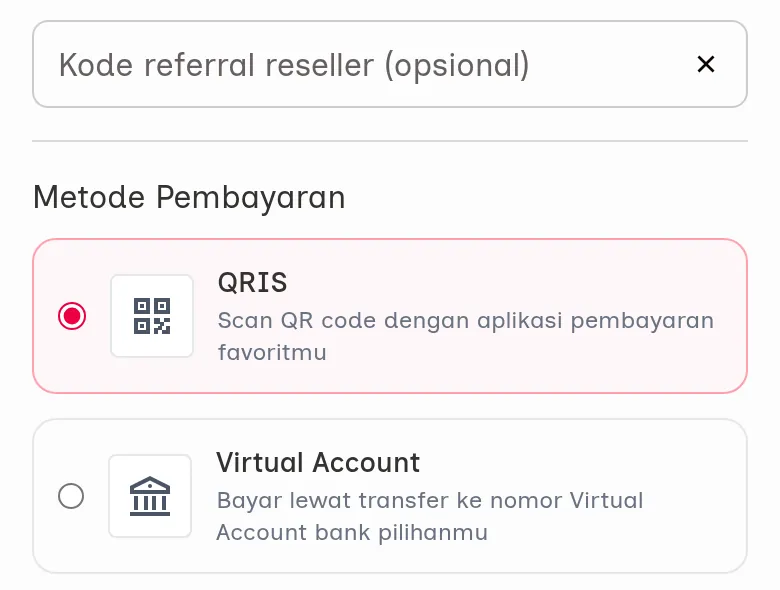
- Have a reseller referral code? Enter it in the "Reseller referral code (optional)" field. This field is inside the promo block; if you can't see it yet, click Do you have a promo code? first.
- Under Payment Method, choose one of the methods shown. QRIS is selected by default.
- Check the Order Summary, then click Proceed to Payment.
For QRIS, you're taken straight to the payment page. Continue with Complete your invitation payment.
| Field | What to enter | Required | Limit/format |
|---|---|---|---|
| Full Name | Your name as the person ordering. | Yes | — |
| An active email address. Used for your account. | Yes | Email format. | |
| Phone Number | A number where you can be reached. | Yes | A valid phone number. |
| City | The city where you live. | No | — |
Account created automatically
If you order without signing in, Abadikan creates an account from the email in Contact Information and signs you in right away ("Account created, you are now logged in"). Your temporary password is sent via email/WhatsApp. See Sign up and sign in to your account for how to change it.
Try it first in the editor
The Aruma, Jingga, Estella, Sakina, and Envelope themes have a "Coba dulu, bayar belakangan" (Try first, pay later) box with a Coba & Edit Gratis (try & edit for free) button below the variant options. You fill in the invitation in the same editor you use after paying, Invitation content. The separate Studio that used to exist is gone.
- Click Coba & Edit Gratis. The full-screen editor opens, and you don't need to sign in.
- Fill in and set up your invitation. For the Envelope theme, the canvas design is in the Canvas design section.
- Uploading a photo or saving the invitation asks you to sign in first. A Sign in to continue (or Create an account first) dialog appears. Click Sign in & save in the "This invitation isn't saved yet" banner to save it to your account.
- After you sign in, your invitation is kept as a draft for 7 days. Pay whenever you like: the active period counts from the wedding day.
- Click Choose a package & pay. In the Share your invitation dialog, pick a package, enter a promo code if you have one, check the Total, then click Continue to payment and pay with QRIS.
If the payment isn't finished, the editor shows a Waiting for payment banner; click Pay now for a fresh QRIS. The full guide is in Edit your invitation before paying, and how to pay is in Complete your invitation payment.
Next steps
- Complete your invitation payment — scan the QRIS code so your invitation goes live.
- Sign up and sign in to your account — change the temporary password from checkout.
- Get your invitation ready to send — what to do once your invitation is active.