Dashboard Home
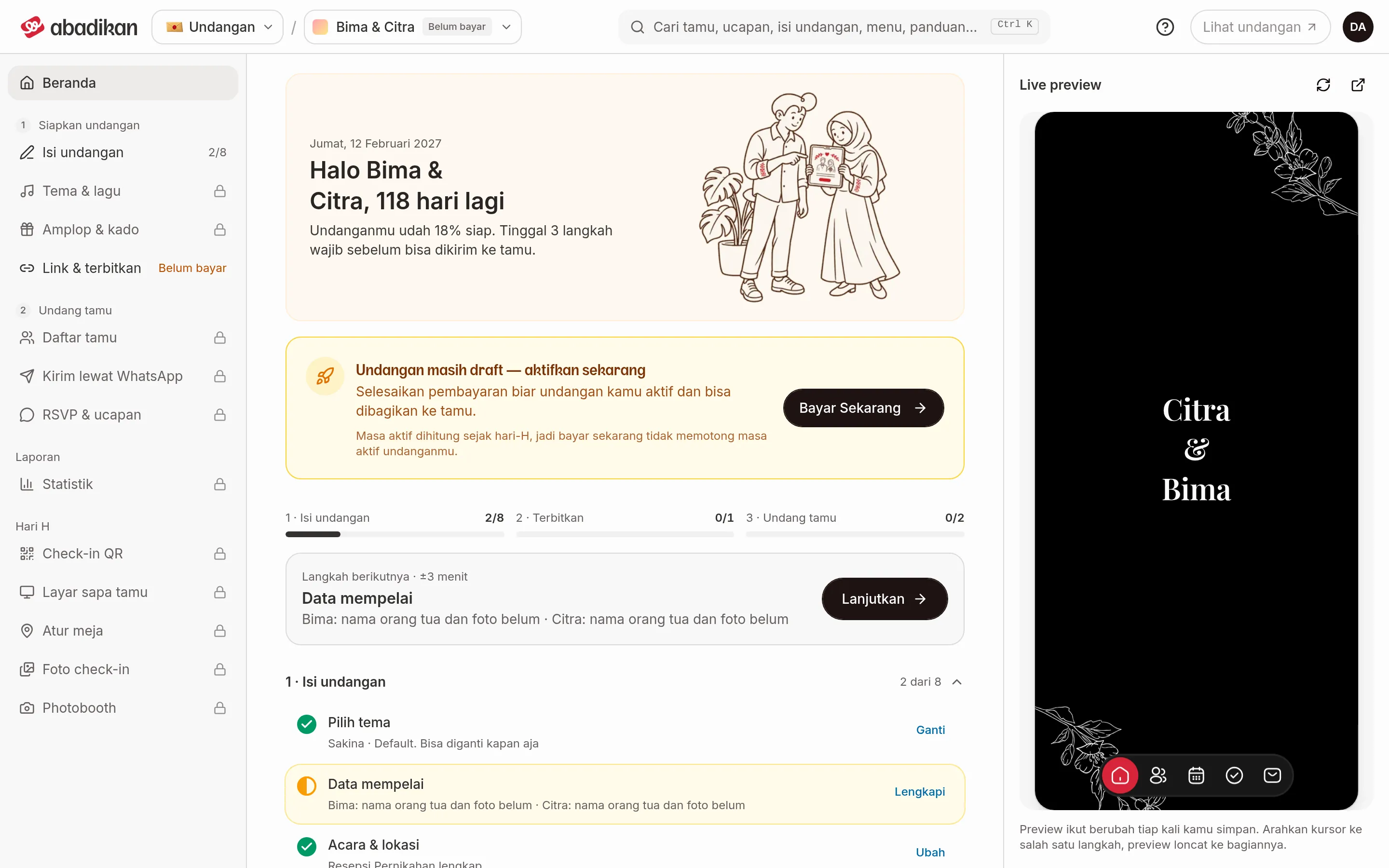
Home is the first page you see after you sign in. It shows how ready your invitation is, what to do next, and, once your invitation is published, a guest summary and the latest wishes.
What you can do
| Task | Page |
|---|---|
| Complete your invitation until it's ready to send | Follow the preparation checklist |
| Open, check, and share your invitation link | Open and share your invitation link |
| Find guests, wishes, invitation content, or menus | Search the dashboard |
| Read guest, attendance, and sent-invitation numbers | Guest statistics |
| Read the visitor count and the 7-day chart | Invitation visits |
| Read every wish from your guests | Guest wishes |
| Upgrade your plan and see how long it's active | Upgrade from Home |
What's on Home, from the top
The contents change with the state of your invitation. From top to bottom:
| Section | What it shows | When it appears |
|---|---|---|
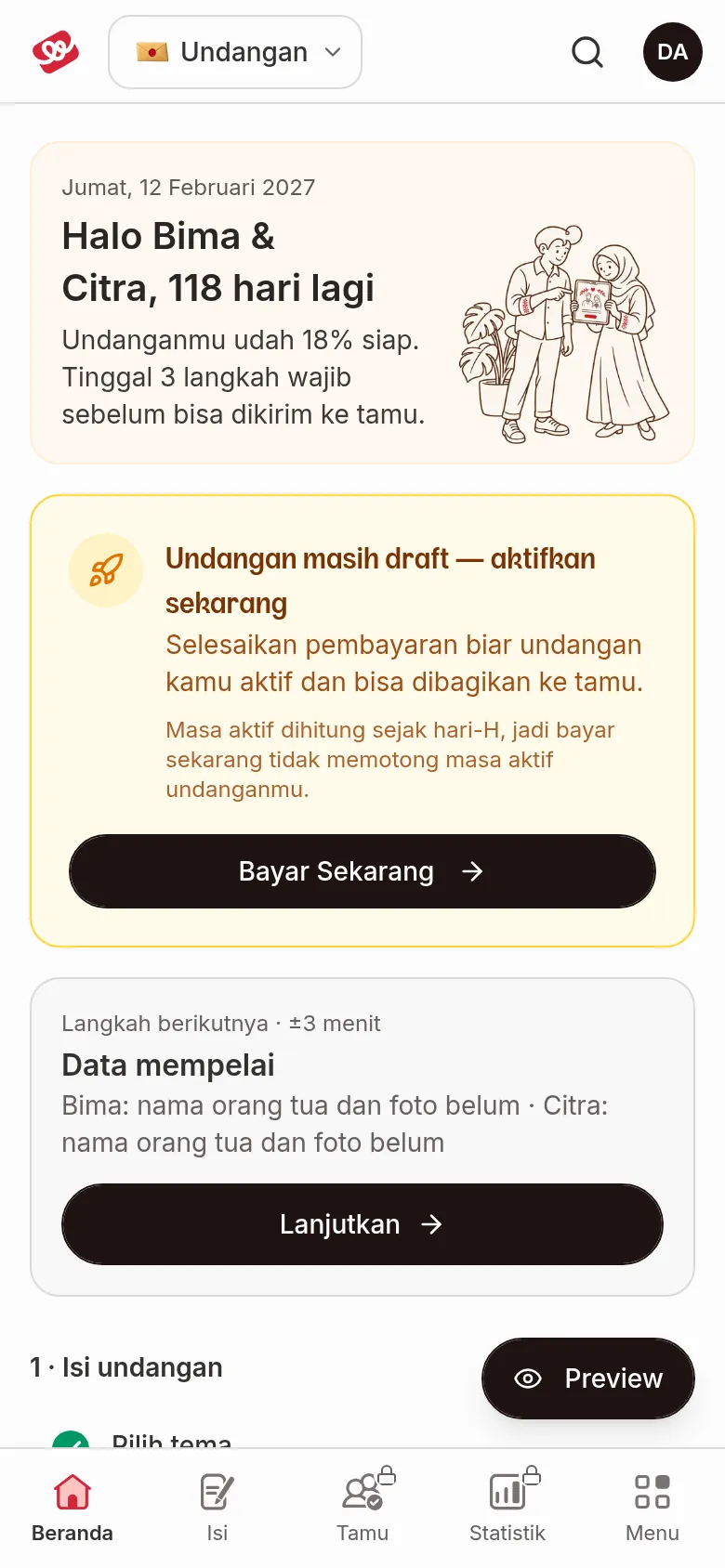
| Greeting card | The event date, "Hi Bima & Citra, 118 days to go", and how ready your invitation is | Always |
| One notice | An unpaid invoice, a draft that isn't active yet, or an offer to upgrade (see below) | Only one of them |
| Three stage bars | 1 · Fill in invitation, 2 · Publish, 3 · Invite guests, each with its count of finished steps | On a laptop, before the invitation is published |
| Next step | The one step to do now, with a time estimate and a Continue button | Before the invitation is published |
| Checklist | Eleven steps in three stages | Always |
| Guest summary | Four guest numbers and a Full statistics link | Once the invitation is published |
| Latest wishes | The three newest wishes and a See all … link to every wish | Once the invitation is published |
| Live preview | How your invitation looks, in a phone frame | On the right on a wide screen (1280 px and up), a Preview button on smaller screens |
How to use the checklist and Next step is in Follow the preparation checklist. How to read Guest summary is in Statistics.
The greeting card
The card at the top changes with your invitation:
| State | What it shows |
|---|---|
| Not published | "Hi Bima & Citra, 118 days to go" (or "it's the big day", "the big day is tomorrow"), then "Your invitation is 18% ready. 3 required steps left before you can send it to guests." |
| All required steps done | "Your invitation is 90% ready and can be sent to guests." |
| All 11 steps done | "Every step is done. Now just keep an eye on your guests' replies." |
| Published | "Your invitation is live", your invitation link, a Copy link button, and a Share button (only in browsers that support it, usually on a phone) |
| Expired | "Your invitation has expired" and an Extend via admin button that opens WhatsApp with the message already filled in |
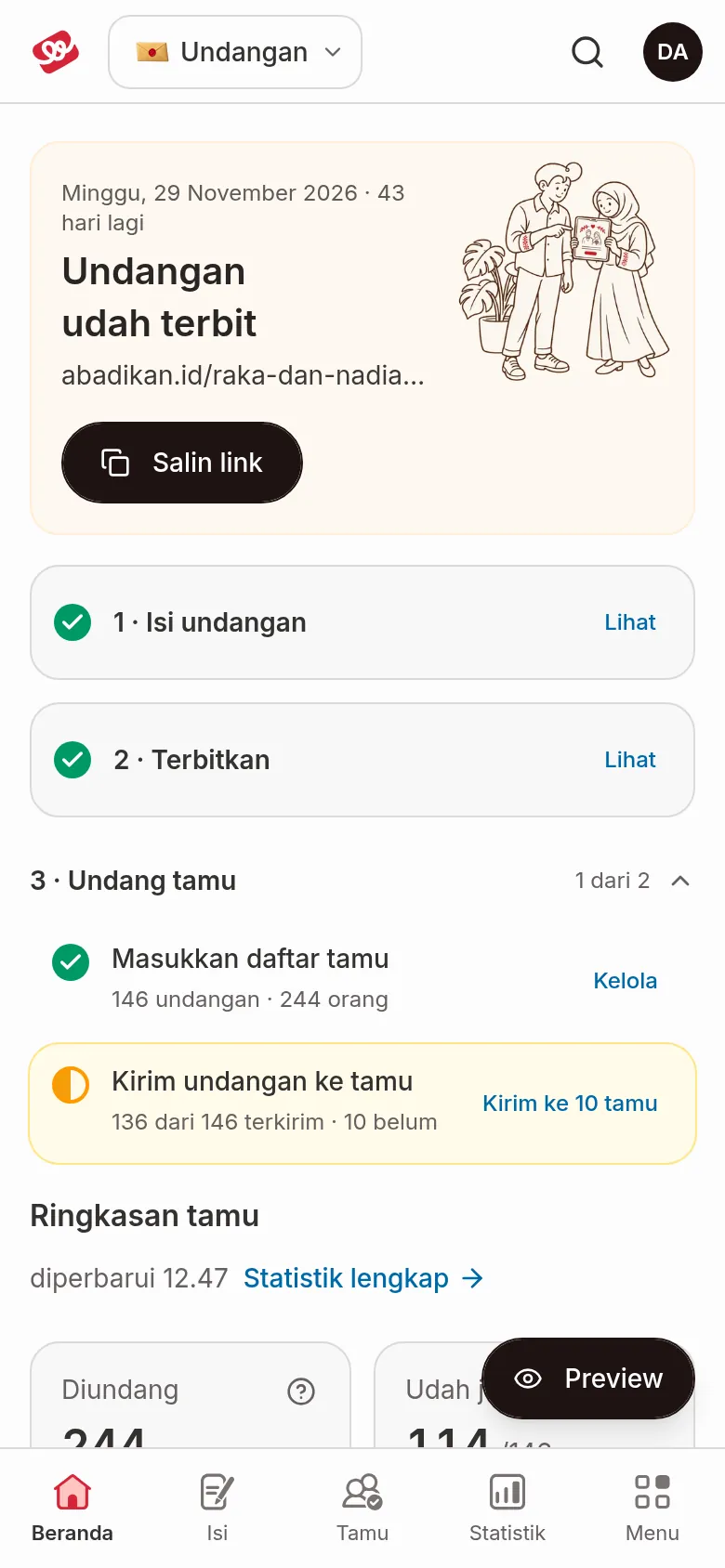
The percentage is calculated from the eleven checklist steps. "Required steps" are the ones that must be done before the invitation can go out to guests: Choose a theme, Couple details, Events & venues, Set link & publish, and Add your guest list.
One payment notice
Home shows only one notice, so you never see two pay buttons at once:
| Invitation state | Notice | Button |
|---|---|---|
| There's an unpaid invoice | "Invitation not active yet — complete your payment", the invoice amount, and its deadline | Pay Now, or Create New Payment if the invoice has expired |
| Draft with no invoice yet | "Your invitation is still a draft — activate it now", the days left before the draft is deleted, and a note that the active period counts from your wedding day | Pay Now |
| Paid and can still be upgraded | An upgrade row, for example "Kenalan plan · Active until 12 Dec 2026" and "Upgrade to Janjian" | Click the row to open the upgrade dialog |
The upgrade row shows no price, because the upgrade price is the plan difference minus promos and only appears in the dialog. The Full Custom plan has no upgrade offer. The upgrade steps are in Upgrade from Home.
Live preview
Live preview shows your invitation the way guests see it, without opening a new tab. It always appears in a phone frame, because most guests open invitations on their phones. There is no laptop or phone switch.
- On a wide screen (1280 px and up): the preview always sits on the right. Point at a step in the checklist (or move to it with the keyboard) and the preview jumps to that part.
- On a phone: tap the Preview button at the bottom right. The preview rises from the bottom as a sheet (bottom sheet) almost as tall as the screen. Tap the close button (Close preview) or drag the sheet down to close it. Inside the sheet, swipe the invitation to read it.
- On tablets and medium screens: the same Preview button opens the preview from the right edge.
At the top of the preview there are a reload icon and an icon that opens the invitation in a new tab.
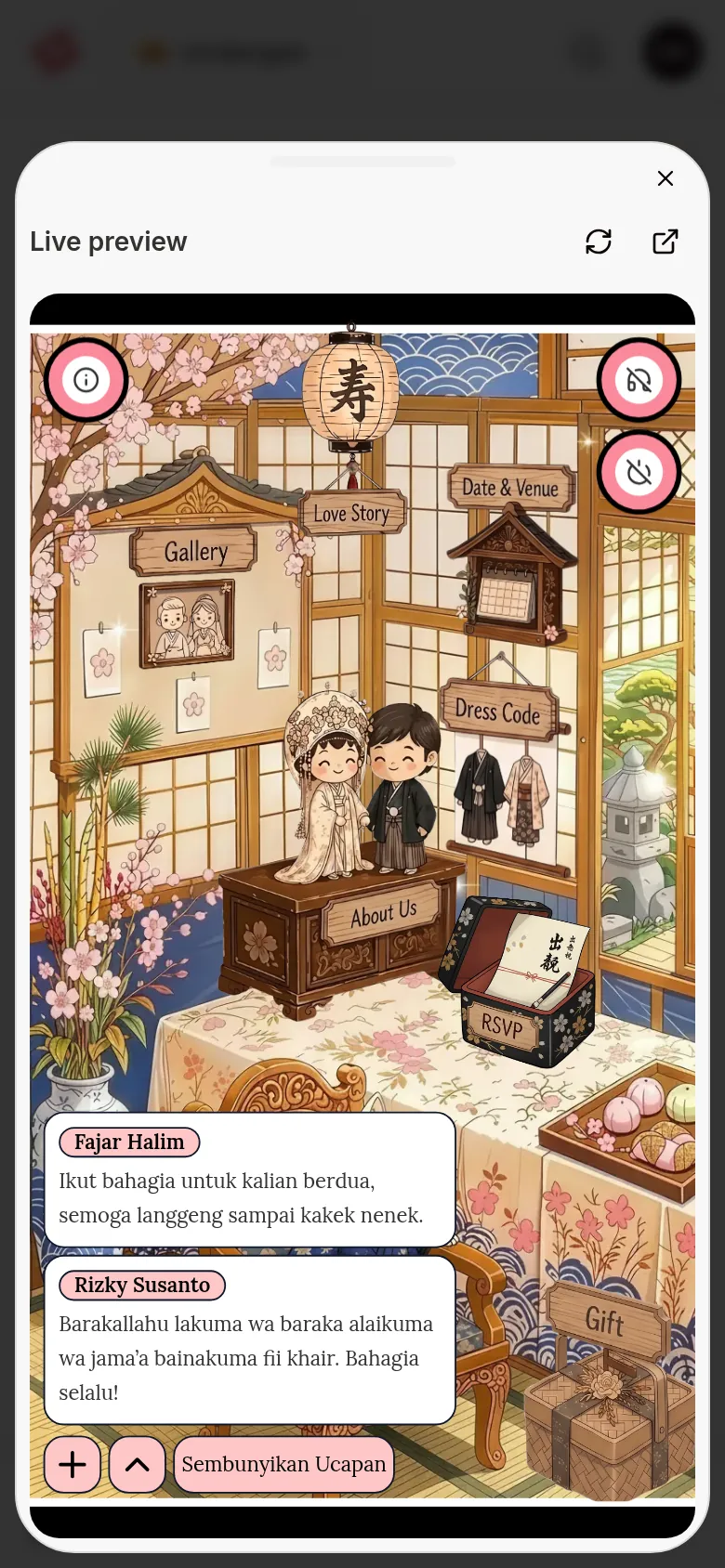
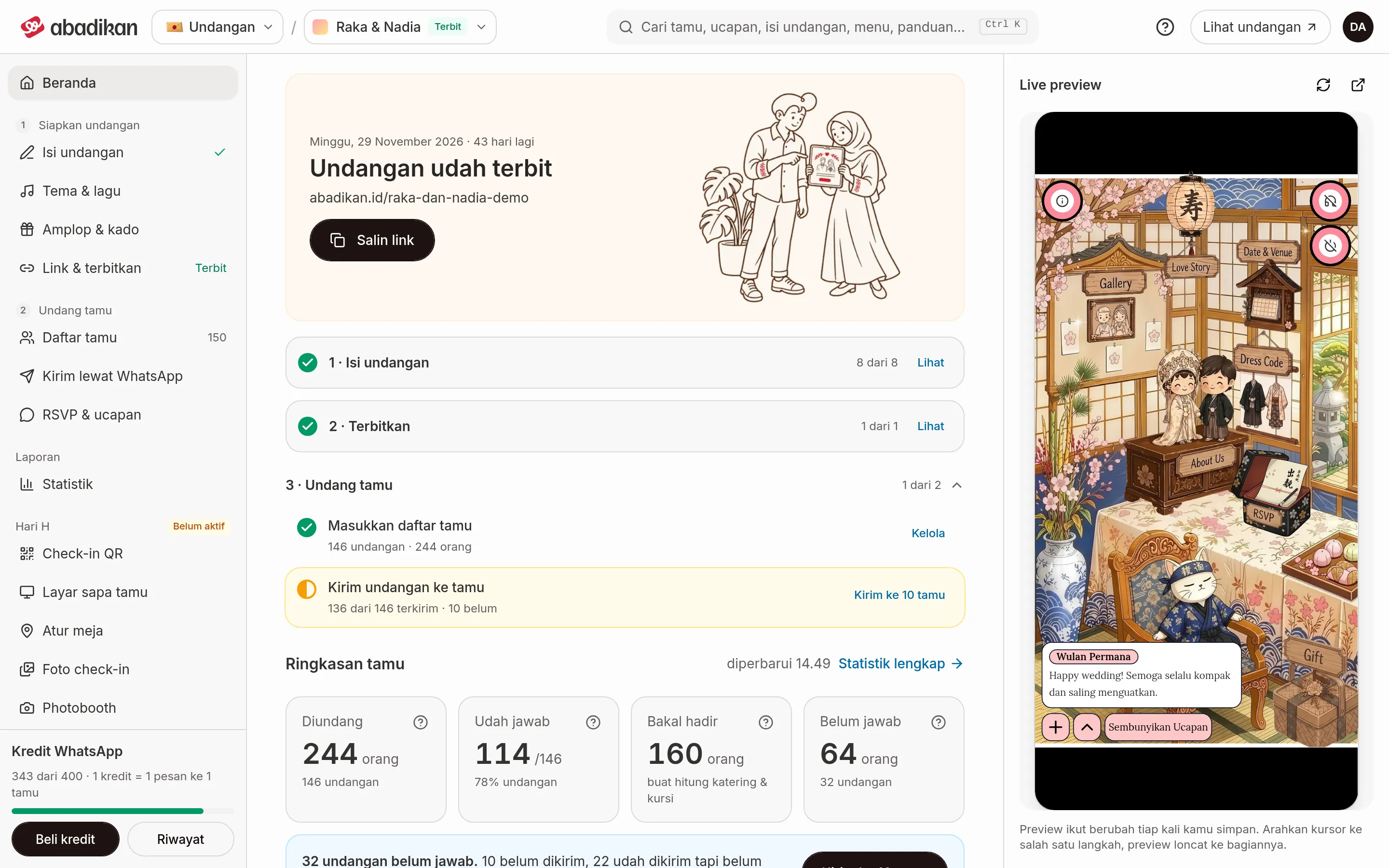
The preview updates every time you save a change in the editor. The preview on Home shows the saved invitation.
When your invitation looks different
- Home didn't load: you see "Your invitation didn't load". Check your internet connection, then click Try again. Your invitation data is safe.
- No invitation yet: Home shows the theme picker from the catalog. Choose a theme to create your first invitation.
- A digital catalog invitation: Home has no checklist. You see the "Your catalog is ready to share" card with buttons to open the catalog link, Guests, and Guest activity, and the guest activity panel below. If the link isn't set yet, the card is titled "Set your catalog link first" with a Set link button. How to read the activity is in Guest activity.
Manage more than one invitation
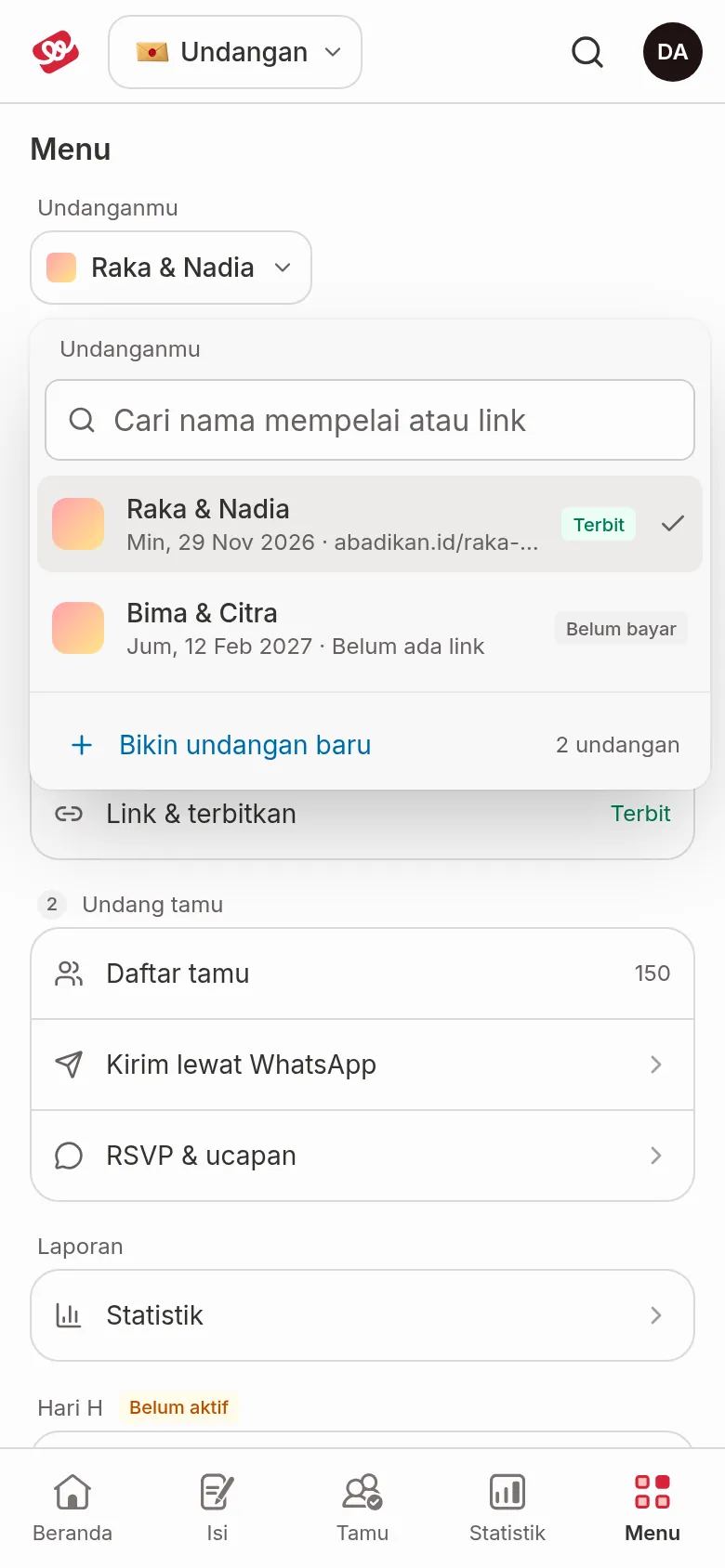
One account can have several invitations, including more than one draft. Every dashboard menu shows the invitation that's currently selected.
- Click the invitation name in the app bar at the top, next to the product picker. The Your invitations list opens. On a phone, open the Menu tab.
- Find an invitation by typing in the Search couple name or link field, or click Load more.
- Choose the invitation you want to open. The message "Now viewing the … invitation." appears and Home shows that invitation.
Each invitation in the list has a status: Unpaid, Awaiting payment, Not published, Published, or Expired. To create another invitation, click Create new invitation, then choose a theme from the catalog. More in Dashboard menus and navigation.
FAQ
The numbers on Home didn't change after a guest replied. Why? The data is loaded when the page opens. Reload the page to see the latest numbers.
Why don't Guest summary and Latest wishes show up? They only appear once the invitation is published. Until then, open Statistics for an explanation of where you stand.
Why can't I work on the stage 3 steps yet? Add your guest list and Send the invitation to guests only open once the invitation is published. The row says "After publishing".
Next steps
- Follow the preparation checklist — work through the steps one by one.
- Dashboard menus and navigation — the app bar, sidebar, and locked menus.
- Search the dashboard — find guests, wishes, or menus with Ctrl K.