Search the dashboard
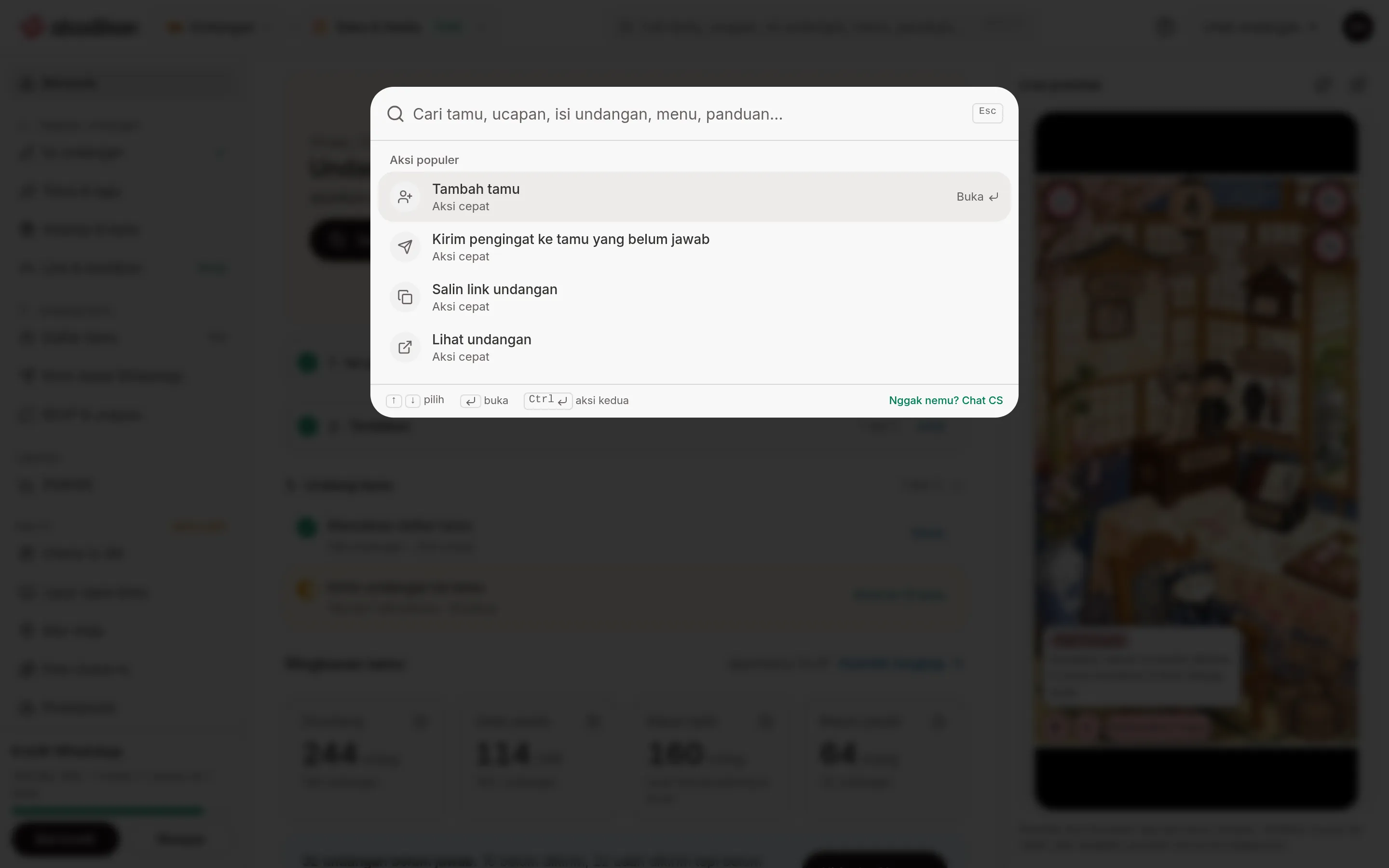
Search is one box for finding anything in the dashboard: a guest's name, a wish, what's in your invitation, a menu, or a guide. You don't need to remember where a menu lives.
Open Search
- On a laptop: press Ctrl K (⌘ K on a Mac), or click the Search guests, wishes, invitation content, menus, guides… box in the middle of the app bar.
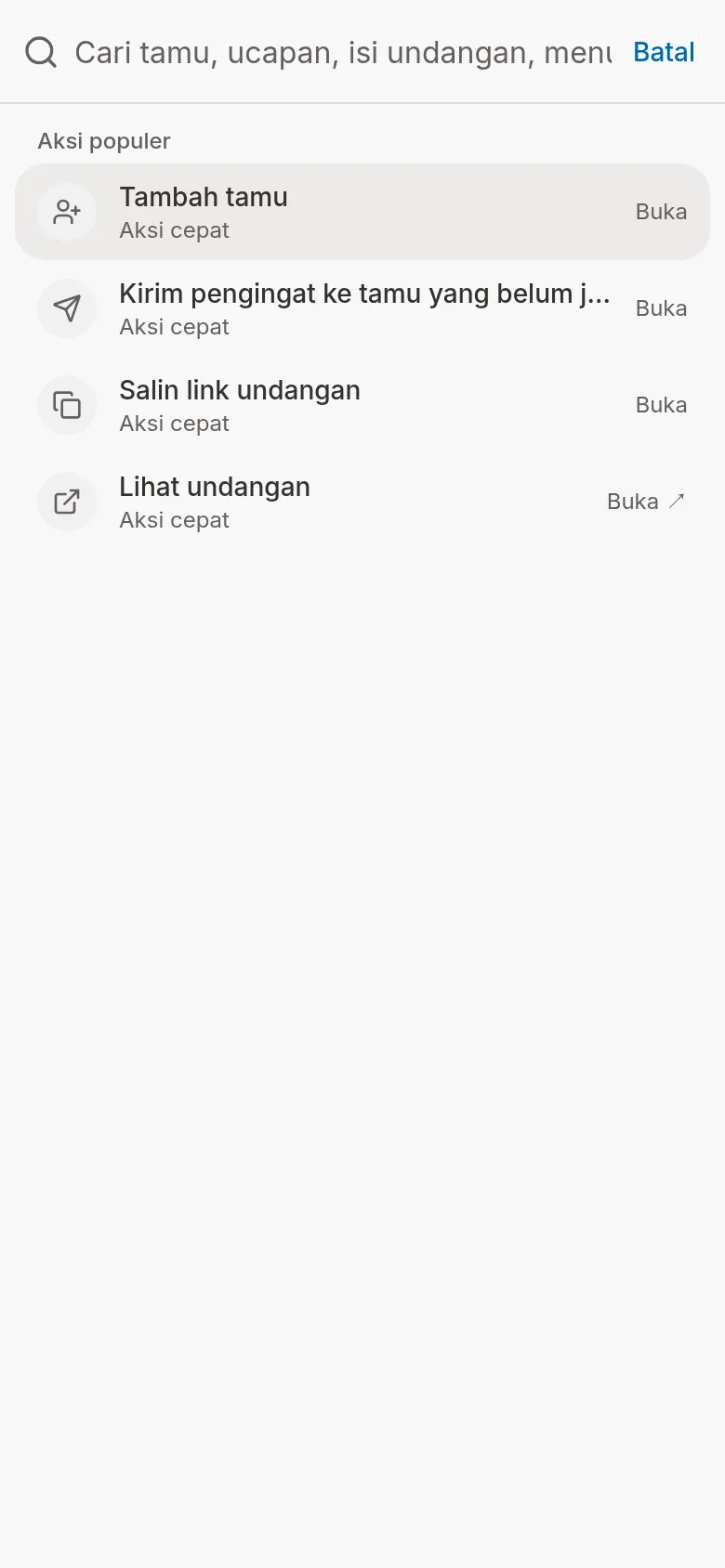
- On a phone: tap the magnifying glass icon in the app bar. Search opens full screen, and the Cancel button closes it.
Press Esc or click Close search to close it. Search is available on every dashboard page and doesn't appear outside the dashboard.
What it searches
| Group | What it covers | Requirement |
|---|---|---|
| Guests | Guest names, phone numbers, labels, and RSVP answers in the invitation you've selected | Invitation product, an invitation selected, at least 2 letters or digits |
| Wishes | Wishes and prayers from guests, with the sender's name | Same as Guests |
| Invitation content | Couple names and nicknames, descriptions, events, venue names, addresses, love story, and account holder names | Same as Guests |
| Menus & actions | The sidebar menus of the product you're in, invitation preparation steps like Pick a theme or Add your guest list, and quick actions like Add a guest or Copy invitation link | None |
| Guides | The guides on this site | None |
In the other products (Digital Gift, Planner, Door prizes & coupons), or if you don't have an invitation yet, the box says Search menus, actions and guides… and only Menus & actions and Guides are searched. Switch product and pick an invitation from the app bar.
Search and open a result
- Open Search, then type. Results appear grouped by type, and the words that match are highlighted in yellow.
- Pick a result with the up/down arrows and press Enter, or click/tap its row.
- The destination page opens, and Search closes by itself.
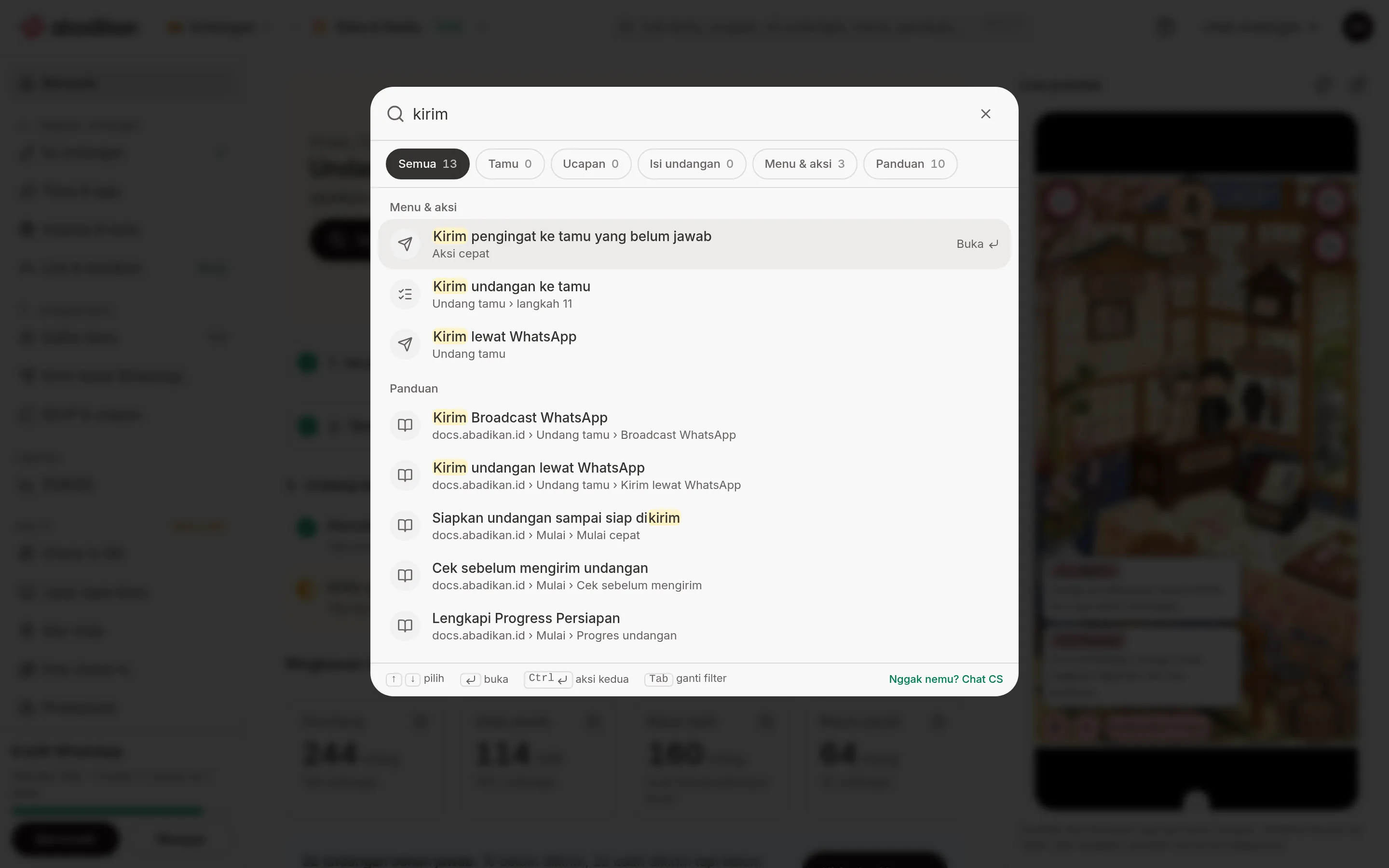
The example above searches for send in the Invitation product, so the results are grouped under Menus & actions and Guides. Searching for Raka, the groom's name in the demo invitation, shows that name under Invitation content. Click the Invitation content filter to see only those results:
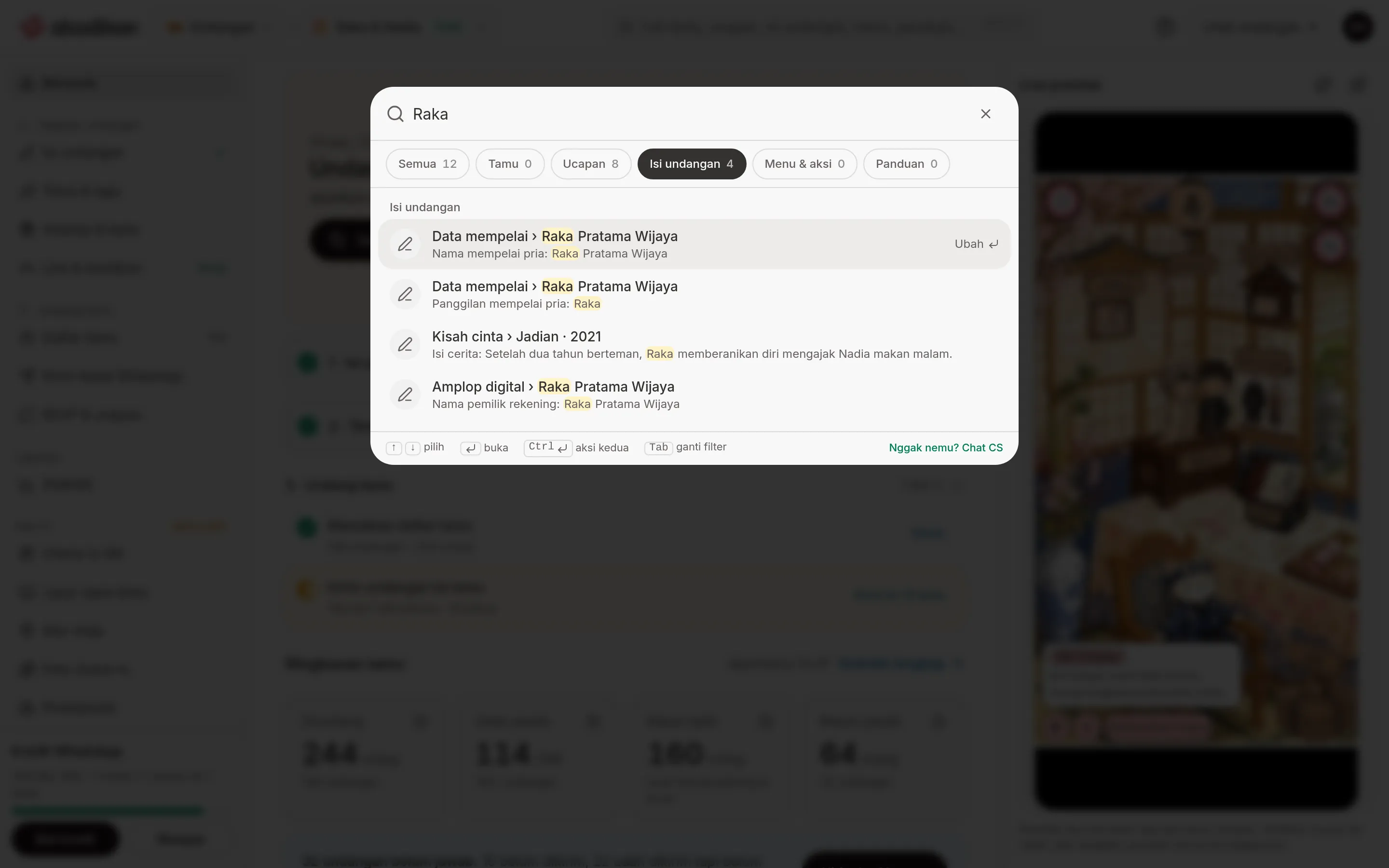
What happens when you open each type of result:
| Result | Button on the row | What opens |
|---|---|---|
| Guest | Open | Guest list, already searched for that guest's name |
| Wish | View | The Wishes & prayers tab in RSVP & wishes, already searched for the sender's name |
| Invitation content | Edit | The matching part of Invitation content: Couple details, Events & venues, Love story, or Digital envelope |
| Menus & actions | Open | The menu or action. A locked menu behaves just like clicking it in the sidebar |
| Guide | Open ↗ | The guide in a new tab |
If a guest hasn't answered the RSVP yet, hold Ctrl (⌘ on a Mac) and press Enter for a second action: Send WA (never been messaged) or Remind (already messaged). WhatsApp opens with the message already filled in, and you press send yourself. This action only appears on guests who haven't replied.
Narrow down the results
After you type, a row of filters appears under the box: All, Guests, Wishes, Invitation content, Menus & actions, and Guides. The number on each filter is how many results it has. Click a filter, or press Tab to move to the next one and Shift Tab to go back.
Under All, each group shows at most 5 results. If more guests or wishes match, click See … in Guest list or See … in RSVP & wishes to open the full list.
Before you type
While the box is still empty, Search shows Recent searches (up to 5, saved in your browser) and Popular actions. Popular actions are the first four quick actions available for your invitation, for example Add a guest and Send a reminder to guests who haven't replied, then Copy invitation link and View invitation once the invitation is published. Click a recent search to put it back in the box. Click Clear history to empty the list.
When nothing turns up
- "Nothing found for …": try another word, like "send" or "WhatsApp". Click Chat CS on WhatsApp to ask support, or Open the guides to browse all the guides.
- "Type at least 2 letters to search guests, wishes and invitation content.": guests, wishes, and invitation content are only searched after 2 letters or digits.
- "Guests, wishes and invitation content can't be searched right now": click Try again. Until it works, menus and guides can still be searched.
FAQ
Ctrl K doesn't open anything. Why? Search only exists on dashboard pages. Open any dashboard page first, then press Ctrl K.
Why aren't guests and wishes searched? They're only searched in the Invitation product, once an invitation is selected. Pick an invitation with the invitation picker (the couple's names) in the app bar. See Dashboard menus and navigation.
Can I find a guest by phone number? Yes. The Guests group also matches phone numbers, labels, and RSVP answers, not just names.
Why does a menu I searched for have a padlock? Locked menus still show up in the results and open the same page as clicking them in the sidebar. The explanation is in When a menu is locked.
Next steps
- Dashboard menus and navigation — the app bar, sidebar, and locked menus.
- Guest wishes — read and search the wishes from your guests.
- Change your profile and password — open Settings with one search.