Set, open, and share your invitation link
Your invitation link, for example abadikan.id/dika-putri, is set and shared from the Link & publish section of Invitation content. Here you choose the link once, see whether the invitation is live, then copy, open, and share the link. For a digital catalog, Link & publish is the only section in the editor.
Set your link the first time
Before the invitation is paid, Link & publish has no link form yet. Instead it shows a card of steps: Save to your account, Choose a package & pay, then Set the link & share, with a button for the step you're on. How to pay is in Invitation payment. Once the payment is received, this section turns into the link form.
After the invitation is paid:
- Open Link & publish.
- Type in Invitation link, which starts with
abadikan.id/. Example:dika-putri-2026. Capital letters and spaces are turned into lowercase letters and hyphens automatically. - Wait for the check. Checking the link… appears, then Link available if it can be used.
- Click Publish invitation. In the Use
<link>? dialog, click Yes, use this link (or Check again to go back). The message "Your invitation is live at<link>" appears.
Link writing rules
| Rule | Message if broken |
|---|---|
| Lowercase letters, numbers, and hyphens only | Other characters are removed automatically as you type |
| At least 3 characters | At least 3 characters |
| At most 100 characters | At most 100 characters |
| Doesn't start or end with a hyphen | Don't start or end with a hyphen |
| At least one letter (not only numbers) | Use at least one letter |
| Not used by another invitation yet | This link is already used by another invitation |
| Not a word the system uses | This link is used by the system, pick another one |
| Not an inappropriate word | This link can't be used, pick another one |
If the check fails, "The link couldn't be checked." appears with a Check again link. If someone else takes the link right before you save, the check runs again and the link is refused. Pick another link.
Open your invitation
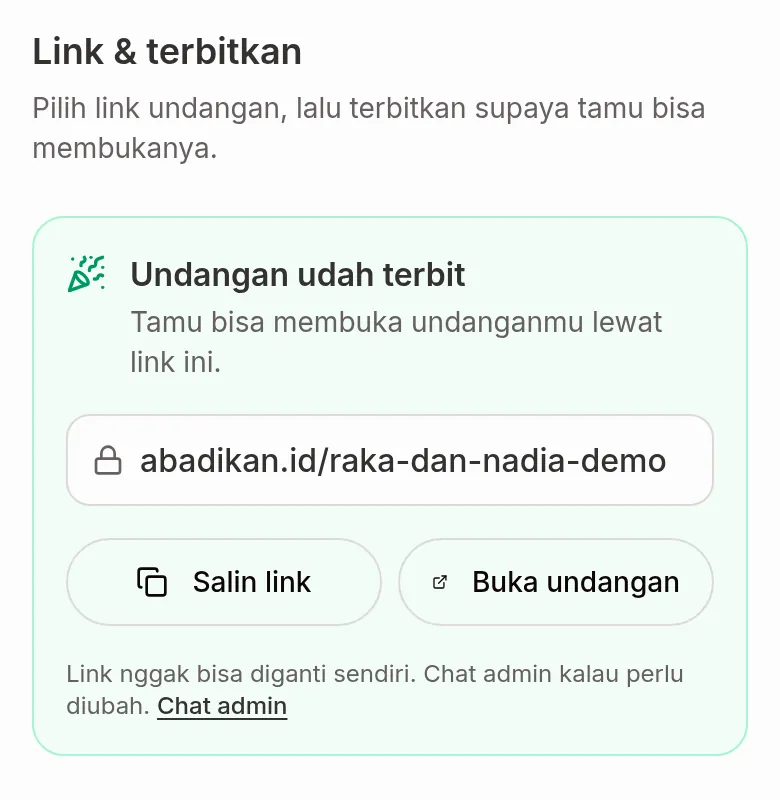
Once the link is saved, the status card in Link & publish shows your link. Click Open invitation to see the invitation as your guests see it, in a new tab.
Copy and share your link
On the same status card:
- Copy link copies the link to the clipboard. "Link copied" appears.
- Share opens your device's share menu. This button only shows in browsers that support it, usually on a phone.
- Open invitation opens the invitation in a new tab.
There are two ways to send the invitation:
- One link for everyone: copy the link as above, then paste it into a chat or social media.
- A personal link per guest: send from the Guest list menu with Send WA, Copy message, or Copy link. The guest's name shows on the invitation. The steps are in Send invitations via WhatsApp. Once the invitation is live, Link & publish also shows Next step: invite your guests with an Open guest list button.
If your invitation's Access Mode is Guests only or Single device, people outside the list can't open one general link. Use a personal link per guest. See Access Mode.
Published status and active period
Once the link is set, the card in Link & publish shows one of these statuses:
| Card title | Meaning | What you can do |
|---|---|---|
| Your invitation is live | Guests can open your invitation through this link. | Copy, open, share. |
| The link is set, but the invitation isn't active yet | The link is saved, but the invitation isn't active. | Click Chat admin to get it activated. |
| The invitation's active period has ended | Guests can no longer open the invitation. | Click Chat admin if you want to extend it. |
Each package's active period is in Feature comparison.
Next steps
- Check before sending your invitation — make sure everything is ready before you send.
- Send invitations via WhatsApp — send a personal link to each guest.
- Follow the preparation checklist — finish the steps that aren't done yet.