Dashboard menus and navigation
Every Abadikan product (Invitation, Digital Gift, Planner, Door prizes & coupons) shares one layout: an app bar on top, a sidebar on the side, and a bottom tab bar when you open it on your phone. This page shows how to use it, mainly for the Invitation product.
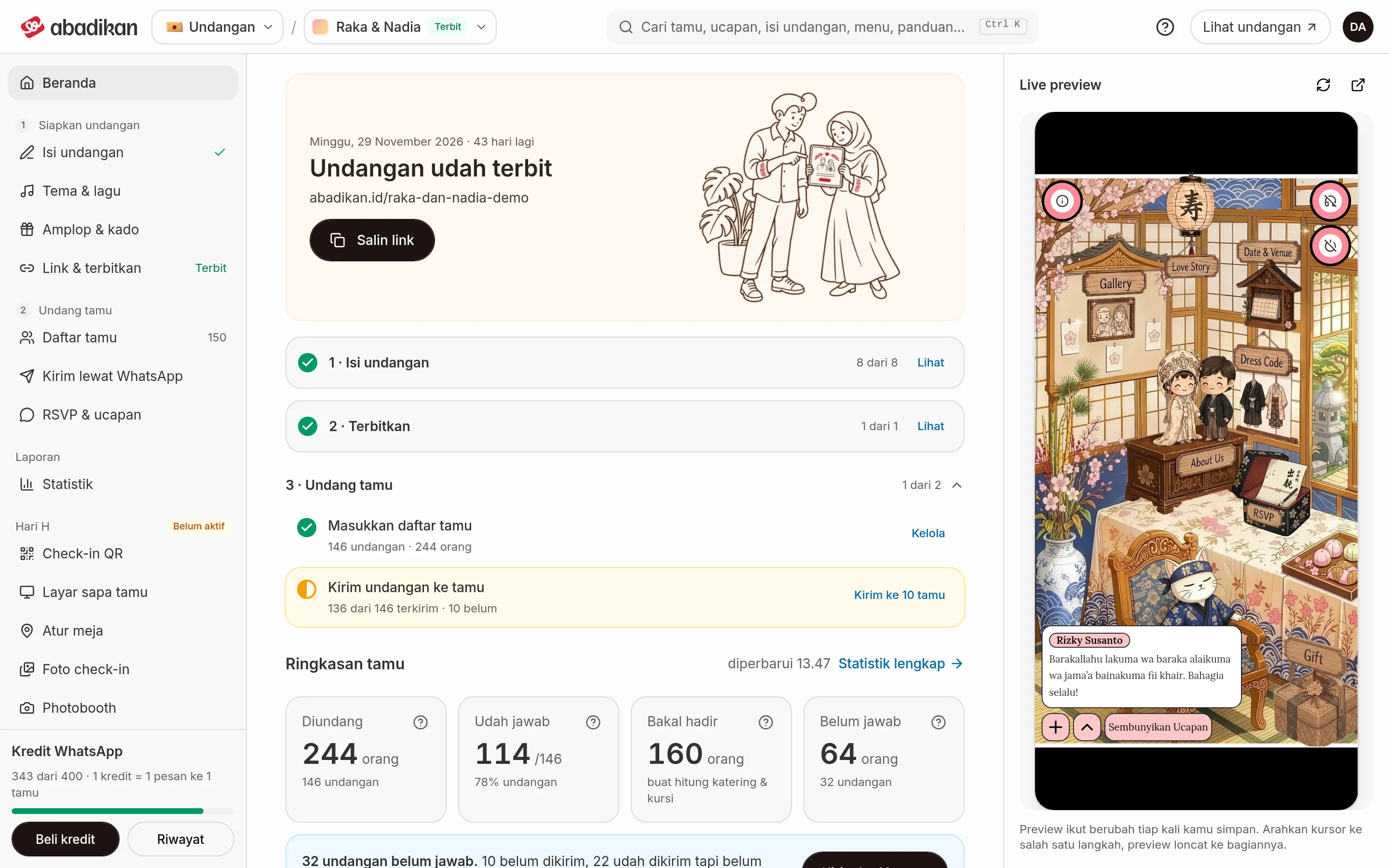
The app bar at the top
From left to right, the app bar has:
| Part | What it does |
|---|---|
| Product switch | Moves between products: Invitation, Digital Gift, Planner, Door prizes & coupons |
| Invitation picker | Shows the couple's names and the status of the invitation you are managing, for example "Raka & Nadia" with a Published tag. Click it to open the Your invitations list |
| Search box | Searches guests, wishes, invitation content, menus, and guides. More in Search the dashboard |
| Help | Guides and chat support |
| View invitation | Opens the page your guests see |
| Account menu | Settings, Referral, and Log out |
View invitation only works once the invitation is published. Until then the button is disabled and shows "The invitation link opens once it is published".
Switch product
- Click the product switch in the app bar, then choose Invitation, Digital Gift, Planner, or Door prizes & coupons.
- The sidebar changes to match the product you picked.
Pick the invitation you are managing
One account can hold several invitations. Every menu always shows the invitation currently selected.
- Click the invitation name in the app bar, next to the product picker. The Your invitations list opens.
- Type in Search couple name or link, or click Load more if the list is long. If nothing matches, you see "No invitation matches …".
- Click the invitation you want to open. You see "Now viewing the … invitation."
Each invitation in the list has a status: Unpaid, Awaiting payment, Not published, Published, or Expired. To make another invitation, click Create new invitation at the bottom of the list, then pick a theme from the catalogue.
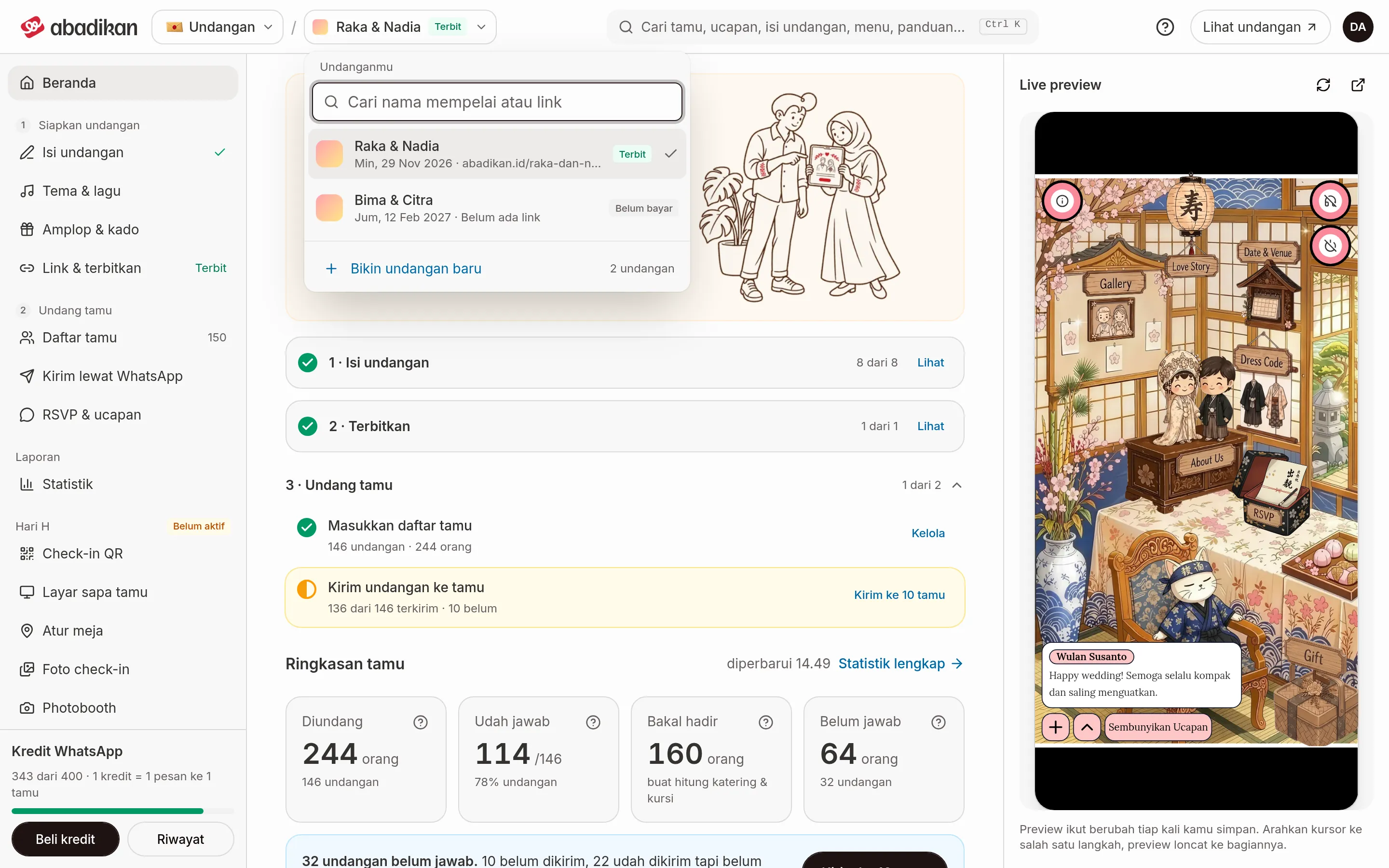
The Invitation sidebar
On a laptop the sidebar starts as a row of icons that you can expand with Collapse sidebar. The menus follow the order in which you prepare an invitation:
| Group | Menus |
|---|---|
| Home | Home |
| Step 1 · Prepare invitation | Invitation content, Invitation settings (canvas templates only), Theme & music, Envelopes & gifts, Link & publish |
| Step 2 · Invite guests | Guest list, Send via WhatsApp, RSVP & wishes |
| Reports | Statistics |
| Event day | QR check-in, Guest welcome screen, Seating, Check-in photos, Photobooth |
Invitation content shows your progress, for example "5/8". Guest list shows the number of guests. RSVP & wishes is marked when there are new wishes. The Event day group shows a status: Not active, LIVE with the number of guests who have arrived on the day, or Done afterwards.
When a menu is locked
Locked menus have a padlock icon. What happens when you click one depends on your invitation's status:
| Situation | What you see | What to do |
|---|---|---|
| Invitation not paid | A "Pay first to open …" page with a Pay now button | Pay for your plan. You can keep editing the invitation until then. See Complete your invitation payment |
| Payment not finished | A "Just finish the payment" page with a Continue payment button. If the invoice has expired, the button is Create new invoice | Finish the payment |
| Paid, not published yet | A short message "Publish the invitation first to open this menu." with a Publish button | Set your link and publish from Link & publish |
| Event day not activated | The Activate the Digital Guestbook page | See Activate the Digital Guestbook |
| No invitation yet | A message "Create an invitation first to open this menu." | Click Create invitation |
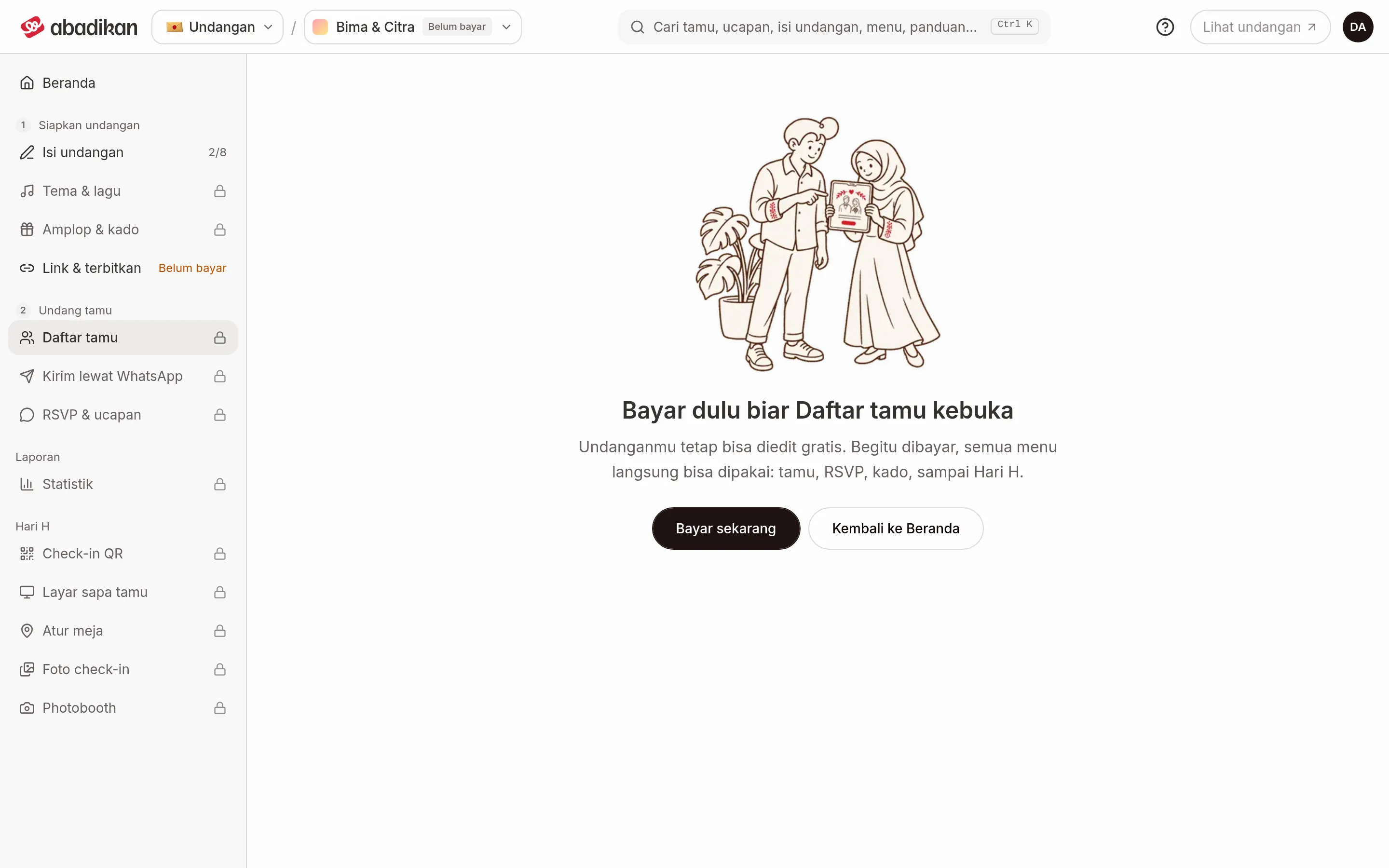
The example above is the Invitation not paid row. A single click on Pay now opens checkout in the editor right away. The button shows a loading indicator for a moment, so there is no need to click twice. For an unfinished payment, the page reads "Just finish the payment" with a Continue payment button.
The WhatsApp credits card
At the bottom of the sidebar, a paid invitation has a WhatsApp credits card: credits left out of the total (for example "343 of 400 · 1 credit = 1 message to 1 guest"), credits on hold, and the Buy credits and History buttons. 1 credit is used for 1 message to 1 guest. The card does not show before the invitation is paid. See WhatsApp credits for how it works.
The Help menu
Click Help in the app bar to open:
- Guide for this page: shown on the invitation editor page, straight to the guide for the section you are on.
- All guides: this help site.
- Chat support on WhatsApp: a WhatsApp message to support, already filled with your invitation link and the page you are on. Invitations with priority support are marked Priority.
- Frequently asked questions.
The account menu
Click your avatar at the top right to open Settings, Referral, and Log out. On a phone this menu also holds Help and View invitation.
On your phone
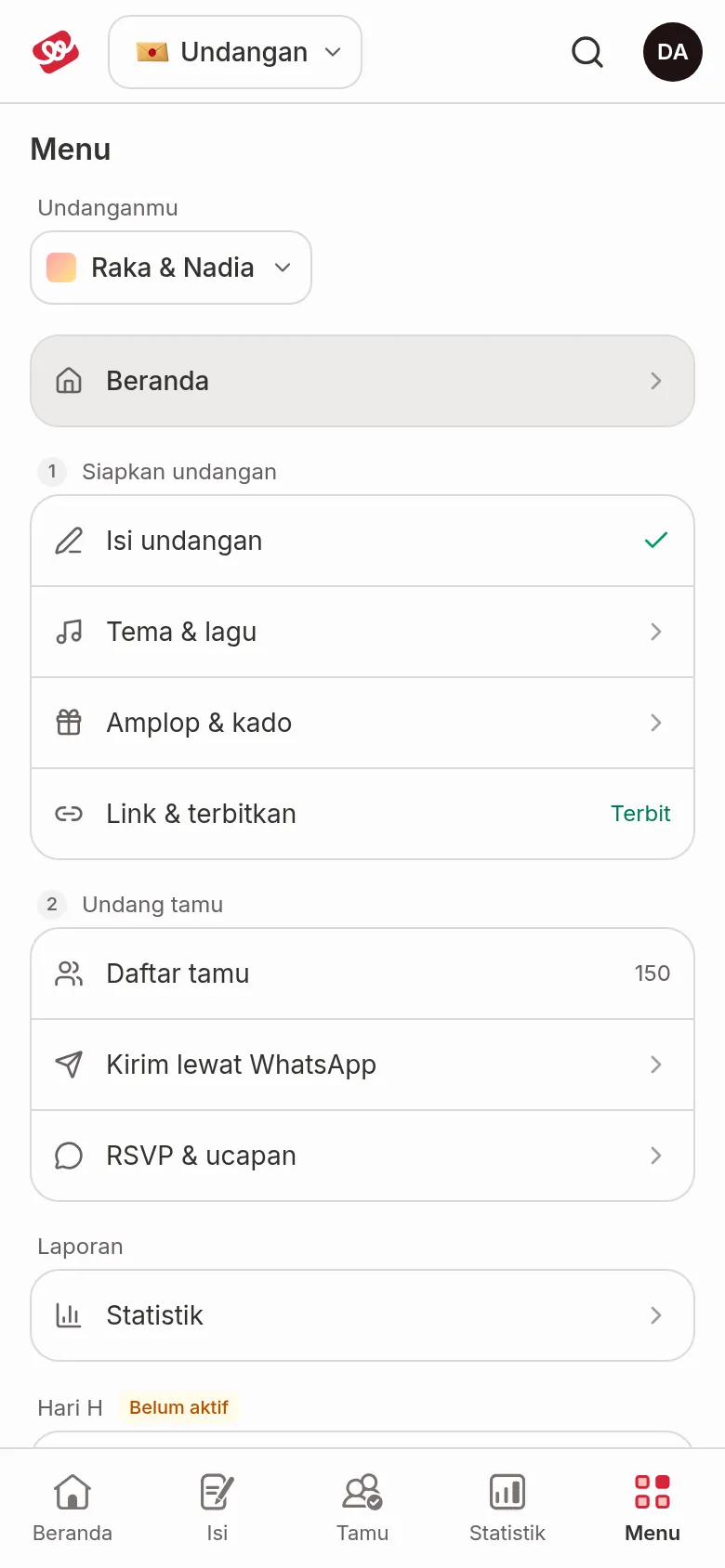
On a narrow screen (768 px wide or less), the sidebar is replaced by a bottom tab bar for the Invitation product:
| Tab | What it holds |
|---|---|
| Home | Home |
| Content | Invitation content. The tab also lights up on Invitation settings, Theme & music, and Link & publish |
| Guests | Guest list. The tab also lights up on Send via WhatsApp and RSVP & wishes |
| Stats | Statistics |
| Menu | The Your invitations picker, every sidebar group (including Envelopes & gifts and Event day), and the WhatsApp credits card |
The phone app bar only has the logo, the product switch, the search box, and your avatar. The invitation picker moves to the Menu tab, and Help and View invitation move to the avatar menu. Locked menus on a phone work exactly like on a laptop.
FAQ
Why is Invitation settings missing from my sidebar? It only shows for invitations on a canvas template.
Why does Event day have a padlock when I have already paid? Event day is the Digital Guestbook add-on, which you activate separately. See Activate the Digital Guestbook.
I see "Couldn't load invitation data". The menus are shown locked for now. Click Try again to reload the data.
Where do I see visits and guest numbers? Open the Statistics menu. See Statistics.