Follow the preparation checklist
The checklist on Home guides you from an empty invitation to an invitation sent to your guests. It has eleven steps in three stages, and Home always points out which step to do next.
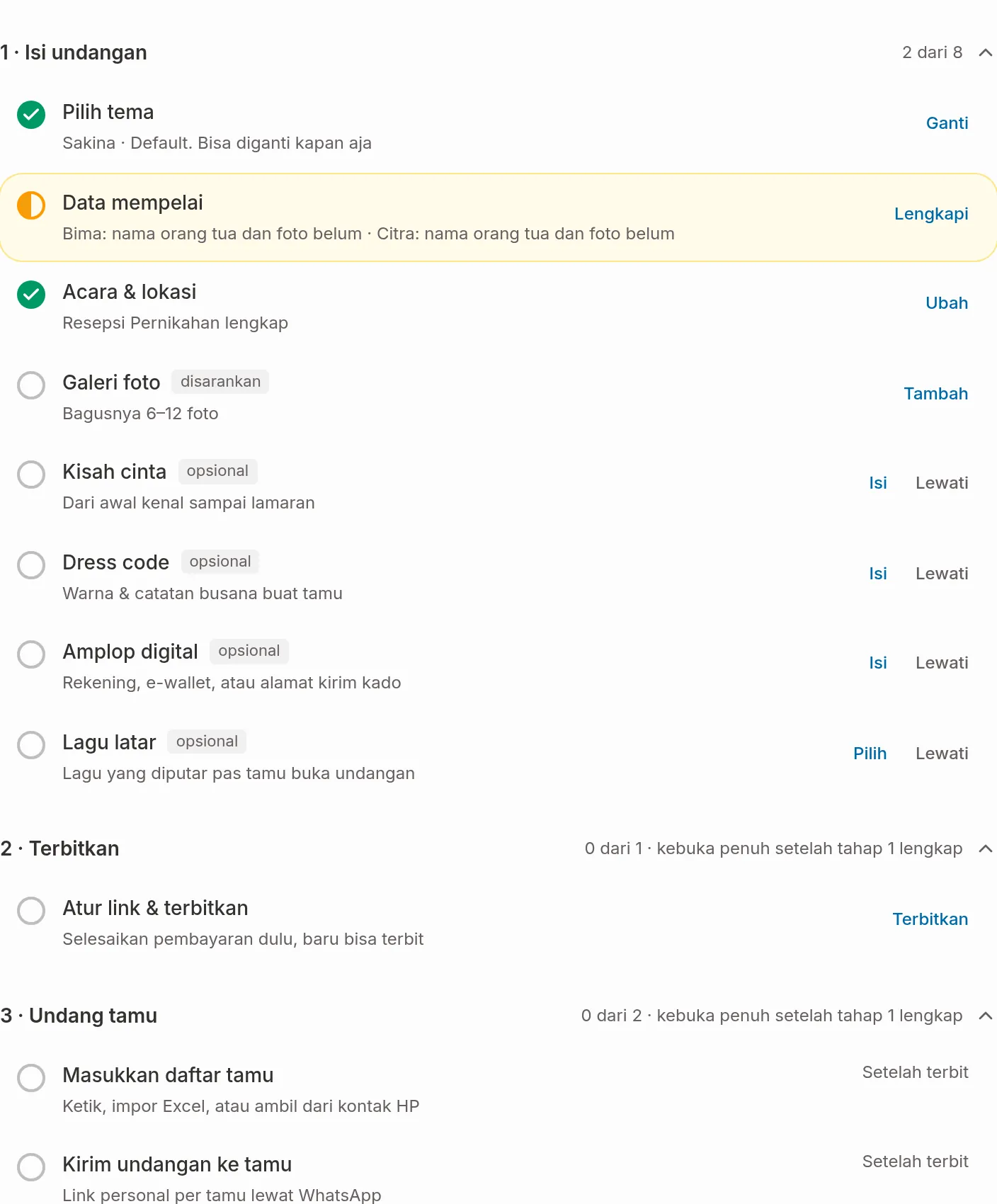
Three stages
| Stage | Steps |
|---|---|
| 1 · Fill in invitation | Choose a theme, Couple details, Events & venues, Photo gallery, Love story, Dress code, Digital envelope, Background music |
| 2 · Publish | Set link & publish |
| 3 · Invite guests | Add your guest list, Send the invitation to guests |
A finished stage folds into one checked row. Click View on that row to open it again. The first stage that isn't finished is always open. On a laptop the next stage opens too, with the note "opens fully once stage 1 is complete". On a phone the next stage stays folded until you tap its title.
Each time a stage is finished, a short message appears, for example "Invitation content done! On to publishing.", and the next stage opens. On a laptop, the three stage bars above the checklist show each stage's count, for example "5 of 8". Click a bar to jump to that stage. The same stage 1 count also shows on the Invitation content menu in the sidebar.
Do the next step
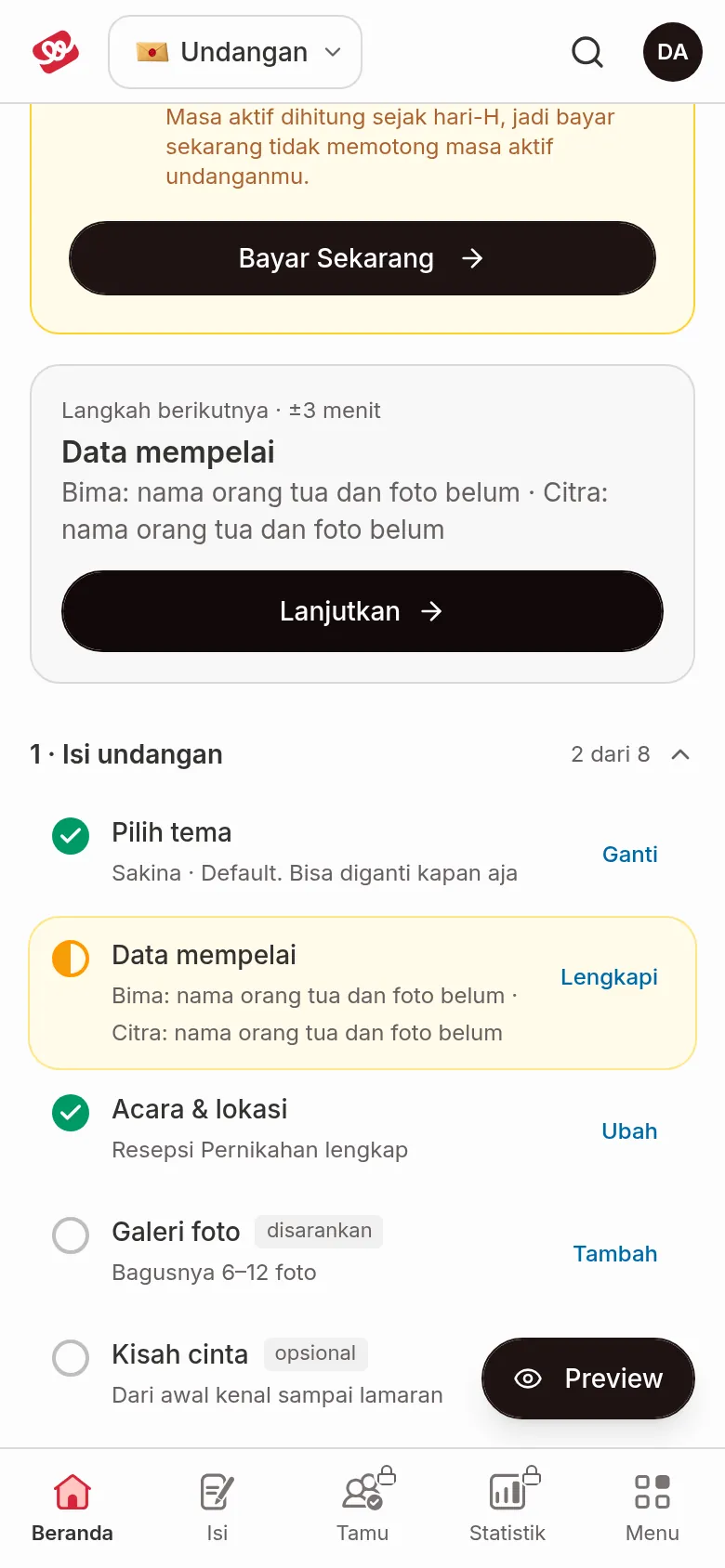
Before your invitation is published, the Next step card shows the one step to do now, with a time estimate such as "about 3 min".
- Open Home and find the Next step card.
- Click Continue. The editor opens right at that part.
- Fill in the details. The editor saves automatically.
- Go back to Home from the Home menu. The step's status and the percentage on the greeting card have gone up.
You don't have to follow the order. Click the button on any row in the checklist to open that step.
What the eleven steps mean
Each row shows a status (done, partly done, not started, or skipped), a short description, and an action button. Steps that aren't required are labelled recommended or optional.
| Step | Kind | Counts as done when | Button | Where to fill it in |
|---|---|---|---|---|
| Choose a theme | Required | A theme and its variant are chosen | Choose, then Change | Editor › Theme |
| Couple details | Required | Names, nicknames, parents' names, and photos of both partners are filled in. With only names and nicknames the status is partly done | Fill in, Complete, then Edit | Editor › Couple details |
| Events & venues | Required | There's at least one event, and every event has a date, time, venue, and address | Fill in, Complete, then Edit | Editor › Events & venues |
| Photo gallery | Recommended | There's at least one photo. 6–12 photos work best, so under 6 photos the row still offers Add | Add, then Edit | Editor › Photo gallery |
| Love story | Optional | There's at least one story | Fill in, then Edit | Editor › Love story |
| Dress code | Optional | There's at least one attire note | Fill in, then Edit | Editor › Dress code |
| Digital envelope | Optional | There's at least one bank account or e-wallet, or a gift delivery address | Fill in, then Edit | Editor › Digital envelope |
| Background music | Optional | A song is chosen | Choose, then Change | Editor › Background music |
| Set link & publish | Required | The link is set and the invitation is published | Publish, then View | Editor › Link & publish |
| Add your guest list | Required | There's at least one guest in the list | Add, then Manage | Guest list |
| Send the invitation to guests | Required | Every invitation in the list has been sent over WhatsApp. When only some are sent, it reads for example "3 of 10 sent · 7 not yet" and the button is Send to 7 guests | Send, then View | Send via WhatsApp |
Two things to know:
- Not paid yet: the Set link & publish step reads "Complete the payment first, then you can publish", and its button opens the pay-first page on Home. The payment guide is Pay for your invitation.
- Stage 3 waits for publishing: Add your guest list and Send the invitation to guests can only be done once the invitation is published. Until then the row says "After publishing".
Every step is worth the same. The percentage on the greeting card is the number of finished (or skipped) steps divided by eleven.
Skip an optional step
Four steps can be skipped if you don't use them: Love story, Dress code, Digital envelope, and Background music.
- Find the row in the checklist. A Skip button appears on it while the step is still empty.
- Click Skip. The row changes to "Skipped, not shown on the invitation" and still counts as done.
- Want to fill it in later? Click Undo skip on the same row.
Required steps and Photo gallery can't be skipped. If you fill in a step you skipped, it counts as done rather than skipped. If you see "Your skipped steps couldn't be loaded, so they aren't counted yet.", click Reload.
After your invitation is published
Once your invitation is published, the stage bars and the Next step card disappear, and the greeting card changes to "Your invitation is live" with your invitation link. The checklist stays, so you can still work on stage 3. Below it you'll find Guest summary and Latest wishes, as explained in Dashboard Home.
Next steps
- Check before you send your invitation — check your link, access, and message before sending.
- Add guests and import from Excel — add your guest list once the invitation is published.
- Send invitations via WhatsApp — send a personal invitation to each guest.