Activate the Digital Guestbook
QR check-in, Guest welcome screen, Seating, and Check-in photos only work once the Digital Guestbook is active for your invitation. If it isn't, the dashboard shows an Activate the Digital Guestbook window. From there you pick a package and chat the admin on WhatsApp; you don't need to type anything because the message is already filled in.
What you get
According to the text in the window, the Digital Guestbook includes:
- guests check in with a QR code (QR check-in),
- guest names show up on the welcome screen (Guest welcome screen),
- guest tables are found instantly (Seating),
- arrival photos are saved automatically (Check-in photos),
- the Arrived count in Statistics is filled from here too.
An overview of all the menus is in Event day.
When the window appears
- You click a menu in the Event day group while the group is labeled Not active. The window appears over the page you have open.
- You open an Event day page address directly (a bookmark or a new tab). You are taken to Home at
/dashboard?paywall=<feature>, then the window opens.<feature>follows the page you were heading to:checkin,guestScreen,tables,checkinPhoto,photobooth, orcoupon. - For Check-in photos and Photobooth, the window adds a line "… is part of the Digital Guestbook." so it's clear which feature you were heading to.
If your invitation isn't paid yet, you won't see this window but the "pay first" page (/dashboard?locked=<feature>). Pay for the invitation first, then activate the Digital Guestbook. See Event day.
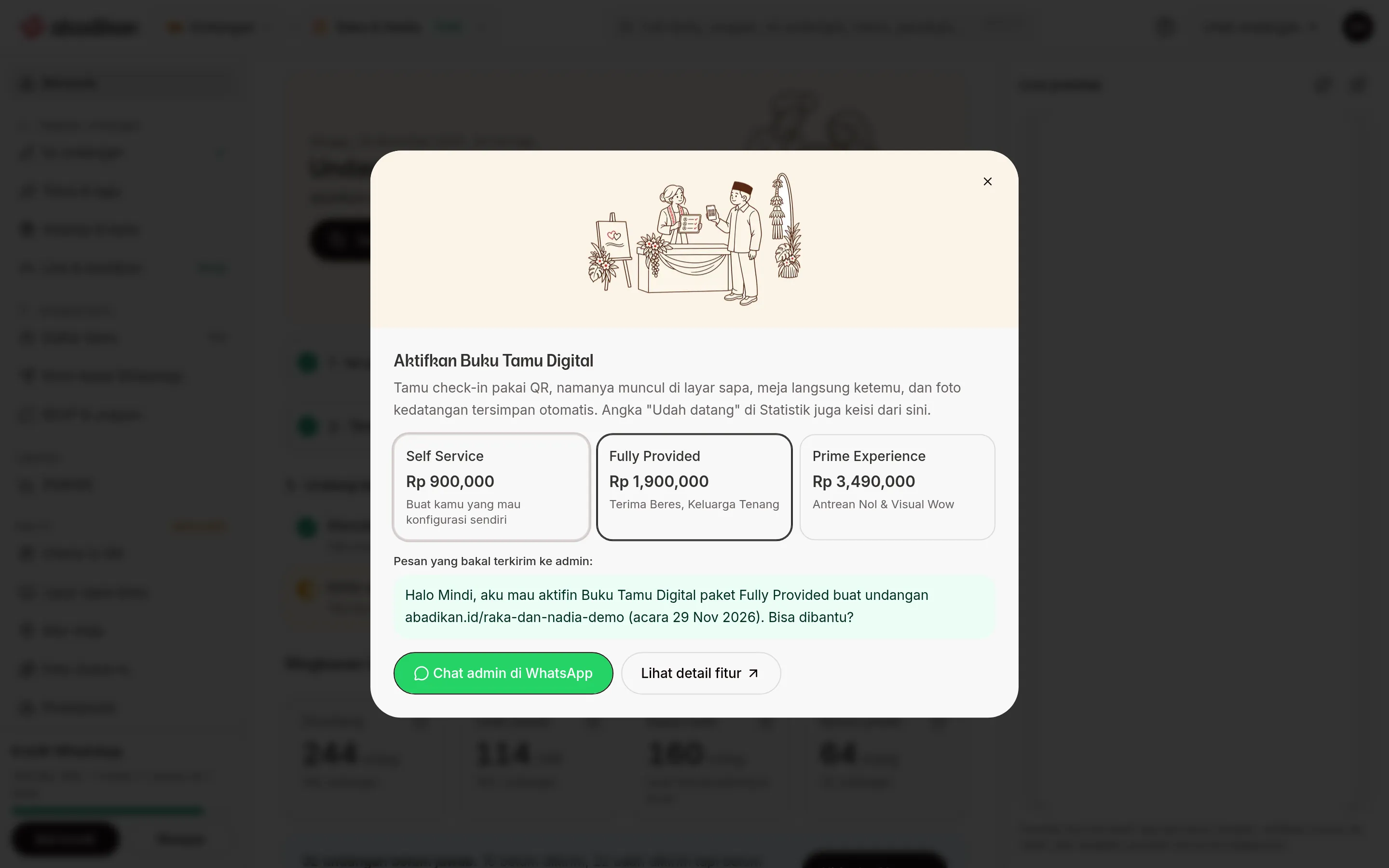
Choose a package and chat the admin
- Open the Activate the Digital Guestbook window (through an Event day menu).
- Under Choose a package, tap one of the packages. The middle package, Fully Provided, is selected by default.
- Read the Message that will be sent to the admin: box. Its content changes with the package you choose.
- Click Chat the admin on WhatsApp. WhatsApp opens in a new tab with that message already written; send it to the admin.
The message reads: "Hi Mindi, I'd like to activate the Digital Guestbook package name package for the invitation your invitation link (event on event date). Could you help?" If there's no invitation link yet, it says "that has no link yet". If the event date isn't set, it says "date not set". Fill in both in the editor so the admin knows right away which invitation you mean.
Click See feature details to open the Digital Guestbook explanation page in a new tab. Click Close to close the window without choosing.
Available packages
| Package | Price | For whom | Includes |
|---|---|---|---|
| Self Service | Rp 900,000 | For those who want to set things up themselves | Full software access, unlimited data. Bring your own gear and crew. |
| Fully Provided | Rp 1,900,000 | All set, family at ease | 2 tablets + stand, 1 dedicated modem, 1 tech crew. |
| Prime Experience | Rp 3,490,000 | Zero queue & wow visuals | 4 tablets + stand, 1 dedicated modem, 43-inch TV included, 2 tech crew. |
The names and prices above follow the Digital Guestbook page on abadikan.id.
After activation
The purchase goes through the admin on WhatsApp, not through payment inside the dashboard. Once the Digital Guestbook is active for your invitation:
- the Event day group label in the sidebar changes from Not active to the event date, then LIVE · n arrived on the event day and Done · n arrived afterwards;
- QR check-in, Guest welcome screen, Seating, and Check-in photos open like any other menu.
If a menu is still locked after the admin says it's active, reload the dashboard. Still the same? Contact support through Contact Abadikan support.
After that, continue to the Event day checklist for the day-before test run.
FAQ
Is Photobooth locked too? Not as long as the photobooth isn't turned off for your invitation. Photobooth doesn't wait for the Digital Guestbook.
Does the invitation have to be published? No. What's needed is that the invitation is paid and the Digital Guestbook is active.
Why does the WhatsApp message mention my chosen package? So the admin knows which package you want. Change the package before clicking Chat the admin on WhatsApp, or rewrite it in the chat.