View and download check-in photos
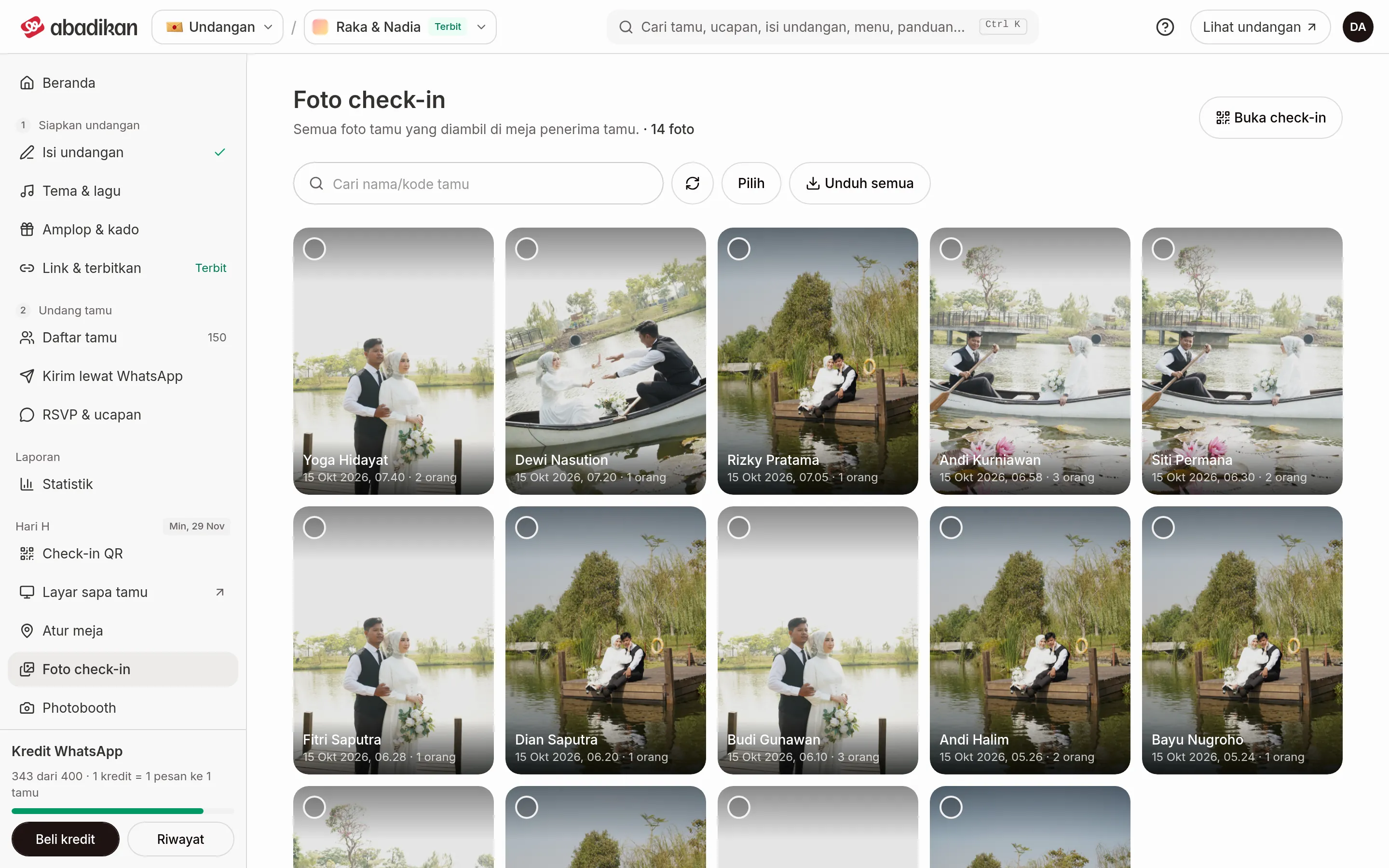
Check-in photos collects every guest photo taken at the reception desk (see Record guest arrivals at the venue). You can search, view, and download them one by one or all at once.
Before you start
The menu is in the sidebar Event day group, right below Seating. This menu needs an active Digital Guestbook and check-in photos that aren't turned off for your invitation; if check-in photos are turned off, the menu is locked and opens the Activate the Digital Guestbook window.
Photos land here after a guest is confirmed with the camera on in QR check-in. If the page is empty, you'll see "No photos yet: Photos show up here once guests check in with the camera on." The Open check-in button takes you to the reception desk.
Search and view photos
- Type a guest's name or code in the Search name or code field. If nothing matches, "No photos found" appears.
- Click a photo to open it larger. This view shows the guest's name, check-in time, and the number of people who came ("n people").
- Use the arrows or the Previous photo and Next photo buttons to move between photos.
Above the gallery is the photo count ("n photos"). The gallery loads the next photos automatically as you scroll; click Load more if it doesn't, and Reload to fetch the latest photos. A photo that fails to show is replaced by a "Photo can't be loaded" box.
Download one photo
- Click the photo you want to save.
- Click Download.
If the download fails, the photo opens in a new tab ("Download failed, the photo opened in a new tab.") so you can save it from there.
Download many photos as a ZIP
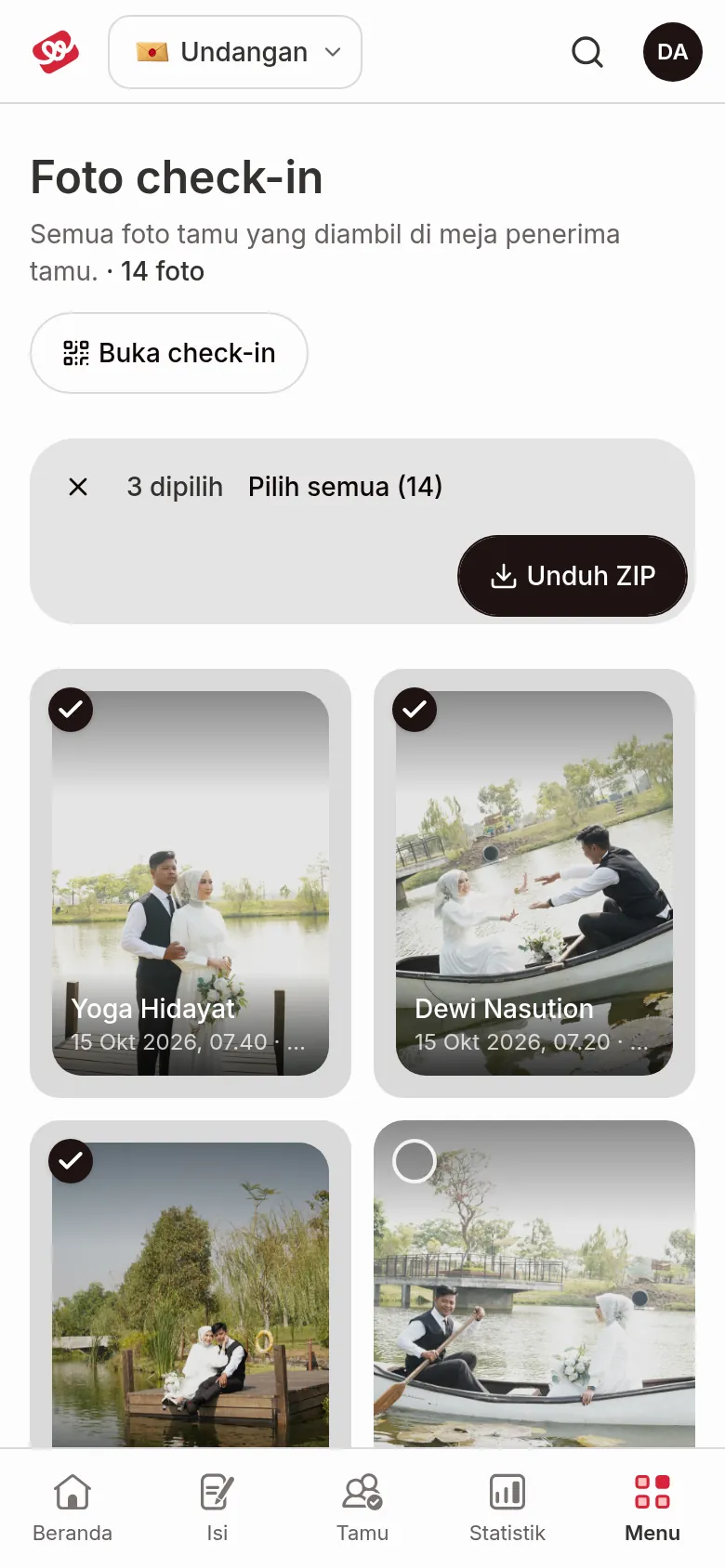
- Select the photos:
- On a laptop, tick the circle in the corner of a photo. Once one is ticked, clicking other photos selects them too, and Shift + click selects every photo between two photos. Esc cancels the selection.
- On a phone, tap Select (this button is on a laptop too), then tap the photos.
- Click Select all (n) to select all photos, including ones not loaded yet. The bar shows "n selected"; Clear selection removes it.
- Click Download ZIP.
- Wait: "Preparing the photo list…" appears, then "Downloading x of y photos…". Click Cancel to stop.
- At the end, "n photos downloaded." appears.
Want all photos without selecting? Click Download all.
Next steps
- Record guest arrivals at the venue — Take arrival photos during check-in.
- Show guest greetings on the venue screen — Check-in photos also show on the venue TV.