Show guest greetings on the venue screen
The Guest welcome screen is a full-screen display for the TV or LED at the venue. Every guest who checks in on QR check-in is welcomed right away with their name and photo.
The menu is in the sidebar Event day group and needs an active Digital Guestbook (Activate the Digital Guestbook). Click the menu: the screen opens in a new tab without the sidebar and app bar.
What's on screen
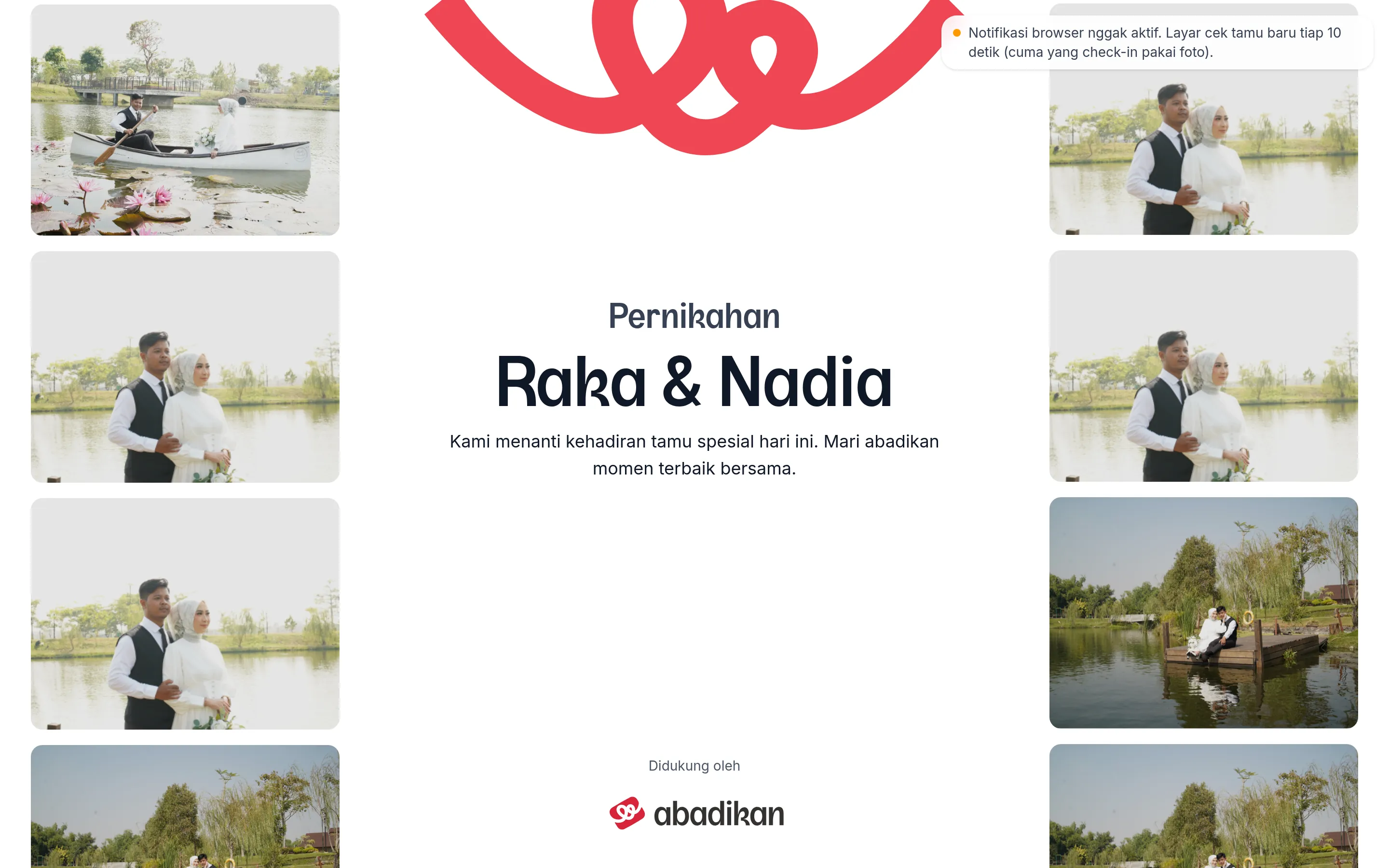
- Main view: the event kind at the top (e.g. "The Wedding of"), your two names in the middle, a welcome line, and a wall of guest check-in photos that keeps scrolling (up to the 40 latest photos).
- Guest greeting: when a guest is confirmed in QR check-in, the screen shows "Welcome", the guest's name, and "Thank you for coming" over their photo. After a few seconds the greeting disappears. If several guests arrive at once, the greetings queue and show one at a time.
- Guests who checked in before the screen was opened aren't greeted again. They only appear on the photo wall.
- No name: a guest recorded without a name is greeted as "Our guest".
Set it up at the venue
- Connect a laptop or mini-PC to the venue TV or LED, for example with an HDMI cable.
- On that laptop, sign in to your Abadikan account and pick the event invitation under Your invitations.
- Click Guest welcome screen in the sidebar Event day group.
- On the screen that opens, click Full screen. Exit full screen brings it back, and Back to dashboard closes the screen. These controls disappear by themselves after a few seconds without movement; move the mouse, tap the screen, or press any key to bring them back.
- When the browser asks for notification permission, choose allow.
This page requires login, so the screen device must stay signed in to your account during the event. While the screen is open, the device's display is kept awake (if the browser supports it). A status with a warning mark stays visible even when the controls have disappeared.
How the screen knows a new guest arrived
The small status text in the screen controls shows how:
| Status | Meaning |
|---|---|
| Connecting… | The screen was just opened and is still connecting. |
| Live: guest names appear the moment they check in | Browser notifications are on: greetings appear instantly. |
| Browser notifications are off. The screen checks for new guests every 10 seconds (only check-ins with a photo). | Notification permission was denied. The screen checks by itself every 10 seconds and can only greet guests who check in with a photo. |
| Browser notifications are off and check-in photos are disabled, so guests can't be greeted… | Notification permission was denied and check-in photos are off, so there are no greetings at all. Allow notifications in that browser, then reload. |
| Check-in photos couldn't be loaded. Retrying automatically. | The connection has a problem; the screen retries by itself. |
If the screen doesn't change
- Check the internet connection of the screen laptop.
- Look at the status text above. If notifications are off, allow notifications for abadikan.id in the browser's site settings, then reload the screen.
- Make sure the screen laptop and the check-in device have the same invitation open (Your invitations).
- Reload the Guest welcome screen page.
Check-ins are still saved even if the screen doesn't greet.
Next steps
- Record guest arrivals at the venue — Confirm guests so they get greeted on screen.
- Event day checklist — Test the screen and connection the day before.
- Invite guests to the Photobooth — Show guests' photobooth photos on another screen.