Arrange guest seating by table
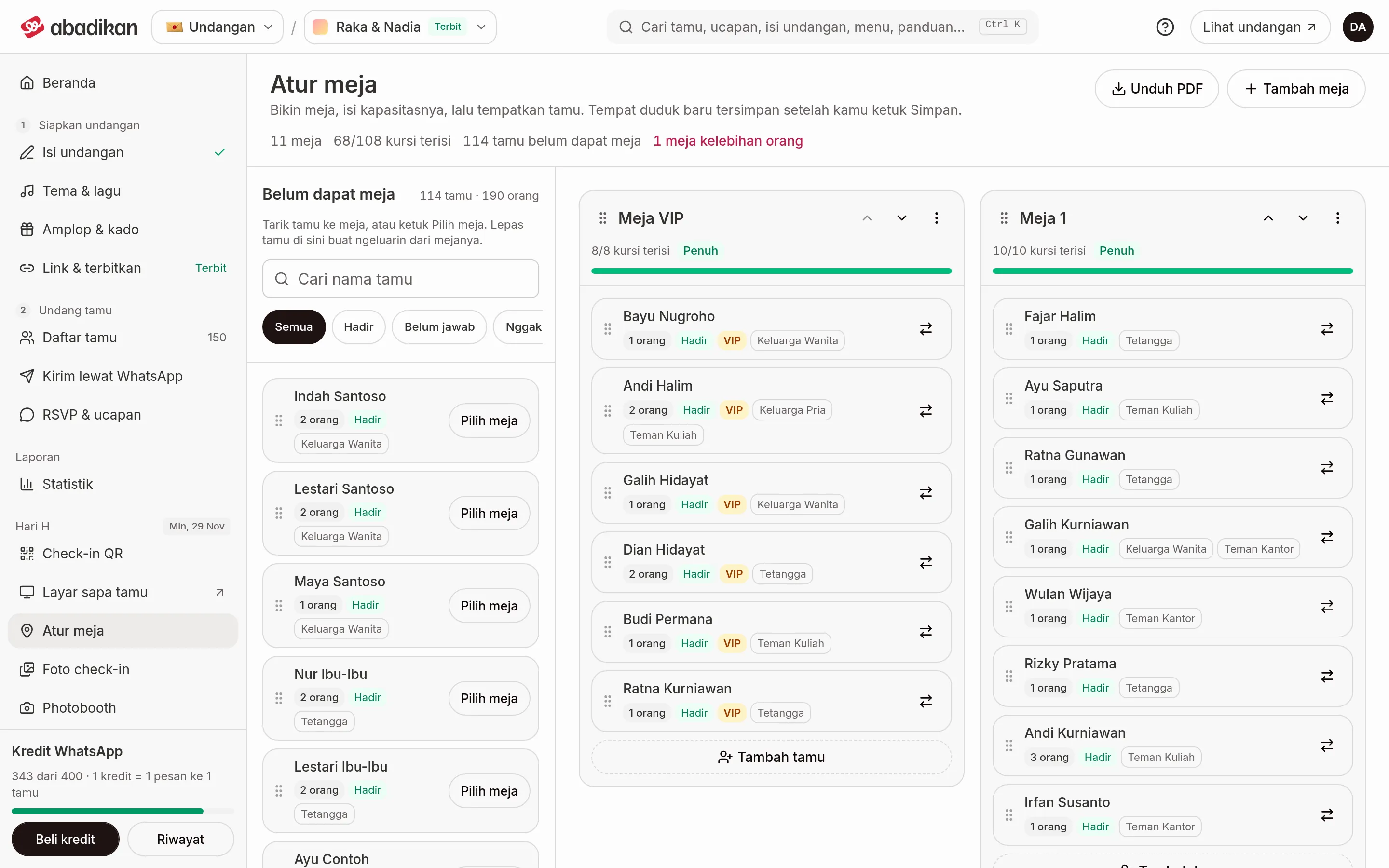
Seating helps you create tables, seat guests at each table, then download the arrangement as a PDF for the committee or wedding organizer.
The menu is in the sidebar Event day group and needs an active Digital Guestbook (Activate the Digital Guestbook).
Before you start
- Guests you can seat come from the guest list. Add the guests first in the Guest list, as described in Add guests and import from Excel. If there are no guests yet, the page shows an Open Guest list button.
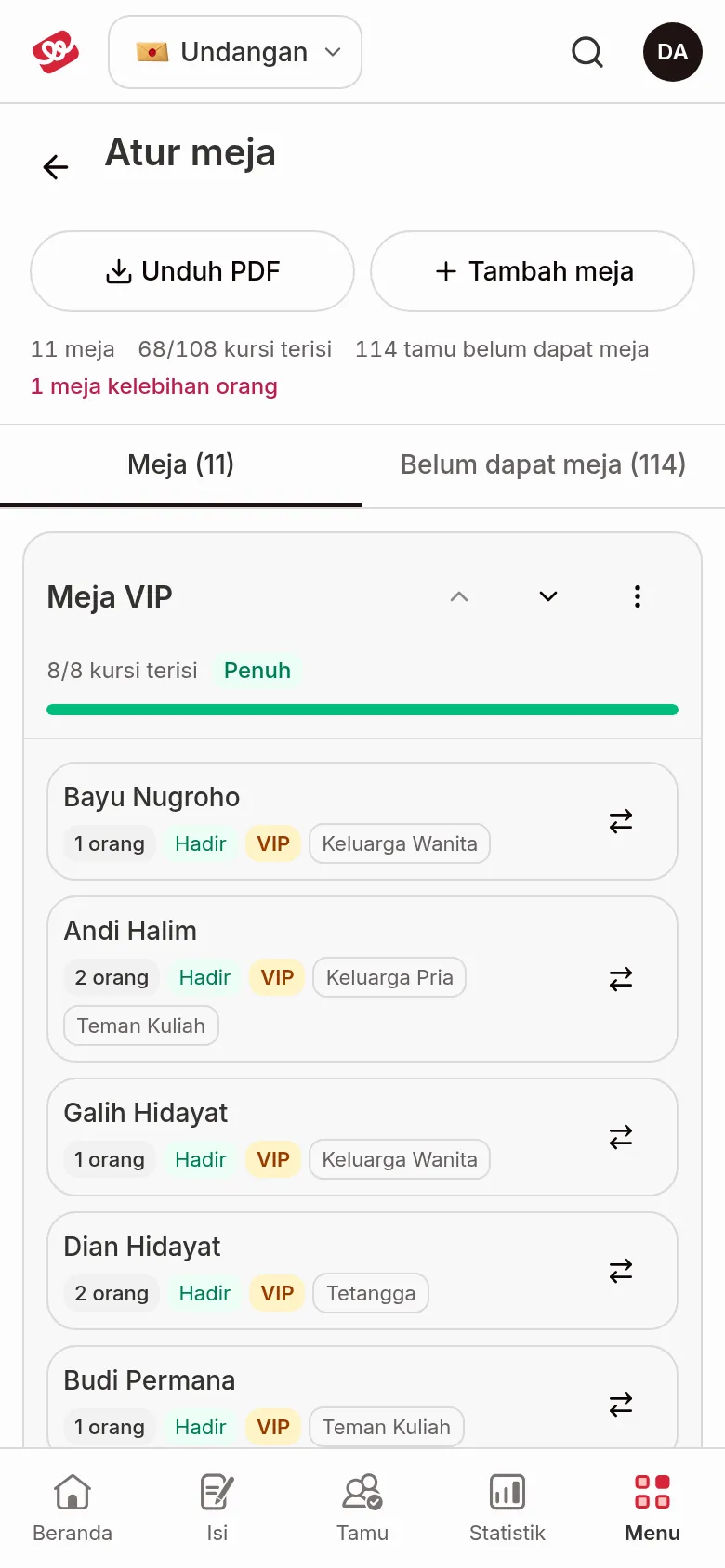
- On a laptop, guests are moved by drag and drop (the Pick table button is there too). On a phone, everything works through buttons, and the page is split into two tabs: Tables and No table yet.
How it works
The page has two lists: Tables (the table cards) and No table yet (guests not seated yet, with the number of people). Above them is a summary: the number of tables, "n/m seats taken", guests without a table, and tables over capacity.
Unlike seating guests, creating, editing, or deleting a table is saved immediately.
Add a table
- Click Add table (or Create the first table if there are no tables yet).
- Fill in Table name, for example "Table 1" or "Groom's family".
- Fill in Seats, the number of people who fit at that table.
- Click Add table.
You see "table name added".
| Field | Content | Required | Limit/format |
|---|---|---|---|
| Table name | A name the committee can easily recognize. | Yes | There is a minimum and maximum length; if you go outside it, the message appears under the field. |
| Seats | How many people fit. | Yes | A whole number, at least 1. |
Seat guests
On a laptop
- Under No table yet, search a name with Search guest name, or narrow it down with Filter by RSVP answer (All, Attending, No answer, Not attending).
- Drag a guest onto the destination table card, then drop.
- To change tables, drag the guest from one table to another. To take a guest off a table, drop them on the No table yet list.
On a phone (or without dragging)
- On a guest, tap Pick table (or Move to table for a guest already seated), then choose the table.
- On a table, tap Add guests, pick the guest with Add, then Done.
- Take off this table returns the guest to the No table yet list.
When you're done, click Save. You see "Seating saved". Guests who were just moved are marked Not saved until saved.
Each table card shows "n/m seats taken". A table that goes over capacity is marked "n over capacity" and can't be saved: take some guests off or raise the capacity first. A table that fits exactly is labeled Full.
Manage tables
Open the menu on a table card:
- Edit table: change the name or capacity, then Save table. Guests inside stay seated.
- Delete table: after the Delete table confirmation, its guests go back to No table yet. A deleted table can't be restored.
To change the order of tables, drag the handle next to the table name (laptop) or use the up or down arrow buttons on the table card (laptop and phone). The new order is saved too through Save.
Download a PDF for the committee
- Arrange the seating. The PDF prints the arrangement currently shown, so you don't have to save first; but do save to keep the arrangement safe.
- Click Download PDF.
A file named seating is downloaded. It contains the print date, the number of tables, seats, taken, and free, then each table with its guests and number of people. Tables over capacity are red, and remaining free seats are green.
Next steps
- Event day checklist — Print the table PDF and share it with the committee.
- Record guest arrivals at the venue — Set up guest check-in at the entrance.