Invite guests to the Photobooth
The Photobooth lets guests take photos or record videos themselves from their phones with a frame of their choice. The results go into the Photobooth menu in the dashboard and can be shown on the venue screen.
The Photobooth menu is in the sidebar Event day group. It doesn't wait for the Digital Guestbook: as long as the photobooth isn't turned off for your invitation, the menu is open. If it is turned off, clicking the menu opens the Activate the Digital Guestbook window.
The Photobooth has three pages:
| Page | For | How to open |
|---|---|---|
| Guest photobooth | Guests, on their own phones | abadikan.id/{slug}/photobooth |
| Photobooth (gallery) | You, login required | Sidebar › Event day › Photobooth |
| Photobooth screen | Venue TV or LED, login required | The Open photobooth screen button on the Photobooth page |
{slug} is the last part of your invitation link.
Share the link and QR with guests
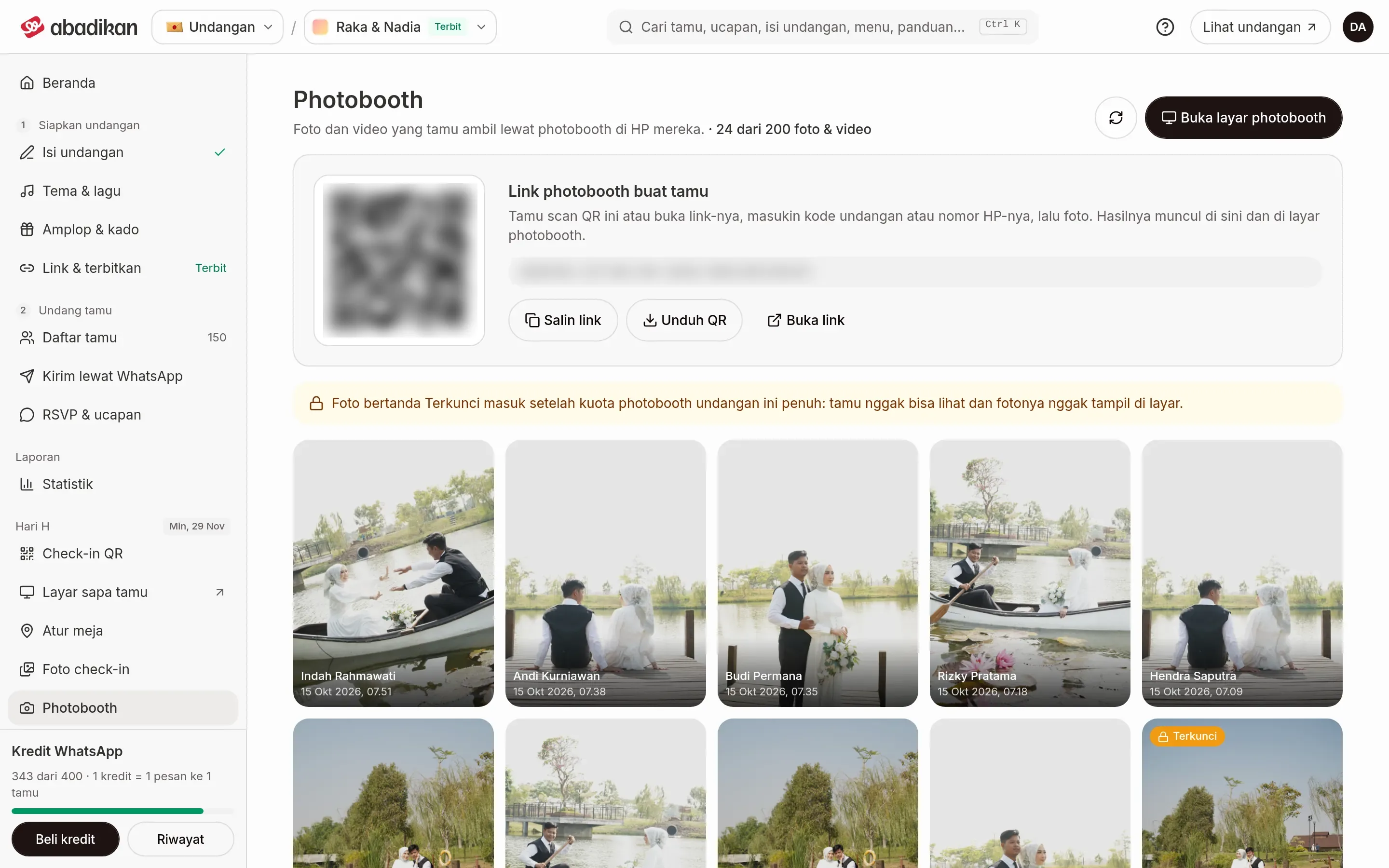
At the top of the Photobooth page there is a Photobooth link for guests card with the guest link and its QR.
- Copy link: copies the link to the clipboard.
- Open link: opens the guest photobooth page in a new tab.
- Download QR: saves the QR as an image to print or display on guest tables and near the screen.
If your invitation has no link yet, the card shows "This invitation has no link yet. Set it up in Link & publish first." Open the Link & publish menu in the sidebar (the Prepare invitation group) to set it up.
If a guest has opened their personal invitation on the same phone before, their data is recognized right away. If not, the guest is asked to enter a guest code, phone number, or email. The message "Guest data not found" means the data doesn't match the guest list.
How guests use the Photobooth
- The guest scans the QR or opens the photobooth link on their phone.
- If asked, the guest fills in Guest code / Phone / Email, then taps Search.
- In the gallery, the guest taps Add Photo.
- The guest picks an arrangement under Choose Layout: 1, 2, or 3 vertical photos, or 4 photos.
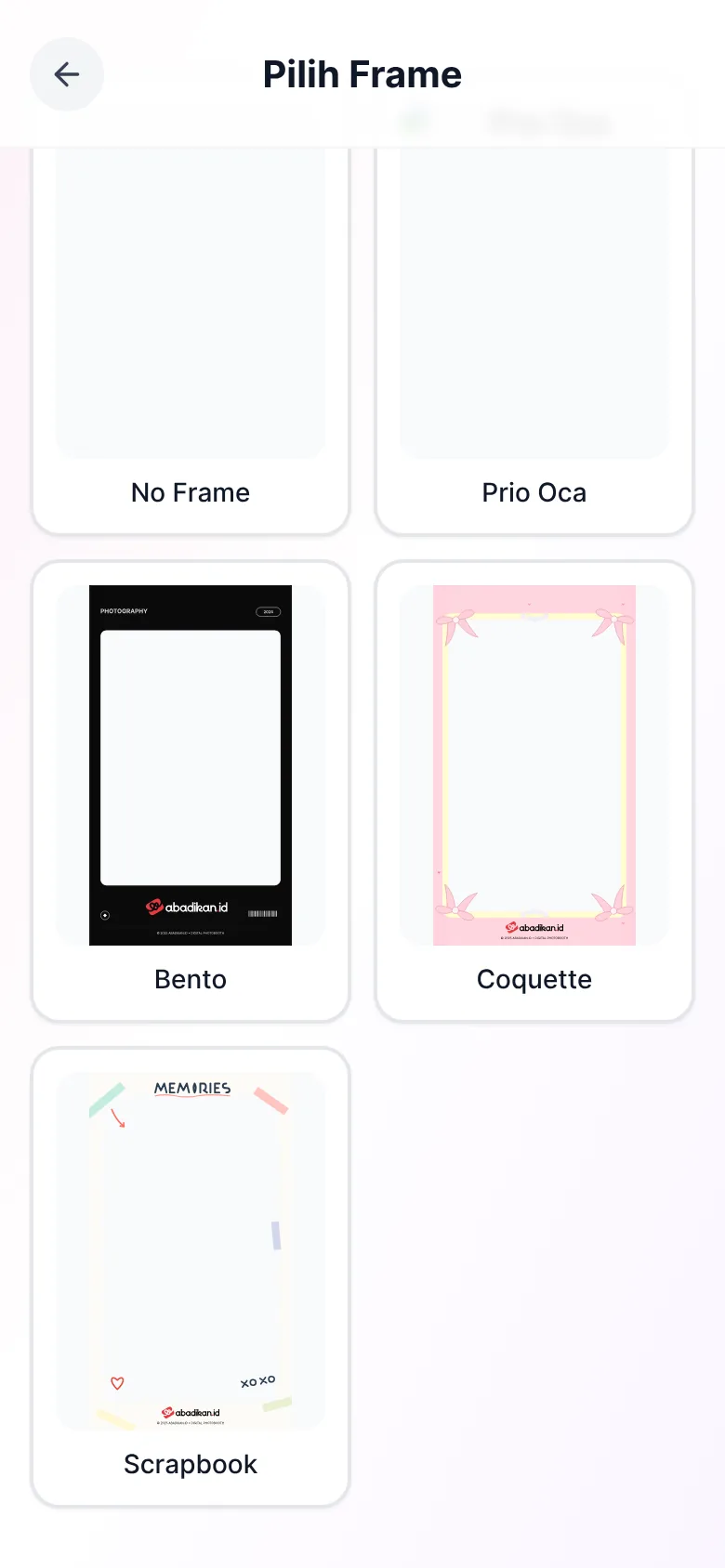
- The guest picks a frame under Choose Frame.
- The guest takes a photo or records a video with the phone camera.
- The guest checks the result, then taps Save Photo or Save Video. Retake is used to start over.
Frames don't follow your invitation theme. The choices are the same for every invitation.
If the invitation's photo limit has been reached, the guest gallery shows Limit reached and guests can't add photos.
View all the photo results
The Photobooth page shows every photo and video guests took, with the guest's name and time. Below the title is the count, for example "12 photos & videos", or "12 of 50 photos & videos" if your invitation has a quota limit.
- Click a photo or video to see it larger. Use the Previous and Next buttons to move around, and Download to save.
- Videos carry a Video label.
- The gallery loads more as you scroll, or click Load more. The reload icon fetches the latest results.
Photos marked Locked
Photos marked Locked came in after this invitation's photobooth quota was full: guests can't see them and they don't show on the photobooth screen. If any are locked, the page shows that note above the gallery. The dashboard doesn't have a button yet to hide or delete photos.
Show the results on the venue screen
- On the laptop connected to the TV or LED, sign in to your account and pick the event invitation under Your invitations.
- Open the Photobooth page, then click Open photobooth screen. The screen opens in a new tab.
- Click Full screen (the controls appear when you move the mouse, then disappear by themselves). Back to Photobooth closes the screen.
The screen shows your two names and a wall of guest photos that keeps scrolling. Videos play without sound and loop. The screen loads the latest photos every 15 seconds without needing a reload; before any photos exist, it says "No photos yet. This screen checks for new photos every 15 seconds." Photos marked Locked never show on the screen.
Next steps
- Show guest greetings on the venue screen — Put the Guest welcome screen on another TV.
- Event day checklist — Test the photobooth link and screen before the event.