Record guest arrivals at the venue
QR check-in is the reception desk in the dashboard. Find a guest by QR or search, note how many people came and what they brought, then confirm. The numbers go straight into the Arrived counter and Statistics.
This menu is in the sidebar Event day group (on a phone: the Menu tab), and needs an active Digital Guestbook. Not active yet? See Activate the Digital Guestbook.
Before you start
- Open this page on a tablet, laptop, or phone that is signed in to your account, with the right event invitation selected under Your invitations.
- Allow the browser to use the camera. The camera is used to scan QR codes and, if check-in photos are on, for arrival photos.
- Setting it up at the reception desk? Click Reception mode (see below).
Arrival counter
At the top of the page there is an Arrived card showing how many people have come, compared with "of n people who said they'd come", the number of invitations checked in, and how many have left. The numbers match Statistics and refresh every 15 seconds while the tab is open, so check-ins from another reception device are counted too. The LIVE tag only appears on the event day. If the numbers fail to load, click Try again.
The QR guests bring
Every guest has a personal QR at abadikan.id/{slug}/qr, containing their invitation code. To get guests their link, use the {qr_url} variable in the WhatsApp message template (see WhatsApp Template); this variable is offered in the editor when check-in is active.
Confirm a registered guest
- Find the guest in one of these ways:
- Click Scan QR, then point the camera at the QR on the guest's phone (the Scan guest QR dialog).
- Type at least 2 letters of the name, code, or WA number in the Search guests field, then pick the guest from Search results.
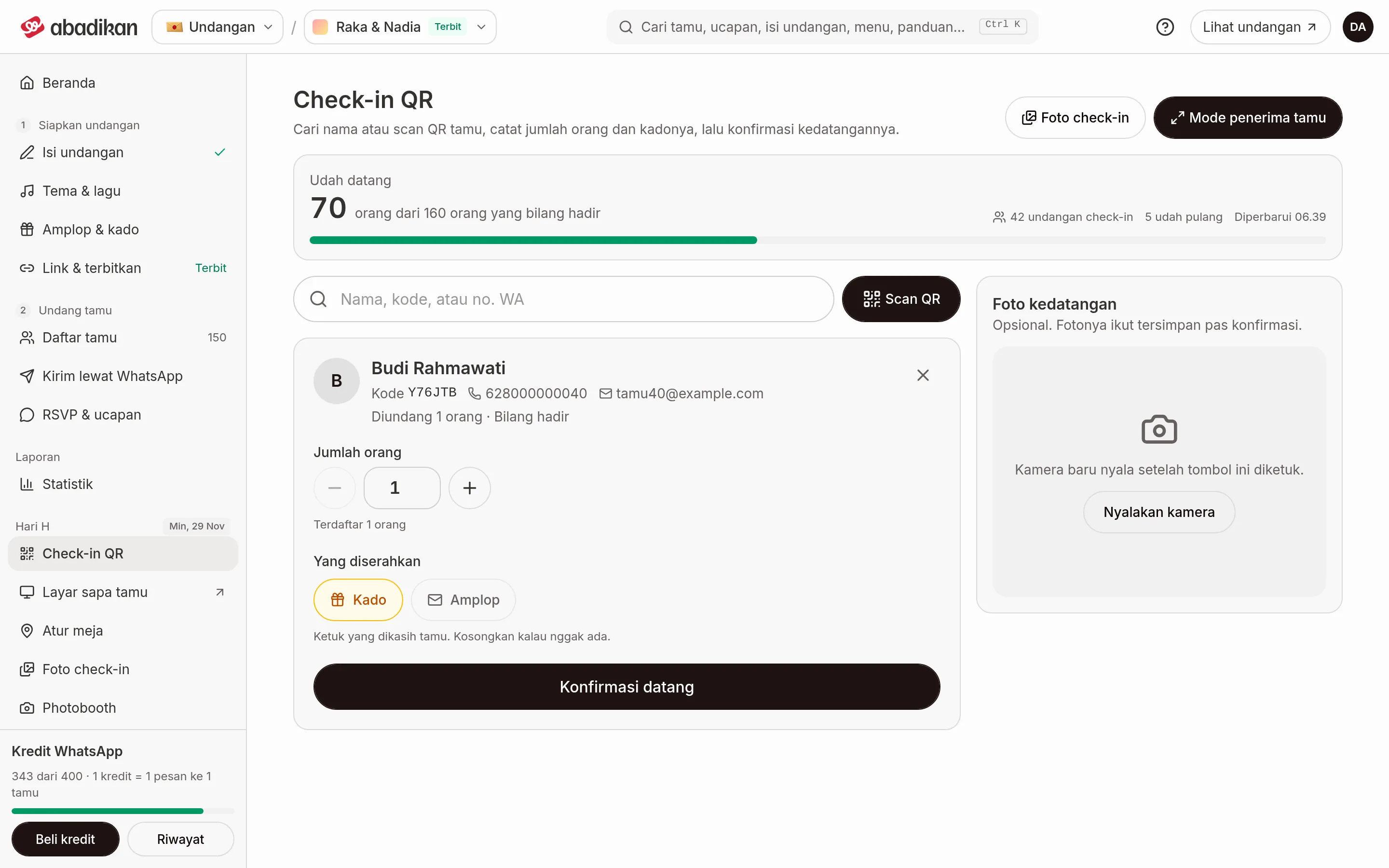
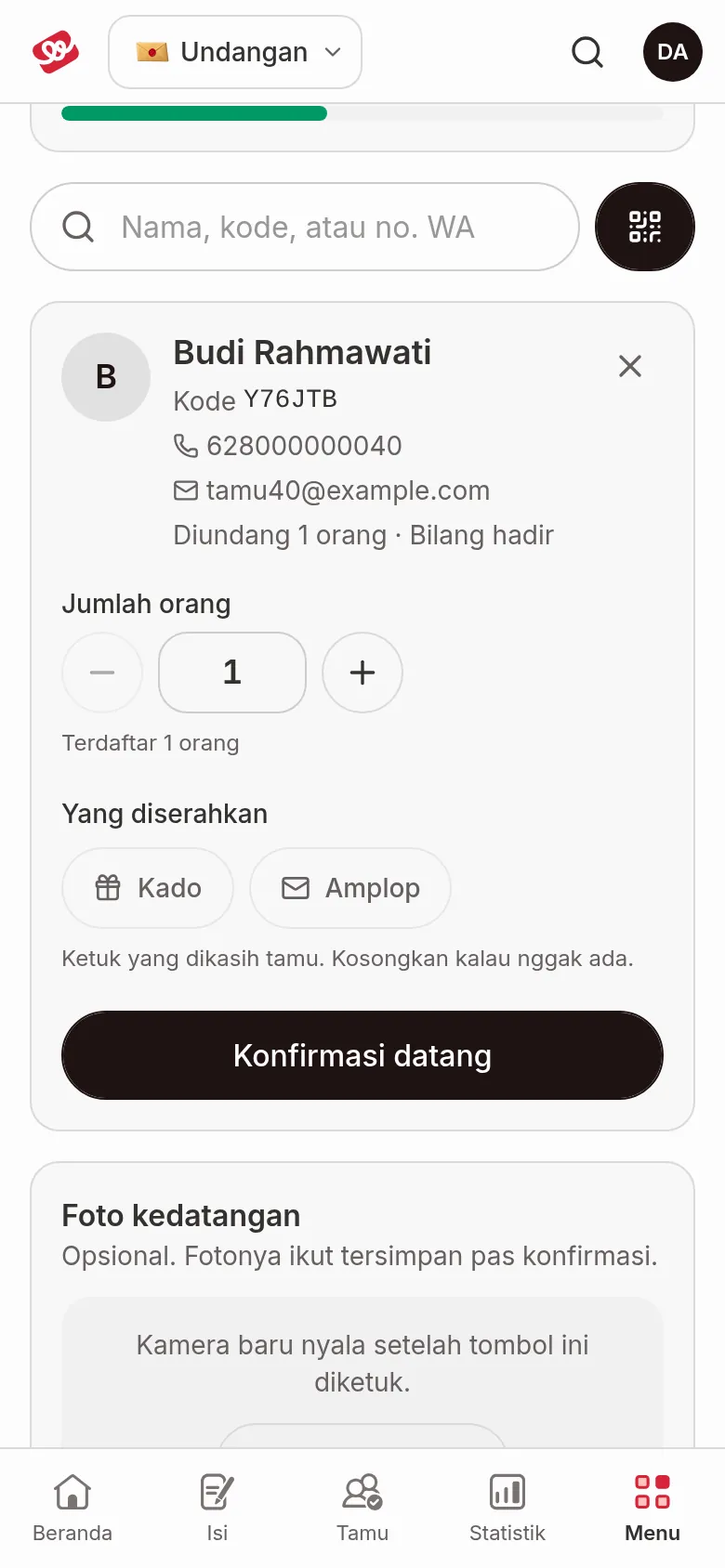
- Check the guest card: Code, WhatsApp, Email, the VIP mark, and their RSVP answer ("Said they'd come", "Said they can't come", or "No RSVP yet"). Wrong person? Click Change guest.
- Fill in Number of people with the minus and plus buttons. The starting number matches the invitation ("Invited for n people"); change it if a different number came. Fill in Name of who arrived only if the name differs from the registered one; leave it empty to use the name on the list.
- Under Handed over, tap Gift and/or Envelope if the guest gave them. Leave empty if nothing.
- Take an arrival photo if you want (see Arrival photo).
- Click Confirm arrival.
You see "Name checked in (n people)" and the page is ready for the next guest, with the search field selected again.
Guests who already checked in
A personal guest can only check in once. If you pick a guest who has already arrived, the card shows "Name is already checked in" with the arrival time and number of people, instead of the form. There you find the Mark as left button: click it, then Yes, mark as left to record the time they left as now. The leaving time can't be undone. A guest who has left is marked "Name has left".
Group invitations
One group invitation code is used by many people. The card is tagged Group invitation, and each check-in is recorded as its own guest, so the same code can check in many times. Fill in Name of who arrived for each person or party that arrives.
Add a guest who isn't registered
- Type the name in the Search guests field, then click Add "name" as a new guest. Or, when you haven't searched, click Guest not on the list? Add & check in.
- Fill in the New guest form (see the table).
- Take an arrival photo if you want.
- Click Add & check in.
The guest is added to the guest list and recorded as arrived at the same time. Click Cancel to go back to search.
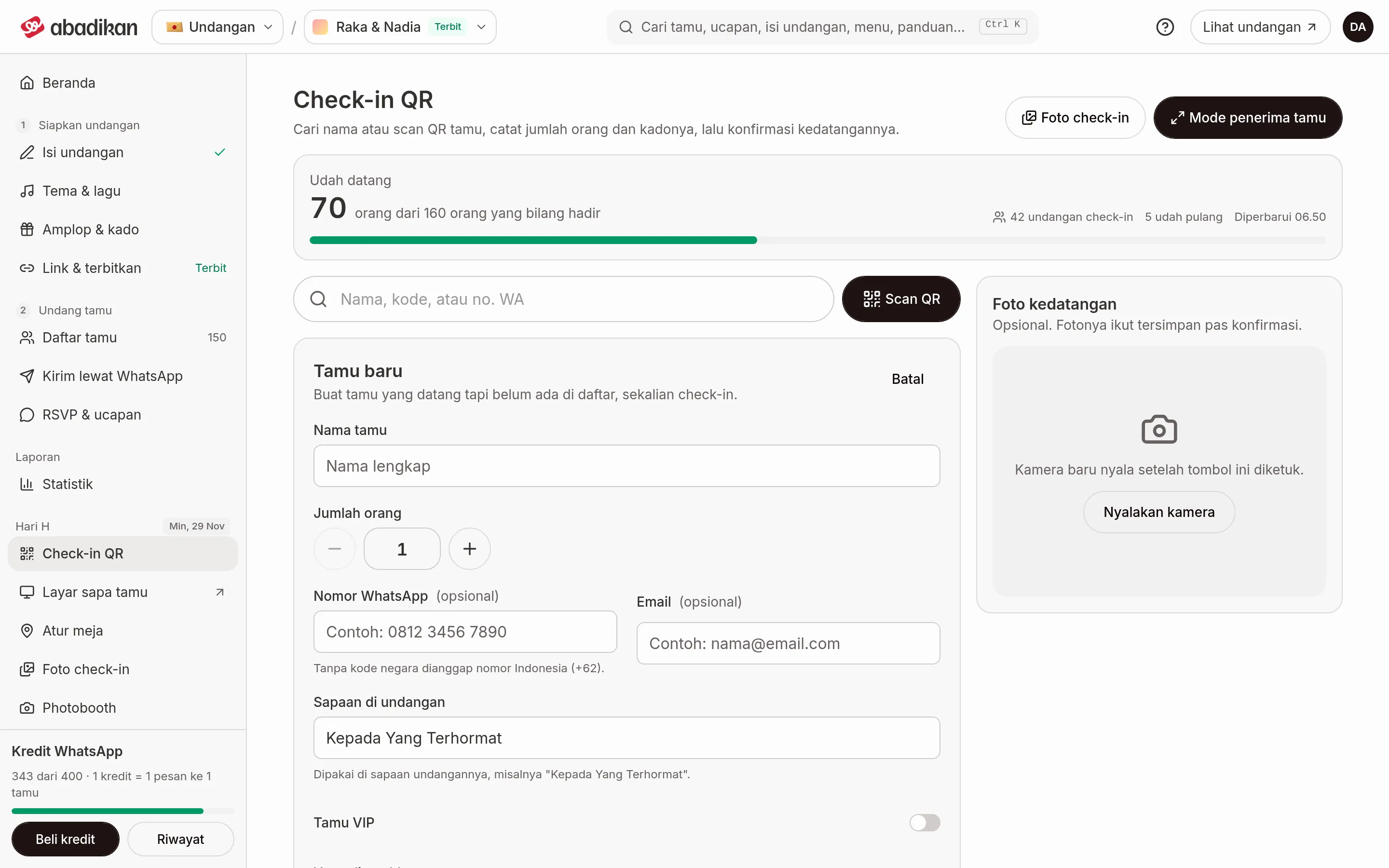
| Field | Content | Required | Limit/format |
|---|---|---|---|
| Guest name | Full name. | Yes | 2–50 characters. |
| WhatsApp number | The guest's number. | No | Example 0812 3456 7890; without a country code it is taken as an Indonesian number (+62). |
| The guest's email. | No | Email format. | |
| Number of people | People arriving with this guest. | Yes | A number. |
| Salutation on the invitation | How to address the guest. | Yes | Starts as "Kepada Yang Terhormat". |
| VIP guest | Mark as VIP. | No | A switch. |
If the guest was added but check-in failed, the card opens with what you entered: just click Confirm arrival again.
Arrival photo
The Arrival photo card only shows if check-in photos are on for your invitation. The photo is optional.
- Click Turn on camera and allow camera access in the browser. The camera doesn't turn on by itself.
- Click Take photo. The camera counts down 3 seconds; click Cancel to stop the countdown.
- Click Retake to replace the photo. The switch camera icon toggles between the front and back cameras, and Turn off camera turns the camera off.
- The photo is saved when you click Confirm arrival (or Add & check in).
Photos that come in can be seen in Check-in photos and show on the Guest welcome screen. The Check-in photos button at the top right of the page opens the gallery.
Reception mode
Click Reception mode for the tablet or phone at the reception desk. The page covers the dashboard menus with the title Reception desk, goes full screen, and keeps the screen on. Click Exit (or the Back button on a phone) to leave. The address uses ?mode=operator.
Common problems
| Message | Meaning | What to do |
|---|---|---|
| This isn't an invitation guest QR. | The scanned QR isn't a guest QR, for example a QR holding only a regular link. | Search for the guest by name or code. |
| Code … isn't on this invitation's guest list. | The QR matches the pattern but isn't in the invitation currently open, for example a QR from another invitation. | Check the selected invitation under Your invitations, or search by name. |
| No guest "…" on the list. | The name or code doesn't exist. | Check the spelling, or click Add "…" as a new guest. |
| The photo failed to upload. | The photo didn't upload, usually because of the connection. The check-in isn't saved yet. | Try again, or turn off the camera and check in without a photo. |
| The photo failed to upload, the guest is still recorded without a photo. | Appears when adding a new guest: the guest is still added and recorded as arrived, only the photo isn't saved. | Nothing to do. |
| Check-in failed. | The check-in was rejected, for example the guest was already recorded by another device. | Read the message; the guest card reloads to show the latest state. |
More fixes for the event itself are in Guestbook and coupon issues on the wedding day.
Next steps
- Show guest greetings on the venue screen — Greet guests who just checked in on the TV.
- View and download check-in photos — Collect all arrival photos.
- Event day checklist — Test check-in the day before.