Invitation content
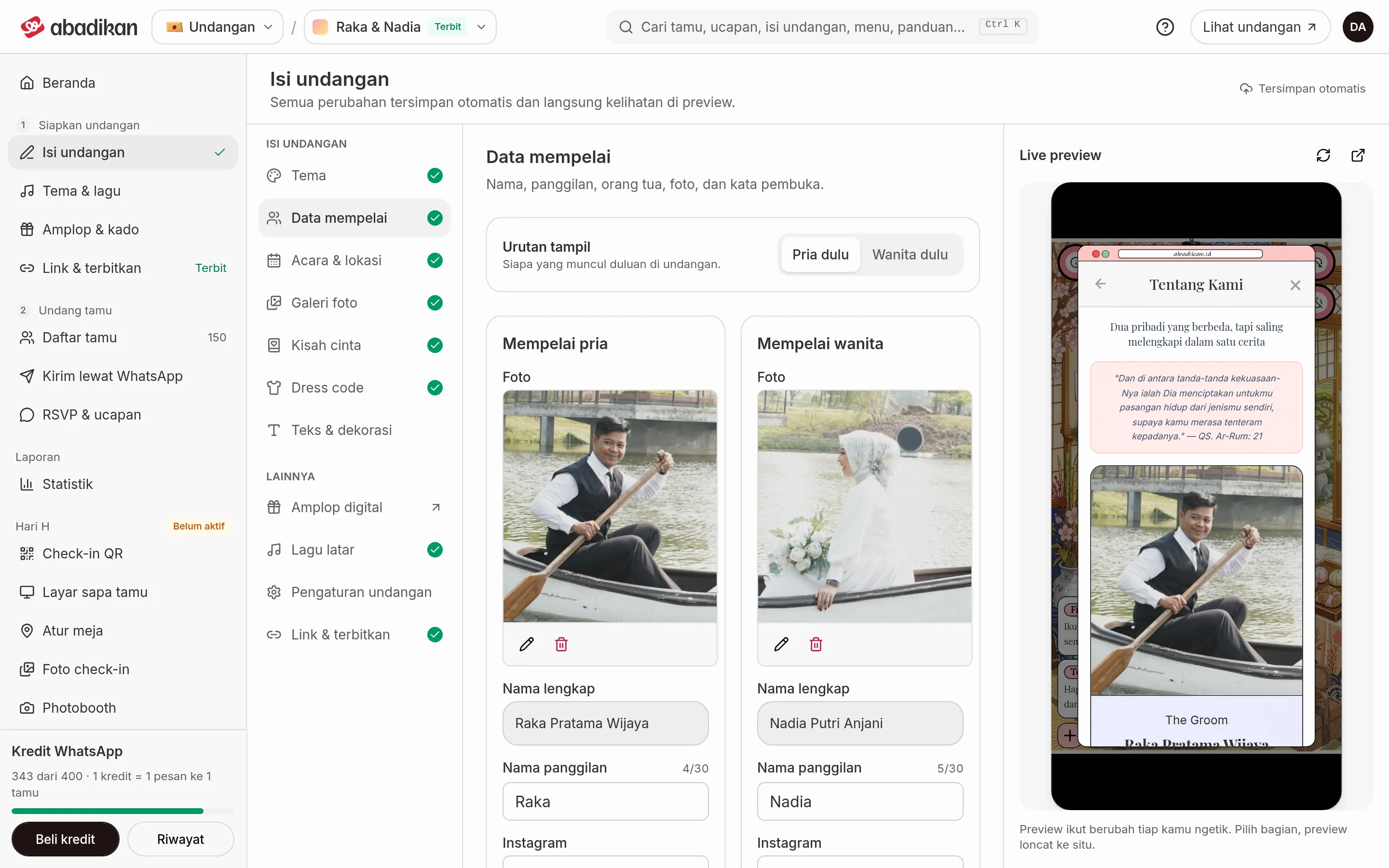
In Invitation content you fill in everything your guests read: couple details, event schedule, photos, love story, and dress code. It's all in one editor: the list of sections on the left, the form in the middle, and a live preview of the invitation on the right.
What you can do
| What you want to do | The section | Page |
|---|---|---|
| Change the theme and look | Theme | Change the invitation theme |
| Fill in names, photos, and the couple's order | Couple details | Fill in the couple's details |
| Add event schedules and locations | Events & venues | Set event times and locations |
| Upload photos and a YouTube video | Photo gallery | Upload gallery photos and videos |
| Write your story as a couple | Love story | Write your love story |
| Choose guest attire colours | Dress code | Choose a dress code |
| Change texts and elements of the Aruma theme | Texts & decorations (Aruma theme) | Edit Aruma texts and decorations |
| Change texts and look of the Jingga theme | Texts & decorations (Jingga theme) | Set up the Jingga theme |
| Hide certain parts of the invitation | Depends on the theme | Choose which parts show on the invitation |
| Set the link preview, WhatsApp template, RSVP, and invitation access | Invitation settings | Invitation settings |
| Choose a background song | Background music | Background music |
| Choose the link, pay, and publish the invitation | Link & publish | Set, open, and share your invitation link |
| Fill in envelope accounts and the gift list | Digital envelope (opens the Envelopes & gifts page) | Digital envelope |
| Try and edit the invitation before paying | The same editor | Edit your invitation before paying |
| Check photo sizes and formats | Every section with photos | Photo sizes and formats |
List of sections
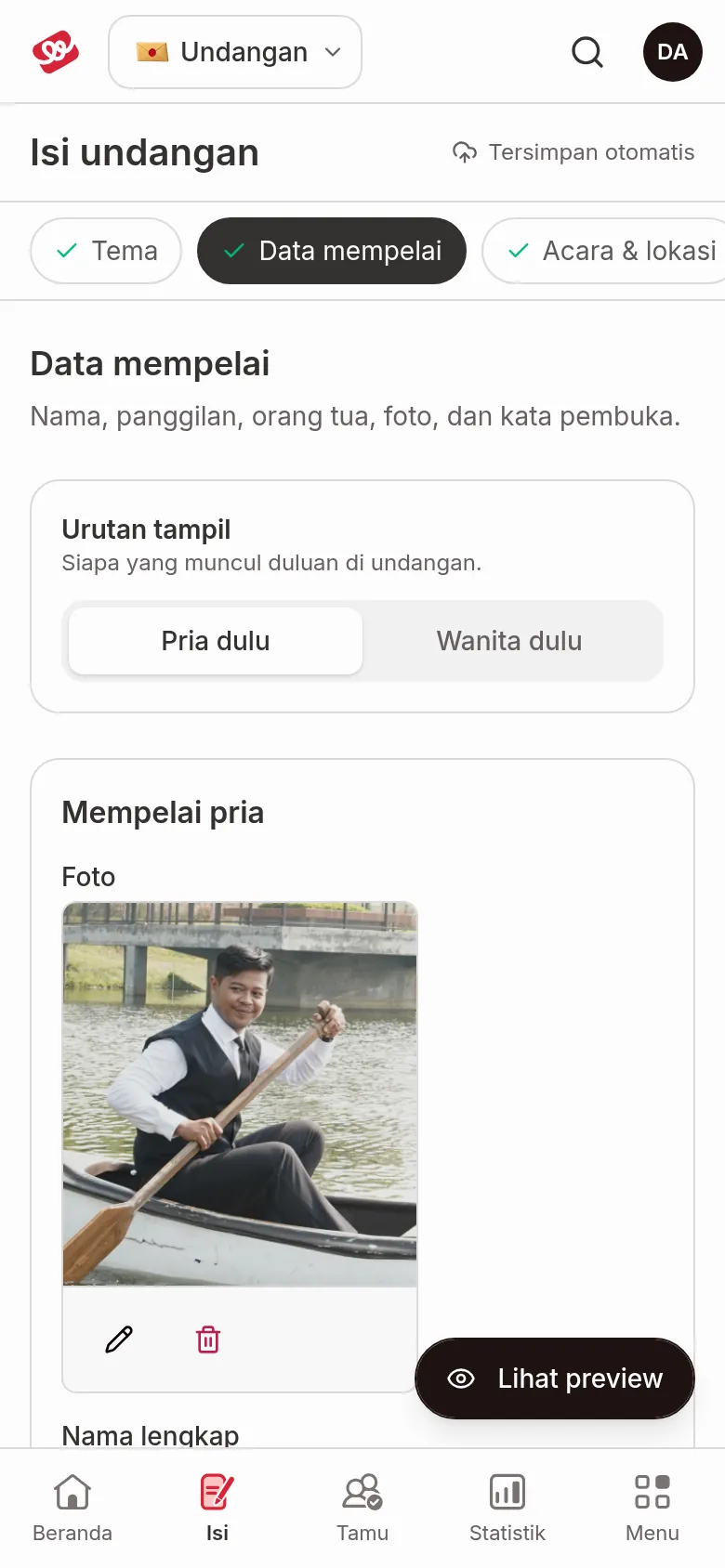
The list of sections has two groups: Invitation content and More. On a wide screen, the list sits to the left of the form. On a phone, it becomes a row of chips above the form; swipe sideways to see them all.
| Group | Section | When it shows |
|---|---|---|
| Invitation content | Theme, Couple details, Events & venues, Photo gallery, Love story, Dress code | Always |
| Invitation content | Texts & decorations | Aruma and Jingga themes only |
| Invitation content | Canvas design | Envelope theme only |
| More | Link & publish | Always |
| More | Digital envelope, Background music, Invitation settings | After the invitation is paid |
A few notes:
- Digital envelope has no form in the editor. Clicking it opens the Envelopes & gifts page; an arrow icon next to it marks this.
- For a digital catalogue, the editor only has Link & publish.
- If you open a link to a section your invitation doesn't have, the editor opens the first available section. If you open the editor without naming a section, it opens the first section that still needs filling in (Theme, Couple details, Events & venues, then Link & publish).
- Old links like
/invitation/edit?tab=…are redirected to the matching section automatically.
Progress marks
The sections listed in the table below get a mark in the list of sections: a green tick (Complete), a yellow circle (Incomplete), or a grey circle (Not filled in). Hover over the mark to read what it means. On a phone, only the green tick shows on the chip.
| Section | Counts as complete when |
|---|---|
| Theme | A look (variant) is chosen. |
| Couple details | Both partners' full names and nicknames are filled in, plus the photos and the parents' details. Incomplete if any of those is still empty. |
| Events & venues | There's at least one event, and every event has a date, start time, venue name, and address. |
| Photo gallery | There are at least 6 photos. Incomplete with only 1–5 photos. |
| Love story, Dress code | At least one story or one colour is filled in. These two are optional. |
| Background music | A song is chosen. It's optional, so it never shows as lacking. |
| Link & publish | The invitation is published and can be opened at its link. |
Everything saves automatically
There's no Save button. Every change saves by itself a moment after you stop typing, and photos save as soon as they're uploaded or deleted. The status at the top right, next to the title, shows where things stand:
| Status | What it means |
|---|---|
| Saved automatically | No changes are waiting. |
| Not saved yet… | A change is about to be saved. |
| Saving… | The change is being sent. |
| Saved followed by a time | Your latest change is safe. |
| Some fields need fixing first | A field can't be saved yet, for example a wrong Google Maps link or colour code. The message under the field says what to fix; your other fields keep saving. |
| Couldn't save | The change couldn't be sent. Click Try again. |
If you leave the page while changes still haven't been saved, an Unsaved changes dialog appears. Choose Stay here to go back to the editor, or Leave anyway to discard those changes.
Live preview
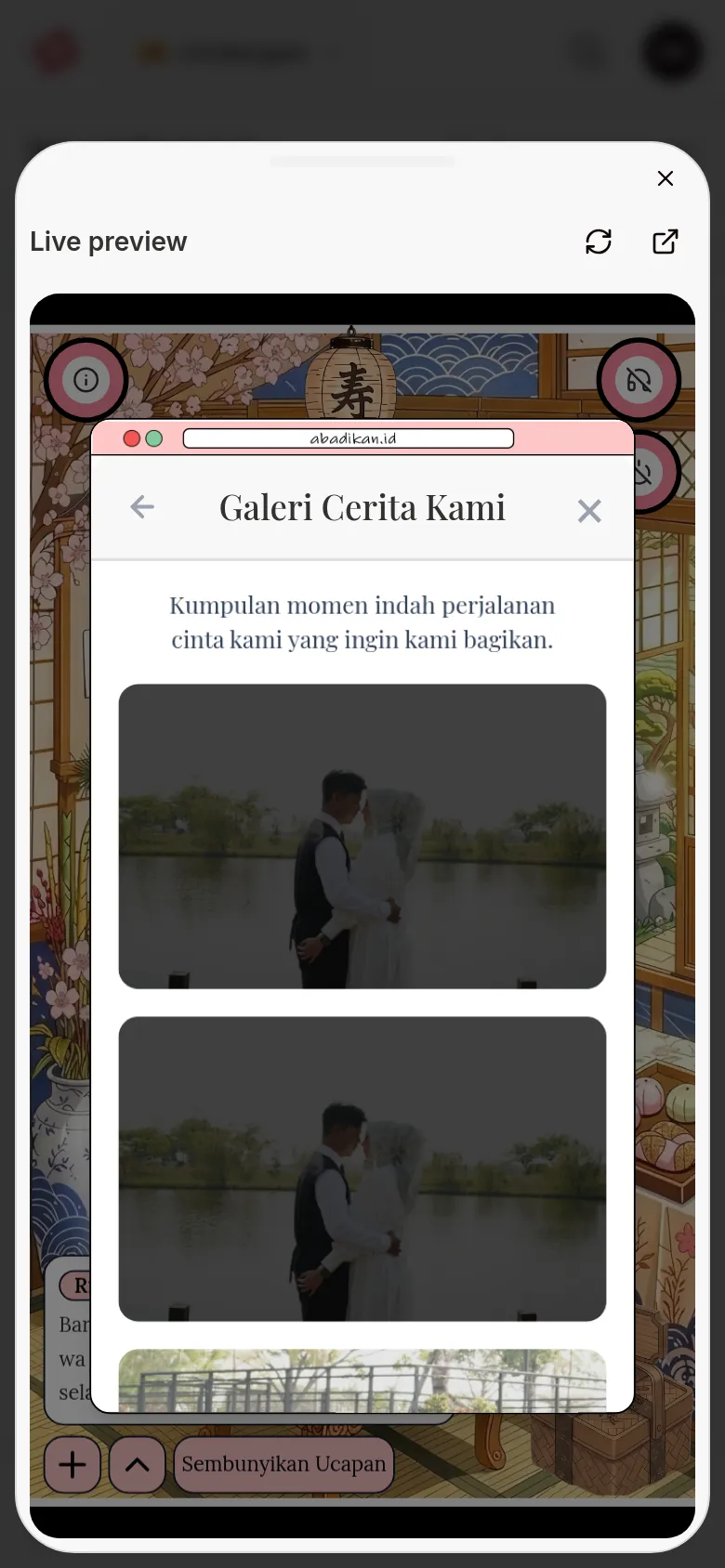
The invitation preview changes as you type and automatically jumps to the section you're editing. The preview always appears in a phone frame, just like guests see it on their phones. On the Aruma, Estella, and Envelope themes the preview moves to the section being edited; on the Sakina theme the preview scrolls there.
- On a wide screen (1280 px and up), the Live preview sits to the right of the form. Click Reload preview if the view needs refreshing, and Open in a new tab to open the invitation in its own tab.
- On a narrower screen, click the Show preview button at the bottom right. On a phone (under 768 px) the preview slides up from the bottom of the screen as a sheet; swipe the sheet down or click the close button (Close preview) to close it. On a tablet (768–1279 px) the preview opens from the right edge. The Reload preview and Open in a new tab buttons are at the top of the preview.
The preview shows your invitation as you're editing it, not each guest's personal view. If the preview differs from what a guest sees, see The preview differs from the guest view.
Before and after payment
| Stage | What's available in the editor |
|---|---|
| Before payment | All Invitation content sections and Link & publish, where you save to your account, choose a package, and pay. Digital envelope, Background music, and Invitation settings don't show yet. |
| After payment | All sections, including Digital envelope, Background music, and Invitation settings. |
The editor can be opened before payment for the Aruma, Estella, Jingga, Sakina, and Envelope themes. For other unpaid themes, Invitation content shows a pay-first page. How to try without an account, save a draft, and pay is in Edit your invitation before paying, and the payment steps are in Complete your invitation payment.
Next steps
- Change the invitation theme — pick the theme and look that suit you best.
- Fill in the couple's details — start with the partners' names and photos.
- Set, open, and share your invitation link — choose the link and publish your invitation.
- Check before sending your invitation — make sure everything is ready to share.