Set event times and locations
Events & venues holds the schedule and location of each event, such as the akad and the reception, so guests know when and where to come. Every change saves automatically.
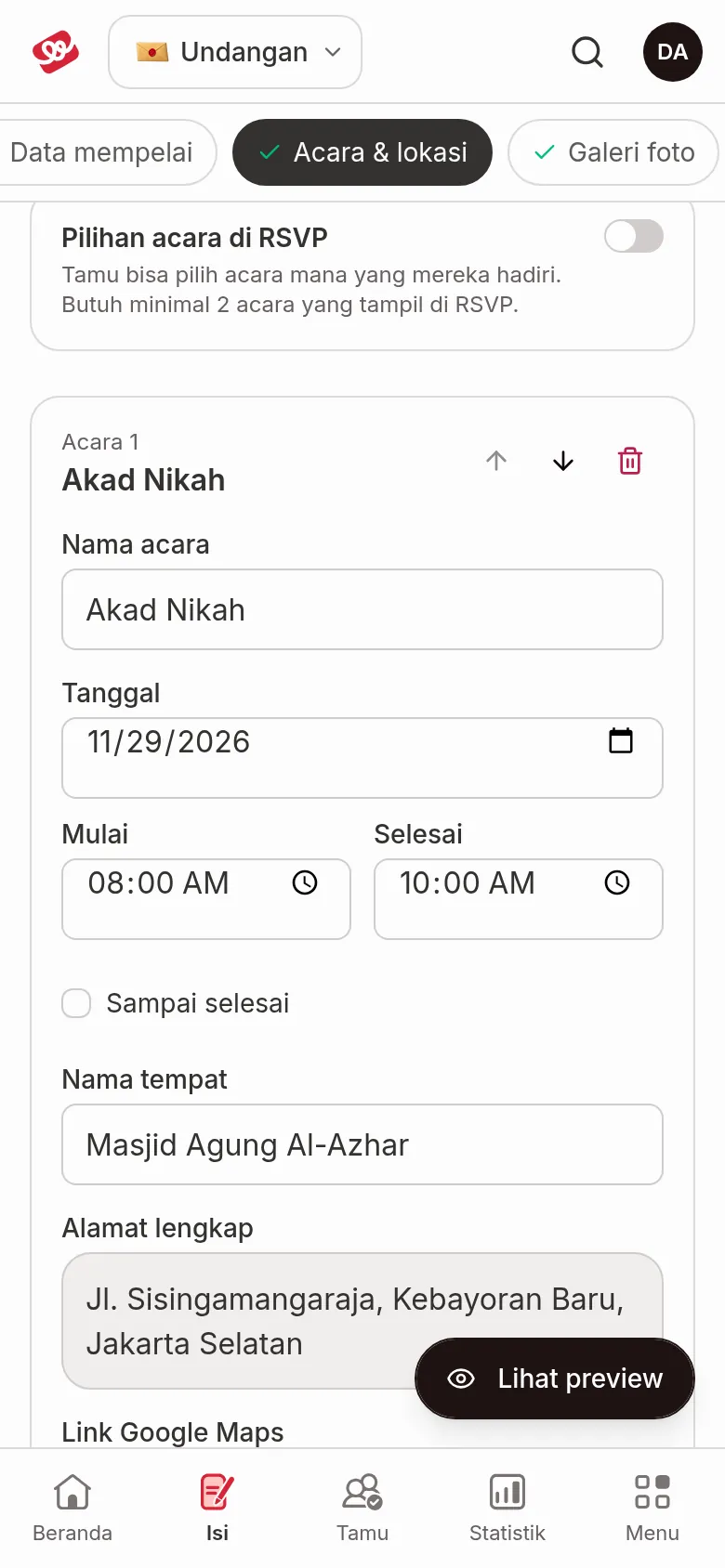
Fill in the event details
- Open Invitation content › Events & venues.
- In the Event 1 card, fill in the fields below. A card that still has gaps is marked, for example "Missing: date, time, venue, address".
| Field | What to enter | Limit/format |
|---|---|---|
| Event name | The name of the event, like Akad Nikah or Reception. | — |
| Date | The event date. | Pick it from the calendar. |
| Starts | When the event starts. | Hours and minutes. |
| Ends | When the event ends. | Tick Until it ends if there's no fixed end time; the Ends field is then disabled. |
| Venue name | The name of the hall, house, or location. | — |
| Full address | An address guests can search for. | — |
| Google Maps link | The location link from the Share button in Google Maps. | Must be a valid link. See Google Maps link. |
Google Maps link
Open the place in Google Maps, tap Share, then paste the link into the Google Maps link field.
- Click Search Google Maps (it appears once Venue name or Full address is filled in) to look the place up in Google Maps.
- Click Check link (it appears when the link is valid) to open the link in a new tab.
- If the link isn't valid yet, the field turns red with the message "This isn't a valid link yet. Copy it from the Share button in Google Maps." Until then, changes in Events & venues aren't saved and the status at the top changes to Some fields need fixing first; your other sections keep saving.
Main invitation date
At the top there's a Main invitation date card. This date is used for the countdown, the event day, and the date in WhatsApp messages. You don't enter it here; the card only shows the date.
If the earliest event date differs, you'll see the warning "Differs from the earliest event (…). The main date can't be changed here yet." Click Ask admin to change it to send a WhatsApp message to the admin.
Add a venue photo
The Venue photo (optional) field is on every event card.
- Click Upload venue photo.
- In the Upload Foto (upload photo) dialog, choose a photo, set the ratio, then click Konfirmasi Upload (confirm upload).
The photo is saved right away. To replace or delete it, click the pencil icon (Change venue photo) or the trash icon (Remove venue photo) under the photo, then confirm Remove in the Remove the venue photo? dialog. Size and format limits are in Photo sizes and formats.
Add, reorder, or delete events
- Add: click Akad Nikah, Reception, or Other event below the list. A new card appears and its date copies the previous event. Other event creates a card with an empty name.
- Reorder: click the up or down arrow (Move up, Move down) at the top right of the card.
- Delete: click the trash icon (Remove event) on the event card, then confirm Remove in the Remove …? dialog. The event disappears from the invitation and from the guests' RSVP options right away.
An invitation needs at least one event, so the trash icon is disabled when only one event is left ("An invitation needs at least one event.").
Event choice in RSVP (Aruma)
For the Aruma theme only, there's an Event choice in RSVP card. With it, guests can choose which events they'll attend when they RSVP.
- On each event card, use the Shown in RSVP options switch to show or hide that event in the RSVP options.
- On the Event choice in RSVP card, turn on Guests choose events when they RSVP. The switch can only be turned on when at least 2 events are shown in RSVP. If the number of shown events drops below 2, the switch turns itself off.
Next steps
- Upload gallery photos and videos — show your prewedding photos.
- Set up RSVP and invitation access — limit RSVPs and choose who can open the invitation.
- Photo sizes and formats — check file limits before uploading.