Choose a dress code
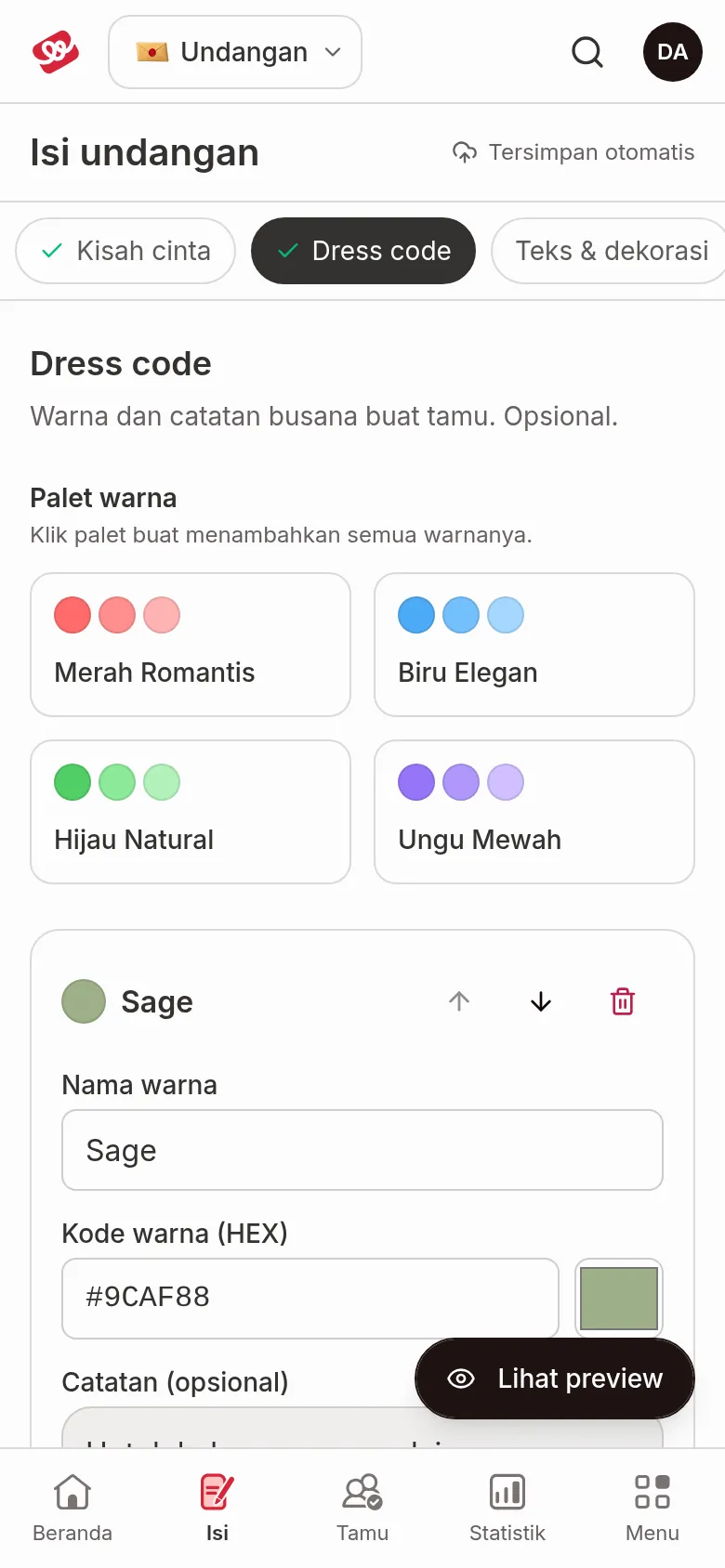
Dress code shows the colours you suggest guests wear, with a colour name and a note for each. This section is optional.
Use a colour palette
- Open Invitation content › Dress code.
- Under Colour palettes, click a palette: Merah Romantis, Biru Elegan, Hijau Natural, or Ungu Mewah (the palette names are shown in Indonesian). All the colours in that palette are added at once as colour cards, below the colours you already have.
- Change the colour names or notes if needed.
There's no Save button; your changes save automatically.
Add your own colour
- Click Add colour below the list of colours. A new card appears with a starting colour code of
#E8D5C4. - Fill in the fields on the Colour 1 card (the number follows the order, and the card title changes to the colour name once you fill it in).
| Field | What to enter | Limit/format |
|---|---|---|
| Colour name | The name guests read, like Sage. | — |
| Colour code (HEX) | The colour code, like #9CAF88. | Type the code, or click the colour box next to it (Pick a colour) to choose one. The format is #RRGGBB; the short form #RGB is also accepted. |
| Note (optional) | A description or shade note for guests, for example "for the families at the ceremony". | — |
If the colour code isn't right, the field turns red with the message "Use the #RRGGBB format, e.g. #E8D5C4. The dress code isn’t saved until the code is fixed." Until then the dress code isn't saved and the status at the top changes to Some fields need fixing first, while the other sections keep saving.
Reorder and delete colours
- Reorder: click the up or down arrow (Move up, Move down) at the top right of the colour card.
- Delete: click the trash icon on the colour card, then confirm Remove in the Remove …? dialog. The colour disappears from the invitation's dress code.
If the list of colours is empty, the page shows "No colours yet."
Next steps
- Change the invitation theme — switch the theme or variant of your invitation.
- Settings — set invitation settings such as the link and the WhatsApp template.
- Check before sending your invitation — make sure everything is ready to share.
Was this page helpful?