Upload gallery photos and videos
Photo gallery shows the two of you on the invitation, for example prewedding or engagement photos, plus one YouTube video if your plan supports it. The order on this page is the order guests see.
Add several photos at once
- Open Invitation content › Photo gallery.
- Click Add photos. While the gallery is empty, the button is called Choose photos.
- Pick one photo or several at once from your device (up to 20 photos per pick, JPG or PNG, up to 10 MB each). On a computer you can also drag photos from a folder onto the gallery area.
- Wait for the upload to finish. Photos are saved the moment they're in, with no confirm button and no crop dialog.
While photos upload, a bar reads Uploading 2 of 5. Each newly added photo is tagged New, and photos waiting their turn say Queued…. If a photo fails, its tile says Failed: tap Retry to try again, or Discard this photo to drop it.
Photos go in with their original shape (aspect ratio), and they're shrunk automatically so the invitation opens quickly. A file that isn't a photo or is over 10 MB is skipped, with a message like "1 file skipped: not a photo or over 10 MB." Want to crop a photo? See Crop or change a photo. Size and format limits are in Photo sizes and formats.
Photo counter
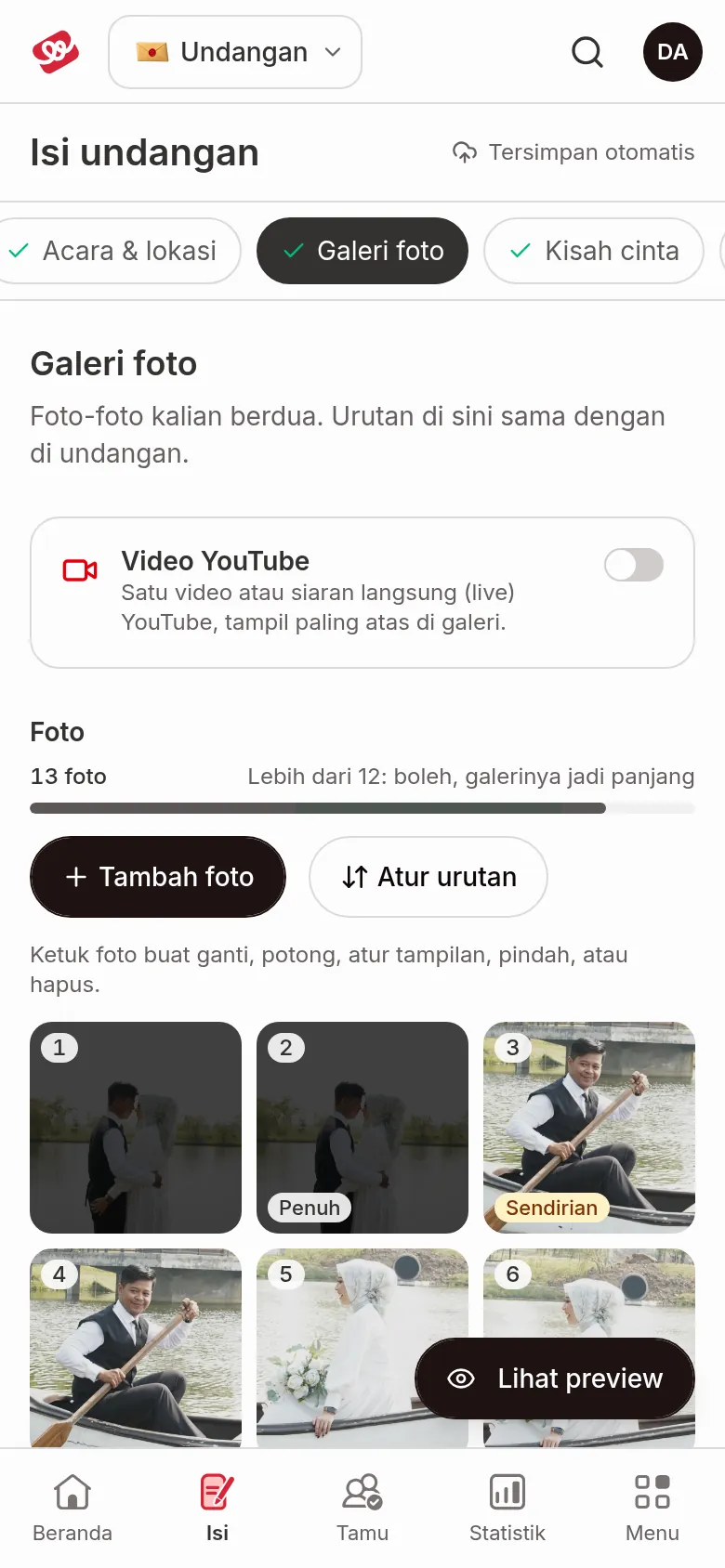
Above the photos you'll see the photo count and a meter bar. The marked zone on the bar is the sweet spot: 6 to 12 photos.
| Number of photos | Note under the bar |
|---|---|
| Fewer than 6 | 6–12 photos work best |
| 6 to 12 | Just right (6–12) |
| More than 12 | Over 12: fine, the gallery gets long |
| Kenalan plan | The count reads like "7 of 10 photos". At the limit you'll see Package limit reached. |
On the Kenalan plan, photos that are still uploading or failed also use up the 10-photo allowance. If you pick more photos than you have room for, the rest are left out with a message like "5 photos added. 3 more go past your package’s 10 photos." Once the limit is full, the Add photos button disappears and a More gallery photos card invites you to upgrade to Janjian.
Edit one photo
Photos appear as a grid of small squares numbered in order. Some squares carry a small label such as Full, Side by side, or Alone; these are explained in Set the layout in the invitation. Tap a photo (on a computer, click it or press Enter) to open that photo's menu. On a phone the menu slides up from the bottom of the screen as a sheet. On a computer it opens next to the photo.
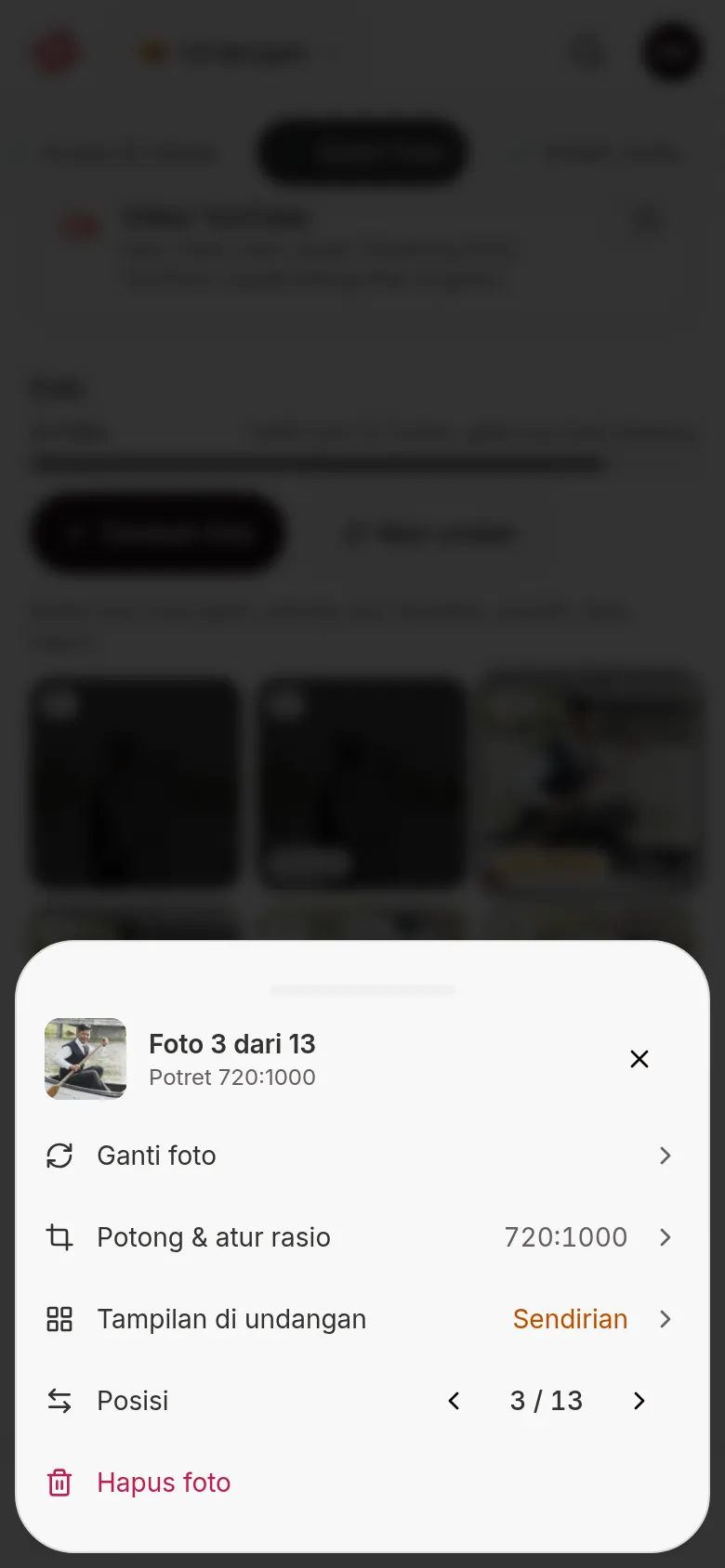
The Photo 3 of 13 menu has these options:
- Change photo: pick another photo file to replace this one. Its position and layout stay.
- Crop & aspect ratio: crop the photo or change its shape. See the next section.
- Layout in the invitation: choose whether this photo gets a full row or sits side by side with another. This option only exists on themes that follow the gallery pattern (Aruma, Estella, Jingga, Sakina, and Envelope). On other themes it says "This theme arranges the photos itself".
- Position: the ‹ and › buttons move the photo one place earlier or later, with its position number in between.
- Remove photo: deletes the photo right away, with no confirmation dialog. See Undo a removed photo.
Crop or change a photo
Photos aren't cropped when uploaded. To crop one, open its menu and choose Crop & aspect ratio. The Upload Foto dialog opens with that photo: pick a Rasio foto (photo ratio) or click Crop Foto to set the area yourself, then click Konfirmasi Upload. The cropped photo replaces the old one in the same position. If the photo can't be opened for cropping, you'll see "This photo can’t be opened for cropping. Use Change photo instead." Use Change photo instead.
How ratio and crop work is explained in Photo sizes and formats. A changed or cropped photo is saved right away.
Undo a removed photo
After Remove photo, a message "Photo 3 removed" appears with an Undo button for about 6 seconds. Click Undo to put the photo back in its old position. On a computer, Ctrl+Z (or ⌘+Z) outside a text field does the same. Only the last removal can be undone. On the Kenalan plan, if the allowance has filled up again, the photo can't come back and you'll see "The photo can’t come back: your package’s 10 photos are already used."
Reorder photos
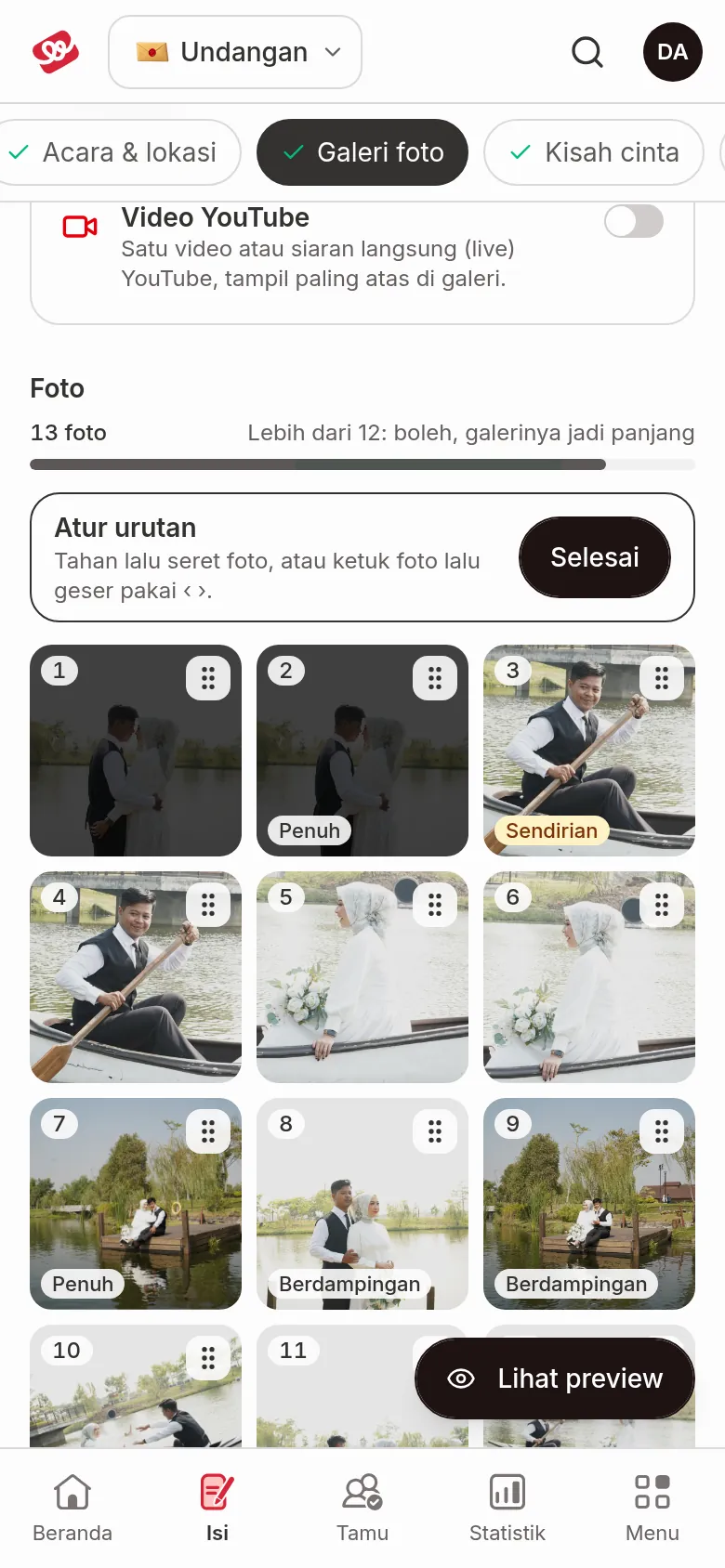
On a phone, click Reorder under the photo counter. The Add photos button is replaced by a Reorder panel with a Done button, and each photo gets a handle icon at its top right.
- Press and hold a photo, then drag it to its new place.
- Or tap a photo to select it, then move it with ‹ and ›.
Click Done when you're finished. Another way for a single photo: open its menu and use Position ‹ ›.
On a computer there's no special mode: drag a photo right in the grid, or focus a photo, press Space to pick it up, move it with ← →, then press Space again to drop it (Esc cancels). The order saves automatically.
Set the layout in the invitation
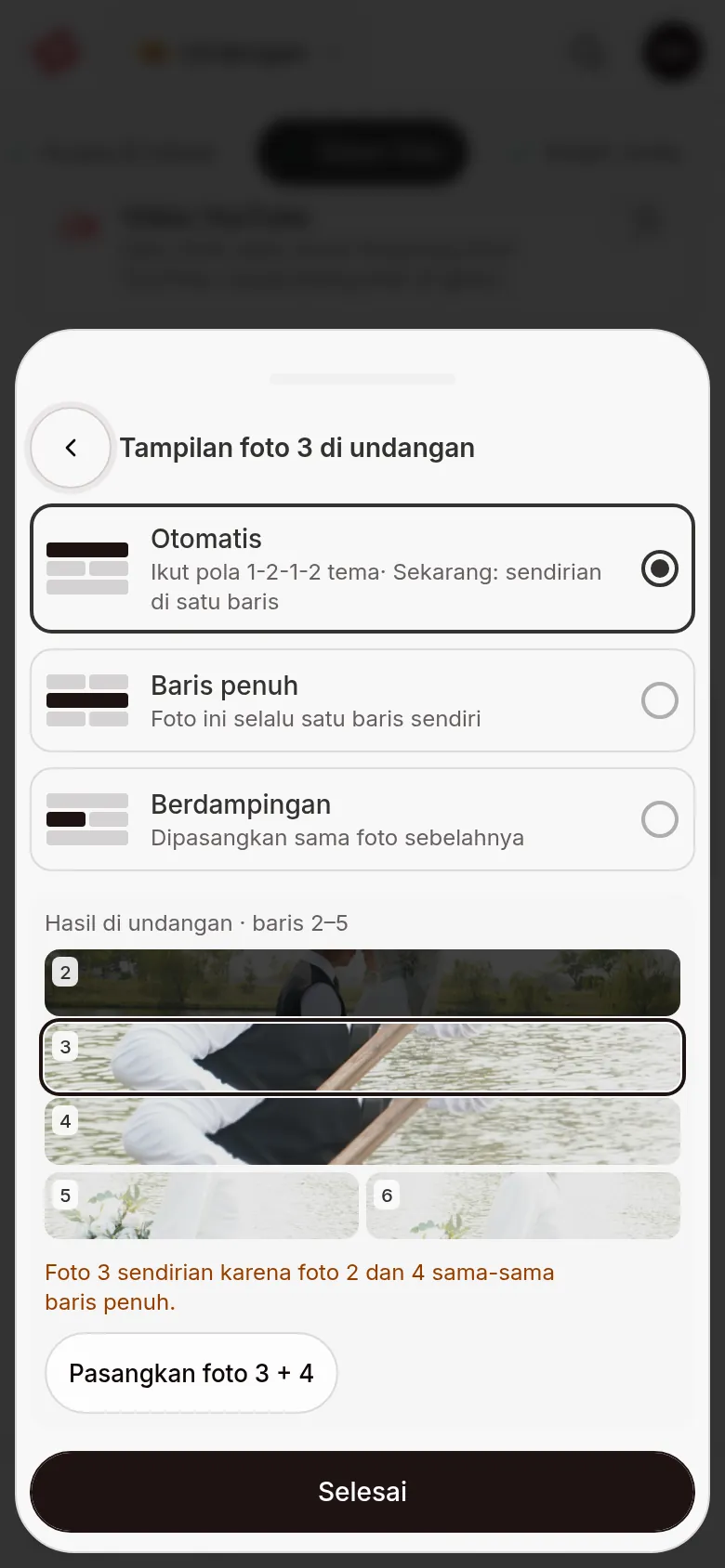
On themes that follow the gallery pattern, each photo can show as a full row or side by side with another photo. Open the photo's menu and choose Layout in the invitation (titled Photo 3 layout in the invitation). There are three choices:
- Auto: follows the theme's 1-2-1-2 pattern. Below it, the current result is written, for example "Now: alone in a row".
- Full row: this photo always gets a row of its own.
- Side by side: paired with the photo next to it.
Under the choices, In the invitation shows a sketch of the rows that will be built, with the photo you're editing outlined. If a photo ends up alone, it explains why, for example "Photo 3 is alone because photos 2 and 4 are both full rows." Below that, the Pair photos 3 + 4 button pairs two neighbouring photos into one side-by-side row in one tap. After pairing, a message "Photos 3 + 4 paired" appears with an Undo button for a few seconds. Click Done (on a phone) to close the sheet.
Add a YouTube video
- On the YouTube video card, turn on the switch.
- Paste the link of the video or live stream into the YouTube link field. The format is
youtube.com/watch?v=…,youtu.be/…, oryoutube.com/live/…. - If the link is right, a video player appears under the field as a preview.
The video always shows first in the gallery. If the link isn't a YouTube video, you'll see "This isn’t a YouTube video link. …". Your photos still save; only the video waits until the link is fixed.
To hide the video, turn the switch off. If a link is filled in, the video is removed right away and a message "YouTube video removed" appears with an Undo button for a few seconds. After that the link is gone, so paste it again if you turn the video on later.
On a plan without video, the YouTube video card is replaced by a card explaining that this feature is available from the Janjian plan up.
Next steps
- Write your love story — tell the story of the two of you.
- Photo sizes and formats — check file limits before uploading.
- Kenalan, Janjian, and Full Custom plans — compare the limits of each plan.