Write your love story
Love story holds the timeline of the two of you, from the day you met to the proposal. Each moment is written as one story. This section is optional.
Add a story
- Open Invitation content › Love story.
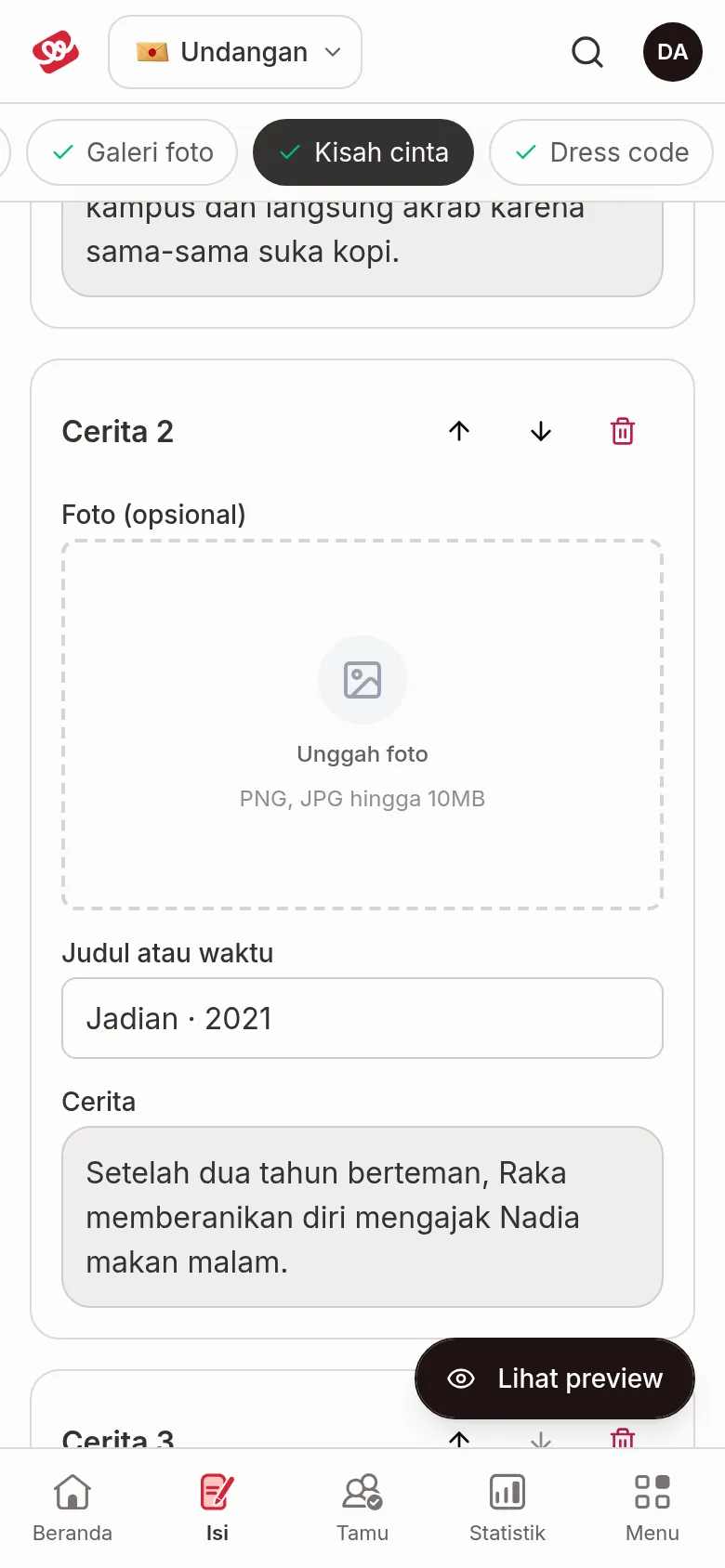
- Click Add story. A new card appears, for example Story 1.
- Fill in the fields below. There's no Save button; what you enter saves automatically.
| Field | What to enter | Limit/format |
|---|---|---|
| Photo (optional) | A memory photo of that moment. | Janjian and Full Custom plans. See Photo sizes and formats. |
| Title or date | The date or title of the moment, like "August 2019". | — |
| Story | A short story about that moment. | — |
Upload a photo with Upload photo on the story card (the Upload Foto dialog); it's saved right away after Konfirmasi Upload (confirm upload). If it fails, you'll see "The photo didn’t upload. Please try again." To replace or delete a photo, click the pencil icon (Change photo) or the trash icon (Remove photo) under it; deleting asks you to confirm Remove the story photo? (the story itself stays). On the Kenalan plan, the photo field is replaced by a card explaining that this feature is available from the Janjian plan up.
Start from an example story
Under the Add story button there's an Example stories section. It opens by itself as long as you have no stories. Click one of the examples (Pertemuan Pertama, Mulai Dekat, Jatuh Cinta, Menjalin Hubungan, or Lamaran; these titles are shown in Indonesian) to add it as a story, then change the text to fit your own story.
The Tips section has writing advice, such as telling the timeline from meeting to marriage and keeping it short.
Reorder and delete stories
- Reorder: click the up or down arrow (Move up, Move down) at the top right of the story card.
- Delete: click the trash icon on the story card, then confirm Remove in the Remove Story …? dialog. The story and its photo disappear from the invitation.
Next steps
- Choose a dress code — tell guests which colours to wear.
- Upload gallery photos and videos — add your prewedding photos.
- Kenalan, Janjian, and Full Custom plans — check the photo features of each plan.