Fill in the couple's details
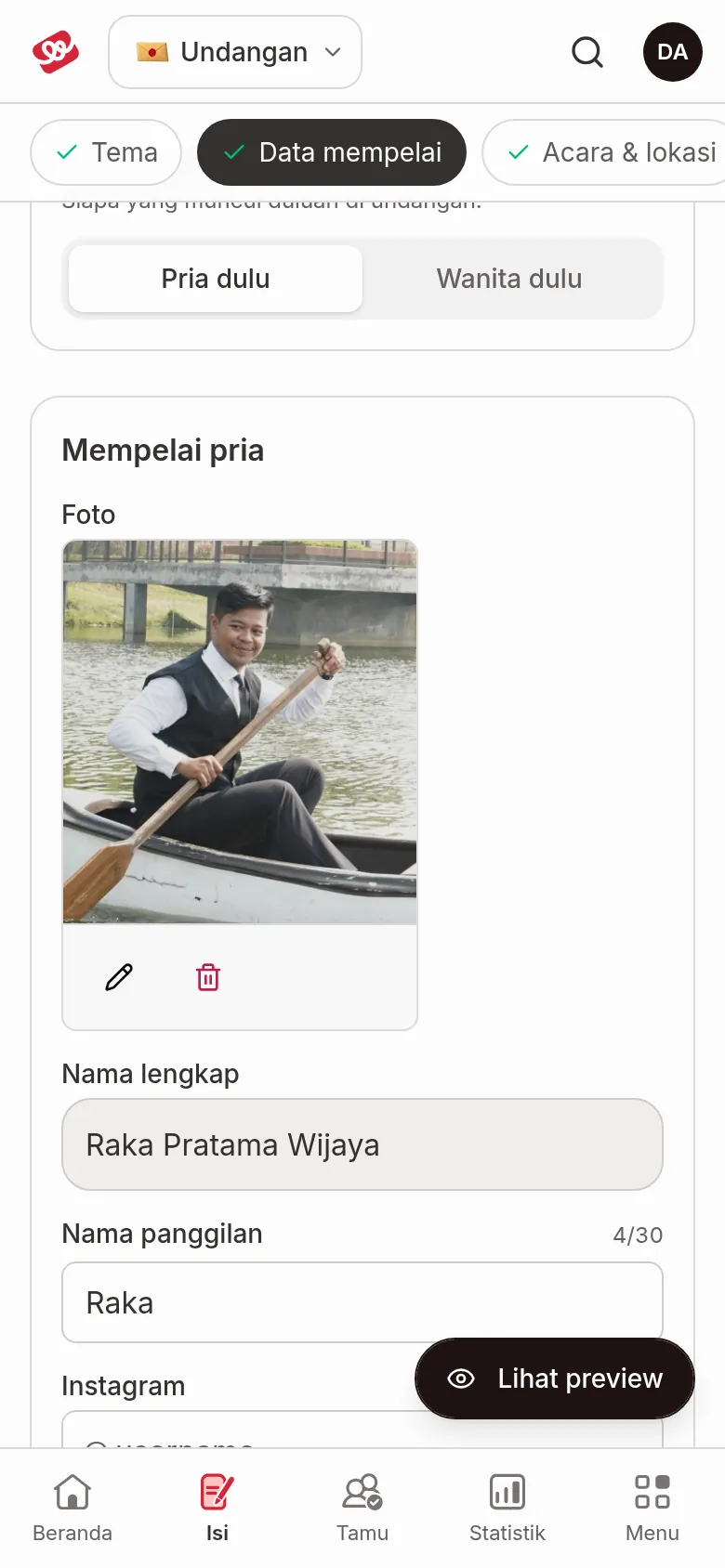
Couple details holds the names, photos, and parents' details of both partners, who appears first, and the opening words at the start of the invitation.
Fill in each partner's details
- Open Invitation content › Couple details.
- In the Groom card, fill in the fields below.
- Repeat in the Bride card.
There's no Save button. Text fields save automatically a moment after you stop typing, and the status in the top right changes to Saved automatically. A card that still has gaps is marked, for example "Missing: name, nickname, parents, photo".
| Field | What to enter | Limit/format |
|---|---|---|
| Photo | The partner's photo. | See Upload the couple's photos. |
| Full name | The name shown on the invitation. | Max. 80 characters. |
| Nickname | A familiar name, like Dika or Putri. | Max. 30 characters; the counter next to the label shows how many you've used. |
| Just the username, no link. | The @ sign is already in front of the field. Any @ or spaces you type are removed automatically. | |
| Parents & description | A short note, like "First son of Mr. Ahmad & Mrs. Siti". | — |
If a nickname is longer than 30 characters, the field turns red with the message "At most 30 characters (N now)." Until then, changes on that partner's card aren't saved and the status at the top changes to Some fields need fixing first; the other card and sections keep saving.
Upload the couple's photos
- On the bride's or groom's card, click Upload photo.
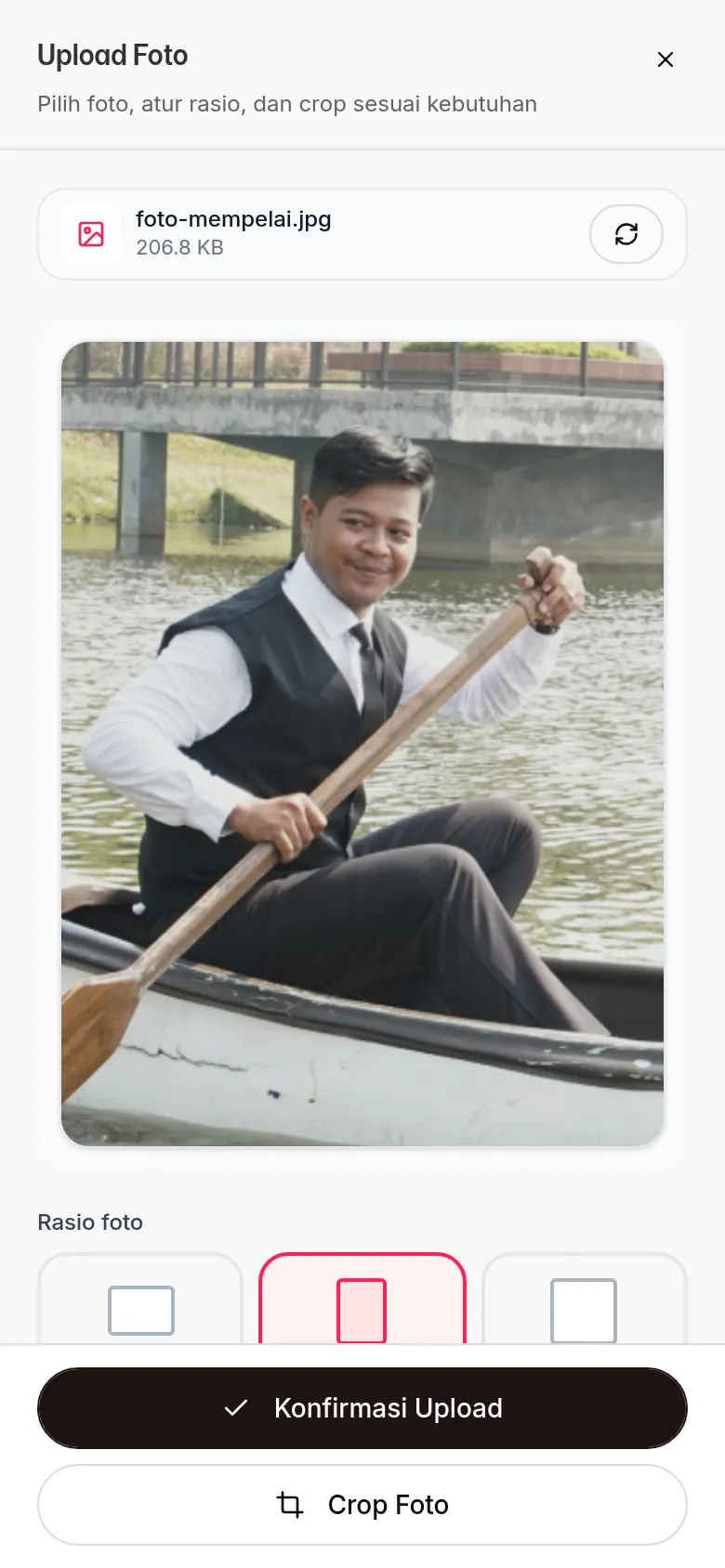
- In the Upload Foto (upload photo) dialog, choose a photo from your device.
- Choose the Rasio foto (photo ratio). Portrait 3:4 looks highlighted from the start, but it's only applied if you click it or use Crop Foto. Otherwise the photo is uploaded in its original shape.
- To cut the photo yourself, click Crop Foto, adjust the area, then click Terapkan (apply).
- Click Konfirmasi Upload (confirm upload). The photo is saved right away.
To replace a photo, click the pencil icon (Change photo) under it. To delete it, click the trash icon (Remove photo), then confirm Remove in the Remove … photo? dialog; the photo disappears from the invitation right away. If the upload fails, you'll see "The photo couldn't be uploaded. Please try again." Size and format limits are in Photo sizes and formats.
Choose who appears first
In the Display order card, choose Groom first or Bride first. This decides who appears first on the invitation and applies to all guests. The order of the Groom and Bride cards on this page changes with it.
Write the opening words
- Scroll to the Opening words card at the bottom.
- Write a verse, a quote, or a short greeting to show at the start of the invitation.
The opening words can't be emptied yet. If you delete everything, you'll see "The opening words can't be emptied yet. Replace the text instead." and the change isn't saved; replace it with other text.
Next steps
- Set event times and locations — add the akad, the reception, or another event.
- Upload gallery photos and videos — show your prewedding photos.
- Photo sizes and formats — check file limits before uploading.