Invitation settings
A guide to each part of Invitation settings, from top to bottom. Every change saves automatically, with no Save button.
Open it from Invitation content › Invitation settings, in the More group. This menu only opens once the invitation is paid. Before that, the theme settings are in the Theme section (see Change your invitation theme).
Invitation link
At the top there's an Invitation link card showing your invitation's address, for example abadikan.id/dika-putri. If the link isn't set yet, it says Not set yet. Click Open Link & publish to go to the Link & publish section.
The link isn't set in Invitation settings, but in Link & publish:
- Use lowercase letters, numbers, and hyphens (-), at least 3 and at most 100 characters. It needs at least one letter and can't start or end with a hyphen. Example:
dika-putri-2026. - The link can't be changed once it's saved. If it needs to change, click Chat admin.
Read more: Set, open, and share your invitation link
Link preview
This part sets the title, description, and image that appear when the invitation link is shared on WhatsApp or social media.
- Fill in Title, for example "The Wedding of Dika & Putri". The title also shows in the browser tab.
- Fill in Description with a short sentence about your invitation.
- Under Cover image, click Upload image, or Change image if there's already an image.
- In the upload dialog, pick a photo, set the ratio and crop, then click Konfirmasi Upload (this dialog is only in Indonesian). The image is saved right away.
| Field | Content | Limit/format |
|---|---|---|
| Title | The title when the link is shared. | — |
| Description | A short text under the title. | — |
| Cover image | The image shown in the link preview. | A 16:9 ratio fits best. PNG or JPG, up to 10 MB. The Abadikan logo is added to the image automatically. |
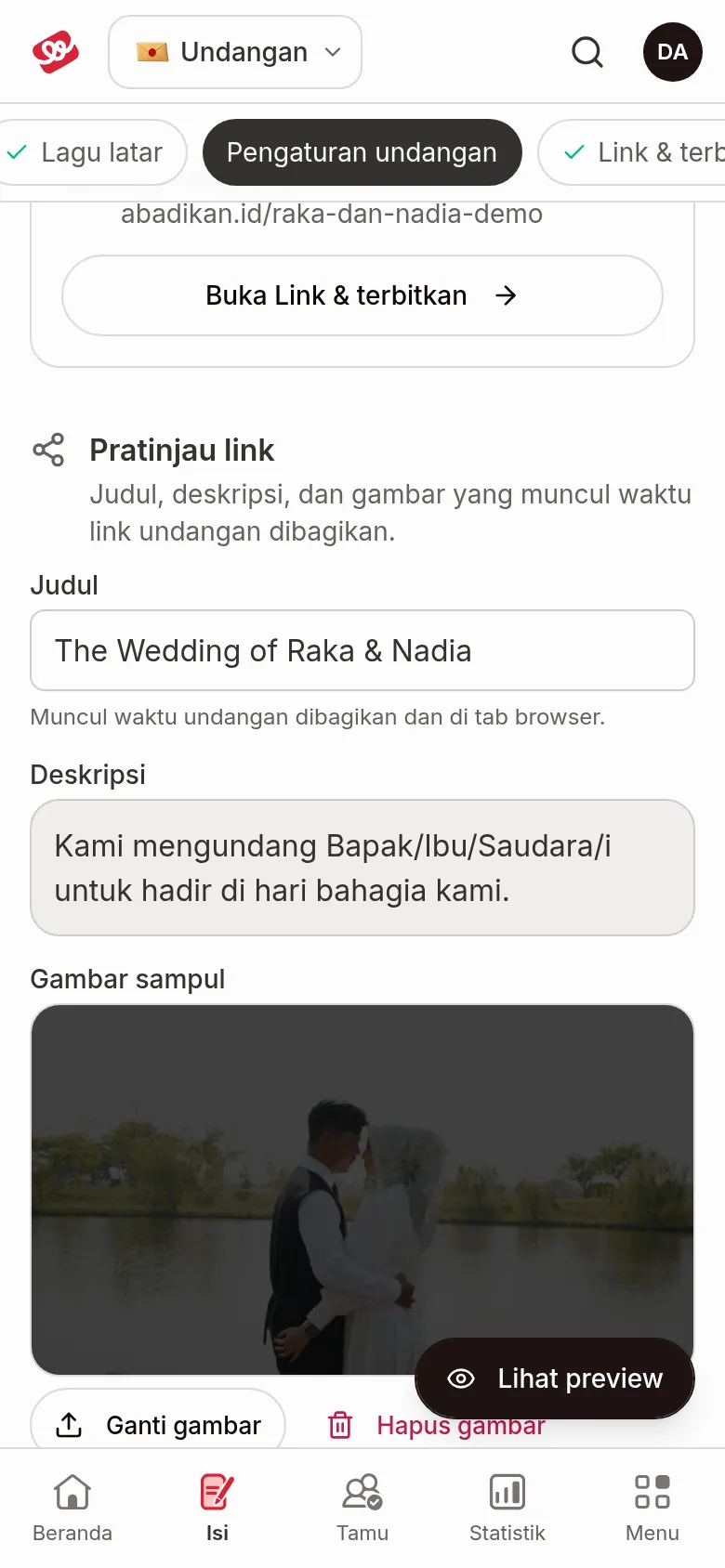
Click Remove image to delete the cover image; the link preview then goes back to the default image. WhatsApp and Facebook may keep showing the old preview for a few days. To refresh it, use the Facebook Sharing Debugger link under this part.
WhatsApp message
This part holds the message every guest receives together with their personal invitation link.
- In the Message field, write your message. On a wide screen, Preview shows next to it; on a narrow one, switch between the Edit message and Preview tabs.
- Tap a variable under the field to insert it at the cursor. Required variables:
{guest_name}(guest name) and{invitation_url}(personal invitation link). Optional variables:{guest_greeting}(guest greeting),{events_list}(list of events),{groom_name}and{bride_name}(the couple's nicknames). If guest check-in is on, there's also{qr_url}(guest QR check-in link). - Click Use the default template to start from Abadikan's default message. If the field already has text, you confirm first with Replace.
- Click Copy sample message to copy the message with sample data.
While the field is empty, guests get Abadikan's default message. The message isn't saved if a required variable is missing ("Not saved yet. Add these first: ...") or if there's an unrecognised variable. An existing message can't be emptied again; use the default template to start over.
Read more: Message template
RSVP
These three RSVP settings are often mixed up. Each one controls something different.
| Setting | Controls | Read more |
|---|---|---|
| Limit RSVP to guests on the list (Limited RSVP) | Who can fill in the RSVP | Limited RSVP |
| RSVP deadline | Until when guests can fill in the RSVP | RSVP deadline |
| Extra questions | What else you ask guests in the RSVP form | Extra questions |
- RSVP deadline: fill in a date and time (WIB). After that, guests can no longer confirm. Click Remove deadline to remove it. If the time has passed, you'll see "The deadline has passed, so RSVP is now closed."
- Extra questions: up to 5 questions, for example food allergies or clothing size. Questions are saved once they're all complete.
- Click See RSVP answers to open RSVP & wishes.
Invitation access
Choose who can open the invitation link: Public, Guests only, or Single device. In Single device mode, a guest's device lock can be reset from the Guest list menu with Reset device in the guest actions menu.
Modes other than Public are available from the Janjian plan up. On the Kenalan plan, this part is locked.
Read more: Access Mode
Theme display
For the Aruma and Jingga themes, Invitation settings has an extra part at the very bottom: Aruma theme display or Jingga theme look. It holds visible sections, effects, colours, and decoration images. It's explained in Choose which sections appear on your invitation and Set up Jingga texts and look.
Next steps
- Send invitations by hand from the Guest list — send a personal link to each guest.
- Set up RSVP and invitation access — decide who can fill in the RSVP.
- Set, open, and share your invitation link — share the invitation once the link is set.