Try and edit your invitation before paying
You don't have to pay before filling in your invitation. Before payment you fill it in using the same editor as after payment: Invitation content. The Studio and Canvas Studio menus that used to exist are gone. Everything they did now lives in Invitation content.
What you can edit before paying
Before the invitation is paid, Invitation content shows only the content sections and Link & publish:
| Section | Before payment |
|---|---|
| Theme | Pick a theme (only while trying without signing in) and change the look. A saved draft's theme can't be changed before payment. |
| Couple details, Events & venues, Photo gallery, Love story, Dress code | Can be filled in. |
| Texts & decorations | Can be filled in for the Aruma and Jingga themes. |
| Canvas design | Can be filled in for the Envelope theme, on a laptop screen. |
| Link & publish | Holds the steps to save, choose a package, and pay. |
| Digital envelope, Background music, Invitation settings | Only open after payment. |
Editing before payment is available for the Aruma, Jingga, Estella, Sakina, and Envelope themes. Other themes are paid first from the catalog, see Buy an invitation from the catalog. If you open a theme that can't be tried yet, you'll see "This template can't be tried for free in the editor yet. Pick another one in the catalogue."
Try without signing in
On a catalog theme page that supports editing before payment, there's a box titled Coba dulu, bayar belakangan with a Coba & Edit Gratis button (both labels are shown in Indonesian). This button opens the editor without signing in.
- Open the theme catalog, then choose a theme.
- Click Coba & Edit Gratis.
- Fill in your invitation in the full-screen editor. At the top there's a Back to catalogue button and a Guest badge, and the page subtitle says "Try it free first. Sign in to save, then publish once paid." Click Show preview to see your invitation in a phone frame; the preview follows your changes and jumps to the section you're filling in.
- Click Sign in & save in the "This invitation isn't saved yet" banner, then sign in or register.
- Once it works, you'll see "Saving your invitation to your account…" and then "Draft saved to your account", and the editor opens your invitation from your account.
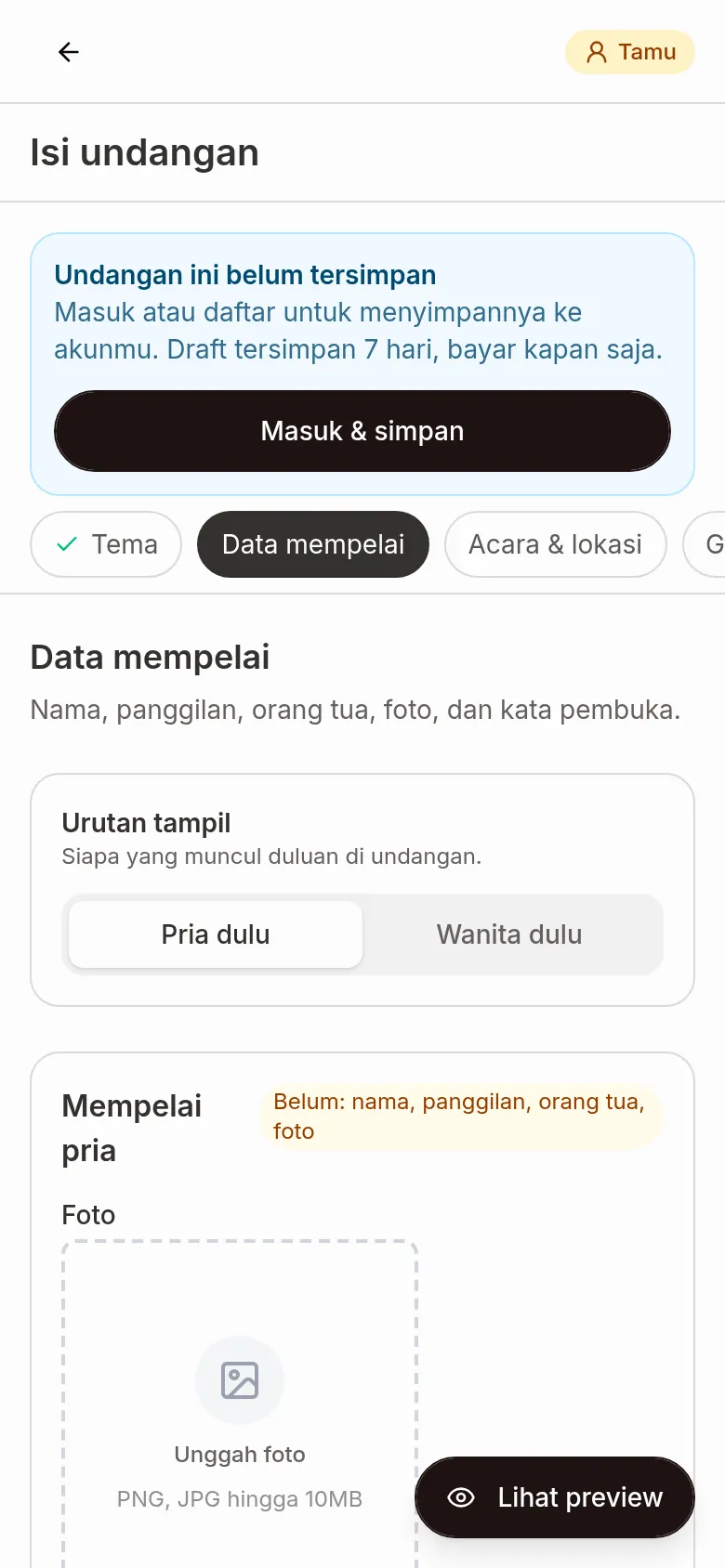
If you're already signed in but have no invitation in progress, the button says Save to account.
If your account already has an unpublished invitation, the editor opens that one, not the template you picked. A notice appears above the editor. If what you picked is a look of that invitation's theme, click Use this design to apply it. Click Close to hide the notice. To use another template, publish that invitation first.
A draft saved to your account
After you sign in, your invitation is kept as a draft for 7 days. Further changes save automatically (Saved automatically at the top right). A banner above the editor says Draft kept for ... more days, or Draft ends today on the last day. It tells you to pay whenever you like, because the invitation's active period starts on the wedding day, not now.
Choose a package and pay from the editor
- Click Choose a package & pay in the banner, or open Link & publish. It has three steps: Save to your account, Choose a package & pay, and Set the link & share.
- In the Share your invitation dialog, pick a package under Choose a package. Only packages that meet the theme's minimum plan are shown.
- Fill in a Promo code if you have one. The best public promo is filled in automatically for the package you pick.
- Check the Total, then click Continue to payment and pay with QRIS.
Once the order is created, you'll see "Invitation created — your data is saved in your account." If the payment isn't finished, the banner changes to Waiting for payment. Click Pay now to create a fresh, active QRIS. Once it's paid, your invitation can go live; set the link in Link & publish. The full steps are in Complete your invitation payment.
Canvas design for the Envelope theme
On the Envelope theme, the Canvas design section appears in the Invitation content group. Here you design the invitation's two pages: Cover and Inside. This editor needs a wide screen. On a narrow screen you'll see "The canvas works best on a laptop"; the other sections can still be filled in from a phone.
- Open Invitation content › Canvas design from a computer.
- Choose the Cover or Inside page at the bottom of the screen. If a page isn't designed yet, pick Use this preset, or Start from scratch.
- Add elements from the left panel, for example Decorations, Text, or My Photos.
- Click an element on the canvas to move, resize, or rotate it.
- Arrange the stacking order of elements in the Layers panel on the right.
- Click Preview to see the result. Choose Phone view or Laptop view.
Changes save automatically. A design can have at most 200 elements ("A design can have at most 200 elements.").
For an image that's already on the canvas:
- Ganti swaps the image without moving its position. A locked image needs to be unlocked first.
- Flip horizontally and Flip vertically flip the image. Both are in the element toolbar and the right-click menu.
Changes can be undone with Undo (Ctrl+Z) and redone with Redo (Ctrl+Shift+Z).
Changing the look in the Theme section starts the canvas design over. See Change the look.
Next steps
- Buy an invitation from the catalog — choose a package and pay for your invitation.
- Change your invitation theme — learn what gets reset when the theme changes.
- Invitation content — get to know every section of the editor and how it works.