Change Aruma text and decorations
The Texts & decorations section sets the language, cover, and all default texts of an Aruma-themed invitation. It only appears in the Invitation content menu for the Aruma theme, and it can also be used before the invitation is paid.
The Jingga theme has its own texts; see Set up Jingga texts and look. All changes save automatically and show in the preview right away.
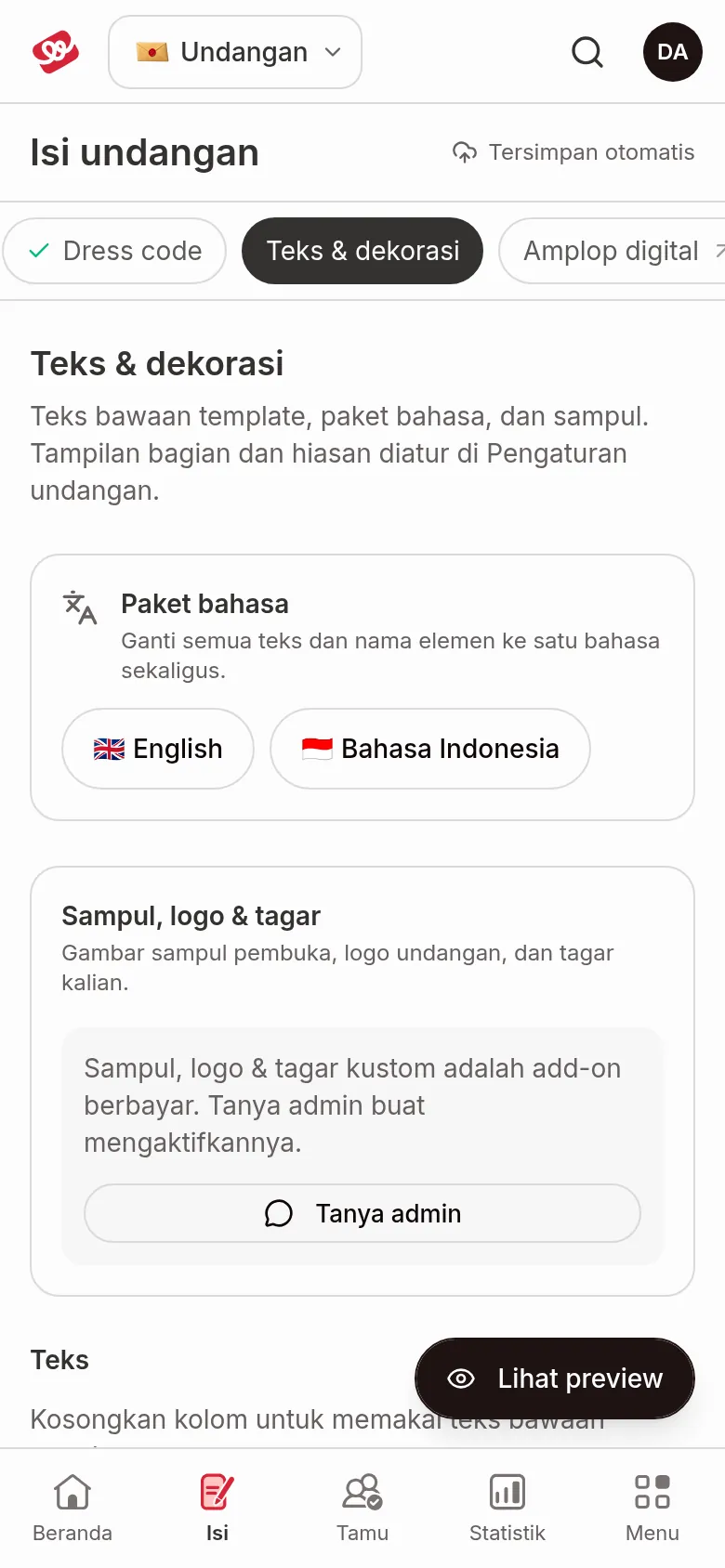
Apply a Language pack
- Open Invitation content › Texts & decorations.
- In the Language pack card, click English or Bahasa Indonesia.
- Click Use in the confirmation dialog. You'll see "... language pack applied."
A Language pack switches every text and section name to one language at once. Show or hide settings stay as they are.
Set the cover, logo, and hashtag
The Cover, logo & hashtag card holds the opening cover image, your invitation logo, and your hashtag. This is a paid add-on.
- If the add-on isn't active, the card says "A custom cover, logo & hashtag is a paid add-on. Ask our admin to turn it on." Click Ask admin to chat with the admin.
- If the add-on is active, fill in Cover image (shown on the opening screen before the invitation opens), Invitation logo (optional) (a transparent PNG works best), and Hashtag (optional), for example
#DikaPutriWedding.
Change texts
- In the Texts part, open the text group you want to change. Invitation Opening opens first.
- Type the replacement text. The default text shows faintly in the field as an example.
- Leave a field empty to use the template's own text. There's no Save button to click.
The text groups are: Invitation Opening, Couple Profile, Love Story, Photo Gallery, Location & Time, Dress Code, RSVP & Confirmation, Envelope & Gifts, Attendance QR Code (only shown when guest check-in is on), Messages & Wishes, and Welcome.
Restore the default texts
At the very bottom of the text list, click Reset all texts to default, then Reset in the confirmation dialog.
Reset removes every text you changed. Which invitation sections are active or inactive, their look, the Hide wishes by default setting, and the RSVP event choice don't change.
Next steps
- Choose which sections appear on your invitation — hide specific sections in each theme.
- Change your invitation theme — change the theme or look of the invitation.
- Invitation settings — link preview, WhatsApp message, RSVP, and access.