Change your invitation theme
The theme sets how your invitation looks, while the content stays the same. Once the invitation is paid, you can change the theme and its look any time from the Theme section in Invitation content. Every change saves automatically.
Change the theme
- Open Invitation content › Theme.
- Check the theme and look you use now under Current theme.
- Click Change theme. The Change Theme dialog opens and shows the theme catalog.
- Click View on a theme card to open its demo in a new tab.
- Click Pick on the theme you want.
- Read the warning, then click Yes, change theme. You'll see "Theme updated." and the preview reloads right away.
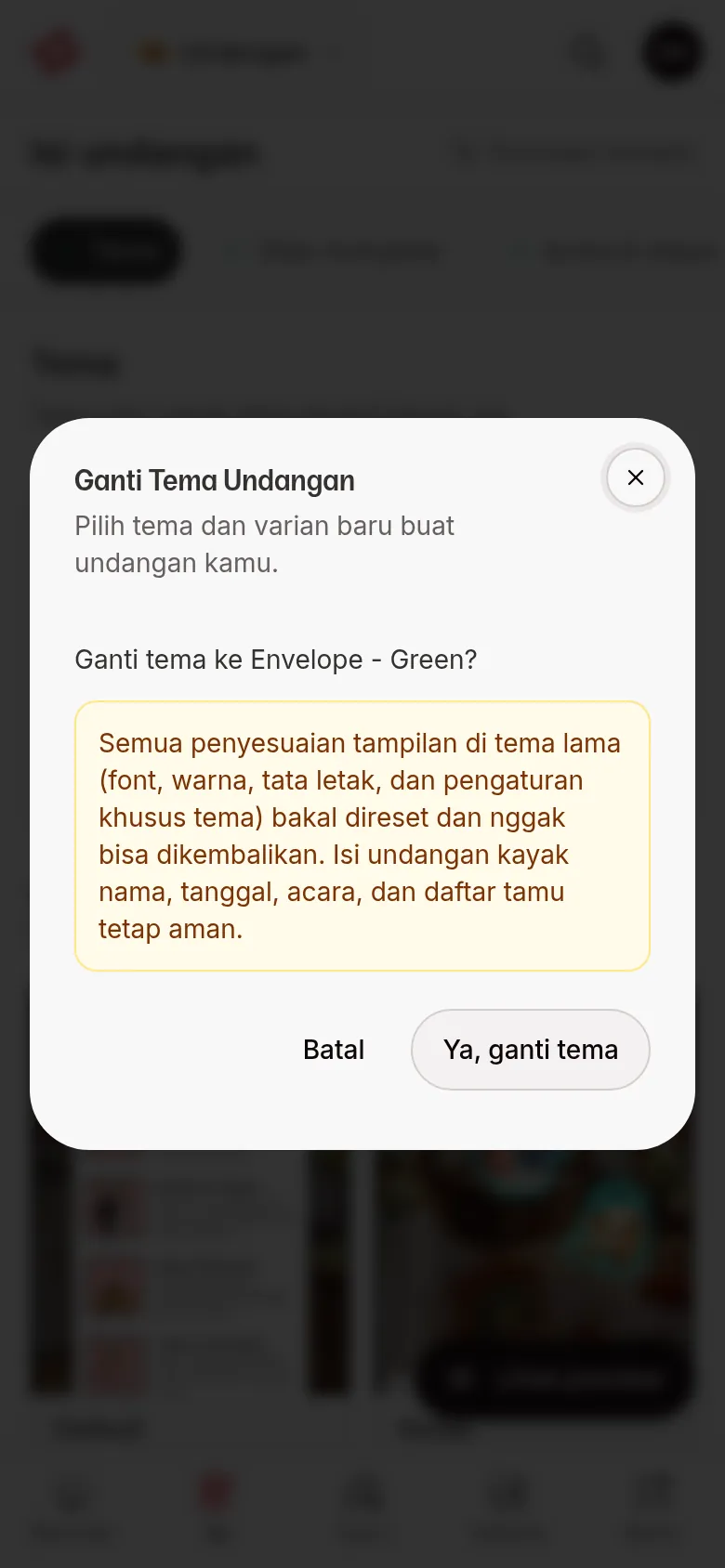
The new theme is used right away. There is no Save button.
Theme-specific settings include the Texts & decorations section for the Aruma theme (see Change Aruma text and decorations) and the Jingga theme (see Set up Jingga texts and look), as well as the theme display in Invitation settings (see Choose which sections appear on your invitation). If you've customized a lot, note your settings down before changing the theme.
Change the look
Under Current theme you'll find Looks, a grid of the looks of the theme you use now.
- Click the look you want. The look in use has a check mark.
- The look changes right away and you'll see "Look changed to ..." with its name. If it fails, you'll see "The look couldn't be changed. Please try again."
Your content stays the same, and the look can be changed any time, including before the invitation is paid. If the theme has only one look, you'll see "This theme has only one look."
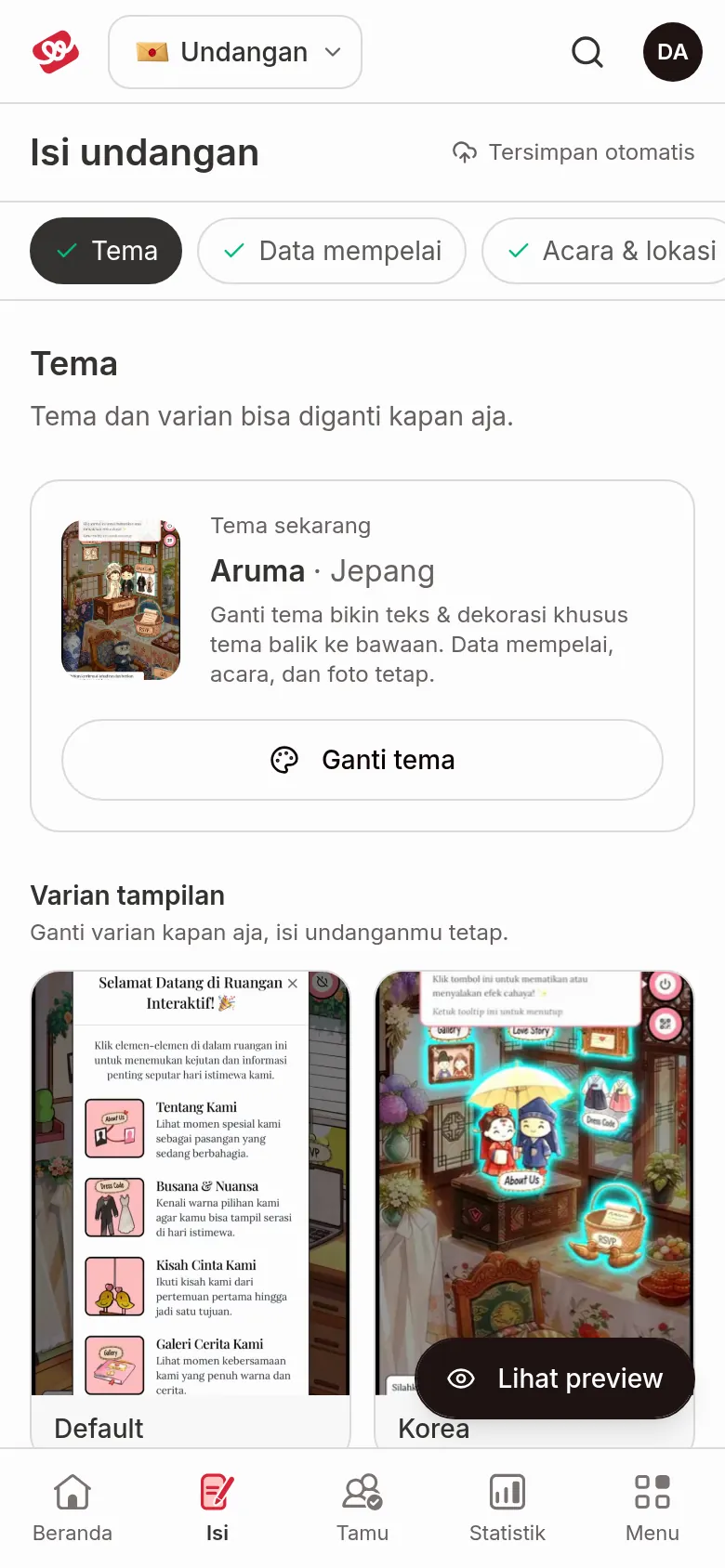
The preview videos on the variant cards only play while the card is hovered or keyboard-focused; otherwise they stay still.
On the Envelope theme, a new look starts the canvas design over. Before it's applied, the Apply this variant? dialog appears: your canvas design and colours & fonts are replaced with the look's defaults. Click Yes, apply to continue.
Before the invitation is paid
Before payment, the theme can't be changed with the Change theme button. Under Current theme it says "The theme can be changed once the invitation is paid. The variant can be changed any time."
If you're trying an invitation without signing in (Coba & Edit Gratis from the catalogue), the Theme section shows a Choose a theme list: Aruma, Jingga, Estella, Sakina, and Envelope. Click one to switch. "A new theme changes the whole look — what you've filled in stays." If it fails, you'll see "The theme couldn't be changed. Please try again." The full flow is in Try and edit your invitation before paying.
When no theme is chosen yet
Invitations created by the Abadikan team sometimes have no theme, so you can choose it yourself. After the invitation is paid, the Choose Your Theme dialog appears when you open the dashboard.
- Choose a theme by clicking Pick. The theme is used right away without a confirmation, because there's no appearance to reset yet.
- You can close the dialog for now. It appears again on your next visit until a theme is chosen.
- You can also choose any time from Invitation content › Theme › Choose a theme. While there's no theme, Current theme says "No theme chosen yet".
Locked themes
Some newer themes are available from a certain plan up. If your invitation's plan is below it, the theme card still shows in the catalog with a lock label and the minimum plan name, for example Janjian or Full Custom.
The button on that card changes from Pick to Upgrade. Click Upgrade to open the Abadikan plans page and see which plan unlocks the theme.
Next steps
- Choose which sections appear on your invitation — hide the sections you don't use.
- Try and edit your invitation before paying — try a theme for free, save a draft, then pay.
- Invitation settings — a guide to every part of Invitation settings.