Photo sizes and formats
Each upload spot in Abadikan has its own file limit. Check this table if a photo is rejected or comes out cropped.
Limits per upload spot
| Spot | File limit | Accepted formats | What gets saved |
|---|---|---|---|
| Photos in Invitation content: Couple details, the venue photo in Events & venues, and Love story | max. 10 MB | Image files (the dialog says PNG, JPG, JPEG) | JPEG, max. 1200 px wide (see Photo ratio and cropping below) |
| Photo gallery (Add photos, Change photo) | max. 10 MB per photo, up to 20 photos per pick | Image files (the screen says JPG or PNG) | JPEG in the original ratio, longest side max. 1600 px. Doesn't go through the Upload Foto dialog; if a photo is cropped with Crop & aspect ratio, the result follows the dialog rules below |
| Cover image and Invitation logo in Texts & decorations (Aruma, the cover, logo & hashtag add-on) | max. 10 MB | Image files | JPEG, max. 1200 px wide (see Photo ratio and cropping) |
| Cover image in Link preview (Invitation settings) | max. 10 MB | PNG or JPG; a 16:9 ratio fits best | JPEG with the Abadikan logo at the top. The dialog's result is scaled down again by about 1.4 times when the logo is added |
| Decoration images in Jingga theme look (Invitation settings) | max. 10 MB | Image files | Original file, not cropped |
| Images in Canvas design (Envelope theme) | No limit shown on screen | Image files | WebP, longest side max. 1600 px. Doesn't go through the Upload Foto dialog. GIF and SVG files aren't changed |
| Gift photos in Gift list (Envelopes & gifts menu) | max. 10 MB per photo, max. 5 photos per gift | Image files (the screen says PNG, JPG, or GIF) | JPEG, max. 1200 px wide (see Photo ratio and cropping) |
| Upload QRIS in a manual envelope | max. 2 MB | JPG or PNG | Original file, not cropped |
| Documents in Planner Paperwork | max. 5 MB | Any file type | Original file |
If a file is larger than the limit, you'll see a message like "Ukuran file terlalu besar. Maksimal 10MB" (file too large, max. 10MB), "Images can be at most 10 MB." (Jingga decorations), "The file can be 2 MB at most." (QRIS), or "Files can be up to 5 MB." (Planner documents), and the file isn't uploaded. A file that isn't an image is rejected with "File harus berupa gambar" (the file must be an image) or "The file must be an image." (Jingga decorations).
How to use each upload spot is on its own page: Fill in the couple's details, Set event times and locations, Upload gallery photos and videos, Write your love story, Add a Manual Envelope account, and Planner Paperwork.
Photo ratio and cropping
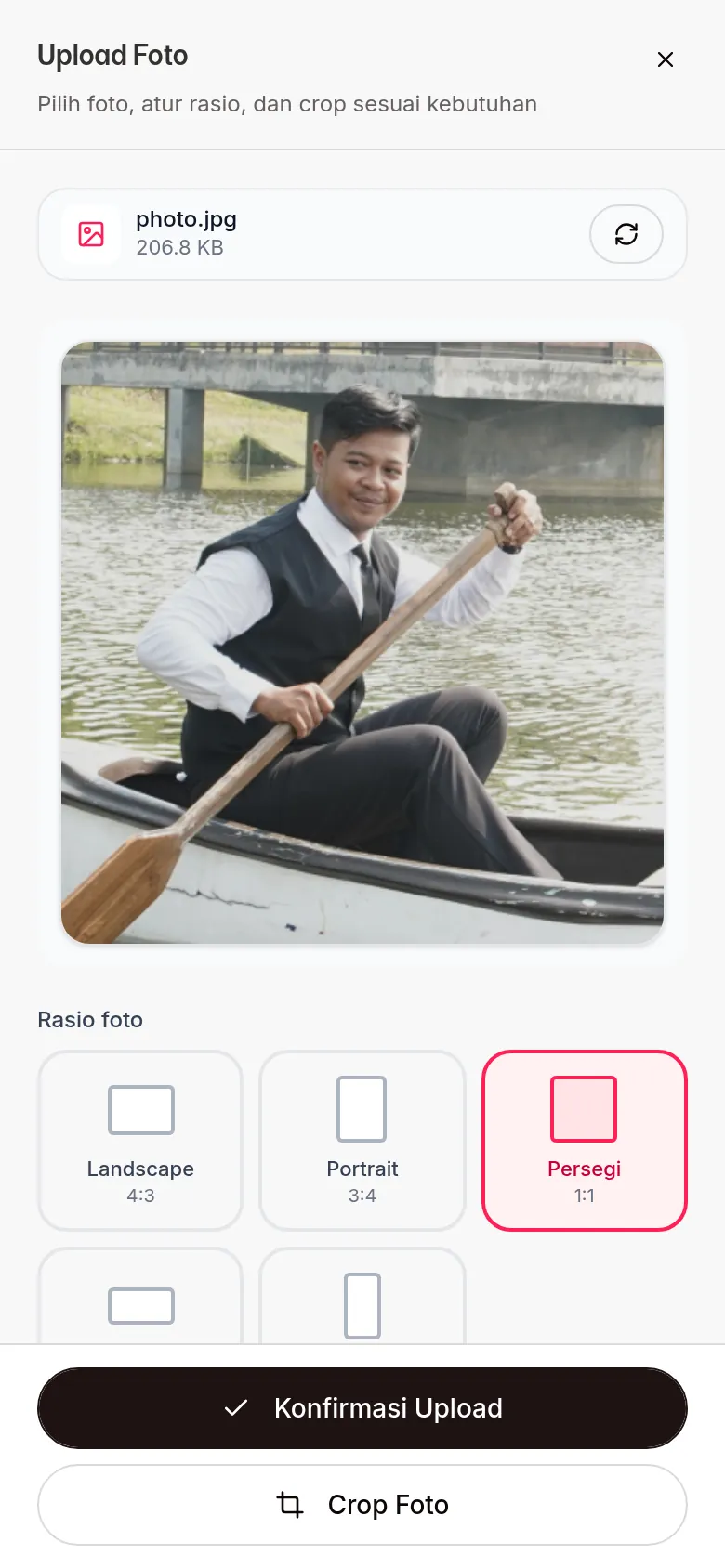
Photos in Couple details, the venue photo in Events & venues, Love story photos, the link preview, and Gift list are uploaded through the Upload Foto (upload photo) dialog. In Photo gallery, this dialog only opens when you choose Crop & aspect ratio on a photo; photos you just uploaded to the gallery go in right away in their original ratio (see Upload gallery photos and videos).
| Term | Meaning | Note |
|---|---|---|
| Rasio foto (photo ratio) | The photo's shape: Landscape (4:3), Portrait (3:4), Persegi (square, 1:1), Wide (16:9), or Story (9:16). | When you change the ratio, the photo is automatically cropped from the center. |
| Crop Foto (crop photo) | Choose yourself which part of the photo to use. This screen has Reset, Putar (rotate), and Flip, then Terapkan (apply). | Use it if the automatic crop cuts off faces or other important parts. |
| Konfirmasi Upload (confirm upload) | Uploads the photo. | If you don't change the ratio and don't crop, the photo keeps its full shape. |
The size of the uploaded result depends on how you use this dialog:
- Ratio changed or photo cropped: the photo is resized to 1200 px wide, and its height follows the ratio. For example, Portrait (3:4) becomes 1200×1600 px and Story (9:16) becomes 1200×2133 px. Smaller photos are scaled up too, so they may look less sharp.
- Ratio unchanged and not cropped: the photo keeps its shape, and its longest side is scaled down to max. 1200 px. Smaller photos aren't scaled up.
Portrait (3:4) looks highlighted from the start, but it's only applied if you click it or use Crop Foto.
Why the result differs from the original file
Photos that go through the Upload Foto dialog, and photos uploaded to Photo gallery, are re-saved as JPEG at the sizes above so the invitation opens quickly on phones. Because of that, the resulting file is usually smaller than your original, and PNG or GIF photos also become JPEG. Images in Canvas design are saved as WebP.
Next steps
- Upload gallery photos and videos — add prewedding photos to the invitation.
- Jingga decoration images — change the decoration images of the Jingga theme.
- Add a Manual Envelope account — upload your own QRIS for the envelope.