Event day checklist
Use this checklist for a dress rehearsal the day before the event (D-1). Everything tested today is what most often causes a queue at the reception desk.
Devices and account
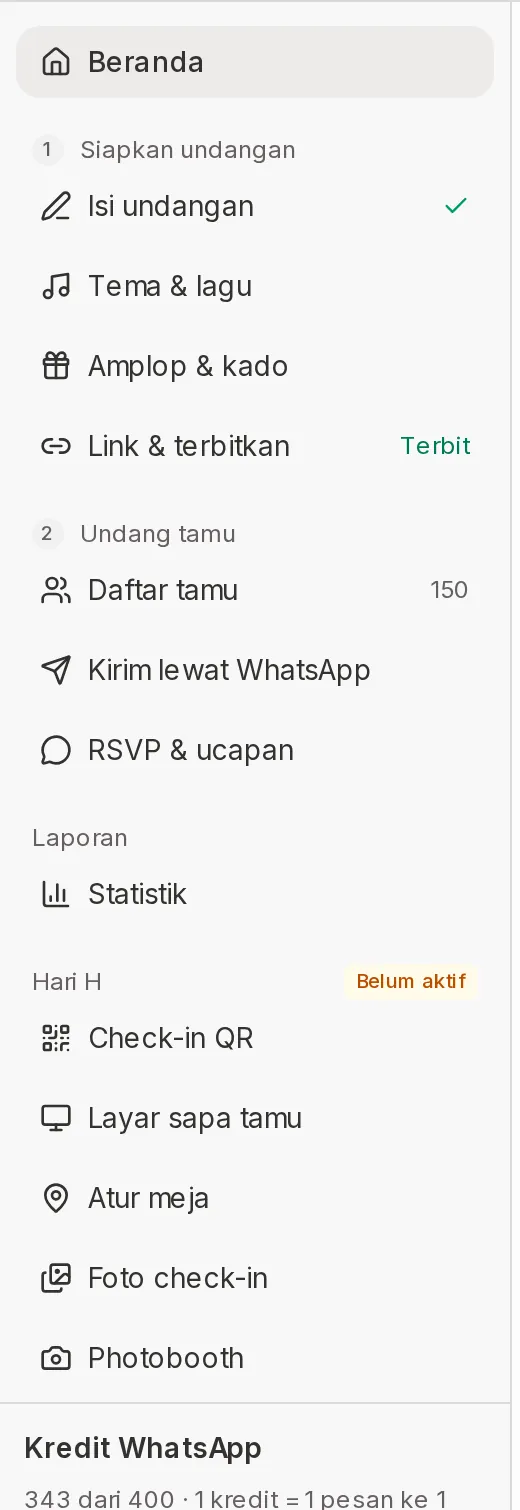
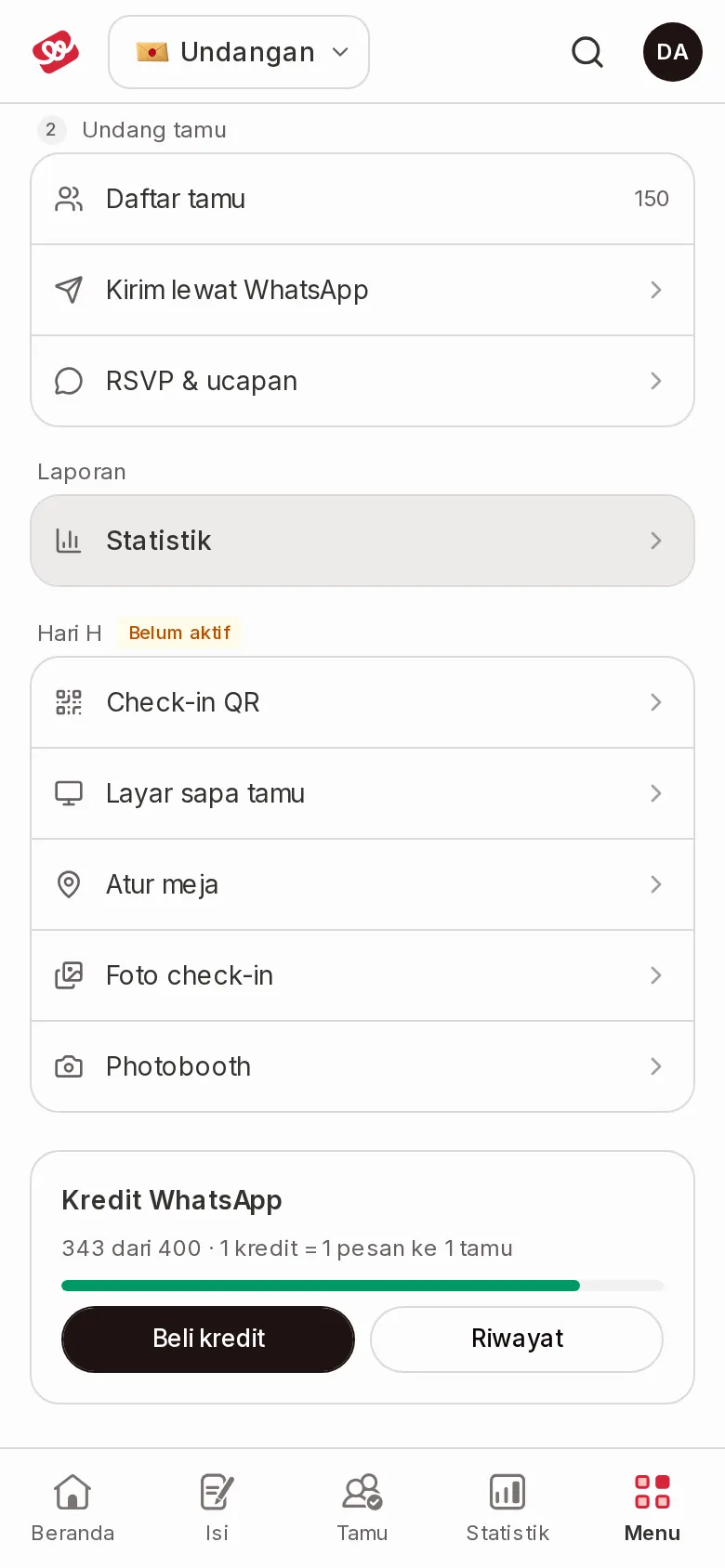
- The Event day group in the sidebar isn't labeled Not active. If it still is, activate it through Activate the Digital Guestbook or contact support before the event day.
- Prepare a device for QR check-in, for example a tablet or phone, and a laptop for the Guest welcome screen. See Record guest arrivals at the venue and Show guest greetings on the venue screen.
- Sign in to your account on all those devices and pick the same event invitation under Your invitations. Event day menus can only be opened after login.
- Charge all devices and prepare chargers or power banks.
On an account where the event-day add-on isn't active yet, the Event day group shows a Not active label as below. Once it's active, the label goes away.
Screen and internet
- Connect the laptop to the venue TV or LED, open the Guest welcome screen, allow browser notifications, then click Full screen. Make sure the screen status reads "Live: guest names appear the moment they check in".
- If using the Photobooth, share its link or QR from the Photobooth menu and open Open photobooth screen on another screen. The steps are in Invite guests to the Photobooth.
- Test the internet connection at the reception desk and near the screen.
- Prepare backup internet, for example a modem or another phone's hotspot.
Camera and check-in test
- In QR check-in, click Turn on camera and allow camera access in the browser.
- Try Scan QR with a test guest's QR, for example from the QR page of a fictional guest you added.
- Try searching a guest by name, code, and WA number.
- On the guest card, tap Gift and/or Envelope under Handed over for the test guest, so the staff get used to recording it. The numbers show in the Gifts brought row of the Event day card in Statistics.
- Confirm one test guest, then make sure their greeting shows on the Guest welcome screen.
- Try Reception mode on the tablet that will be set up at the desk.
- Adjust the device position and lighting so arrival photos look clear.
Tables and PDF
- Check the table arrangement in Seating (see Arrange guest seating by table), make sure no table is over capacity, then click Save.
- Click Download PDF and send or print it for the committee and wedding organizer.
Quick fixes during the event
| Problem | Quick fix |
|---|---|
| The guest's QR doesn't scan or This isn't an invitation guest QR. appears | Type the guest's name, code, or WA number in the Search guests field. |
| The guest isn't on the list | Click Guest not on the list? Add & check in, fill in the details, then Add & check in. |
| The camera doesn't turn on | Allow camera access in the browser settings, then reload the page. To change cameras, use the switch camera icon in the camera view. |
| The greeting doesn't show on the Guest welcome screen | Check the screen laptop's internet, allow browser notifications, then reload the screen. |
| A guest can't open the invitation on a new phone | Use Reset Device, see Reset Device. |
| The door prize winner isn't present | Click Redraw in Live draw, see Draw winners in the Live draw. |
Other problems during the event are in Guestbook and coupon issues on the wedding day.
Next steps
- Record guest arrivals at the venue — Learn the full check-in flow.
- Guestbook and coupon issues on the wedding day — Fixes for other problems while the event is under way.
Was this page helpful?