Bank accounts & e-wallets (manual accounts)
With Manual accounts, guests transfer to your bank account, e-wallet, or QRIS themselves. No fees, and you check the transfers yourself.
Add an account
- Go to Envelopes & gifts, Envelopes tab. Make sure Manual accounts is marked In use.
- In the Bank accounts & e-wallets section, click Add account.
- In the Add account dialog, fill in the fields below.
- Click Save. The account appears in the list and shows on the invitation right away.
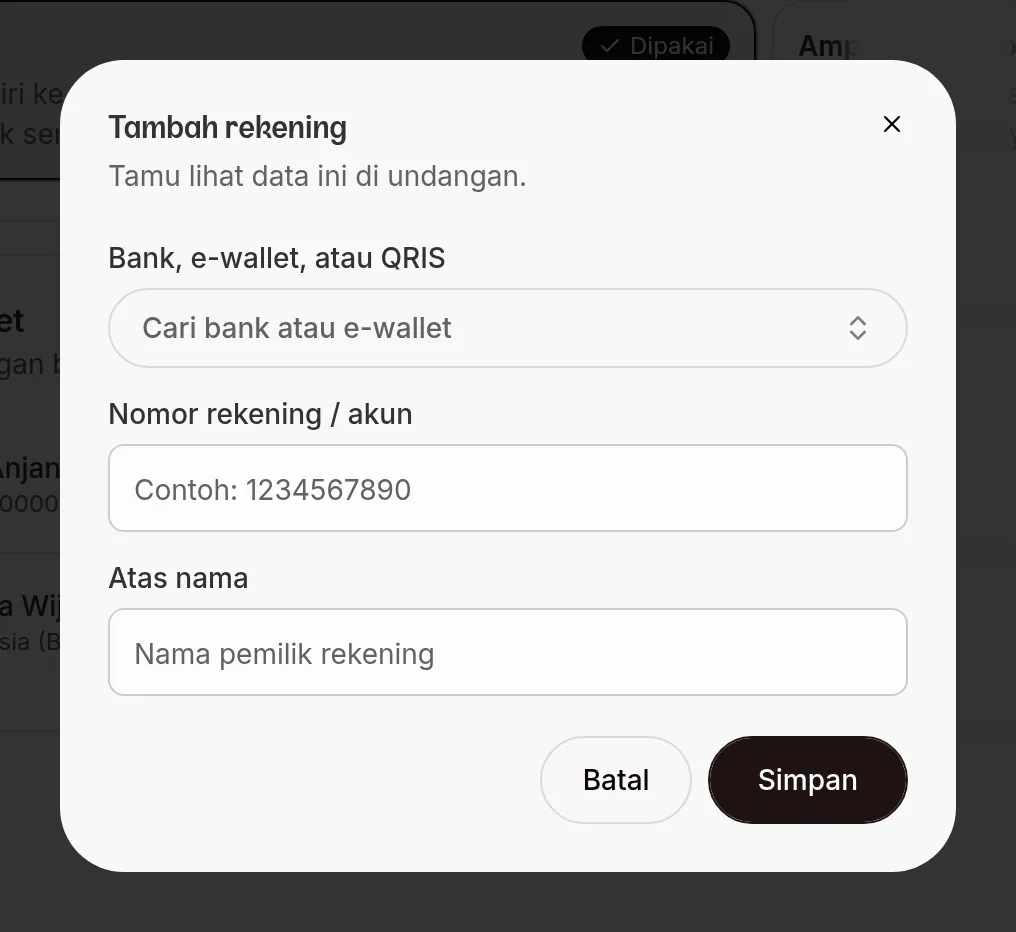
| Field | What to enter | Required | Limit/format |
|---|---|---|---|
| Bank, e-wallet or QRIS | Where the transfer goes. | Yes | Search and pick from the list. |
| Account number | The bank account or e-wallet account number guests will see. | Yes, unless you pick QRIS and upload an image | Example: 1234567890. |
| QRIS image | Your own QRIS image, uploaded with Upload QRIS. | Yes, if the destination is QRIS | JPG or PNG, max 2 MB. |
| Account holder | The name of the account owner. | Yes | — |
Edit or delete an account
Each account has Edit and Delete buttons. Once you have 4 or more accounts, a Search name, number or bank box appears above the list.
- Click Edit, update the details, then click Save.
- Or click Delete, then confirm with Yes, delete. That account no longer shows on the invitation.
What guests see
In the envelope section of the invitation, guests see the bank or e-wallet name, the number, and the owner's name. The Salin Rekening (copy account) button copies the number. For QRIS, guests see your QR image with a Download QR button.
Button labels can differ between themes. You can also hide accounts from specific guests with the Show bank account & digital gift setting in the guest data. This setting doesn't work in every theme; check by opening the guest's link.
Next steps
- Show bank account and digital gift — hide accounts per guest (not in every theme).
- Automatic digital envelope — receive envelopes through QRIS, recorded per guest.
- Gift list — a list of physical gifts guests can reserve.
Was this page helpful?