Gift list (Gift Registry)
The Gift list shows items you pick on your invitation. A guest reserves one item, then buys it from the shop link and sends it to your address, so you don't end up with duplicate gifts.
You'll find it in Envelopes & gifts, on the Gift list tab (next to the Envelopes tab).
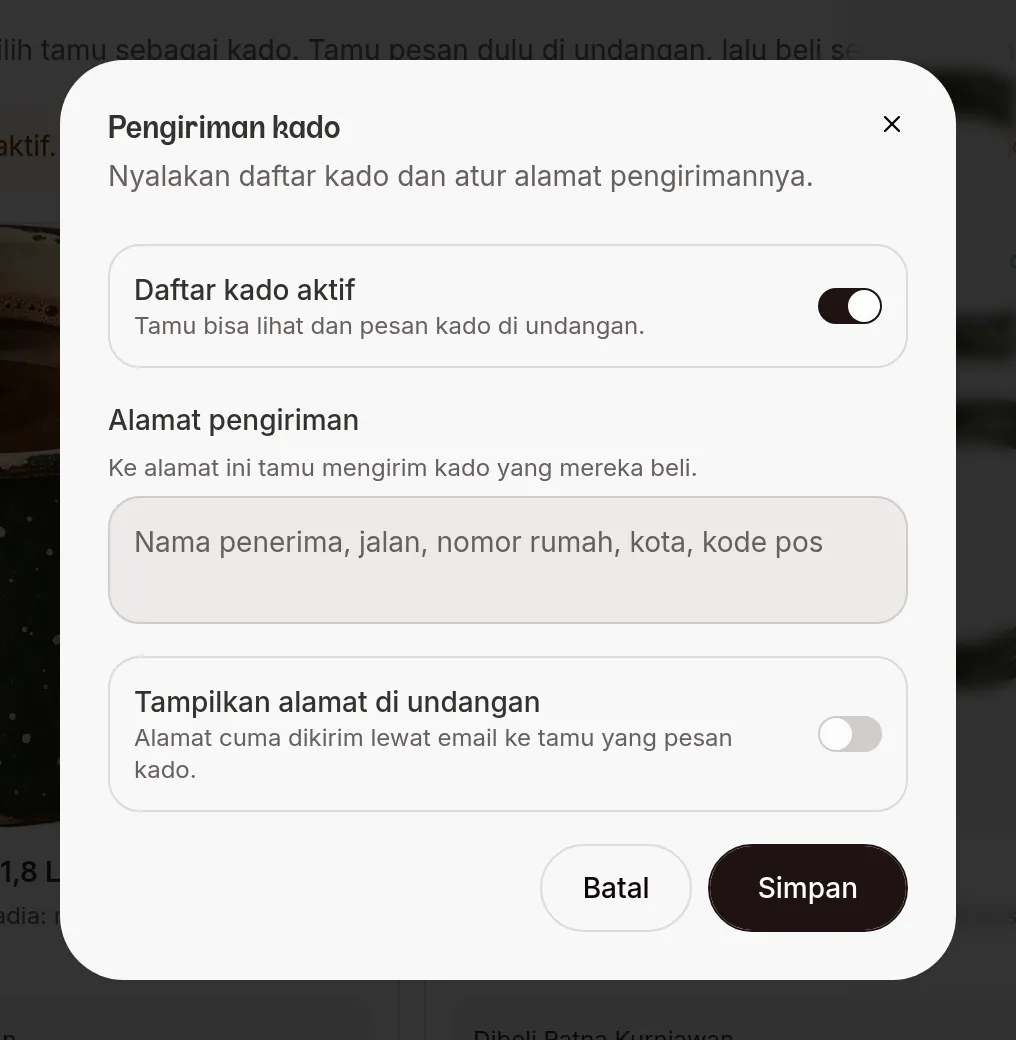
Turn it on and add the address (Shipping)
- Open the Gift list tab, then click Shipping. The Gift shipping dialog opens.
- Gift list still off? You can also click Turn on the gift list in the empty state.
- Turn on Gift list on. Guests can now see and reserve gifts on the invitation.
- Fill in the Shipping address: recipient, street, house number, city, postal code.
- Set Show the address on the invitation:
- on: every guest can see the address on the invitation;
- off: the address is only emailed to guests who reserve a gift.
- Click Save.
You can only add gifts once the gift list is on and the address is filled in. If not, the page explains what's missing.
Add a gift
- Click Add gift.
- In the Add gift dialog, fill in the fields below.
- Click Save. The gift appears as a card in the list, 9 cards per page.
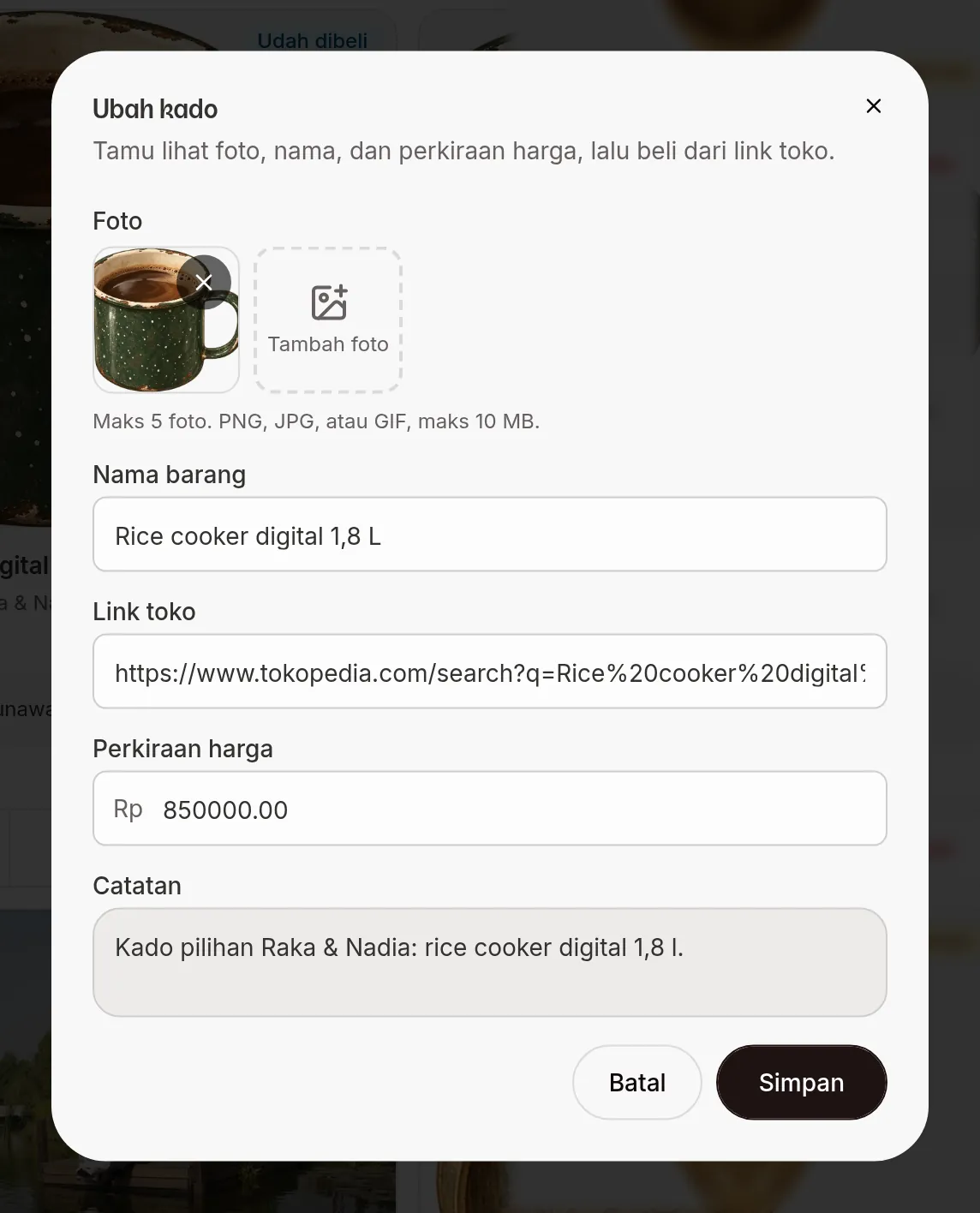
| Field | What to enter | Required | Limit/format |
|---|---|---|---|
| Photos | Photos of the item, added with Add photo. | No | PNG, JPG or GIF, max 10 MB per photo. The maximum number is shown in the dialog. |
| Item name | The name of the item you'd like. | Yes | Example: 1.8 L rice cooker. |
| Shop link | Link to the online shop where the item can be bought. | Yes | Full link, starting with https://. |
| Estimated price | The price range. | No | A number. If empty, the card says "No price set". |
| Note | Color, size, or variant. | No | — |
Status, edit, and delete
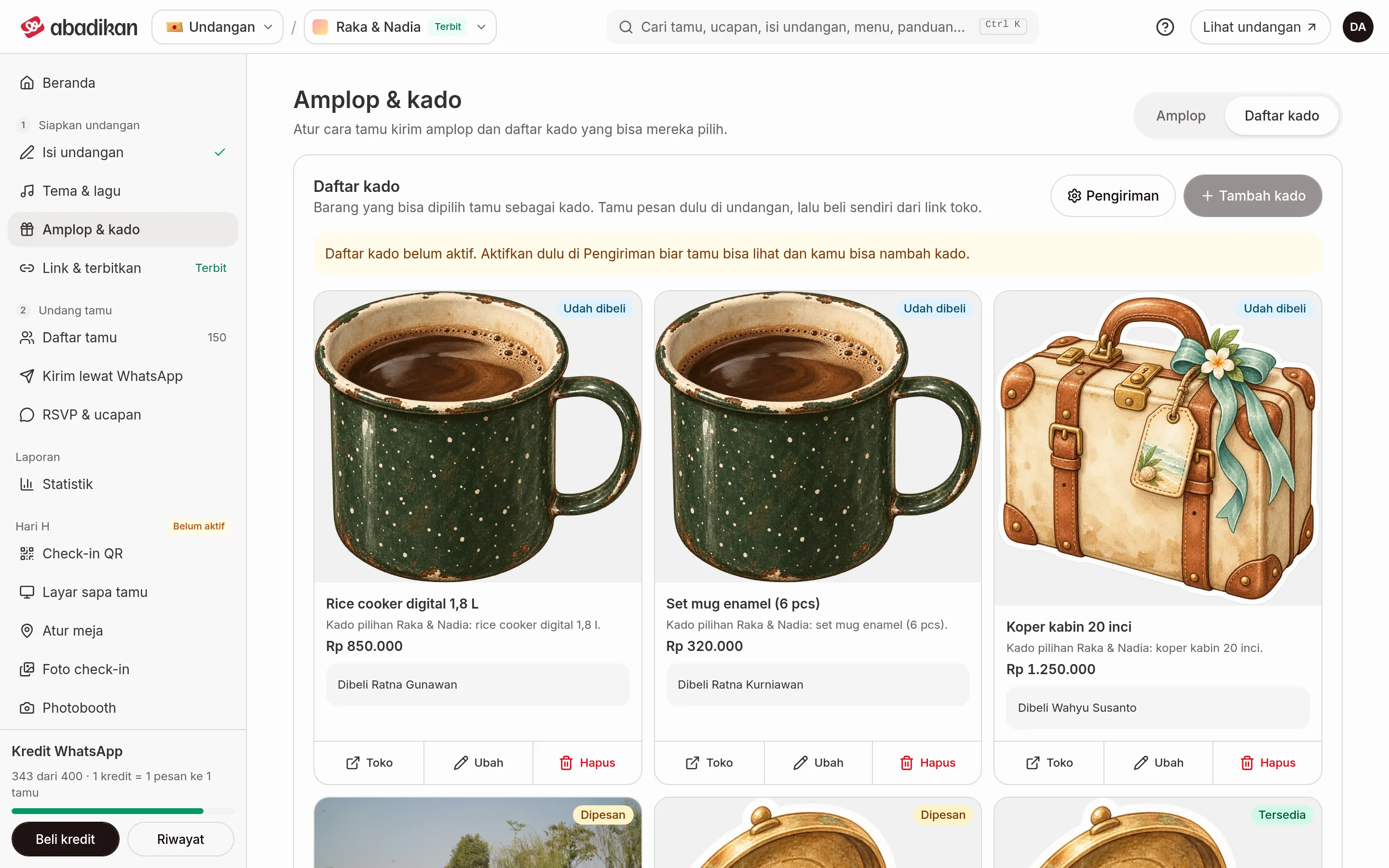
Each card has a status label: Available, Reserved, or Bought. Below the card are three buttons:
- Shop: opens the shop link in a new tab.
- Edit: opens the Edit gift dialog, then click Save.
- Delete: asks "Delete this gift?". Click Yes, delete to remove it from the invitation.
See who reserved a gift
A gift that's been reserved shows the guest's name ("Reserved by [name]", or "Bought by [name]" once it's bought). Click that row to open Reservation for [name]: Guest, Email, WhatsApp / phone, Message from the guest, plus Confirmed (already bought) or Reserved until (still reserved).
What guests do
- The guest taps Beri Hadiah Ini (give this gift) on the item they choose.
- Guests without a personal link are asked to enter their Kode Tamu (guest code) under Masukkan Kode Tamu (enter guest code), then tap Lanjut (continue). The invitation page reloads with that code, and the guest taps Beri Hadiah Ini again.
- If the guest data doesn't have an email yet, the guest fills in Email Anda (your email).
- The guest taps Konfirmasi Reservasi (confirm reservation). The item is recorded as reserved in their name.
After that, the guest receives an email with a link. The link opens the Confirm Purchase dialog (Yes, I've Bought It, which marks the item as bought) or Cancel Reservation (the item becomes available to other guests again).
The Gift list shows in the Aruma, Envelope, Estella, Jingga, Minang, and Sakina themes. Button labels can differ between themes.
Next steps
- Bank accounts & e-wallets — show your account for guests who want to transfer.
- Show bank account and digital gift — hide gifts per guest (not in every theme).