Issue coupons from a shopping receipt
In Issue coupons you record one visitor's shopping receipt, and their draw coupons are ready right away, together with a LOTTERY COUPON RECEIPT.
Before you start
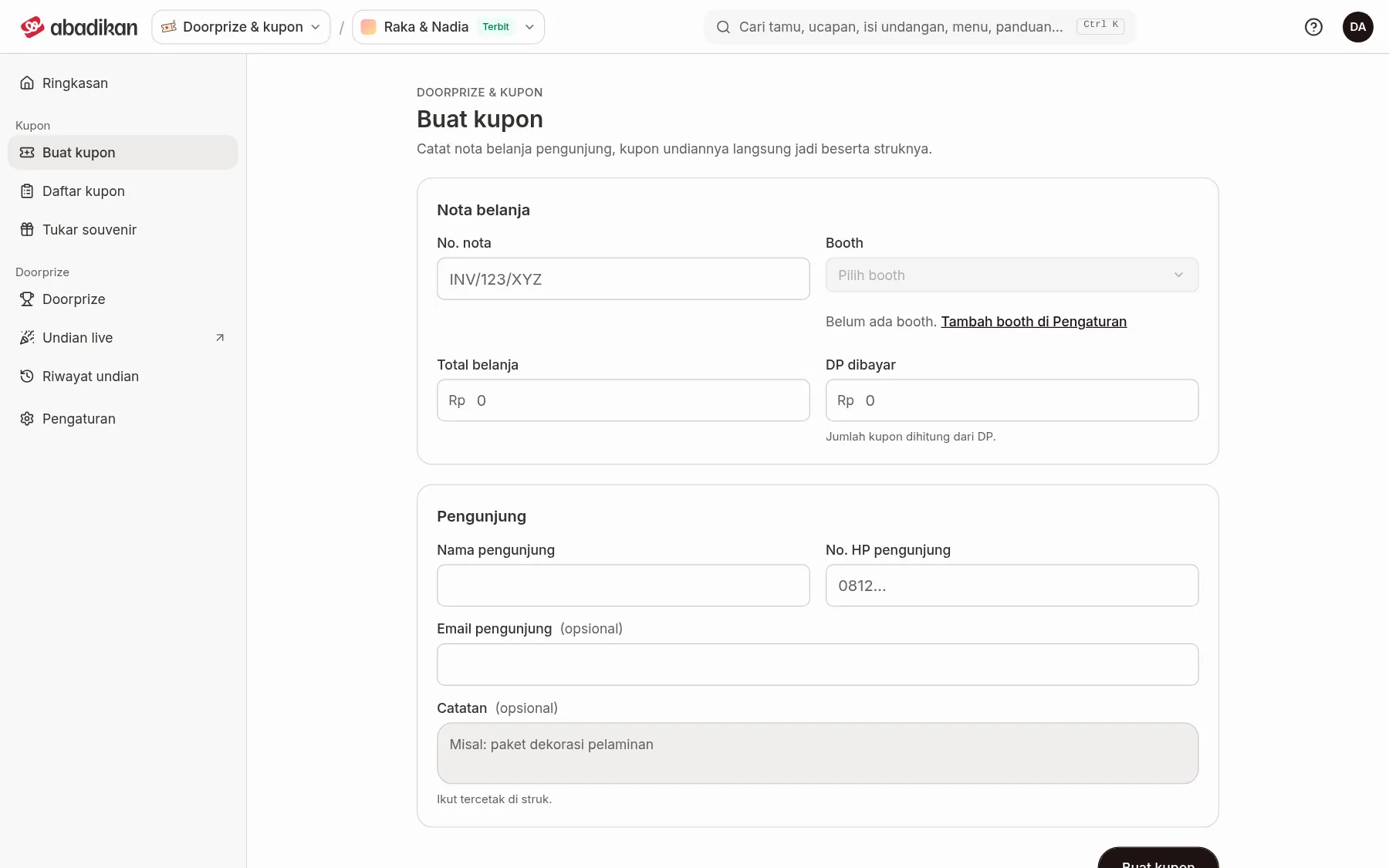
- Your booths are in the Booths card, and the Coupons per purchase rules are filled in. Both are in Set up coupon Settings. If there are no booths yet, the Booth field is disabled and shows "No booths yet." with an Add booths in Settings link.
- The number of coupons follows the Coupons per purchase rules and is counted from Down payment paid, not from the purchase total. You don't enter it by hand.
Issue coupons
- Open Issue coupons in the sidebar, under the Coupons group.
- Fill in the Purchase receipt and Visitor cards as in the table below. As soon as Down payment paid is filled, an estimate appears under it, e.g. "Earns 3 coupons".
- Click Issue coupons. A notification appears, e.g. "3 coupons issued.", and the receipt opens in the Coupon receipt dialog.
| Field | What to enter | Required | Limits/format |
|---|---|---|---|
| Receipt no. | The shopping receipt number. | Yes | A receipt number can only be used once. |
| Booth | The booth where the purchase was made. | Yes | Pick from the booth list in Settings. |
| Purchase total | The value of the purchase. | Yes | A number, at least 0. |
| Down payment paid | The down payment paid. Coupons are counted from this. | Yes | Can't be more than the purchase total. |
| Visitor name | The visitor's name. | Yes | — |
| Visitor phone | Phone number for the receipt and WhatsApp. | Yes | — |
| Visitor email (optional) | Email to send the receipt to. | No | A valid email format. |
| Note (optional) | Extra information, e.g. "stage decoration package". | No | Printed on the receipt. |
For events where coupons are linked to registered visitors, the Visitor card only has Registered visitor. Pick the visitor from the list, or type in Search name or phone. The Abadikan admin sets this per event.
If the coupons can't be issued, a Coupons couldn't be issued. notification appears with the reason, e.g. the receipt number was already used, the down payment hasn't reached the minimum, or no coupon rule applies on that date (check the periods in Settings).
After the coupons are issued
The form is cleared for the next visitor, but the Booth stays selected. Above the form a summary appears, e.g. "3 coupons for Rani", with the coupon codes and two buttons:
- View receipt opens the Coupon receipt dialog again.
- Coupon list opens the Coupon list.
In the receipt dialog, the buttons follow the Coupon proof choice in Settings:
- Print Receipt prints a paper receipt.
- Send WhatsApp prepares a WhatsApp message to the visitor's number with the coupon codes and a link to the receipt image.
- Send Email emails the receipt to the visitor, if an email was entered.
The receipt shows the first and last coupon codes, the visitor details, receipt number, booth, down payment, and the terms for claiming prizes.
Next steps
- Coupon list — check the issued coupons and view the receipt again.
- Draw winners in the Live draw — draw coupons for door prizes.