Set up coupon Settings
In Settings you set "coupons per purchase, booths, coupon proof and the live draw look". The page has four cards. Changes in any card are saved together with one Save button, except Booths, which saves right away.
Save your changes
As soon as something changes, a bar appears at the bottom of the screen: "You have unsaved changes." Click Save to save, or Discard changes to restore the fields. If a field is wrong, "Check the fields marked in red." appears. Once saved, "Settings saved." appears.
Set coupons per purchase
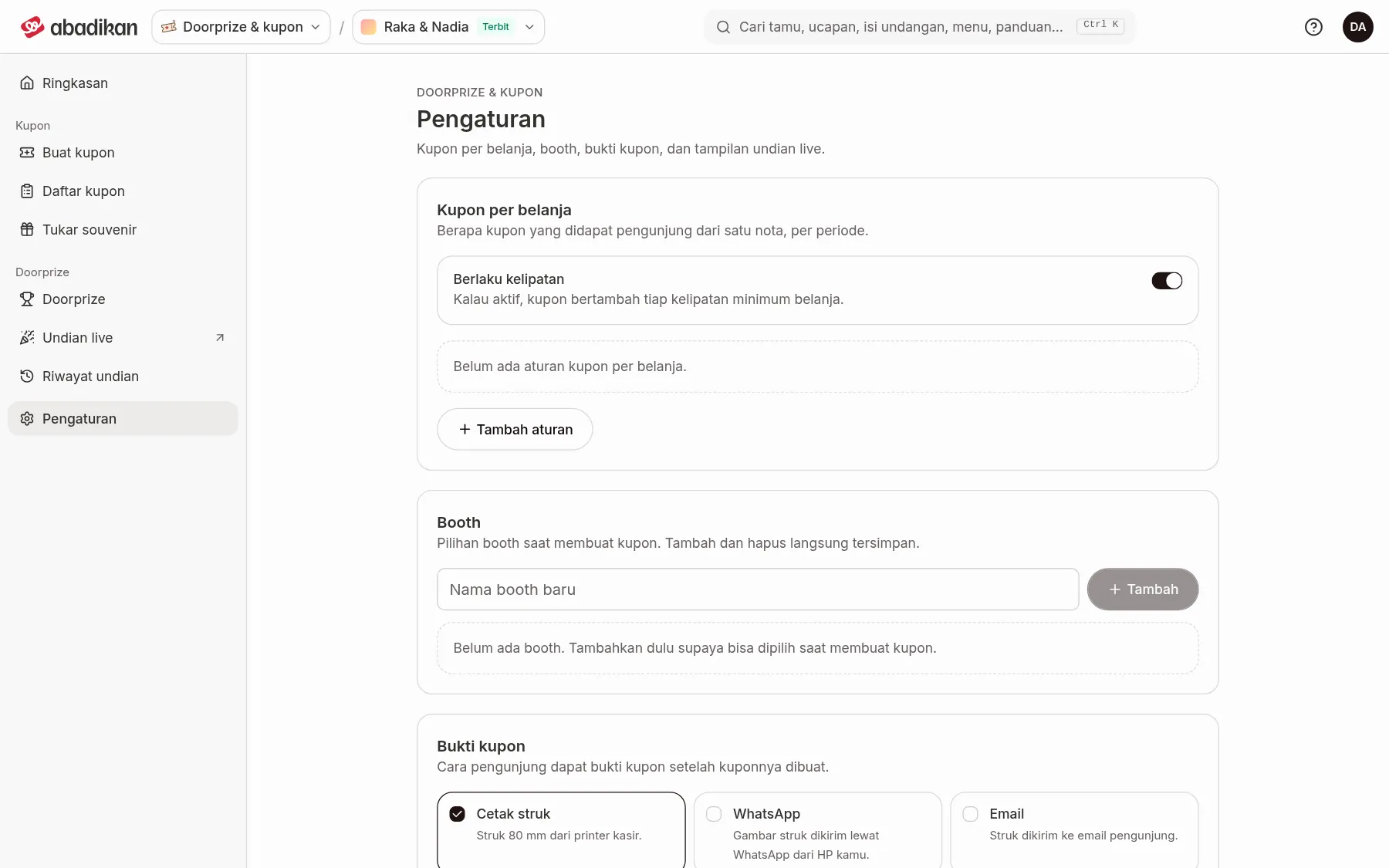
The Coupons per purchase card sets how many coupons a visitor gets from one receipt, per period.
- Open Settings, then find the Coupons per purchase card.
- Turn on Count multiples if coupons should increase for every multiple of the minimum spend. Turn it off if every qualifying receipt just gets one allotment.
- Fill in the rule fields below. A summary of the rule appears under it, e.g. "Every Rp100.000 earns 2 coupons."
- Click Add rule if you need another rule for a different period. Click Delete rule n to remove a rule.
- Click Save in the bottom bar.
| Field | What to enter | Required | Limits/format |
|---|---|---|---|
| Period | The start and end dates the rule applies ("Choose start and end dates"), plus Start time and End time. | Yes | The start has to be before the end. Rule periods can't overlap. |
| Coupons | Coupons earned per multiple, or per condition met. | Yes | A whole number, at least 1. |
| Minimum spend (Rp) | The smallest amount that earns coupons. | Yes | A whole number above 0. |
| Spend counted up to (Rp) | The upper limit of the amount that counts. Leave empty for no limit ("No limit"). | No | A whole number, not below the minimum spend. |
At least one rule is needed. The amount compared is Down payment paid in Issue coupons.
Fill in the booth list
- In the Booths card, type a name in the New booth name field.
- Click Add. The booth is saved right away, appears in the list, and can be picked in Issue coupons. A name that already exists is refused with "Booth … already exists."
- To delete one, click the delete icon next to the booth name (Delete booth …), then Yes, delete. Coupons already issued stay recorded.
Choose the coupon proof
The Coupon proof card sets how visitors get proof of their coupons once they're issued. Tick one or more:
- Print receipt: an 80 mm receipt from a till printer.
- WhatsApp: the receipt image is sent over WhatsApp from your phone.
- Email: the receipt is emailed to the visitor.
This choice sets the buttons in the receipt dialog in Issue coupons and the Coupon list.
Set the Live draw look
The Live draw look card sets the projector screen in the Live draw.
| Setting | What it does | On-screen guidance |
|---|---|---|
| Event logo | The event logo on the draw screen. | Transparent PNG, 1:1, up to 5 MB. A saved logo can be replaced but not removed. |
| Background image | The draw screen's background image. | 16:9, up to 5 MB. Leave empty to use the background colour. |
| Background colour | The background colour when there's no background image. | Hex format, e.g. #f7efe7. |
| Opening prize image | The image shown before a prize is picked. | A 1:1 or transparent image. |
| Spin speed | How fast the coupon numbers spin before they stop on the winner. | Choose Fast, Medium, or Slow. |
For each image, click Choose image (or Replace image), then click Save in the bottom bar. PNG, JPG, WebP, or GIF is accepted, up to 5 MB. "Images can be up to 5 MB." appears if the file is too big.
Next steps
- Add door prizes — enter the prizes and how many of each.
- Issue coupons from a shopping receipt — issue your first coupons.