Get your invitation ready to send
These five steps take you from choosing a theme to having an invitation ready to send to your guests. Each step has its own guide page if you need more detail.
Try a theme in the editor
You can start editing your invitation without paying and without signing in.
- Open the theme catalog. If you already have an account but no invitation yet, click Choose a Theme Now on Home.
- Choose a theme, then choose its variant.
- Click Coba & Edit Gratis (try & edit for free). The Invitation content editor opens and you can start filling in your invitation right away.
- Sign in to your account with Sign in & save at the top of the editor. Your invitation is only saved after you sign in.
The Coba & Edit Gratis button only appears on themes that can be tried in the editor. For other themes, follow Buy an invitation from the catalog. See Try and edit before you pay for how trying and saving before payment works.
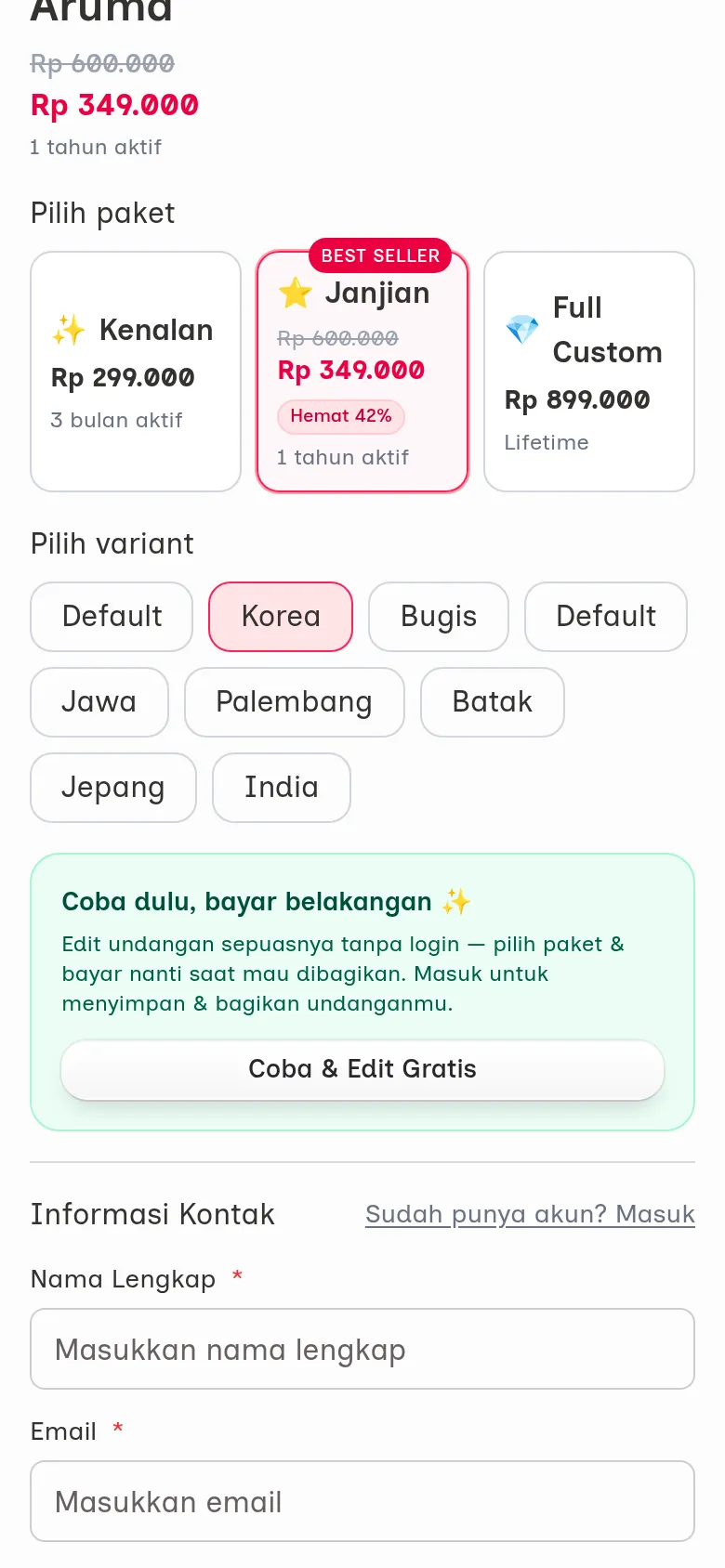
Choose a plan and pay
An unpaid invitation has the Draft status and can't be shared yet. The Dashboard shows one of these banners:
- Your invitation is still a draft — activate it now: click Pay Now. A single click opens checkout in the editor right away (the button shows a loading indicator for a moment), then choose a plan and pay.
- Invitation not active yet — complete your payment: your bill has been created. Click Pay Now, or Create New Payment if the bill has expired.
When you have an unpaid bill, Home shows it as the Invitation not active yet — complete your payment banner until it is paid. See Complete your invitation payment for the full steps. See Kenalan, Janjian, and Full Custom plans for what each plan includes.
Your invitation's active period counts from the wedding day, so paying early doesn't shorten it.
Choose a theme if asked
If your invitation is paid for but doesn't have a theme yet, the Choose Your Theme dialog opens automatically on the Dashboard. Choose a theme and its variant. You can still change the theme later with Change your invitation theme.
Set your invitation link
Once you've paid, open Link & publish in Invitation content. Fill in Invitation link, for example dika-putri, then click Publish invitation. The link can only be set once, so double-check the spelling first. See Set, open, and share your invitation link.
Complete and send
- Work through the checklist on Home: fill in the theme, couple details, and events, then publish your invitation. Guide: Follow the preparation checklist.
- Check your invitation with Check before you send your invitation.
- Once the invitation is published, add your guests in Guest list, then send to them from the Send via WhatsApp menu.
Next steps
- Try and edit before you pay — fill in and try your invitation in the editor before paying.
- Complete your invitation payment — pay for a plan so your invitation goes live.
- Dashboard — get to know the Dashboard once your invitation is active.