Add a song from YouTube
If the song you want isn't in the collection, add it yourself from YouTube. Just paste the video link and type the title. The song joins the Abadikan collection and is set on your invitation right away.
Add a song
- Open Background song in Invitation content.
- Click Add from YouTube next to the Song collection heading. If your search finds no song, the same button is under No songs found.
- In the Add a song from YouTube dialog, paste the video link into YouTube link. If the link is recognised, the video thumbnail shows below the field.
- Fill in Song title.
- Complete the other fields if you like (see the table below).
- Click Add & use. The message "Song added to the collection and used on your invitation." appears.
The new song immediately becomes the song in use and replaces the previous one, with no confirmation dialog. The previous song's play window is reset too. If YouTube link isn't valid or Song title is empty, the form shows a message under that field and the song isn't added.
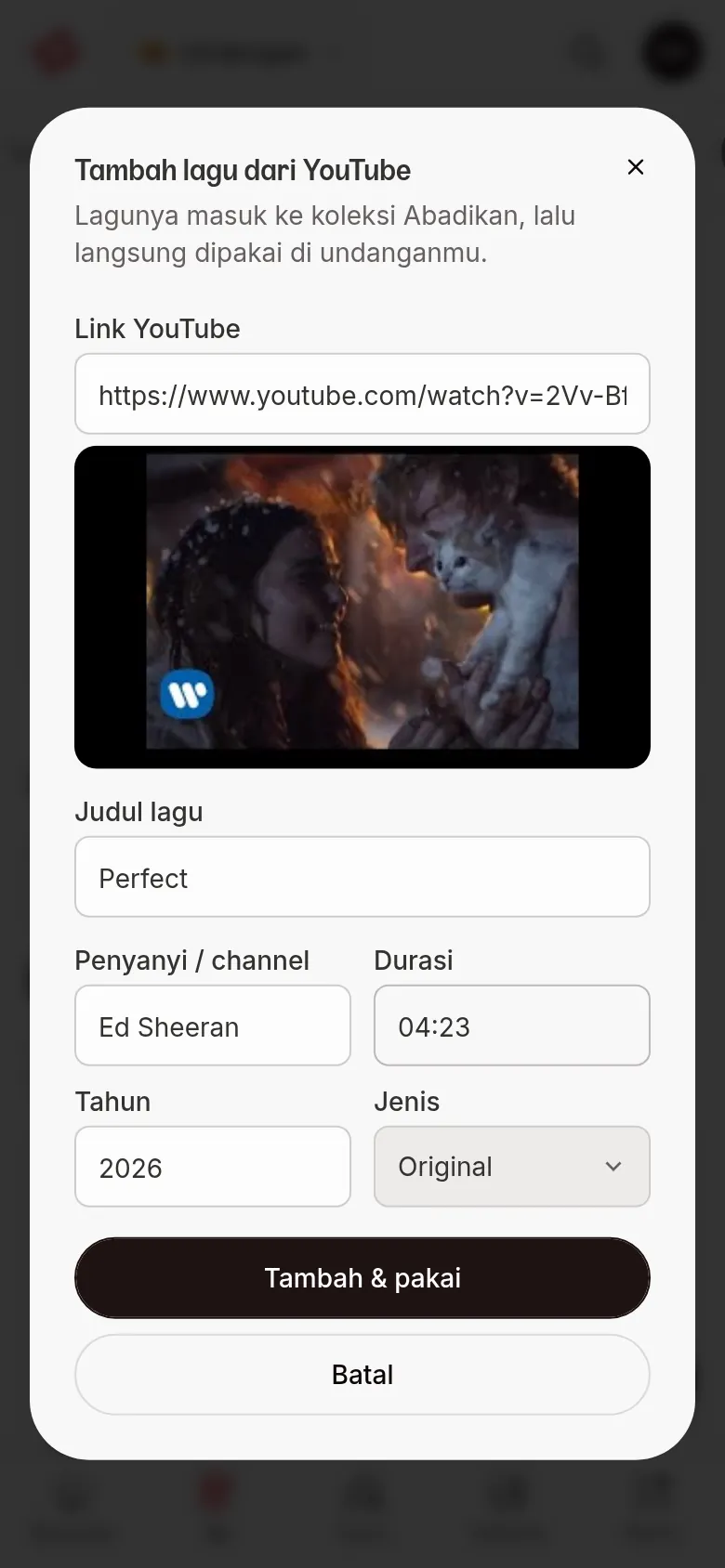
| Field | What to enter | Required | Limit/format |
|---|---|---|---|
| YouTube link | The YouTube video link of the song you want. | Yes | A regular video link, e.g. youtube.com/watch?v=… or youtu.be/…. |
| Song title | The title shown in the song list. | Yes | — |
| Artist / channel | The singer or channel name. | No | — |
| Length | How long the song is. | No | Free text, e.g. 03:45. |
| Year | The release year. | No | Four characters. Filled with this year; you can change it. |
| Type | Original, Cover, or Instrumental. | No | Defaults to Original. |
Type decides which filter the song shows under: Original for the singer's own version, Cover for a version sung again by someone else, Instrumental for a version without vocals.
Common problems
"Paste a valid YouTube video link." appears. The link isn't recognised as a video link. Open the video on YouTube, copy the link from the share button or the address bar, and paste it again.
"The song title is required." appears. Fill in Song title, then click Add & use again.
"The song couldn't be added. Please try again." appears (or an error message from the server). Click Add & use once more. Your entries stay as long as the dialog is open.
Next steps
- Set the play window — skip an intro by setting the play window.
- Problems with music, photos, or videos — solutions when the song doesn't play on the invitation.