Set up and control your invitation song
In the Background song section you set one song on the invitation, choose which part of it plays, and remove the song if you decide against it. Everything saves automatically.
Use a song from the collection
- Open Background song in Invitation content.
- Look for a song with the Search songs field, or pick the Cover, Original, or Instrumental filter. The search runs about half a second after you stop typing.
- Click the play button next to a song to listen first. Click again (the button turns into Stop) to stop. Only one song plays at a time.
- Click Use on the song you want.
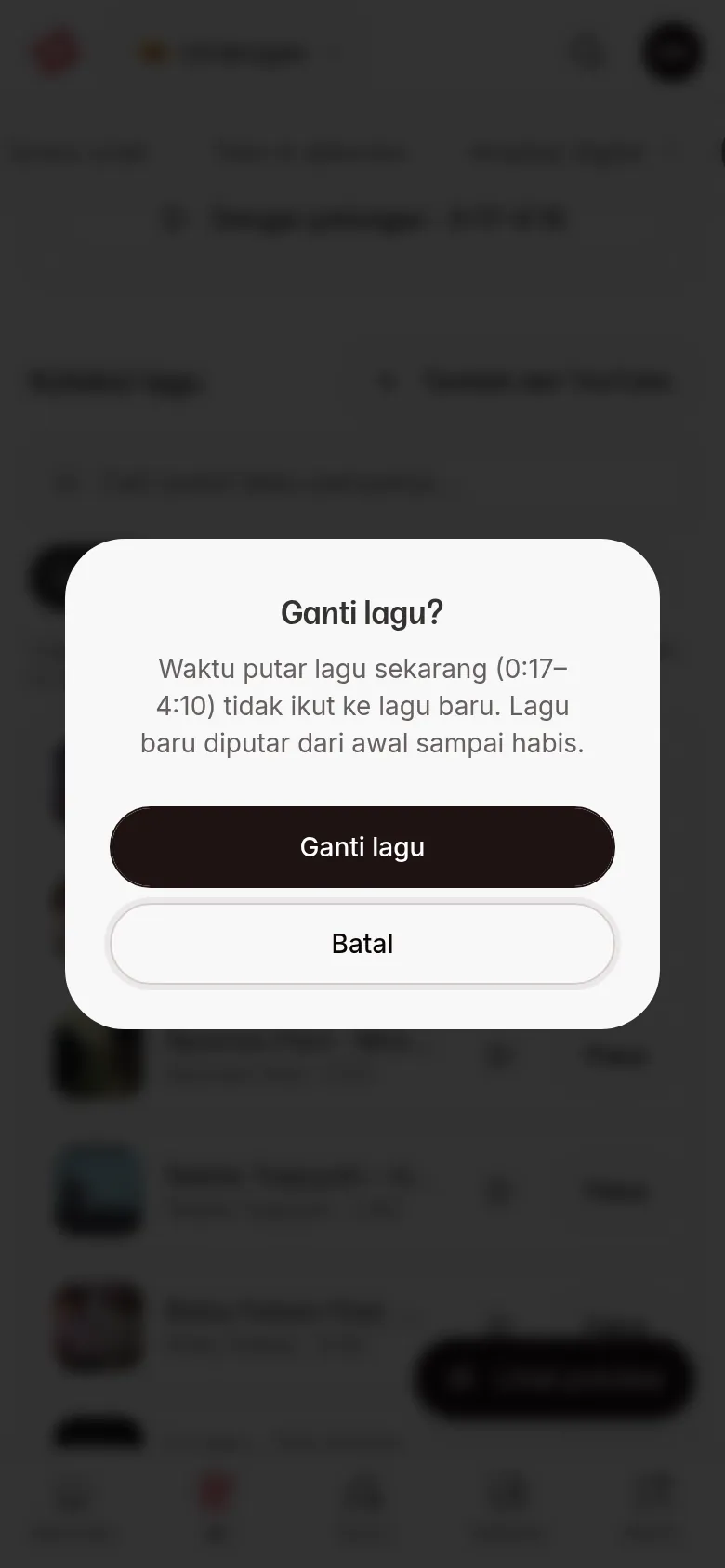
The song moves to Song in use and its button becomes the In use mark. If the previous song had a play window (Start at / End at), the Change the song? dialog explains that the old play window doesn't carry over and the new song plays from start to end. Click Change song to continue, or Cancel. If the previous song had no play window, the song is simply changed with no dialog.
Set the play window
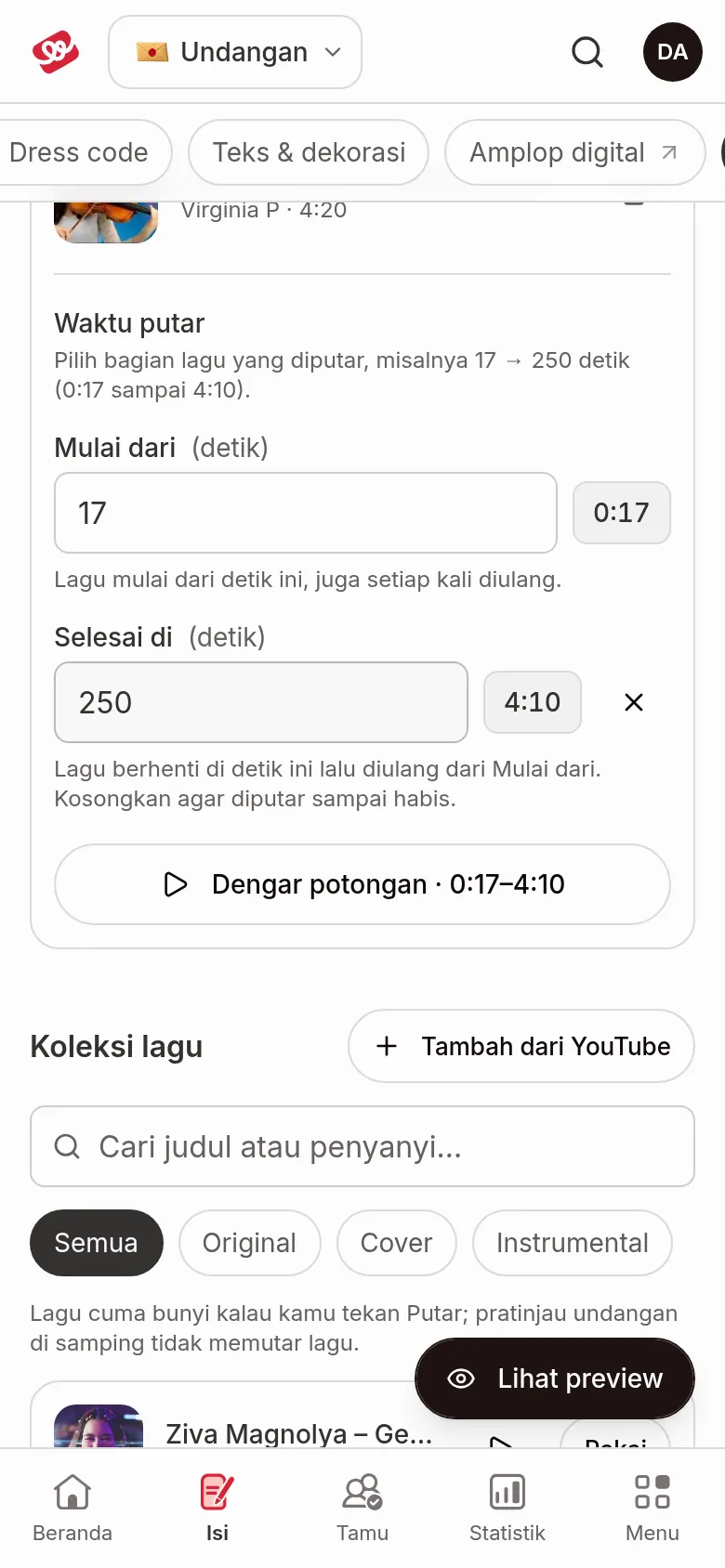
Use this to skip a long intro or play only the chorus. The Play window card appears inside Song in use once a song is picked.
- Fill in Start at (in seconds) with the second the song begins. Next to it you'll see it in minutes, e.g.
30becomes 0:30. The song starts at this second, and again every time it loops. - Fill in End at (in seconds) if the song should stop before it ends. The song stops at that second and loops back to Start at. Leave it empty to play To the end.
- Click Listen to this part (the button shows the range, e.g. 0:17–4:10) to hear the part you set. If no play window is set, the button is Play the song. Click Stop to stop.
There's no save button: changes save automatically.
Rules for the fields:
- Start at is a number, 0 or more. Empty means the song starts at the beginning. Otherwise you see "Start at must be 0 or more."
- End at is a number, 1 or more, and must be later than Start at. Otherwise you see "End at must be 1 or more." or "End at must be later than Start at."
- While a field isn't valid, that change waits and the listen button can't be used. Fix the field and the change saves.
- To empty End at, click the cross icon (Clear End at) next to it.
Remove the song from the invitation
- Click the trash icon (Remove song) next to the song under Song in use.
- In the Remove the song from the invitation? dialog, click Remove song.
Afterwards your invitation has no song and its play window is removed too. You can pick a song again any time.
Next steps
- Add a song from YouTube — Use a song that isn't in the collection yet.
- Music on your guests' invitation — See how the music plays for guests.
- Check before sending your invitation — Make sure everything is ready before you send.