Complete your invitation payment
Your invitation goes live and can be shared once its bill is paid. This page explains how to pay with QRIS, what happens if time runs out, and what the payment notices on Home mean.
Where the payment page opens from
The Payment page with the QRIS code opens from several places:
- The Proceed to Payment button when you buy with the QRIS method in Buy an invitation from the catalog.
- The Continue to payment button in the Share your invitation dialog in the Invitation content editor, which opens from Pay Now on the draft banner, Pay now on a locked-menu screen (see below), or Choose a package & pay in the editor. See Edit your invitation before paying.
- The Pay now button on the Waiting for payment banner in the editor. It creates a fresh, active QRIS (see If the payment expires).
- The Pay & upgrade button when you upgrade from the Upgrade to ... row on Home or the Upgrade to ... button on a lock card. See Kenalan, Janjian, and Full Custom plans for how.
Pay with QRIS
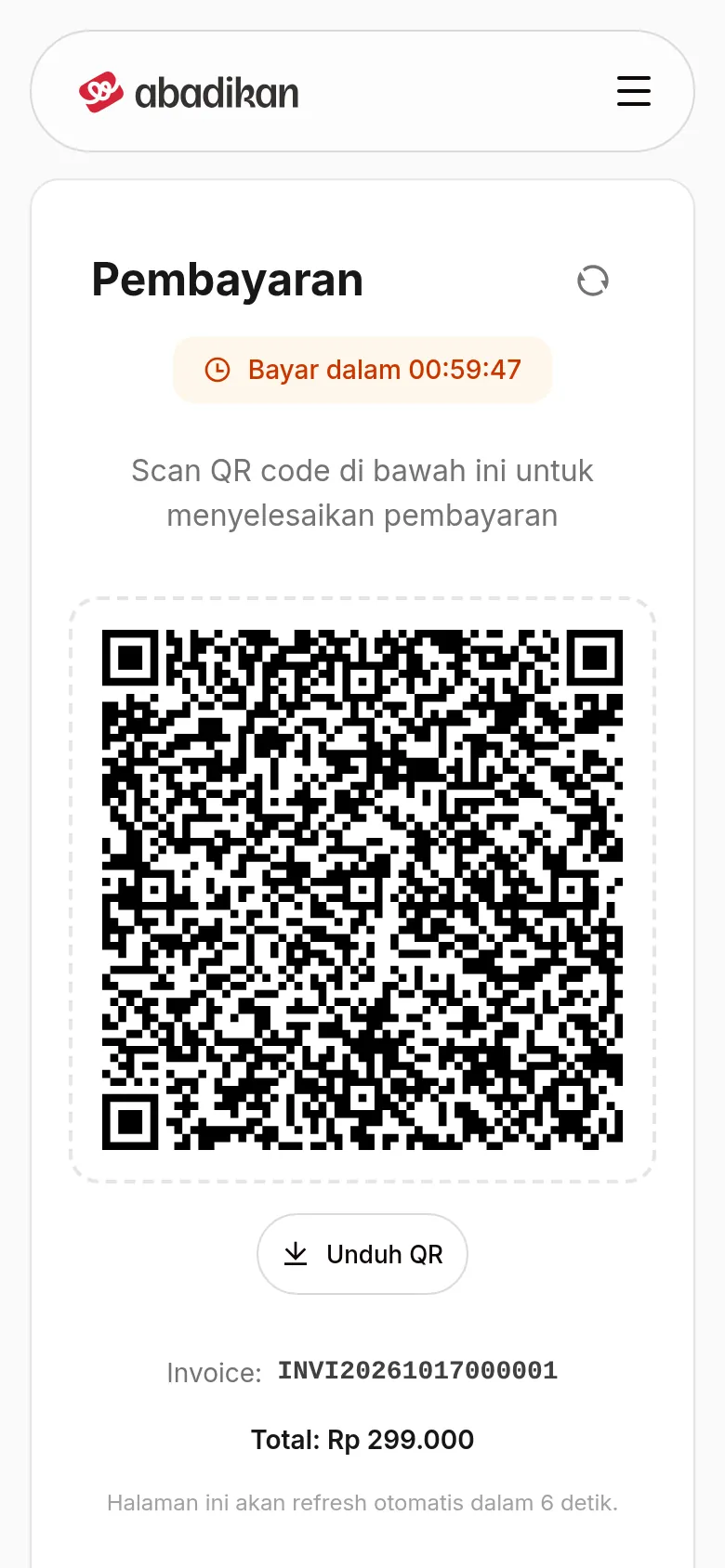
- Check the Total and the time left on the Pay within ... label at the top.
- Open a payment app (mobile banking or e-wallet) that supports QRIS.
- Scan the QR code on the screen. If you opened this page on the same phone, click Download QR to save the image, then upload it in your payment app if the app can scan QR codes from your gallery.
- Complete the payment in the app.
- Wait on this page. The status is checked automatically ("This page refreshes automatically in ... seconds."), or click the refresh icon (Refresh status) next to the Payment title.
- When Payment successful appears, click Go to dashboard.
Open a menu that is still locked
While the invitation is still a draft or its bill is unpaid, some menus (for example Guests and Statistics) show a lock. If you open one, its screen is replaced by a Pay first to open ... screen. You can keep editing your invitation for free; only the menus for inviting guests and beyond stay locked.
- Click a menu with a lock. The Pay first to open ... screen appears.
- Click Pay now. One click is enough: the Invitation content editor opens straight away with the Share your invitation dialog. The button briefly shows a spinner until the editor opens, so you don't need to click it twice.
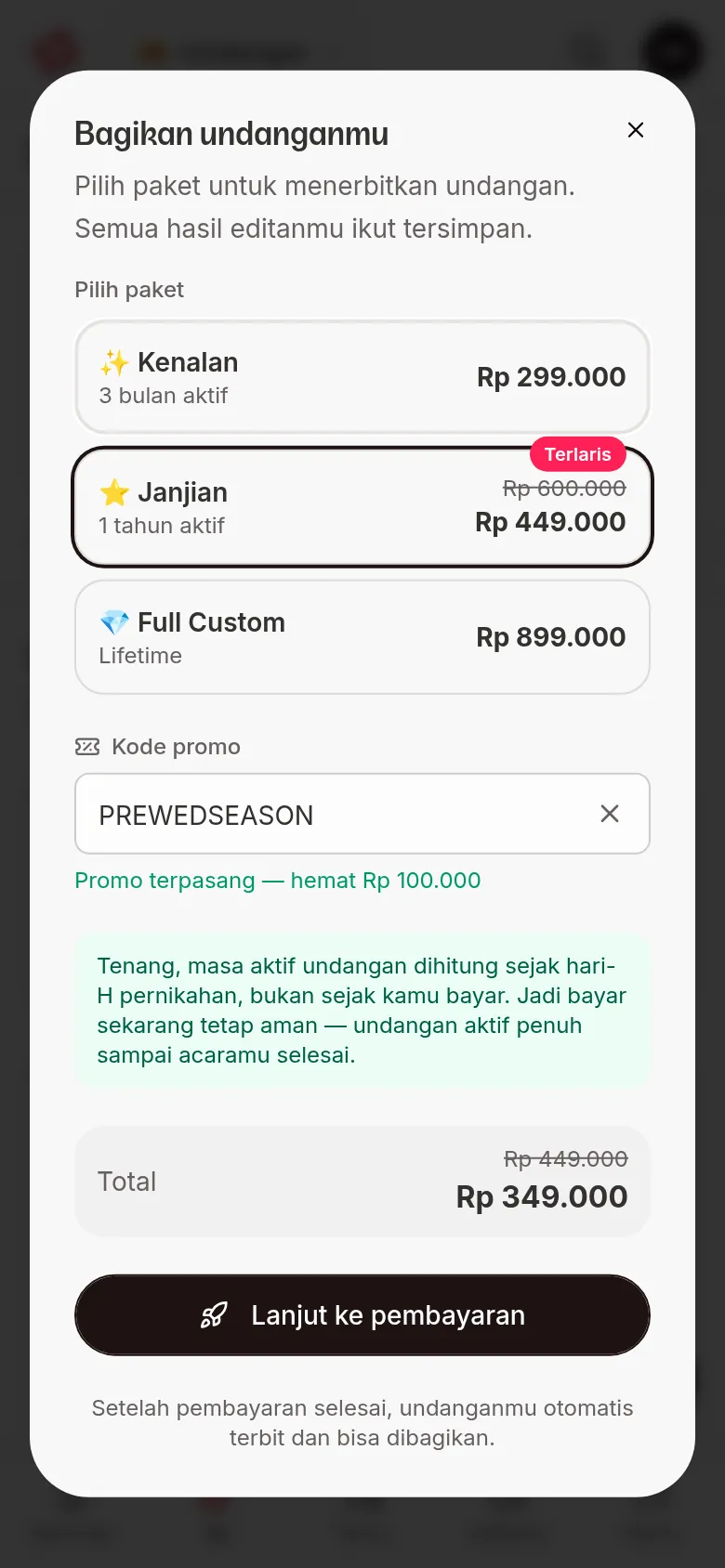
- Choose a plan (Kenalan, Janjian, or Full Custom). If there is a public promo, the Promo code field is already filled in. Check the Total.
- Click Continue to payment, then pay with QRIS as in Pay with QRIS.
Click Back to Home if you aren't ready to pay.
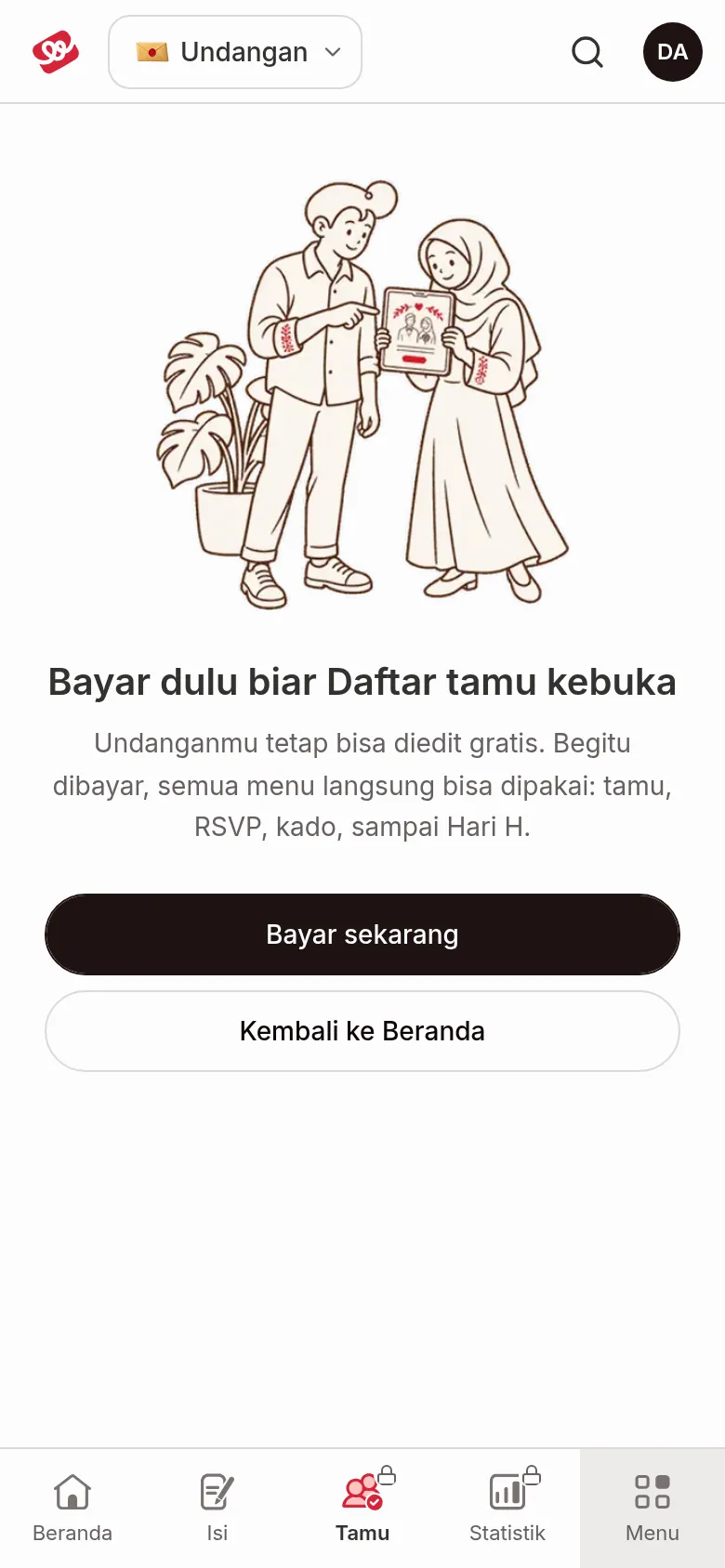
If a bill has been created but not paid, the locked screen is titled Just finish the payment. Its Continue payment button opens the payment page. If the bill has expired, the button becomes Create new invoice. See If the payment expires.
If the payment expires
When time runs out, the Pay within ... label disappears. A moment later (the page checks the status every 10 seconds, or click Refresh status), the QR code is replaced by Payment expired. Create a new bill in one of these ways:
- From the payment page. Click Create a new payment. This button only appears for the first bill of an invitation that is still waiting for payment. For an expired plan upgrade bill, the page only shows Back to dashboard: open Home, then pick the Upgrade to ... row again to create a new upgrade bill.
- From Home. On the Invitation not active yet — complete your payment banner, click Create New Payment.
- From the editor. On the Waiting for payment banner, click Pay now.
All three open a Preparing your payment… page, then a new QRIS code appears on the Payment page; pay as usual. If you used a promo code, a message tells you whether the promo still applies, was replaced by another promo, or was dropped because it ended.
The link in a payment reminder email or WhatsApp message also creates a new QRIS bill. You need to sign in to your account first. If Something went wrong appears, click Try again or Back to dashboard.
Payment notices on Home
Home shows only one notice at a time, so you never see two pay buttons. The order is: an open bill first, otherwise the draft banner, otherwise (for a paid invitation) the upgrade row.
| Notice | What it means | Button |
|---|---|---|
| Invitation not active yet — complete your payment | A bill has been created but not paid yet. The banner shows the amount and when the bill expires. | Pay Now opens the payment page. If the bill has expired, the button is Create New Payment. |
| Your invitation is still a draft — activate it now | The draft invitation from the editor doesn't have a bill yet. The banner shows the draft storage deadline and how many days are left. | Pay Now opens the editor with the Share your invitation dialog: choose a plan, then pay. |
| Upgrade to Janjian (or Upgrade to Full Custom) | The invitation is paid and a higher plan exists. See Kenalan, Janjian, and Full Custom plans. | See upgrade opens the upgrade dialog. |
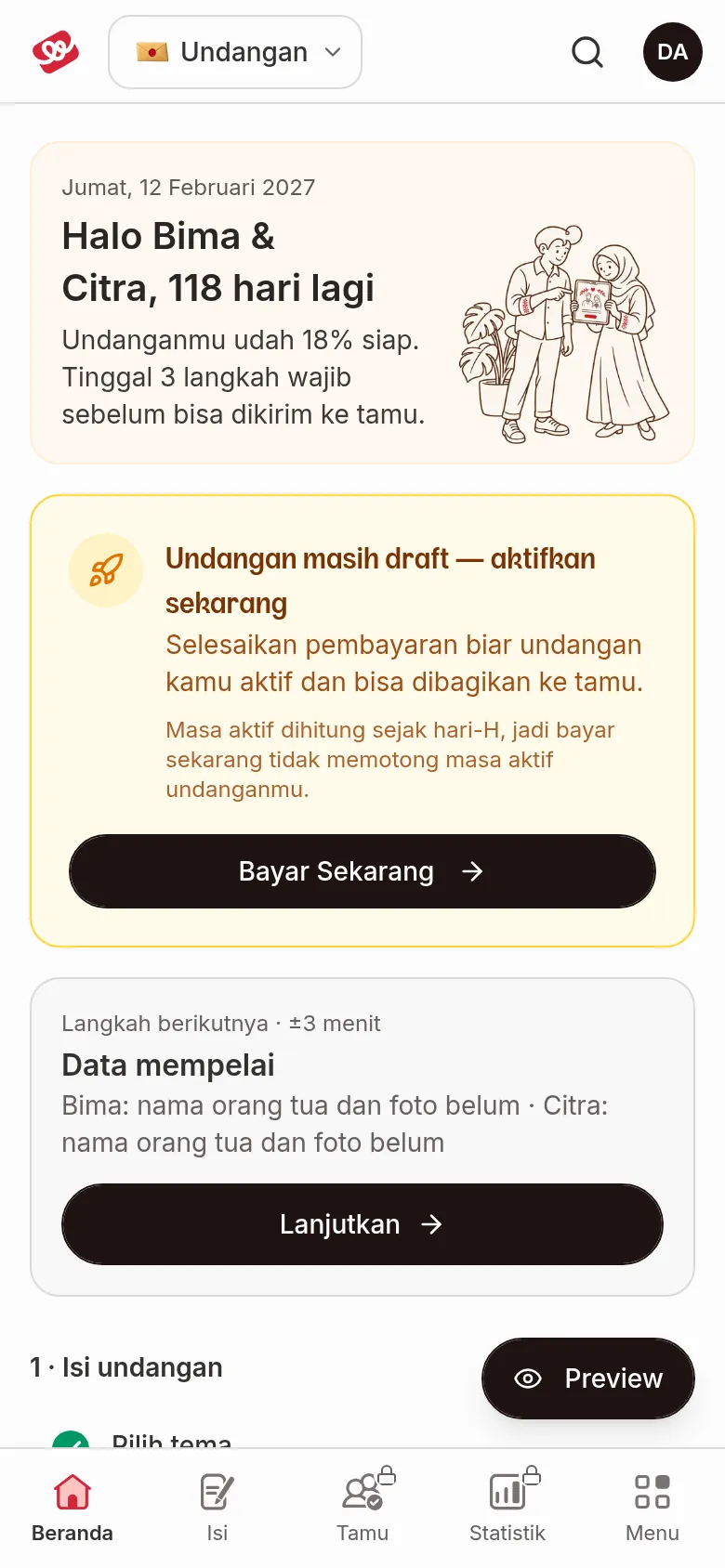
No dialog opens by itself when you open Home: an unpaid bill simply shows as a banner until it is paid.
Common problems
- "Payment details not found." Click Back to dashboard, then pay from the payment banner.
- You've paid, but the status hasn't changed. Click the refresh icon and wait a moment. If it still hasn't changed, see Contact Abadikan support and include the Invoice number from the payment page. Don't pay twice.
Next steps
- Get your invitation ready to send — set your link and complete your invitation.
- Sign up and sign in to your account — change the temporary password from checkout.
- Home — get to know Home once your invitation is active.