Set up RSVP and invitation access
Four settings decide who can fill in the RSVP, until when, what guests are asked, and who can open the invitation. You'll find them all in Invitation content (sidebar, Prepare invitation group), in the Invitation settings section of the editor's section list. Changes save automatically, so there's no save button. The editor shows "Saved automatically" or "Saved" with the time.
Choose the right setting
| What you need | Setting |
|---|---|
| Only guests on your list can fill in the RSVP | Limit RSVP to guests on the list |
| The RSVP closes automatically on a set date | RSVP deadline |
| Ask about allergies, menu choices, or anything else | Custom questions |
| People outside your guest list can't open the invitation | Invitation access Guests only |
| The link can't be forwarded to another phone | Invitation access Single device |
| A guest changed phones and their invitation is locked | Reset device |
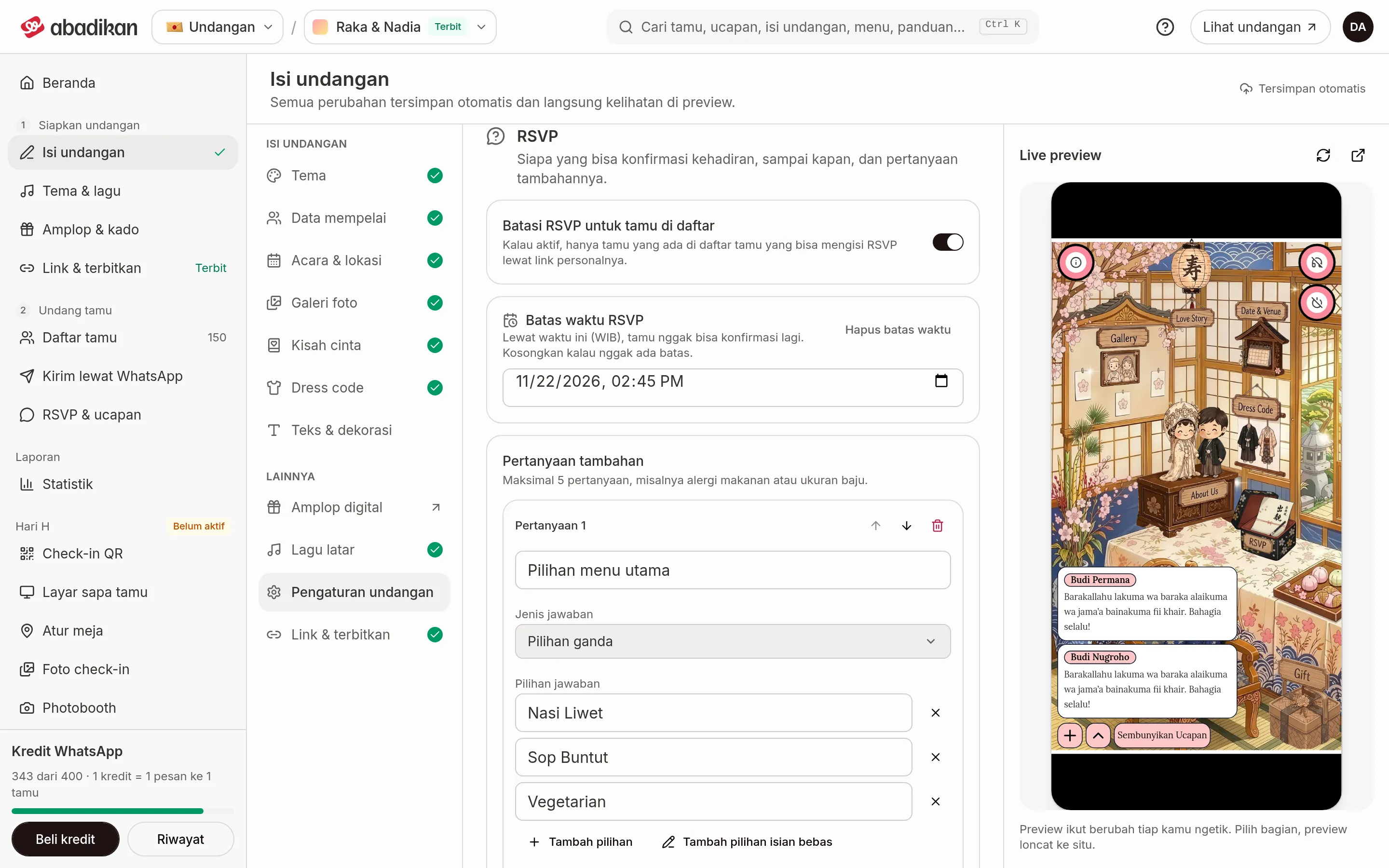
Limit RSVP to guests on the list
- Open Invitation content › Invitation settings, then scroll to the RSVP section.
- Turn on Limit RSVP to guests on the list.
When it's on, the RSVP form is tied to the guests on your list. For Personal guests, the name is filled in automatically and can't be changed, and the phone and email fields are hidden. Group guests still type in their own name.
RSVP deadline
- In the RSVP section, find RSVP deadline.
- Pick the closing date and time. The time uses WIB (Western Indonesia Time), whatever time zone your phone is in.
Once the time has passed, the submit button on the RSVP form is disabled and guests see Konfirmasi kehadiran sudah ditutup. (Attendance confirmation is closed.) Answers already received stay in RSVP Status. If the deadline has already passed, the editor shows a notice that the RSVP is now closed.
To reopen the RSVP, click Remove deadline. If the field is empty, the RSVP stays open.
Extra questions
- In the RSVP section, find Extra questions, then click Add Question.
- Write your question.
- Choose the Answer type. For Multiple choice, fill in the options.
- Set Required and Only for attending guests as needed.
| Field | What to enter | Limit/format |
|---|---|---|
| Question | The question text. | Max. 150 characters. Max. 5 questions. |
| Answer type | Short text, Long text, or Multiple choice. | Guest answers max. 500 characters. |
| Answer choices | Options for Multiple choice. | 2–6 distinct options, including the free-text option if turned on. Max. 100 characters per option. |
| Add a free-text option | An option that opens a text field, e.g. "Yes, please specify". | Empty name = Lainnya (other). |
| Required | Guests must answer before sending their RSVP. | |
| Only for attending guests | The question is only for guests who choose to attend. | On by default. |
Questions appear after the guest chooses whether they're attending. Guests who aren't attending are only asked questions that are required and not limited to attending guests. Answers show up in the RSVP replies tab of the RSVP & wishes menu, with a recap per question. A new question is saved once all questions are complete; until then the editor shows a notice. Extra questions don't work on every theme; check using a guest's link.
Invitation access
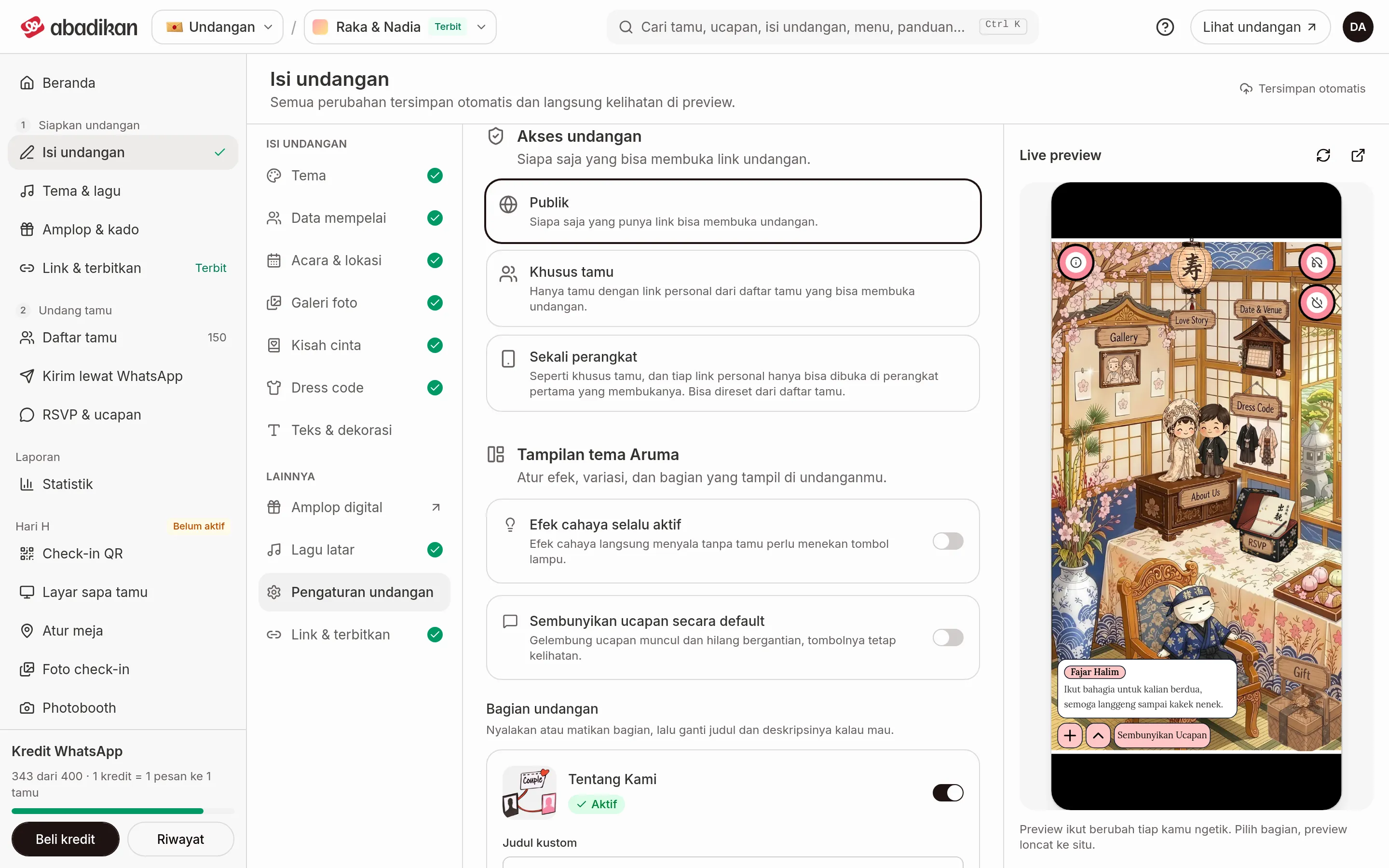
- In Invitation settings, scroll to the Invitation access section.
- Choose one of the modes.
| Mode | Who can open the invitation |
|---|---|
| Public | Anyone with the link. This is the default mode. |
| Guests only | Only guests with a personal link from the guest list. |
| Single device | Like Guests only, and each personal link only opens on the first device that opened it. It can be reset from the Guest list. |
People without a valid personal link see the Undangan ini khusus untuk tamu. (This invitation is for guests only.) screen. In Single device mode, a second device sees Undangan ini sudah dibuka di perangkat lain. (This invitation has already been opened on another device.) Invitations in any mode other than Public also don't appear in search engine results.
Reset device
Use this when a guest in Single device mode needs to open the invitation on another phone.
- Open the Guest list in the sidebar, under the Invite guests group.
- Tap the ⋯ menu in that guest's row.
- Choose Reset device, then confirm.
The invitation can now be opened on the new device. This option only appears when the access mode is Single device and the guest has already opened the invitation.
Next steps
- What guests see on your invitation — Check how these settings look on the guest's screen.
- Send invitations via WhatsApp — Send the personal link with the guest code.
- Guests can't open the invitation — Help guests who are locked out.