Send via WhatsApp
The Send via WhatsApp menu sends personal invitations to many guests at once from Abadikan's official WhatsApp number. Every message holds the guest's name and personal link, and uses WhatsApp credits: 1 credit = 1 message to 1 guest.
At the top of the page there is a summary like "8 of 20 invitations sent", with a link see the N not sent yet. The page has two tabs: Send and History.
Step 1: choose guests
- Open the Send tab. The first step is called Choose guests.
- Pick a Guest group as a starting point:
| Guest group | What it holds |
|---|---|
| Not sent yet | Guests whose invitation hasn't been sent at all, neither by hand nor by automatic WhatsApp. |
| Sent, no reply yet | Already sent the invitation but haven't RSVP'd. Good for a reminder. |
| No RSVP yet | Every guest who hasn't RSVP'd, sent or not. |
| Attending | Guests who confirmed they're coming. |
| Checked in | Guests who checked in on the event day. |
| All guests | Everyone on the Guest list. |
| Pick myself | Start empty, then search and tick the guests to send to. |
The Checked in group only appears once a guest has checked in. Other empty groups may also be missing from the options.
- Narrow it with Filter: Invitation type (Personal or Group), Guest type (Regular or VIP), or Label.
- Untick the guests you don't want to send to. The "N of M ticked" number shows how many you picked.
- Click Next: choose the message.
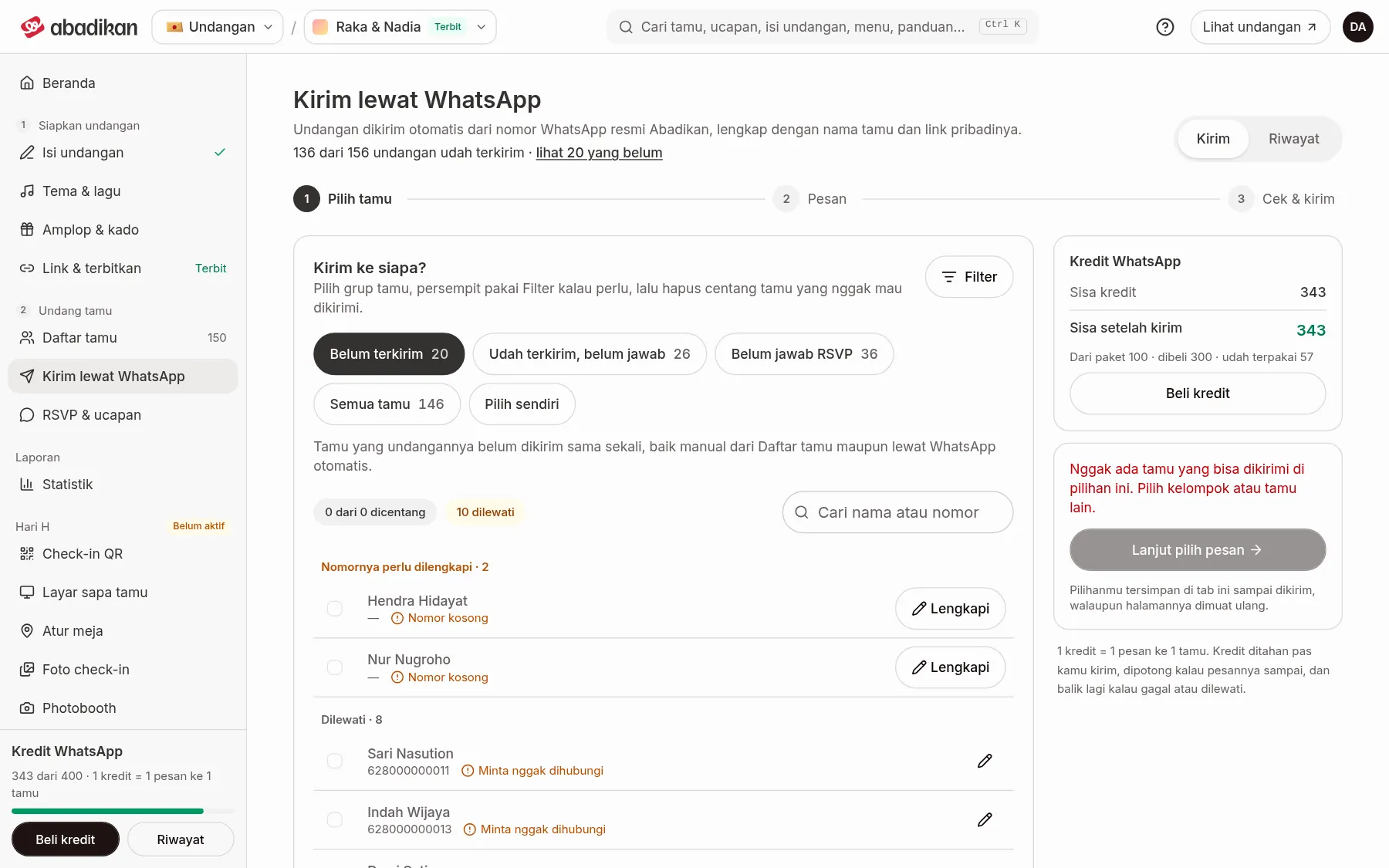
The recipient list is grouped: Number needs fixing, Skipped, then Can be sent. Guests with a problem number are at the very top. Click Fix on their row to open the guest form and correct the number.
One send holds at most 10,000 guests. Your choices are kept in the browser tab until you send, even if the page reloads.
Step 2: choose the message
- In the Message step, choose a message style. The message is already approved by WhatsApp, so its text can't be changed. The guest's name, events, and personal link are filled in automatically.
- See the preview under Example for (a guest's name). If there is more than one recipient, use the Previous and Next arrows to see another guest's example.
- Click Next: check.
If you see "Invitation details missing: …", fill in the details it names under Invitation content first. Want to use your own words? Send by hand from the Guest list, see Send invitations by hand. Need another message style? Click Ask the admin for another message style. The WhatsApp message to the admin is already filled in.
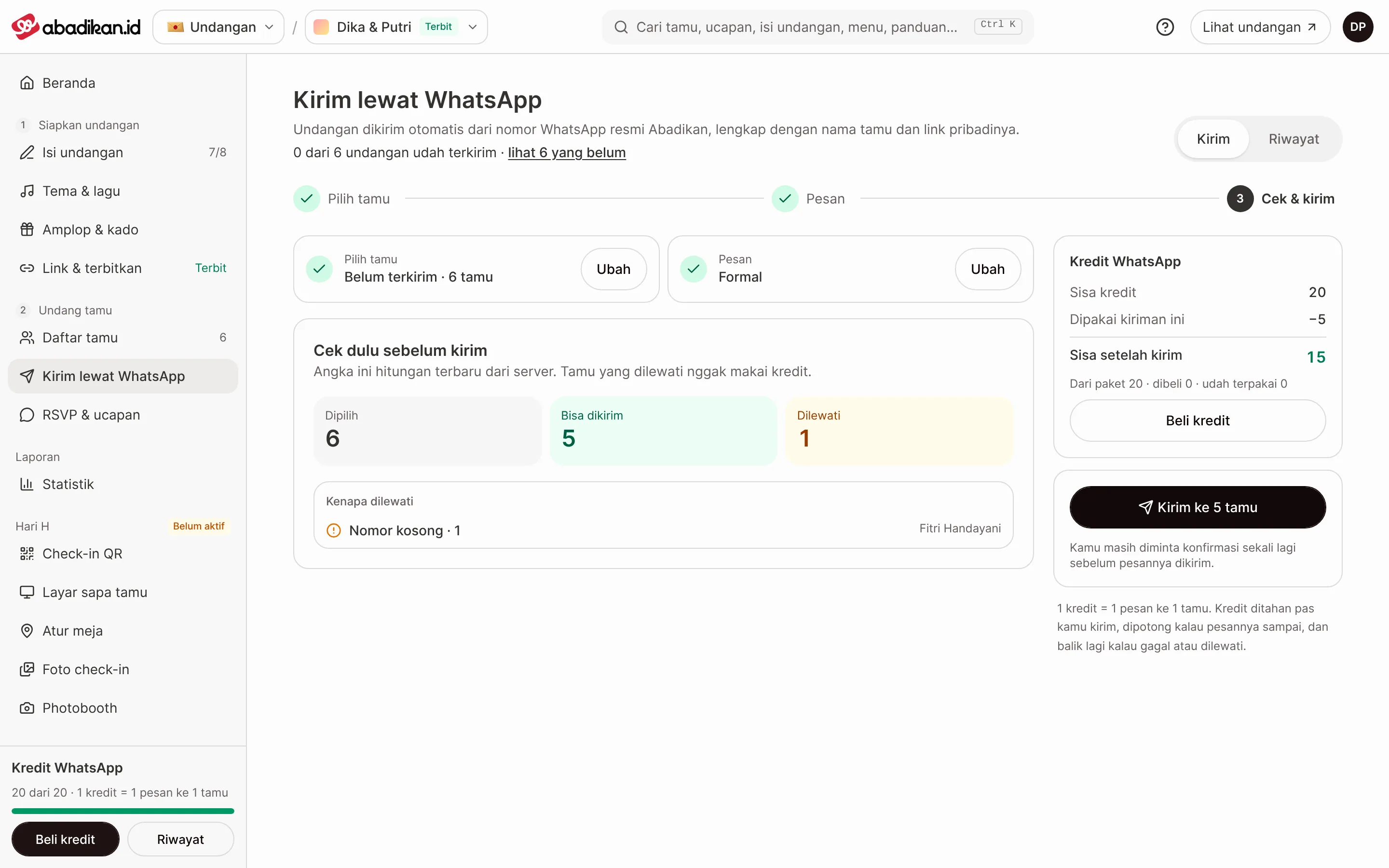
Step 3: check and send
- In Check & send, see the Chosen, Can be sent, and Skipped numbers, along with Why they're skipped. The numbers are the latest count from the server.
- Check the WhatsApp credits panel: Credits left, Used by this send, and Left after sending. If there aren't enough, you see "N credits short for this send." with a Buy credits button. See WhatsApp credits.
- Click Send to N guests.
- In the "Send the invitation to N guests now?" dialog, check Message and Credits, then click Yes, send now.
You can close the page after sending; the send keeps going. If WhatsApp's daily limit is hit, the remaining messages go out automatically the next day, and you don't need to do anything.
The send button is unavailable when:
| Message | Meaning |
|---|---|
| The invitation isn't published yet | Publish it first through Link & publish. |
| Automatic sending is paused for a moment | Try again later, or send by hand from the Guest list. |
| N credits short | Buy credits, or send to fewer guests. |
Why guests are skipped
Skipped guests use no credits. The reason shows in the recipient list and under Why they're skipped during the check.
| Reason | What you can do |
|---|---|
| No number, Invalid number, Not an Indonesian number | Click Fix on the guest's row, then correct the number. |
| Number used by another guest | The same number is used by more than one guest. Check in the Guest list. |
| Asked not to be contacted | The guest asked not to be contacted. If needed, send by hand, see Send invitations by hand. |
| Not attending | The guest already answered that they are not attending. |
| Invitation details incomplete | Fill in the invitation details named in the Message step. |
| Still queued in another send | A message for this guest is still waiting to be sent. Check in History. |
| Guest deleted | The guest has been deleted from the list. |
| Canceled | Sending to this guest was canceled before it went out. |
| Invitation not published | Publish the invitation first. |
Follow up in History
- Open the History tab, or click History on the WhatsApp credits card in the sidebar.
- Every send shows a status and counts like "20 recipients · 18 sent · 12 read · 1 failed". Click one to see its details.
- In the details, filter guests with Filter by status, and see the credit usage: Credits held, Used, Returned, and Pending.
Send statuses: Scheduled, Queued, Sending, Done, Partly failed, Canceled, and Needs attention.
| Guest status | Meaning |
|---|---|
| Queued · Sending | The message hasn't reached the guest's WhatsApp yet. |
| Sent | The message has been sent. |
| Delivered | The message has reached the guest's phone. |
| Read | The guest has opened the message. |
| Failed | The message didn't arrive; its credit is returned. |
| Skipped | The guest wasn't sent to; no credit used. |
Numbers in History are cumulative: a message that was read also counts as delivered and sent. The same statuses show in the Guest list through the Sent & opened column and the Automatic WhatsApp filter.
Need to resend to those who failed or haven't read it? Open Send again and pick the Sent, no reply yet group, or Pick myself.
Next steps
- WhatsApp credits — check your remaining credits and how to top up.
- RSVP answers — see who has confirmed attending.
- Add guests and import from Excel — complete guests' numbers before sending.