Add guests and import from Excel
Every guest in the Guest list gets their own personal invitation link and QR. Add guests one by one with the form, or bring in many at once from an Excel file.
Add guests one by one
- Open Guest list in the sidebar, under the Invite guests group.
- Click Add guest. If the list is still empty, the button is in the middle of the page.
- Fill in the fields in the Add New Guest dialog. Full Name is required. Quota, Guest Type, and Invitation Type are required too, but they already have default values.
- Click Save & Add. You see "Guest added successfully." and the guest joins the list.
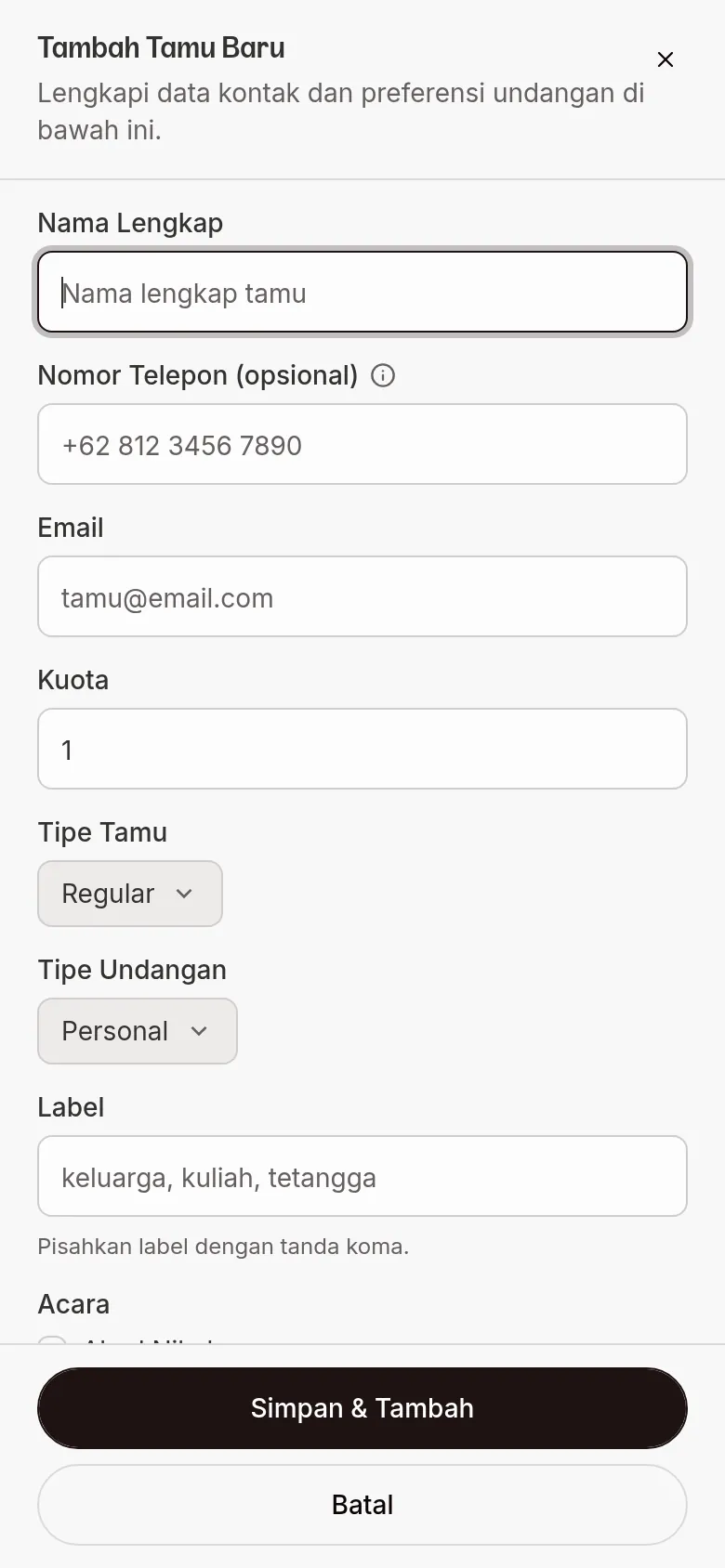
| Field | What to enter | Required | Limit/format |
|---|---|---|---|
| Full Name | The guest's name as you want it shown on the invitation. | Yes | Max. 120 characters. |
| Phone Number (optional) | The guest's WhatsApp number. | No | Leave empty if you'll send the invitation via Instagram or other social media. |
| The guest's email address. | No | A valid email format. | |
| Quota | How many people can come with this invitation. | Yes | A number from 1 to 50. Default 1. |
| Guest Type | Regular or VIP. | Yes | Default Regular. |
| Invitation Type | Personal for one person, Group for a family or party. | Yes | Default Personal. |
| Labels | Free-form grouping, e.g. family, college, neighbor. | No | Separate multiple labels with a comma. |
| Events | The events this guest may open. | No | Shown when your invitation has events. Leave empty to allow access to all events. |
| Couple order | The partner shown first, for this guest only. | No | Follow the invitation setting, Groom first, or Bride first. |
| Show bank account & digital gift | A switch to show or hide the gift section for this guest. | No | On by default. |
| Greetings | How to address the guest, e.g. Mr/Mrs. | No | — |
Without a phone number, the main button on that guest's row becomes Copy message (instead of Send WA). Steps are in Copy the message for guests without a number.
Want to change a guest who is already on the list? Open the ⋯ menu on the guest's row, choose Edit guest, then click Save Changes.
Show gift accounts and envelopes
Turn off the Show bank account & digital gift switch to hide the bank accounts, digital envelope, and gift registry from a specific guest, e.g. parents or a boss. In the list, that guest gets a Gift accounts hidden badge. Other guests still see the gift section as usual.
Import from Excel
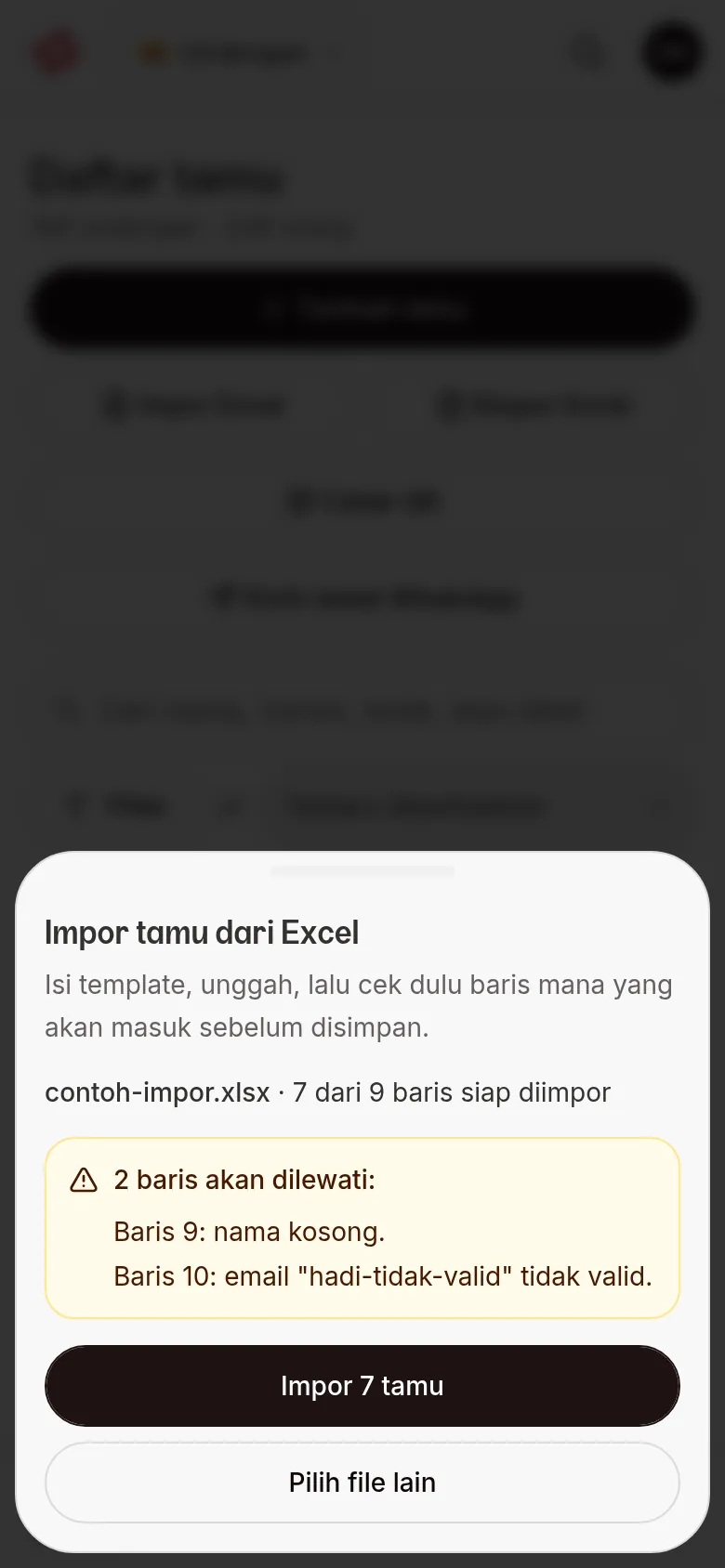
Import checks the file first, so you can see which rows will be added and which will be skipped before anything is saved.
- In Guest list, click Import Excel. The Import guests from Excel dialog opens.
- Click Download template, then fill in one guest per row. The Name column is required.
- Back in the dialog, click the Click or drag a file here area, or drag the file in. Only
.xlsxis accepted, up to 5 MB. Picked the wrong file? Click Choose another file. - Wait for the check to finish. You see a summary like "12 of 14 rows ready to import", the list of rows that will be skipped, and Worth checking notes.
- Click Import N guests (N = the number of ready rows). You see "N guests imported."
- Click Done, or Import another file for the next file.
These three columns are optional:
| Column | What to enter | If left empty |
|---|---|---|
| Events | Names of the events the guest may open, separated by commas. | The guest can open all events. |
| Show gift accounts | Ya (yes) or Tidak (no). | Accounts and envelopes are still shown. |
| Couple order | Pria (groom) or Wanita (bride). | Follows the invitation setting. |
Why rows are skipped
Problem rows are listed with their row numbers, so they are easy to fix in the file and upload again.
| Message in the dialog | What to fix |
|---|---|
| Name is empty | Fill in the Name column. |
| Number must be 7–15 digits | Correct the WhatsApp number. |
| Number is stored as a number in Excel | Change the number column's format to Text. |
| Email is not valid | Correct the email address, or leave it empty. |
| Guest type must be regular or vip | Write regular or vip. |
| Invitation type must be personal or group | Write personal or group. |
| Quota must be a number | Enter the quota as a number. |
| Number already exists, or a guest without a number with the same name already exists | Delete the duplicate row, or use a different number. |
| Group already exists | Use a different group name. |
| Event is not on the invitation | Match the event name to the one on your invitation. |
Some messages are only notes: the row is still imported. A quota that is not a whole number rejects the whole file: the dialog says nothing can be imported yet until the flagged rows are fixed. If the file is not .xlsx, save it as .xlsx first. .xls and .csv files are rejected. Files larger than 5 MB should be split into several files.
Next steps
- Guest list — search, edit, view the QR, or delete guests you've added.
- Send invitations by hand from the Guest list — send the personal link to one guest from your phone.
- Send via WhatsApp — send to many guests at once.