Send invitations by hand from the Guest list
Sending by hand opens WhatsApp on your device with an invitation message that already holds the guest's name and personal link. You just press send, one guest at a time. For many guests at once, use Send via WhatsApp.
Send WA
- Open Guest list.
- On the guest's row, click the Send WA button. WhatsApp opens in a new tab with the guest's number and the invitation message already filled in.
- Check the message, then send it from WhatsApp.
- Go back to the dashboard tab. You are asked "Was the message to (guest name) sent?" Click Yes, sent if you really sent the message, or Not yet if you didn't.
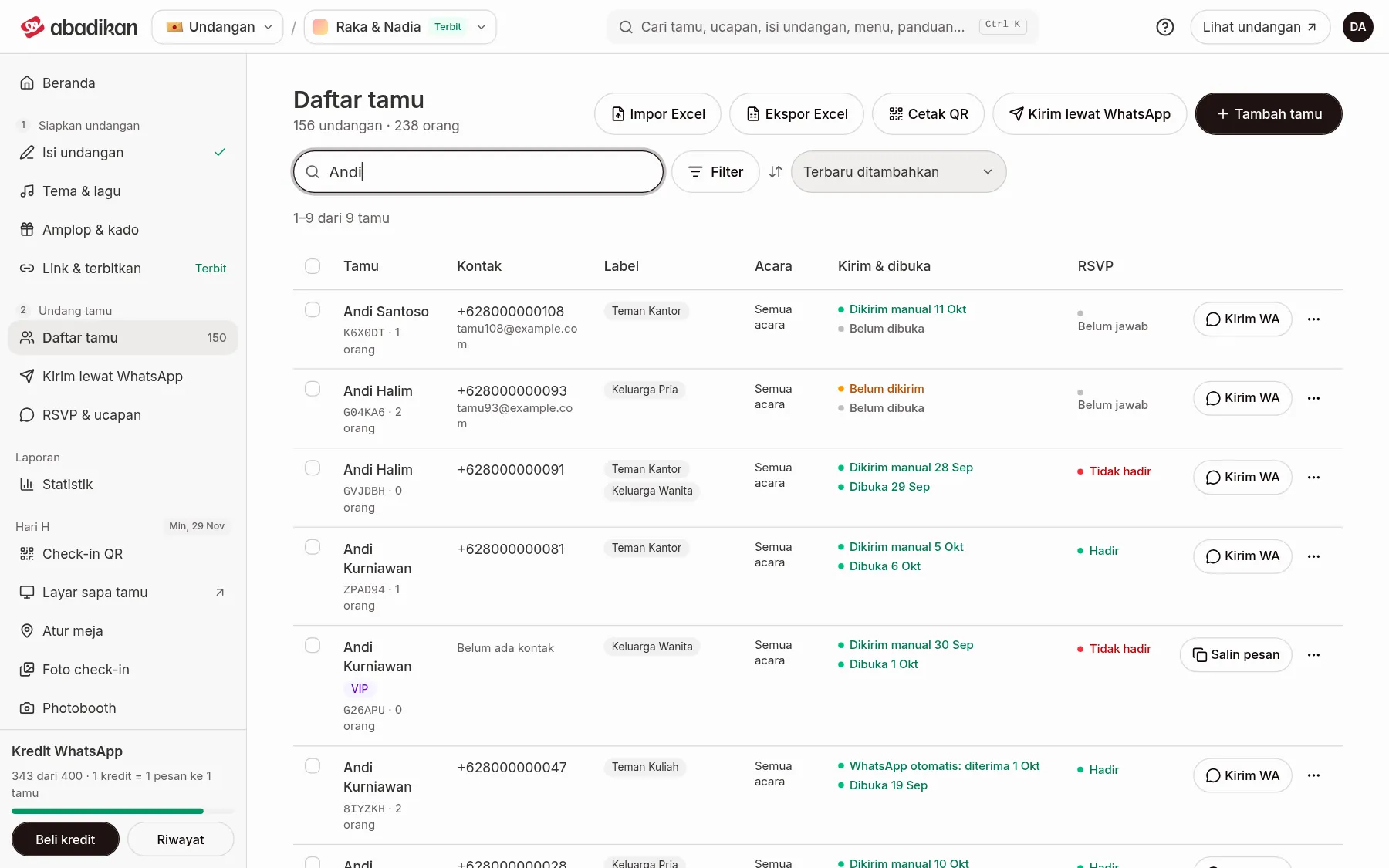
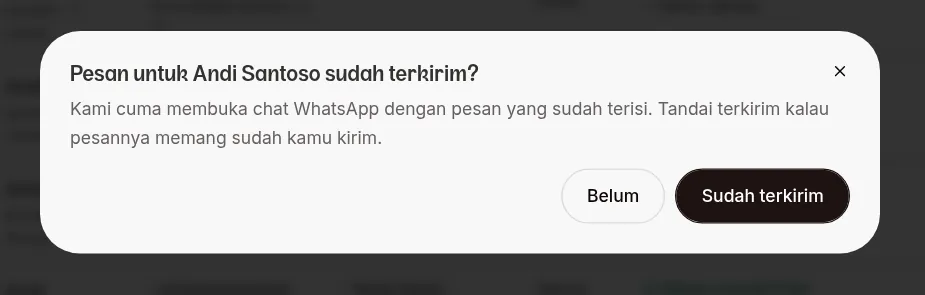
The dashboard only opens the WhatsApp chat, so it can't know whether you really sent the message. That's why the status only changes to Sent manually after you answer Yes, sent. Messages sent this way don't use WhatsApp credits.
Copy the message for guests without a number
For a guest whose Phone Number is empty, the main button on their row is Copy message. Use it to send the invitation through Instagram or other social media.
- On the guest's row, click Copy message (or the ⋯ menu › Copy invitation message, available for every guest).
- You see "Invitation message copied." with a Mark as sent button.
- Paste the message into the chat app you use, then send it.
- Click Mark as sent in that notification, or later through the ⋯ menu › Mark as sent.
Only want the personal link? Use Copy link on the guest's row, or the ⋯ menu › Copy personal link.
Messages from a template
Send WA and Copy message use the same template. You set it in Invitation settings, in the WhatsApp message section. Changes save automatically. The Invitation settings menu is in the sidebar for canvas templates. In other templates, the same section is in the Invitation content editor.
- Open the WhatsApp message section.
- Write your message in Message. Tap a variable below it to insert it at the cursor.
- Check the result in the Preview tab. The Copy sample message button copies the sample.
- Want to go back to the default message? Click Use the default template, then Replace.
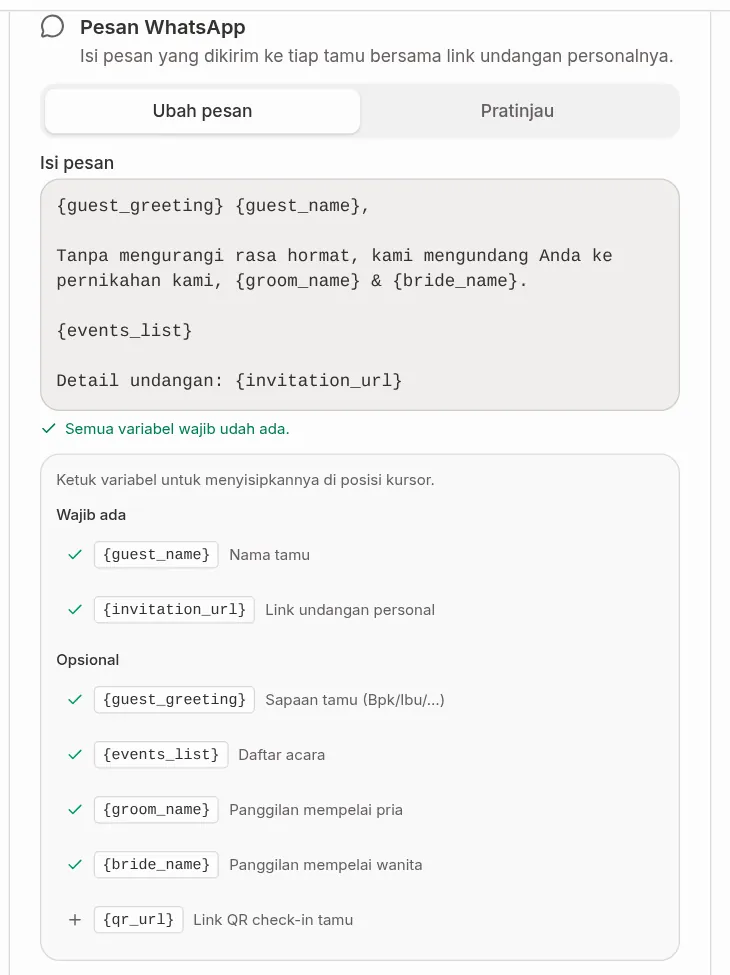
The message isn't saved until both Required variables are in it, and it can't be emptied. While Message is empty, guests receive Abadikan's default message.
Template variables
When the message is sent, each variable is replaced with the guest's or invitation's data.
| Variable | Replaced with | Group |
|---|---|---|
{guest_name} | Guest name | Required |
{invitation_url} | Personal invitation link | Required |
{guest_greeting} | Guest greeting, e.g. Mr/Mrs | Optional |
{events_list} | List of events | Optional |
{groom_name} | Groom's nickname | Optional |
{bride_name} | Bride's nickname | Optional |
{qr_url} | Guest QR check-in link | Optional |
Common problems
Seeing "The WhatsApp message template is not set yet." with a Set template button? Click it, make sure the two required variables are in WhatsApp message, then try again. Other problems are in Guests, WhatsApp, or RSVP problems.
Next steps
- Send via WhatsApp — send to many guests at once from Abadikan's official number.
- RSVP answers — see who has confirmed attending.
- Guest list — the Sent & opened column and the Sent filter.