WhatsApp credits
Automatic sends in Send via WhatsApp use WhatsApp credits. The rule is simple: 1 credit = 1 message to 1 guest. Sending by hand with Send WA in the Guest list doesn't use credits, because the message goes out from your own WhatsApp.
Credits from your plan
Once your invitation is paid and published, your plan's free credits are added automatically:
| Plan | Free credits |
|---|---|
| Kenalan | 0 |
| Janjian | 20 |
| Full Custom | 100 |
On the Kenalan plan, the WhatsApp credits card shows Used up right away until you buy credits. Upgrading adds the difference: Kenalan to Janjian adds 20 credits, and Janjian to Full Custom adds 80 more. Credits you already have are never taken back.
Where to see your credits
The WhatsApp credits card appears at the bottom of the sidebar. The card is only there for invitations that are paid, because before that there are no credits.
- Laptop: the card is in the sidebar. If the sidebar is collapsed to a row of icons, the card is hidden, so widen the sidebar again.
- Phone: open the Menu tab. The card is at the bottom, below all the menu groups.

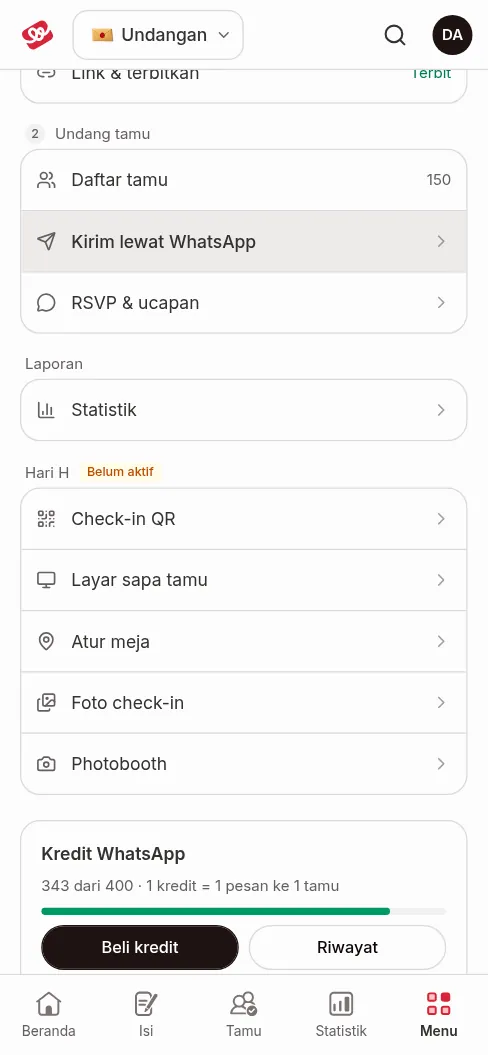
What's on the card:
| Part | Meaning |
|---|---|
| N of M | Credits left out of all the credits you have (the credits from your package plus any you bought). |
| N on hold | Credits being used by a send that is still running. Only shown when there are some. |
| Progress bar | Remaining credits as a percentage. Green while plenty is left, yellow once it runs low. |
| Running low | Less than 20% of your total credits are left. Time to add more if some guests haven't been sent to yet. |
| Used up | 0 credits left. You need to buy credits to send again. |
| Buy credits | Opens the purchase dialog, see Buy credits. |
| History | Opens the History tab in Send via WhatsApp. |
If you see "WhatsApp sending is unavailable right now, try again later", automatic sending can't be used at the moment. Send by hand from the Guest list for now. If you see "Couldn't load credits.", click Try again.
On hold, charged, returned
Credits move in three ways so you never lose out:
| When | What happens to the credits |
|---|---|
| You press send | Credits are held for as many guests as will be sent to. The number shows as N on hold. |
| The message reaches the guest | The credit is charged for that message. |
| The message fails or the guest is skipped | The credit is returned. |
Skipped guests (no number, invalid number, asked not to be contacted, and other reasons in Why guests are skipped) use no credits. On the other hand, a guest who was already sent to and that you pick again still uses a new credit.
In the Check & send step, the WhatsApp credits panel works it out for you: Credits left, Used by this send, and Left after sending. A breakdown of where your credits come from is written below it: "From your package … · bought … · used …".
Buy credits
You buy credits yourself with a checkout inside the dashboard. Payment is by QRIS only, so you don't need to chat with an admin and there is no manual transfer.
- Click Buy credits on the WhatsApp credits card. The Buy WhatsApp credits dialog opens and shows your credits left, what is on hold (sending), and your balance after buying.
- Pick one package. Each package shows the number of credits, the package price, and the price per message (for example "Rp…/message"). The package most people choose is tagged Most popular. One payment covers one package only.
- Click Pay … with QRIS. The button shows the price of the package you picked.
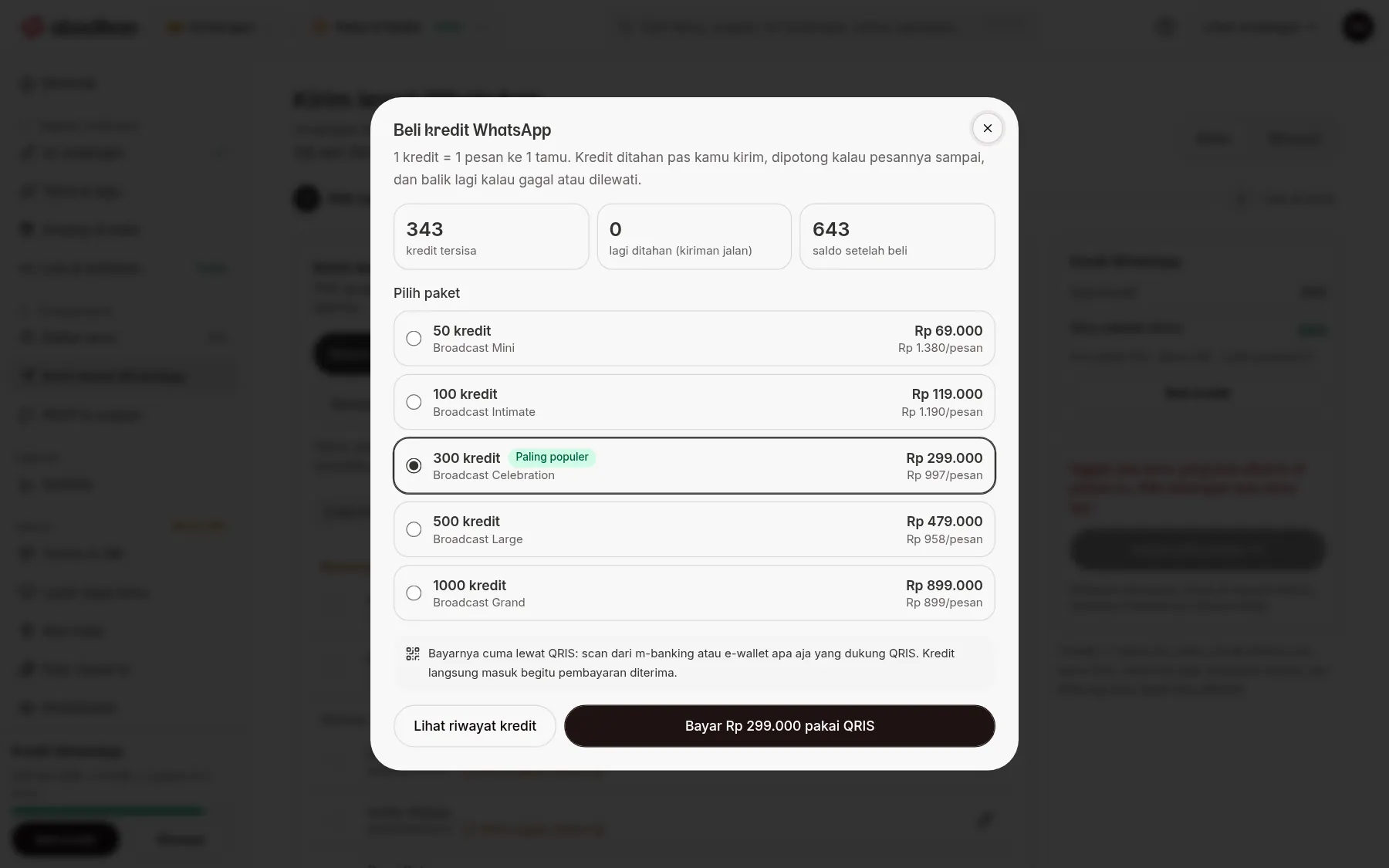
Packages available right now:
| Package | Price | Per message |
|---|---|---|
| 50 credits (Broadcast Mini) | Rp 69,000 | Rp 1,380 |
| 100 credits (Broadcast Intimate) | Rp 119,000 | Rp 1,190 |
| 300 credits (Broadcast Celebration), Most popular | Rp 299,000 | Rp 997 |
| 500 credits (Broadcast Large) | Rp 479,000 | Rp 958 |
| 1000 credits (Broadcast Grand) | Rp 899,000 | Rp 899 |
- A QR code appears in the same dialog with a Pay within … countdown. Scan it with any mobile banking or e-wallet app that supports QRIS. Under the QR you see the Package, Invoice number, and Total.
- Paying from the same phone? Click Download QR, then open your bank or e-wallet app and pick the QR from your gallery.
- Wait a moment. The payment status is checked automatically every 10 seconds ("Payment status is checked automatically in …s."). Want to check right away? Click Check status.
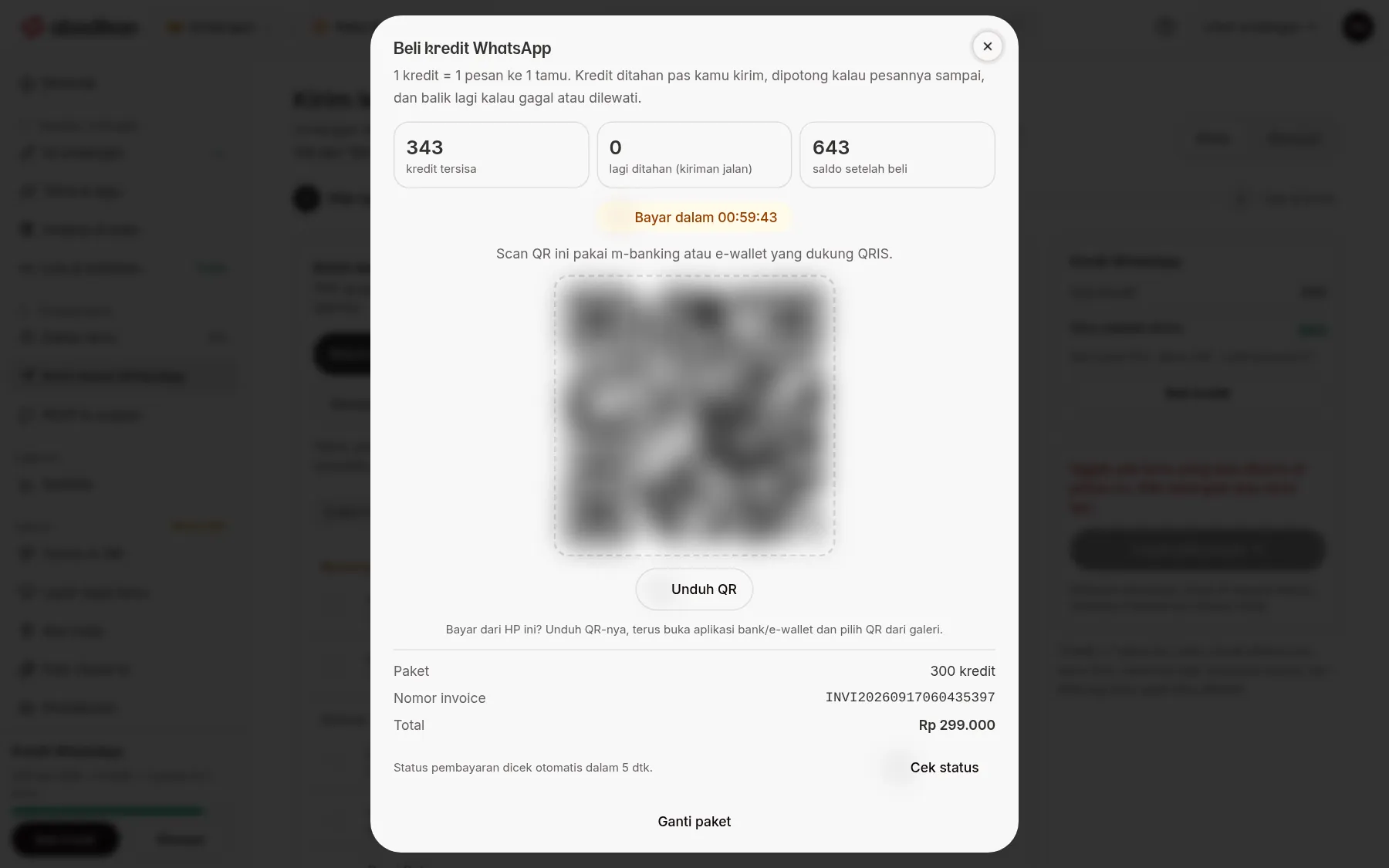
Want a different package before paying? Click Change package under the QR and pick again.
After you pay
| What you see | What it means |
|---|---|
| Payment successful and "Adding the credits to your balance…" | The payment was received. The credits are being added to your balance. |
| "N credits added. Your balance is now N credits." | The credits are in. Click Done. The number on the card updates too. |
| "Time to pay is up. Checking the latest payment status…" | The QR ran out of time, but a payment made in the last second is still being checked. Wait or click Check status. |
| This QR has expired | If you already paid, the credits are added automatically once the payment is confirmed. If not, click Create a new QR, or Choose another package. |
| The payment didn't go through | Click Create a new QR to pay again. |
There is no extra notification when credits arrive, so look at the number on the card or the message in the dialog. If you close the dialog first, the card still updates by itself once the payment lands.
Closed the dialog before paying and opened it again? If there is still an unpaid QR that hasn't expired, the dialog shows that QR again, so you don't create a double invoice.
If you see "WhatsApp credits can only be paid with QRIS" or a message that the QR couldn't be created, try creating the QR again. If you see "Couldn't load credit data.", click Try again. The dialog also has a See credit history link.
If your credits fall short while sending
In the Check & send step, if there are more guests than remaining credits, you see "N credits short for this send." and a Buy credits button. The dialog opens with a red warning, for example:
30 credits short for this send. You want to message 80 guests and have 50 credits left.
The package that is already selected is the smallest one that covers the shortfall. Pay as in the steps above. After Payment successful, the messages are not sent yet: your send and guest selection stay saved, so review them and click Send. Or go back to the Choose guests step and reduce the recipients.
History
Click History on the card to open the list of sends. For each send you can see how many credits are held, used, returned, and pending. A failed message is written as "message didn't arrive, credit returned". The full explanation is in Follow up in History.
Frequently asked questions
My credits are used up but not every guest has been sent to. What now? Buy credits as above. You can also send by hand from the Guest list to the remaining guests, because sending by hand doesn't use credits.
Why did my credits go down but the message hasn't arrived? Credits are held as soon as you send, then charged only if the message arrives. If it fails, the credit comes back.
Next steps
- Send via WhatsApp — send invitations to many guests.
- Guests, WhatsApp, or RSVP problems — credits short, sends that need attention.