RSVP & wishes
RSVP & wishes (sidebar, Invite guests group) holds the replies of guests who confirmed attendance, their answers to Extra Questions, and their wishes. The page has two tabs: RSVP replies (covered here) and Wishes & prayers (see Guest wishes). The number next to a tab name is how many items it holds.
This menu isn't available for digital catalog invitations. Their guests are in the Guest list.
Attendance recap
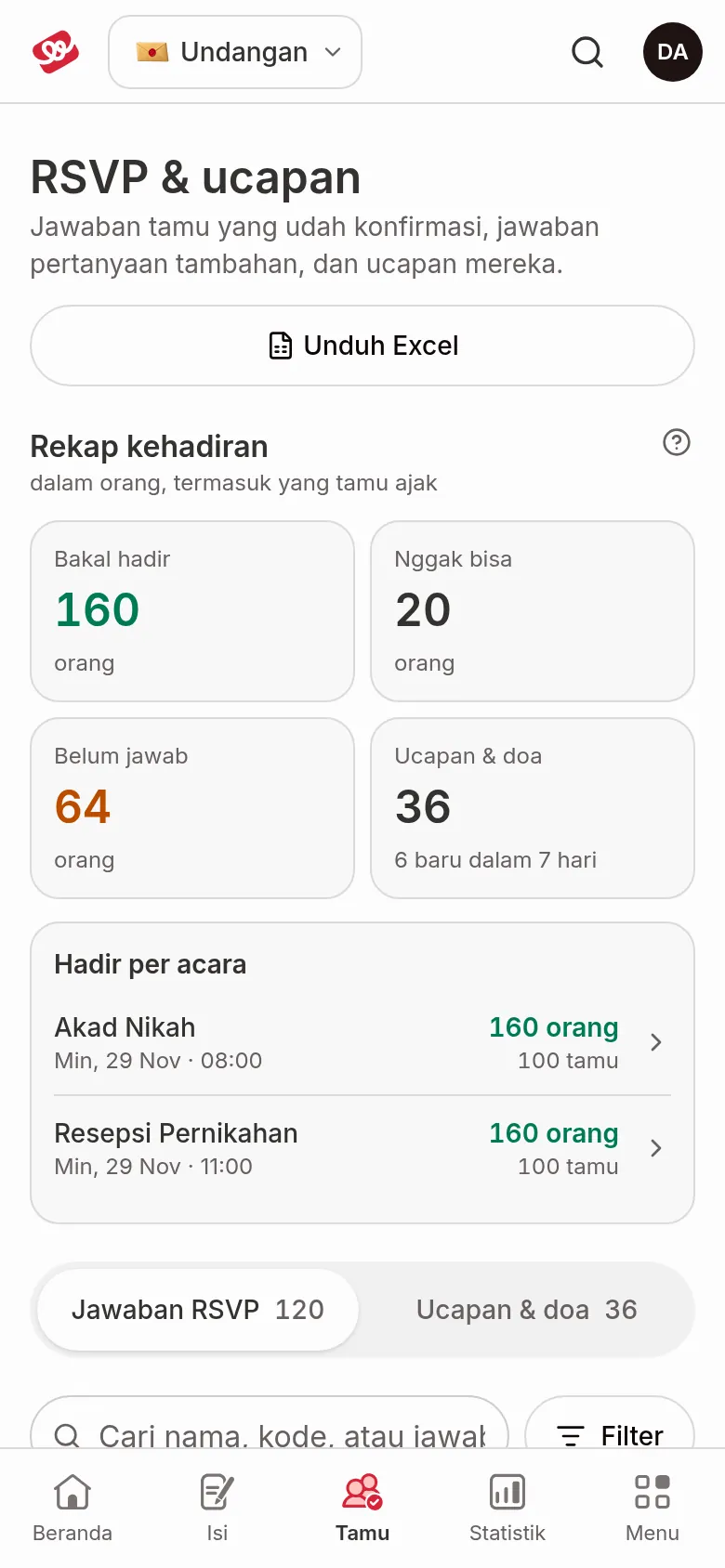
Above the RSVP replies tab is the Attendance recap card, counted in people (including the guests they bring). Its numbers match Statistics. Click a number to see the guests behind it.
| Term | Meaning | Notes |
|---|---|---|
| Coming | The number of people who will come. | Click to filter the guests who replied Coming. |
| Can't come | The number of people who can't come. | Click to filter the guests who replied Can't come. |
| No reply yet | Guests who haven't filled in the RSVP. | Opens the Guest list with the RSVP status filter set to No answer yet. |
| Wishes & prayers | The number of wishes received. | Opens the Wishes & prayers tab. |
| Coming per event | People coming to each event. | Only shown if the RSVP has two or more events. Click an event to see its guests. |
Each guest's reply
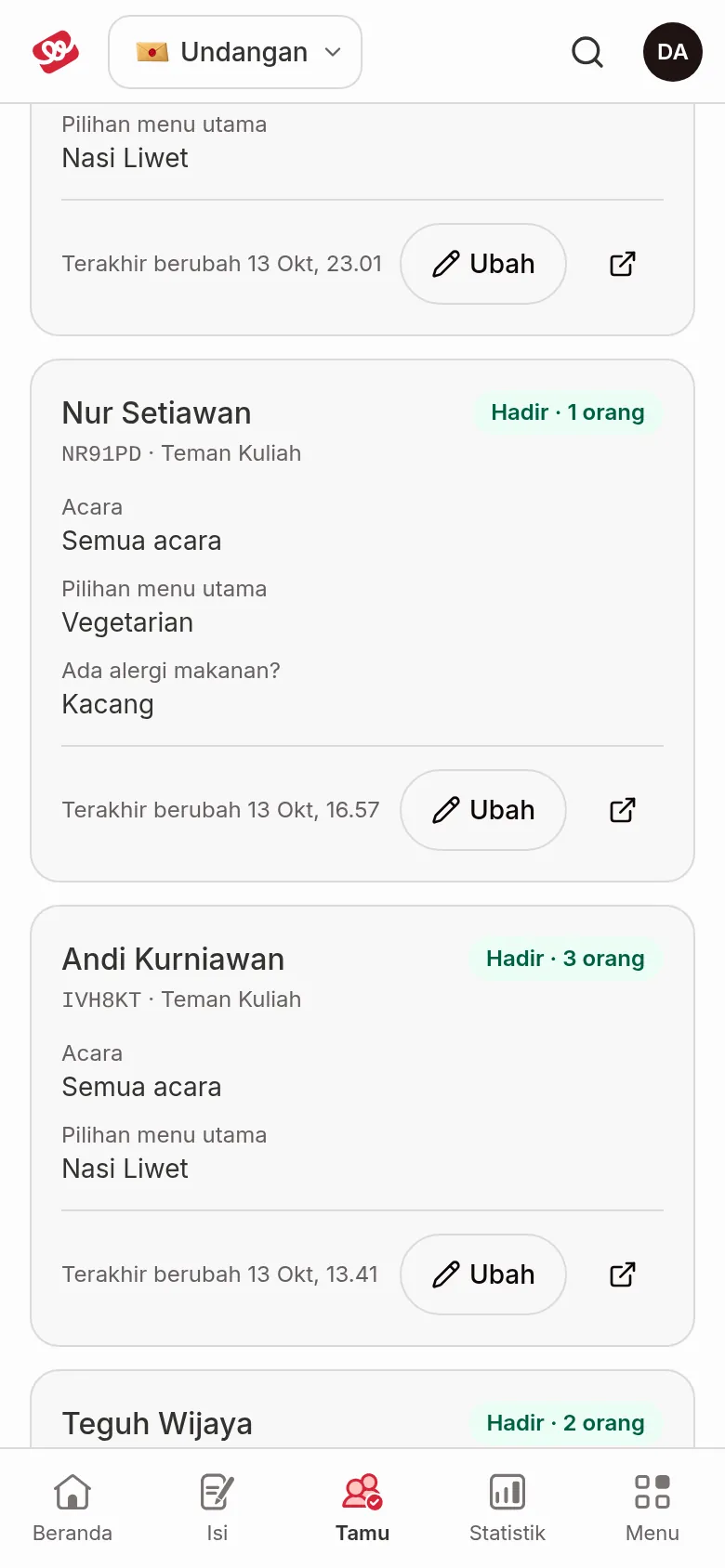
Each guest who has replied appears as a card. This tab only holds guests who have replied. Guests who haven't are in the Guest list. The list shows 20 replies per page.
| Term | Meaning | Notes |
|---|---|---|
| Guest name | The guest's name, a VIP badge, labels, and Via group link if they replied from a group link. | |
| Coming · N people | The guest chose to attend and entered how many people come. | |
| Can't come | The guest chose not to attend. | |
| Events | The events the guest will attend. | Only shown if the RSVP has two or more events. All events means all of them. |
| Extra Questions | One line per question with the guest's answer. | Shown if you created Extra Questions. |
| Check-in | The time and number of people recorded when the guest arrived, plus the gift they brought. Not checked in if not yet. | Only shown if check-in is on and the guest replied Coming. Filled in from QR check-in, not from the RSVP form. |
| Last changed | When the guest's data last changed. |
Each card has an Edit button to change the guest's data and Open in guest list to open that guest in the Guest list. Resending the invitation, resetting the device, and deleting a guest are done in the Guest list, see Actions for each guest.
Above the list is a summary, for example the number of replies, the number of people coming, and the number who can't come. If there are Extra Questions, the Extra questions recap card shows how many answered and, for choice questions, how many times each option was picked. Free-text answers are read on each guest's card.
Search, filter, and download data
- Type in the search box. You can search name, code, label, or answer.
- Click Filter, then pick Reply (Coming or Can't come), Event (with two or more events), Check-in (if check-in is on, Arrived or Not arrived yet), Label, or Guest type. The cards only show matching guests.
- Click Clear search & filters to reset everything.
To save the data to an Excel file, click Download Excel at the top right of the page. The file contains all RSVP and wishes data and doesn't follow the search or filters currently active.
Preview the RSVP form
Guests fill in the RSVP from the attendance section of the invitation: choose attending or not, enter the number of people if attending, then write a wish if they like. To see this form exactly as a guest does, follow Check it yourself like a guest. Don't fill in the RSVP while checking, because the reply is recorded under that guest's name. In One Device mode, use Reset device for that guest after checking.
Who may fill it in and until when is set in Set up RSVP and invitation access.
Next steps
- Guest wishes — Read and manage wishes from guests.
- RSVP Deadline — Close the RSVP automatically on a set date.
- Guest statistics — See a summary of guests attending.