What guests see on your invitation
Your dashboard settings change what guests see. This page walks through the guest's screen from the cover to the QR Check-in, so you know what they'll see before you send invitations.
Personal link and general link
Every guest on your list has a personal link in the form abadikan.id/{slug}?code=KODE, with the code shown under the guest's name in the Guest list. This link is how the invitation recognizes the guest: their name and greeting are shown, and the RSVP form is tied to that guest's data.
The guest's browser remembers the code for 90 days, so the guest is still recognized even if they later open the link without the code. A link without a code can be opened if Invitation access is set to Public, or if that browser still has the guest code saved from an earlier visit. In Public mode with no saved code, the invitation is shown without a guest name.
What guests see
- Cover. The couple's names, followed by the greeting and the guest's name when opened through a personal link.
- Open button. Background music starts playing when the guest taps this button, if you've chosen a song.
- Invitation content. The order of the couple's names follows the invitation setting, unless you set a Couple order specifically for that guest.
- RSVP form. The guest chooses whether they're attending. They're only asked for the number of guests if they're attending, up to their Quota. Wishes can be left blank, up to 500 characters.
- Wishes. A list of wishes from other guests. Blank wishes aren't shown.
- Gift. The envelopes and Gift Registry you've turned on. Hiding gifts per guest doesn't work in every theme; check using the guest's link.
- QR Check-in. A personal QR code for the welcome desk to scan at the venue, if check-in is on. Without a guest code, the QR section in the invitation shows QR Digital Belum Tersedia (digital QR not available yet), while the separate QR page (
/{slug}/qr) shows QR Check-in Belum Tersedia (QR check-in not available yet).
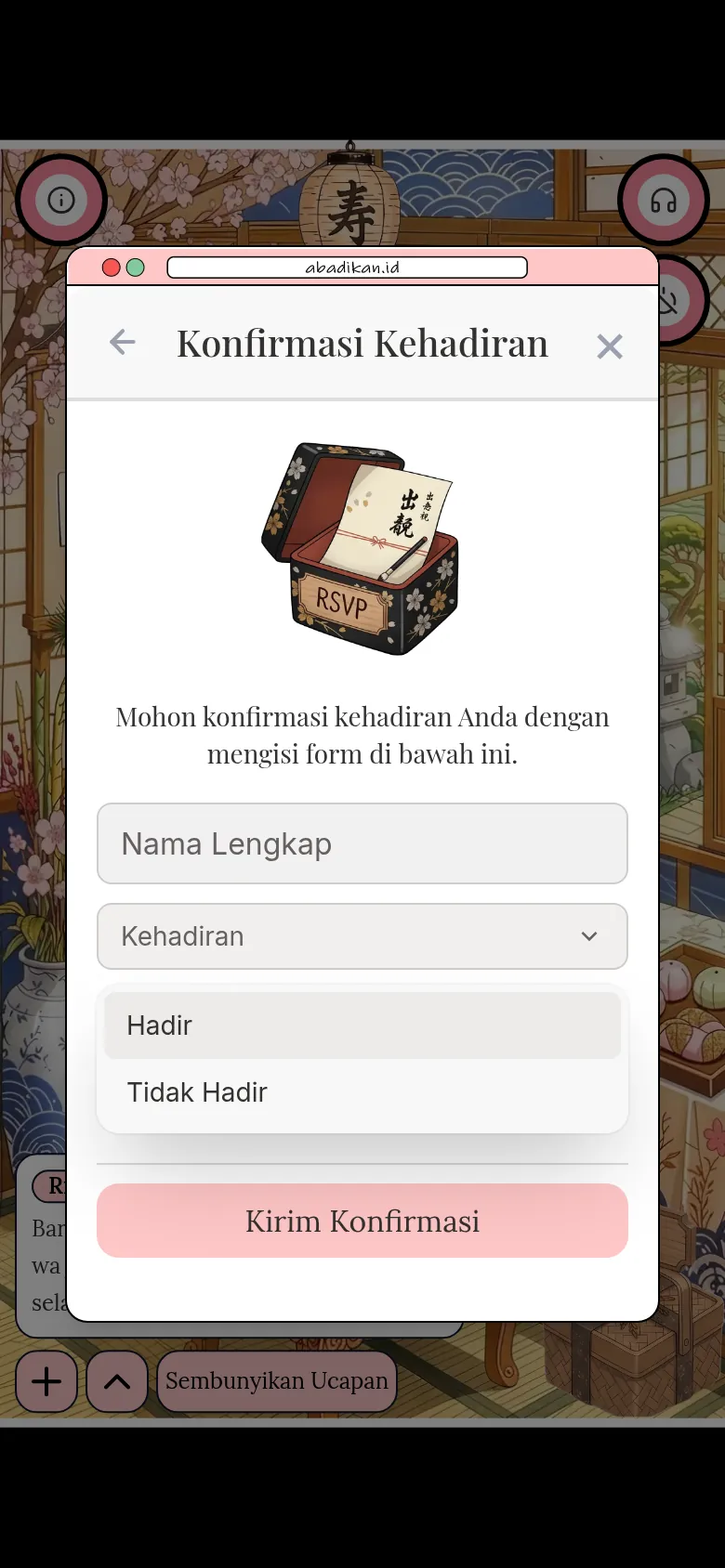
Guests who've already filled in the RSVP can open the form again and change their answer, as long as RSVP hasn't closed.
How settings affect the guest's screen
| Dashboard setting | Effect on the guest's screen |
|---|---|
| Greetings in the guest's details | Shown above the guest's name on the cover. |
| Quota in the guest's details | The limit for the number-of-guests choice in the RSVP form. |
| Couple order in the guest's details | Changes which of the couple's names is shown first for that guest. |
| Show bank account & digital gift turned off | Bank accounts, envelopes, and Gift Registry aren't shown to that guest. Doesn't work in every theme; check using the guest's link. |
| Limit RSVP to guests on the list | A Personal guest's name is filled in automatically and locked; the phone and email fields are hidden. |
| RSVP deadline passed | The submit button is disabled and Konfirmasi kehadiran sudah ditutup. (attendance confirmation is closed) appears. |
| Custom questions | Questions appear after the guest chooses whether they're attending. Doesn't work in every theme; check using the guest's link. |
| Invitation access Guests only | Without a valid personal link, the guest sees Undangan ini khusus untuk tamu. (this invitation is for guests only). |
| Invitation access Single device | On a second device, the guest sees Undangan ini sudah dibuka di perangkat lain. (this invitation has already been opened on another device). |
Check it yourself as a guest
- Open the Guest list in the sidebar, under the Invite guests group.
- In a sample guest's row, click the ⋯ menu and choose Copy personal link.
- Open a private (incognito) window in your browser, then paste and open that link.
A private window doesn't keep guest codes you've opened before, so the result is the same as on the guest's phone. Don't fill in the RSVP while checking, because the answer is recorded under that guest's name.
Next steps
- Set up RSVP and invitation access — Change who can open the invitation and fill in the RSVP.
- Send invitations via WhatsApp — Send a personal link to each guest.
- Record guest attendance at the venue — Scan guests' QR codes on the wedding day.