Guest list
Guest list (sidebar, Invite guests group) holds every guest you've added, whether or not they've been sent the invitation. From here you search guests, send invitations, view QR codes, and manage their data.
Under the title you see the number of invitations and the number of people (the total quota of all guests). Above the list are the buttons Add guest, Import Excel, Export Excel, Print QR codes, and Send via WhatsApp. How to add guests is in Add guests and import from Excel.
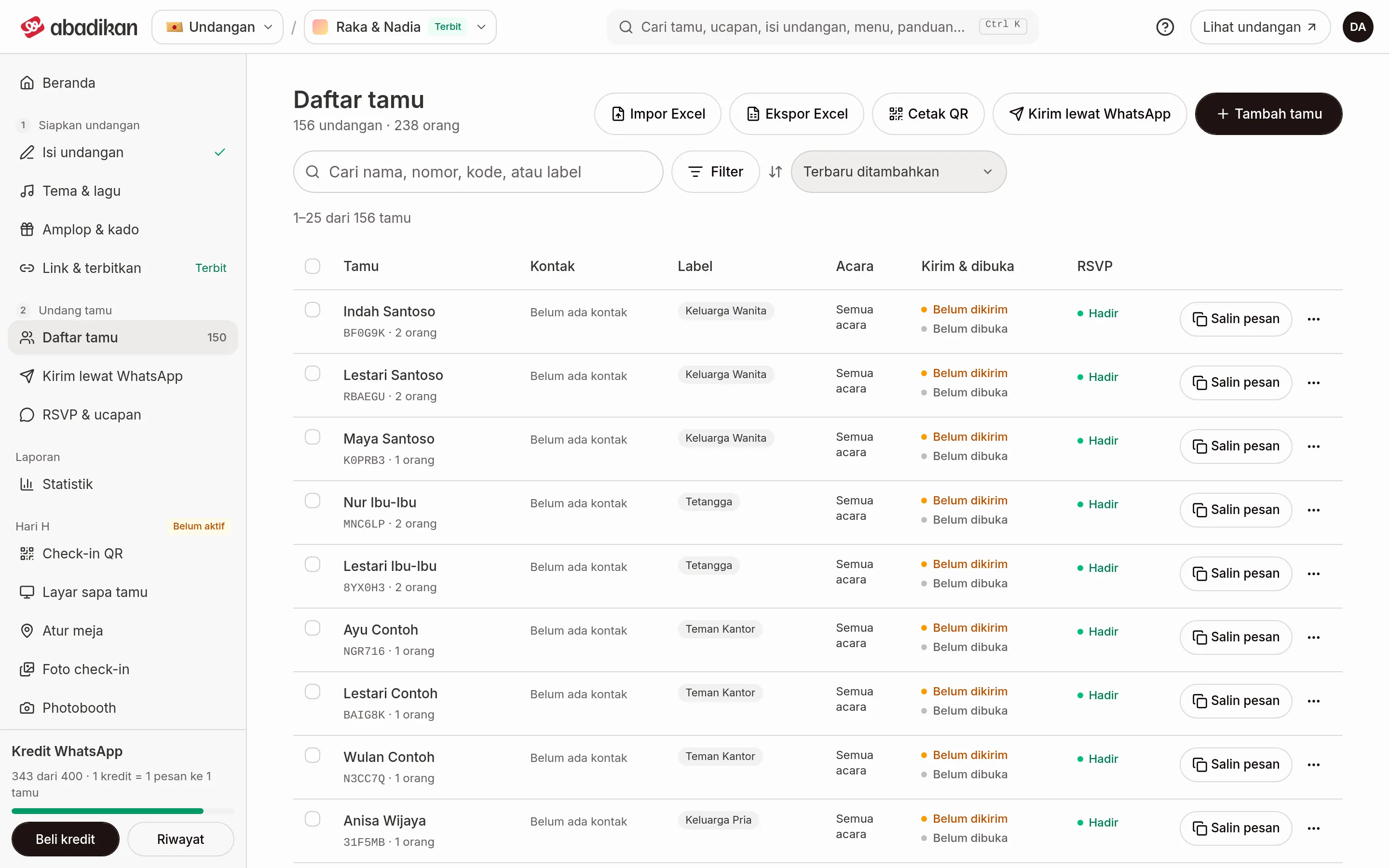
What the list shows
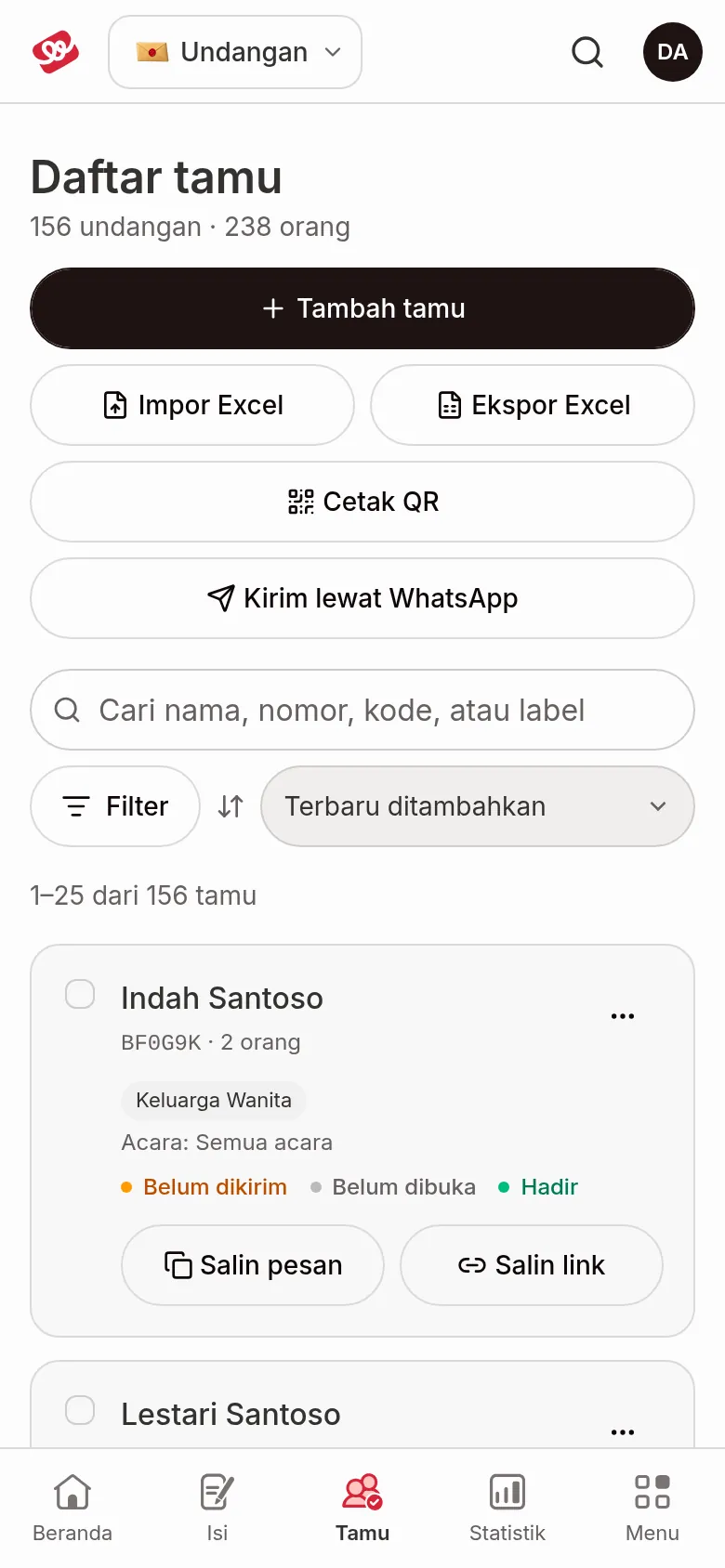
On wide screens (1024 px and up) the list is a table. On phones and tablets each guest is a card with the same content. The list shows 25 guests per page; move between pages with Previous and Next.
| Term | Meaning | Notes |
|---|---|---|
| Guest | The guest's name, unique code, and number of people (quota). | Badges under the name mark special settings: VIP, Group, Gift accounts hidden, Groom first, or Bride first. |
| Contact | WhatsApp number and email. | No contact yet if both are empty. |
| Labels | Labels you assigned, for example family or office. | The table shows the first three labels; the rest appear as +number. |
| Events | Events the guest may open. | Only shown if your invitation has events. All events means no restriction. |
| Sent & opened | Whether the invitation was sent and whether the guest opened it. | See the status table below. |
| RSVP | The guest's RSVP answer: No answer yet, Attending, or Not attending. | Answer details are in RSVP & wishes. |
| Actions | The main button (Send WA) and the ⋯ menu. | See the next section. |
What the sent and opened statuses mean
| Status | Meaning |
|---|---|
| Not sent yet | The invitation has never been marked as sent. |
| Sent manually (with a date) | You marked it as sent after using Send WA or Mark as sent. |
| Automatic WhatsApp (with status and date) | Sent through Send via WhatsApp. The message status is sent, delivered, or read. |
| Queued for automatic WhatsApp / Automatic WhatsApp failed | The message is still in the queue, or it failed to send. |
| Opened (with a date) | The guest has opened their personal link. |
| Not opened yet | The personal link has never been opened. If the guest was seen before, Last viewed with the date is shown. |
Actions for each guest
The main button on each guest:
| Term | Meaning | Notes |
|---|---|---|
| Send WA | Opens WhatsApp with the invitation message for this guest. | Shown when the guest has a phone number. Afterwards you're asked whether the message was sent. See Send WA. |
| Copy message | Copies the invitation message to the clipboard. | Replaces Send WA for guests without a phone number. See Copy the message for guests without a number. |
| Copy link | Copies the guest's personal link. | On a guest card (phone), this button sits next to the main button. |
Tap ⋯ for the full menu:
| Term | Meaning | Notes |
|---|---|---|
| Edit guest | Opens the form to change the guest's data. | See Add guests. |
| Copy personal link | Copies the invitation link made for this guest. | |
| Show QR | Shows the guest's QR code. | See Guest QR. |
| Copy invitation message | Copies the message from the message template. | |
| Mark as sent | Records that you sent the invitation another way. | Disappears once the guest counts as sent. |
| Reset device | Unlocks the guest's device. | Only shown if Access Mode is One Device and the guest has opened the invitation on a device. See Reset Device. |
| Delete guest | Removes the guest from the list. | You're asked to confirm first. |
Guest QR
Choose Show QR in the ⋯ menu. The QR window shows the code for that guest:
- Invitation link: scanning it opens the invitation addressed to the guest. Handy for printed invitations.
- Check-in: the code staff scan when the guest arrives. This option only exists when the check-in feature is on (the QR check-in menu in the Event day group).
In that window you can Copy link, Copy ticket link, or Download QR.
Print QR codes
Print QR codes prepares one PDF of guest QR cards: A4 paper, 12 cards per page with cut lines. What it contains:
- No guests ticked and no search or filter: all guests.
- A search or filter is active: the guests matching it.
- Guests are ticked: only the ticked guests (use Print QR codes in the bottom bar).
Pick the QR type (Invitation link or Check-in, if check-in is on), then click Download PDF.
Export Excel
Export Excel downloads an .xlsx file of the guests currently shown, following your search and filters. Its columns: Name, Greeting, WhatsApp, Email, Code, Invitation link, Quota, Guest type, Invitation kind, Labels, Events, Sent status, Sent, First opened, Last viewed, and RSVP status. If guests are ticked, the export in the bottom bar contains only those guests.
Delete many guests at once
- Tick the box in front of a guest, or Select all on this page in the column header.
- The Selected guests bar appears at the bottom with the number selected. Click Select all N matching guests to select every guest matching the filter, including those on other pages.
- Click Delete N, then confirm.
Click the X icon (Clear selection) to cancel the selection.
Search, filter, and sort guests
- Type in the Search guests box. You can search name, number, code, or label.
- Click Filter, pick a filter group, then pick the value. Label and Automatic WhatsApp allow several choices.
- Click Done (on a phone) or close the filter panel. The number of active filters shows on the Filter button, and each filter appears as a tag you can remove one by one.
- Use the Sort option to set the order.
To clear everything, open Filter and click Clear all, or click Clear search & filters when no guest matches.
| Filter | Choices |
|---|---|
| RSVP status | No answer yet, Attending, Not attending |
| Sent | Not sent yet, Sent |
| Opened by guest | Opened, Not opened yet |
| Label | Labels you've already used |
| Guest type | Regular, VIP |
| Invitation kind | Individual, Group |
| Check-in | Checked in, Not checked in. Only shown if check-in is on. |
| Automatic WhatsApp | Never sent, Queued, Sending, Sent, Delivered, Read, Failed, Asked not to be contacted |
| Sort | Result |
|---|---|
| Newest added (default) / Oldest added | By the time the guest was added. |
| Name A–Z / Name Z–A | Alphabetically by name. |
| Not sent first | Guests not yet sent the invitation on top. |
| Recently opened | Guests who opened the invitation most recently on top. |
Next steps
- RSVP & wishes — See who's coming and download the data.
- Add guests and import from Excel — Add guests one by one or through Excel.
- Send WA — Send the personal link to each guest.