Guest wishes
Guests can write wishes or prayers when they fill in the RSVP on the invitation. All wishes are collected in the Wishes & prayers tab of the RSVP & wishes menu.
Read all wishes
- Open RSVP & wishes in the sidebar, under the Invite guests group.
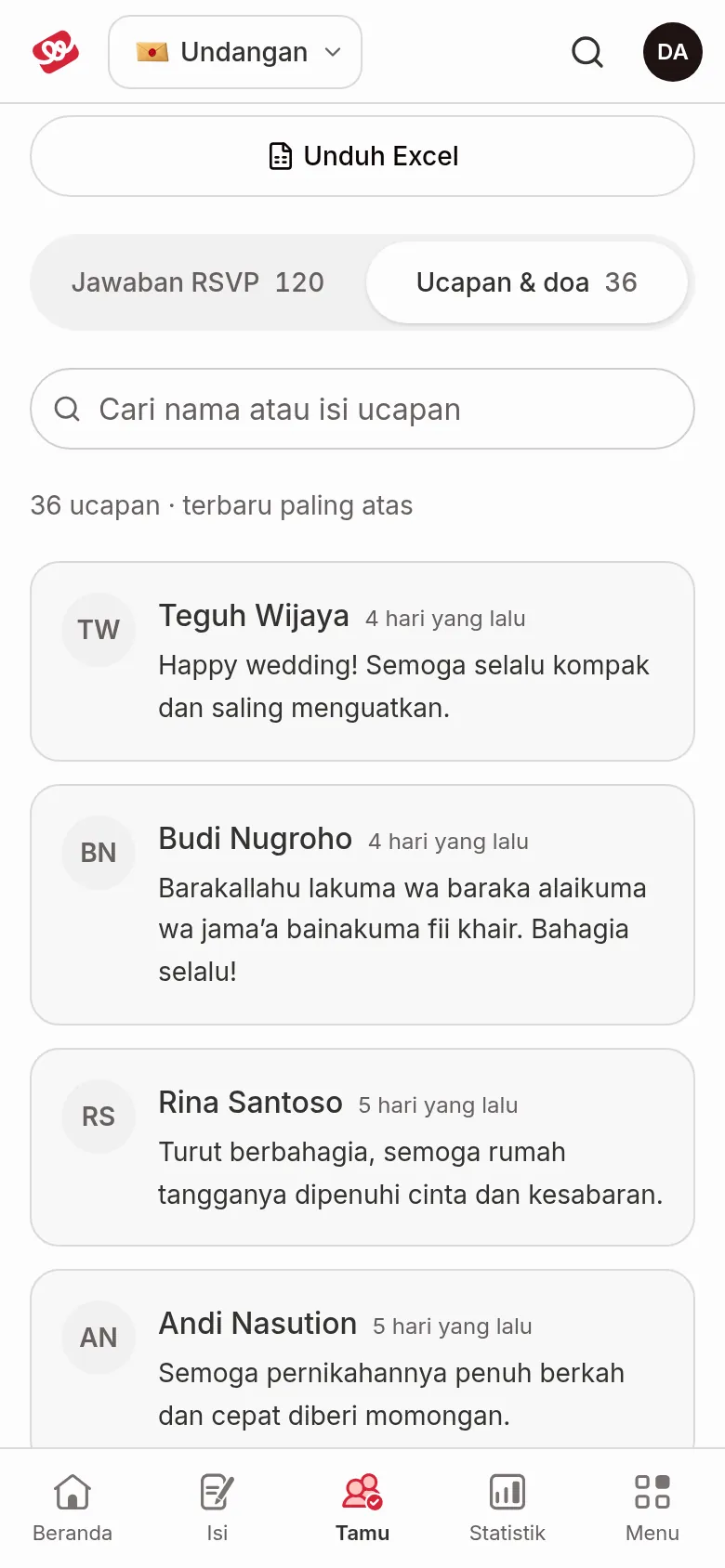
- Click the Wishes & prayers tab. The number next to the tab name is how many wishes have come in. Shortcut: click Show all wishes on the Wishes & prayers card in the Attendance recap.
- Read the list. The newest wish is at the top. Each wish shows the guest's name, when it was sent, and the whole text. Hover over the time to see the full date.
If there are no wishes yet, the page shows No wishes yet. Wishes and prayers your guests write on the invitation show up here.
Search for a specific wish
In the Wishes & prayers tab, type in the Search name or wish field. The list only shows wishes that match the guest's name or the wish text. Click Clear search & filters to show all wishes again.
Wishes in the RSVP form
- Wishes are optional. Guests can still send their RSVP without writing wishes, and blank wishes aren't saved.
- Wishes can be up to 500 characters long.
- In the Aruma theme, wishes appear as bubbles on the invitation. You can hide them by default with Hide wishes by default in Invitation content › Invitation settings, under Aruma theme display.
Next steps
- RSVP Status — See which guests are attending and which aren't.
- Guest statistics — Read the summary of attending and pending guests.
Was this page helpful?